
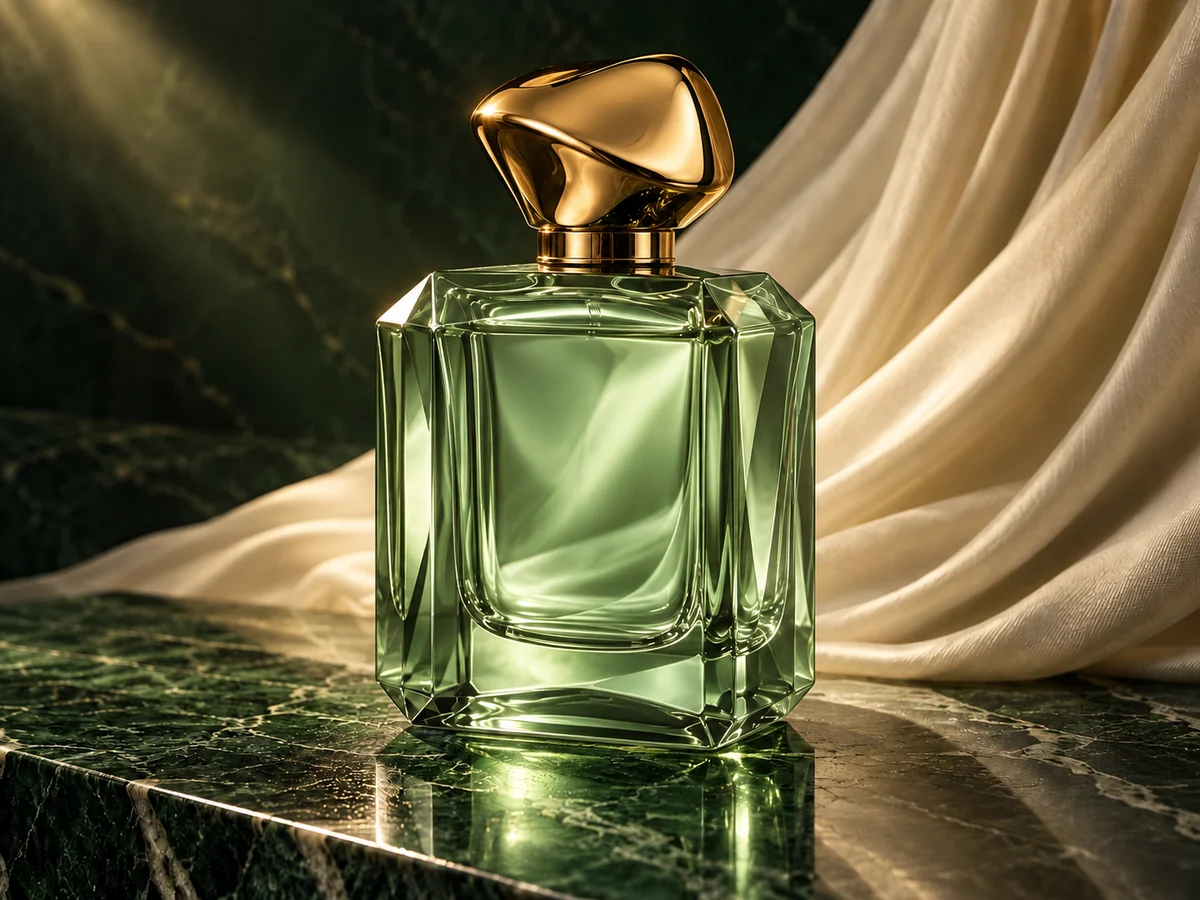
Luxury Sage Perfume Ad
Explore a fragrance campaign with an AI product image generator, focusing on glass, light, and texture.
Describe the image in your mind, choose a model and available output settings, then generate a new visual. Explore product concepts, poster ideas, illustrations, and more from one prompt-first workspace. Write a prompt · Explore models · Download your image
Generated images are kept for 1 day.
Explore curated examples across photography, illustration, and design. Click the button at the bottom of any card to load its prompt into the AI image generator and start creating something of your own.
Explore a fragrance campaign with an AI product image generator, focusing on glass, light, and texture.
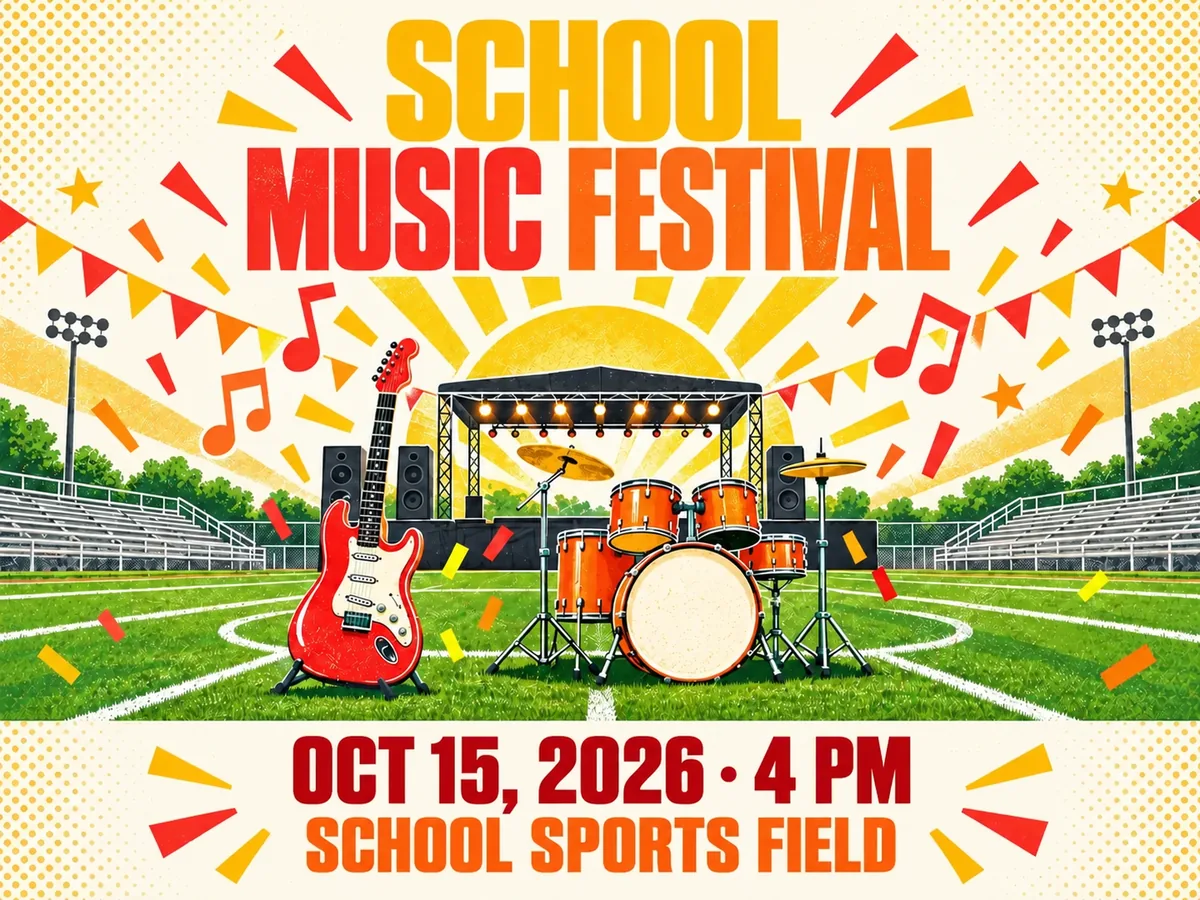
Use an AI poster generator to draft a summer concert poster, then check the date and venue lettering.
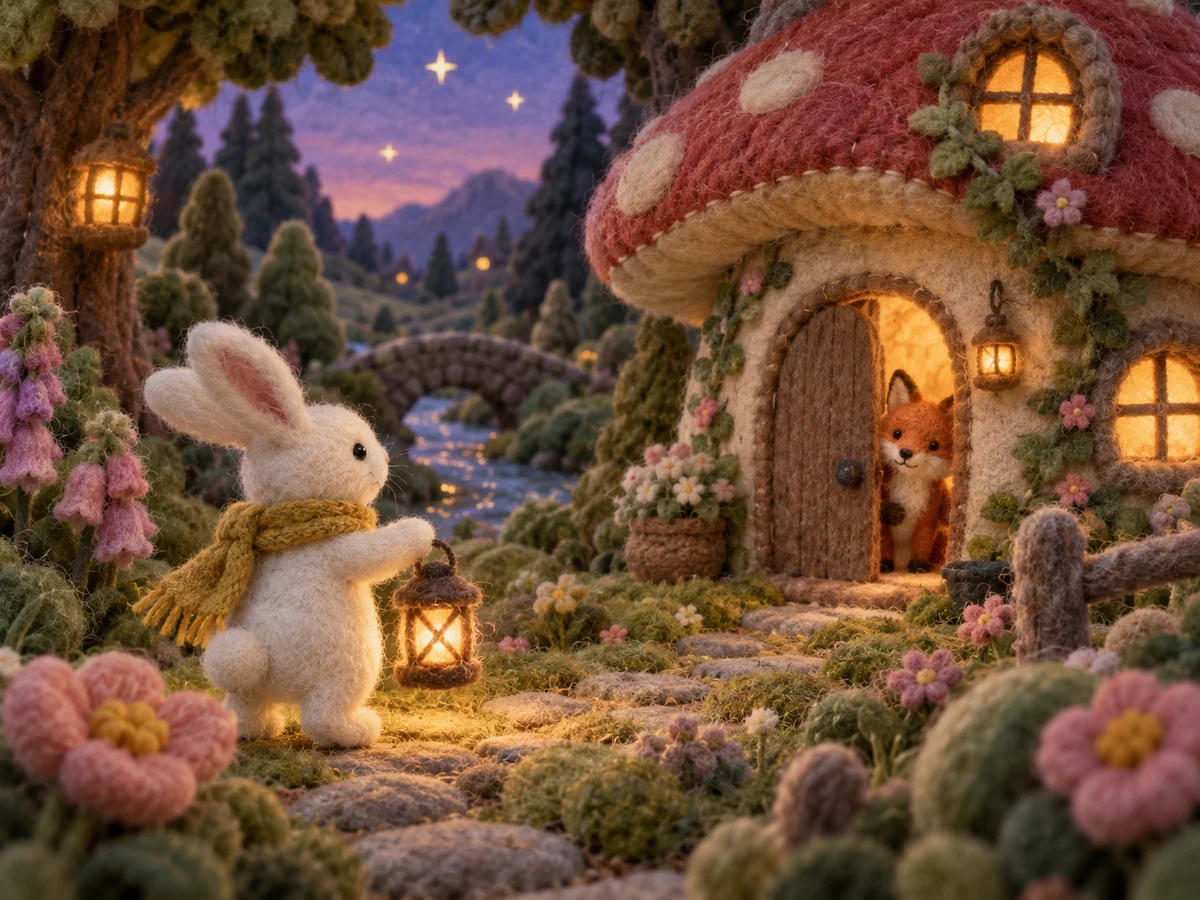
Use an AI art generator to turn a storybook idea into a cozy wool-felt scene.
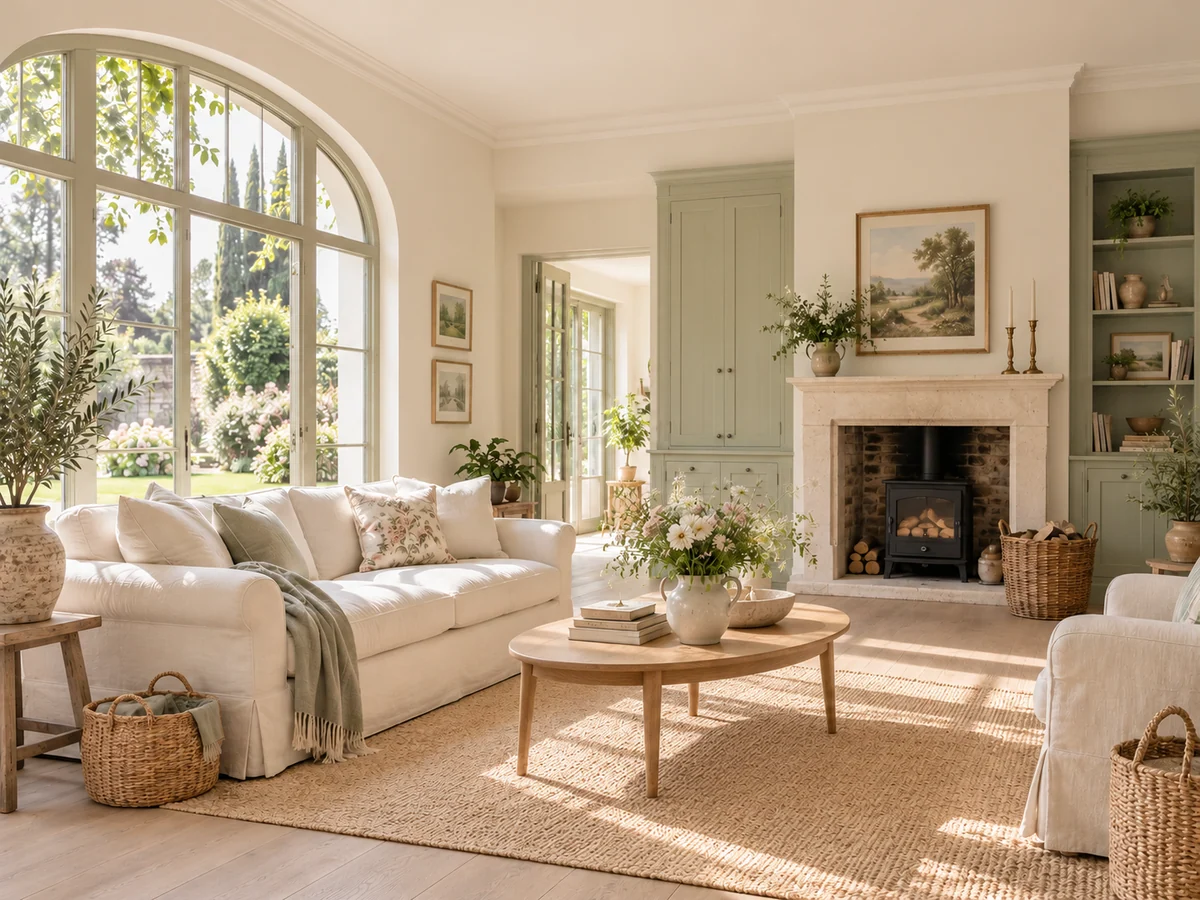
Explore an airy country interior with a text to image generator before building a design moodboard.
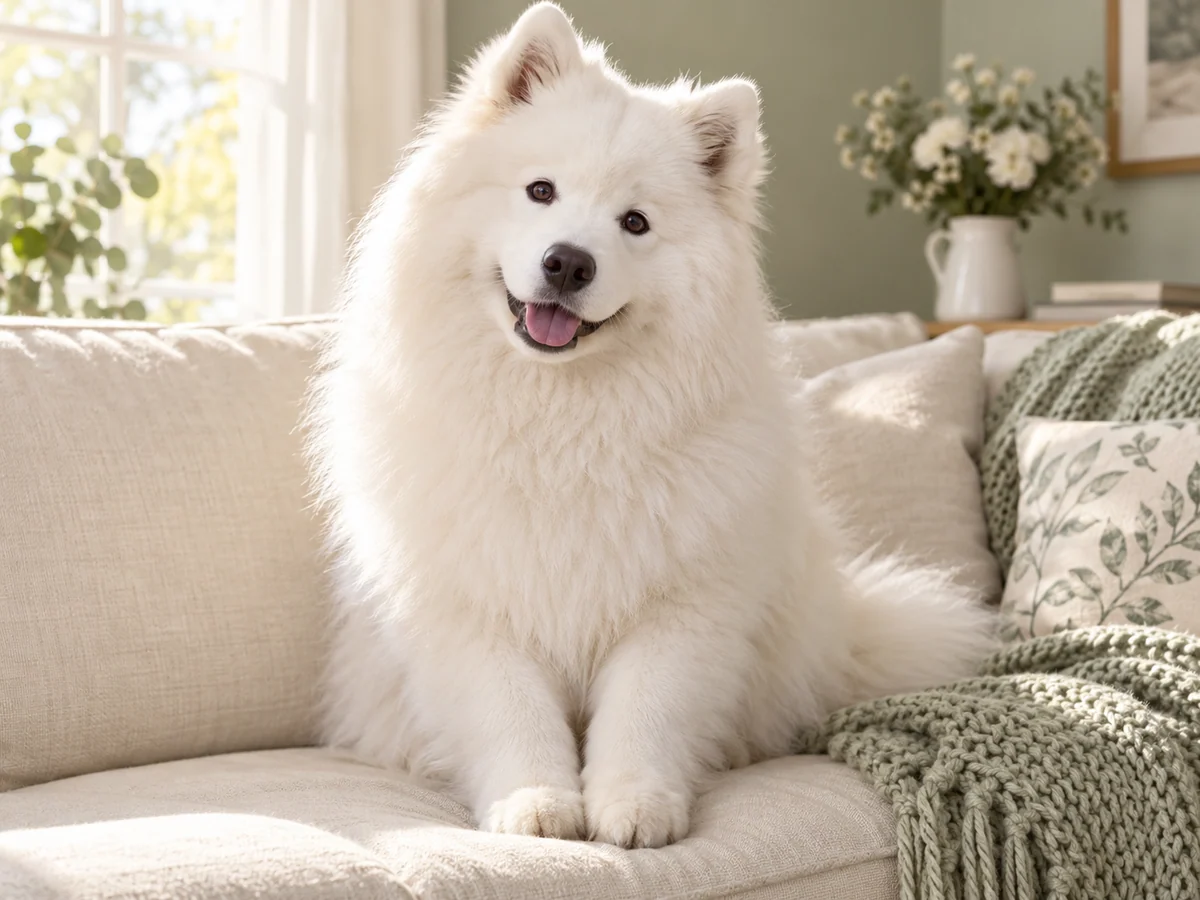
Create a warm pet portrait with an AI image creator for keepsakes, cards, or social posts.
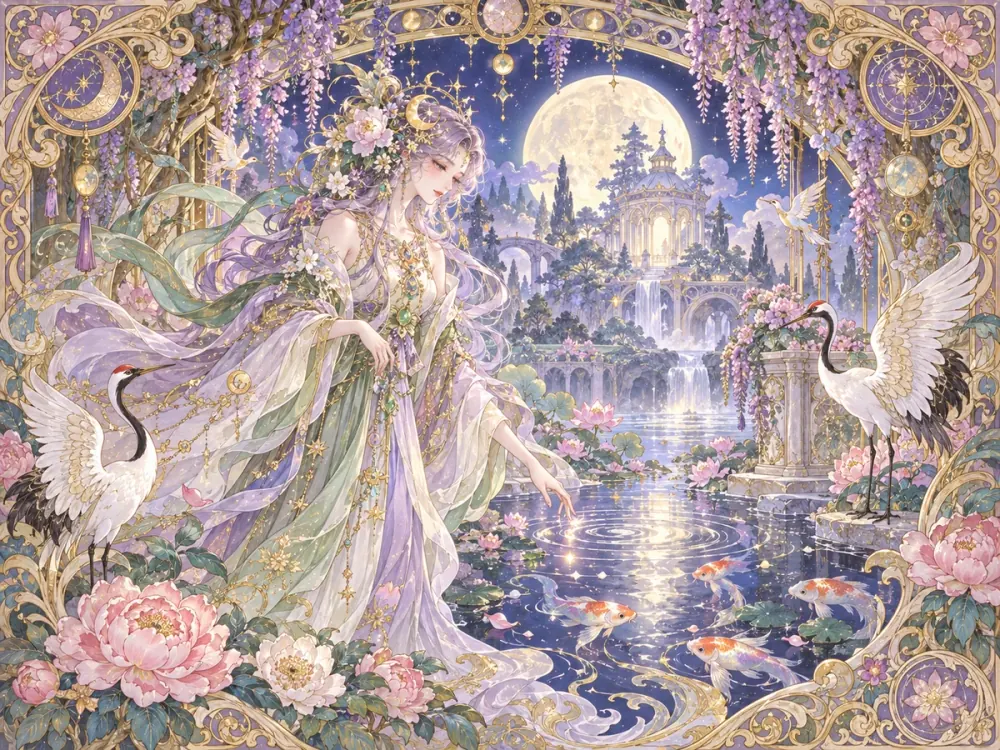
Explore ornate fantasy imagery for covers and editorial projects with the AI art generator.
To generate images from text, name your subject first, then add the setting, composition, light, style, and any details to avoid.
Choose the AI image generator model and framing option that suit your goal. Review the displayed credit cost before you generate.
Inspect the result at full size. Refine your prompt for another direction, or download the version you want to use.
Follow a fictional luxury perfume ad through six prompt decisions. Use these tips to write a clearer brief for a text to image generator.
Start with “a sculptural perfume bottle with a faceted clear-glass body and matte black cap.” That detail helps an AI product image generator keep the bottle as the focal point.
Place the bottle on a dark stone pedestal beside a fold of ivory silk, and say the image is for a luxury perfume campaign. The setting gives the ad a distinct mood.
Frame the bottle slightly left of center in a close product view, leaving clean space on the right for a headline. Choose a wide frame for a campaign banner.
Add “a warm spotlight from the upper left, soft shadows, charcoal and champagne tones.” This directs the glass reflections and keeps the palette restrained.
Choose “high-end editorial fragrance photography” for the bottle, stone, and silk. One photographic direction keeps those materials visually consistent.
End with “no logo, no readable text, no extra bottles.” Check the result from the AI image generator for stray lettering, then add the real brand name and campaign line in the final layout.
Explore advertising, event promotion, concept design, publishing, interiors, and social content with the AI image creator.
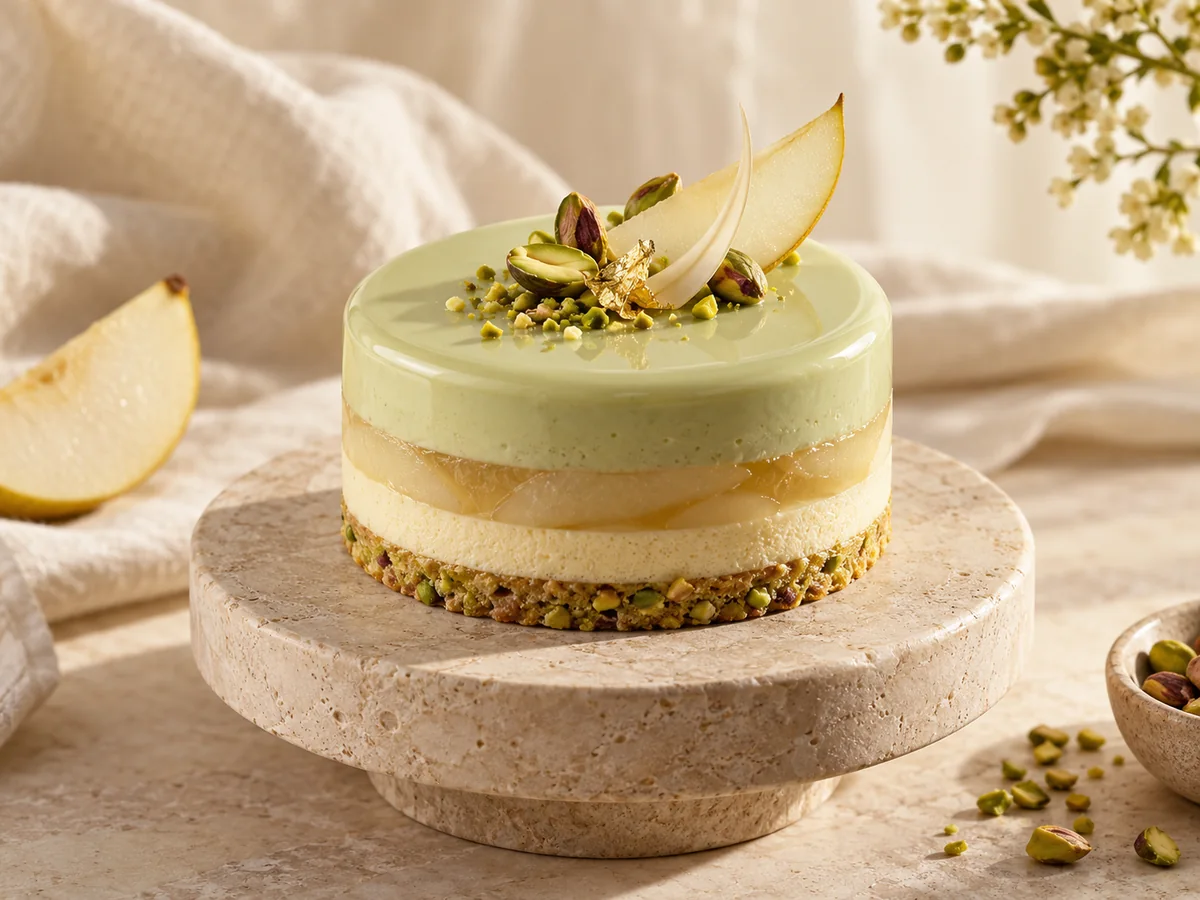
An AI product image generator can help you explore product shots, campaign visuals, ecommerce banners, and display ads before final production.
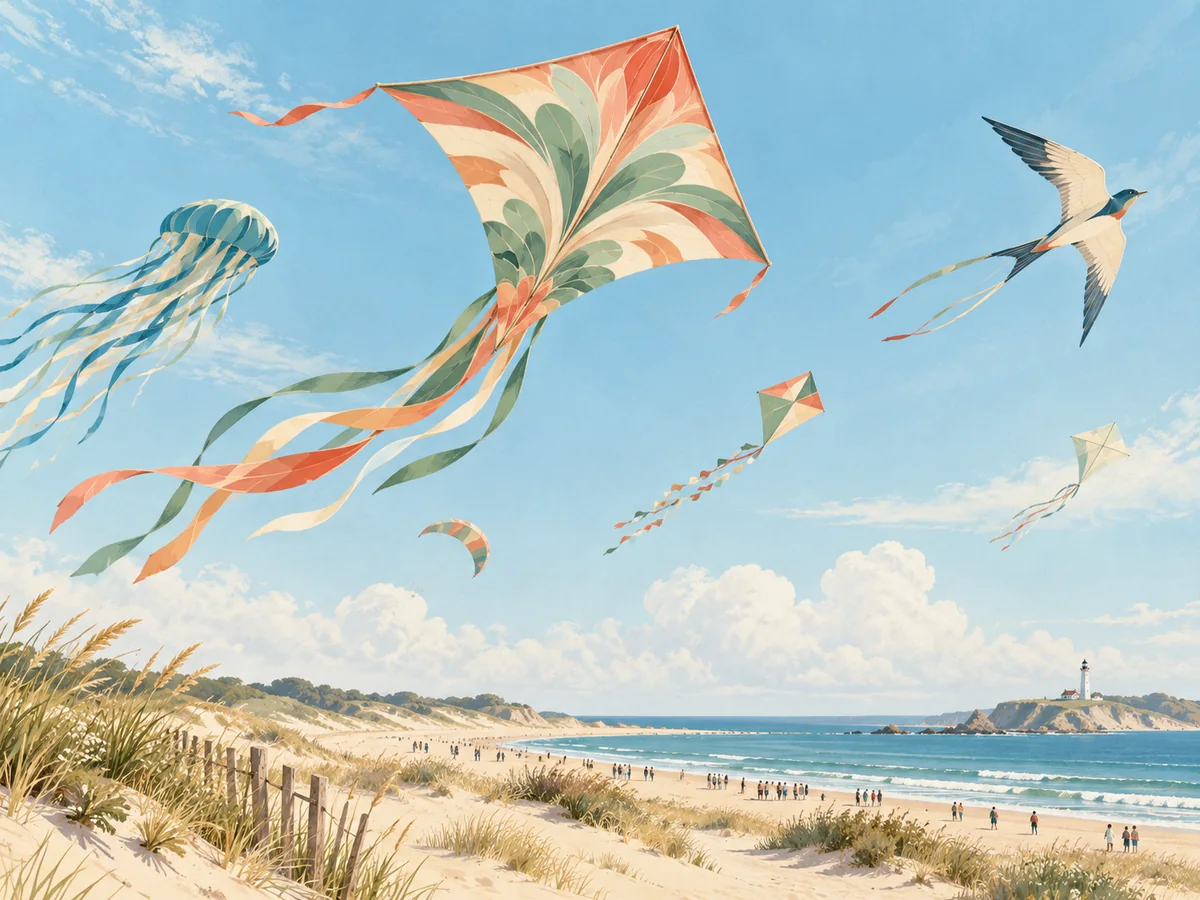
For concerts and exhibitions, use an AI poster generator to explore announcement graphics, invitations, and ticket visuals.
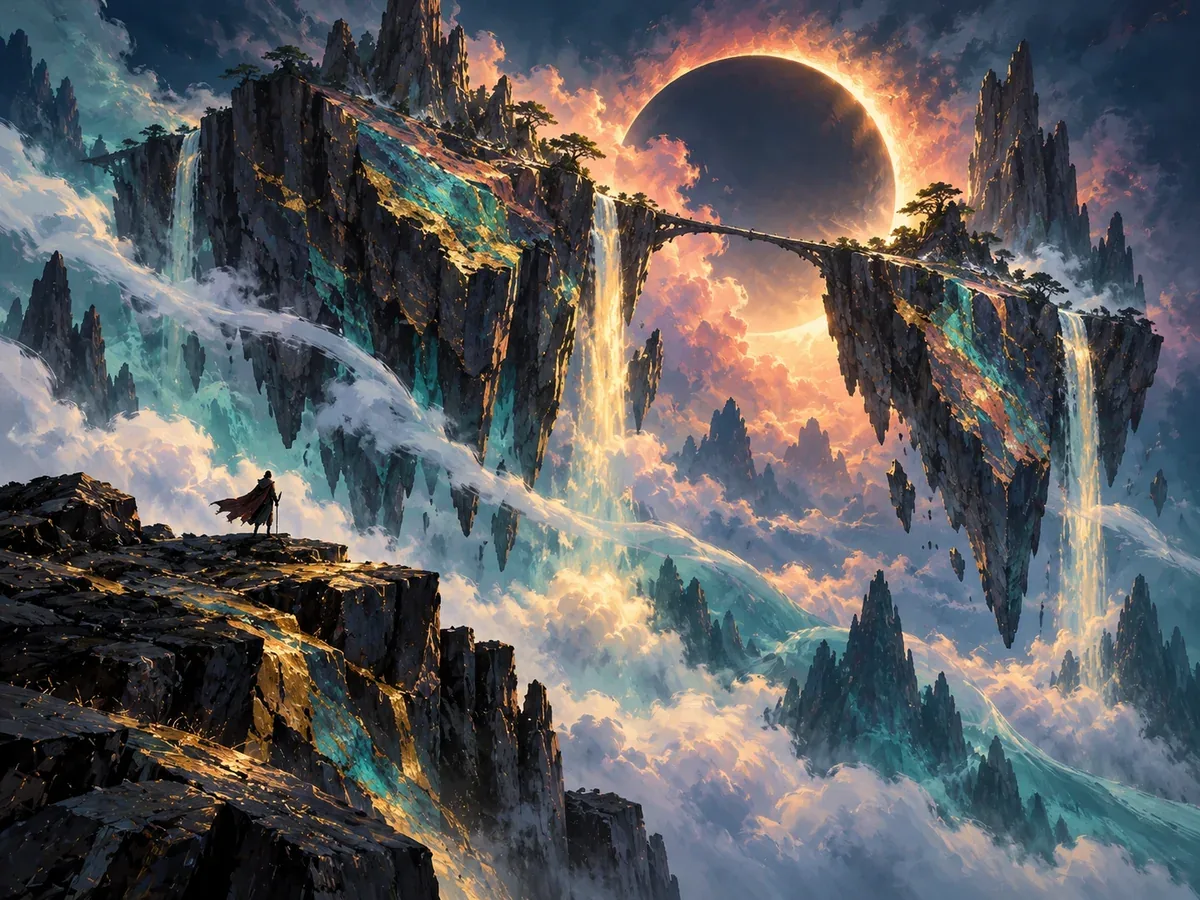
Use an AI art generator to sketch characters, environments, and props for games, films, and early creative pitches.
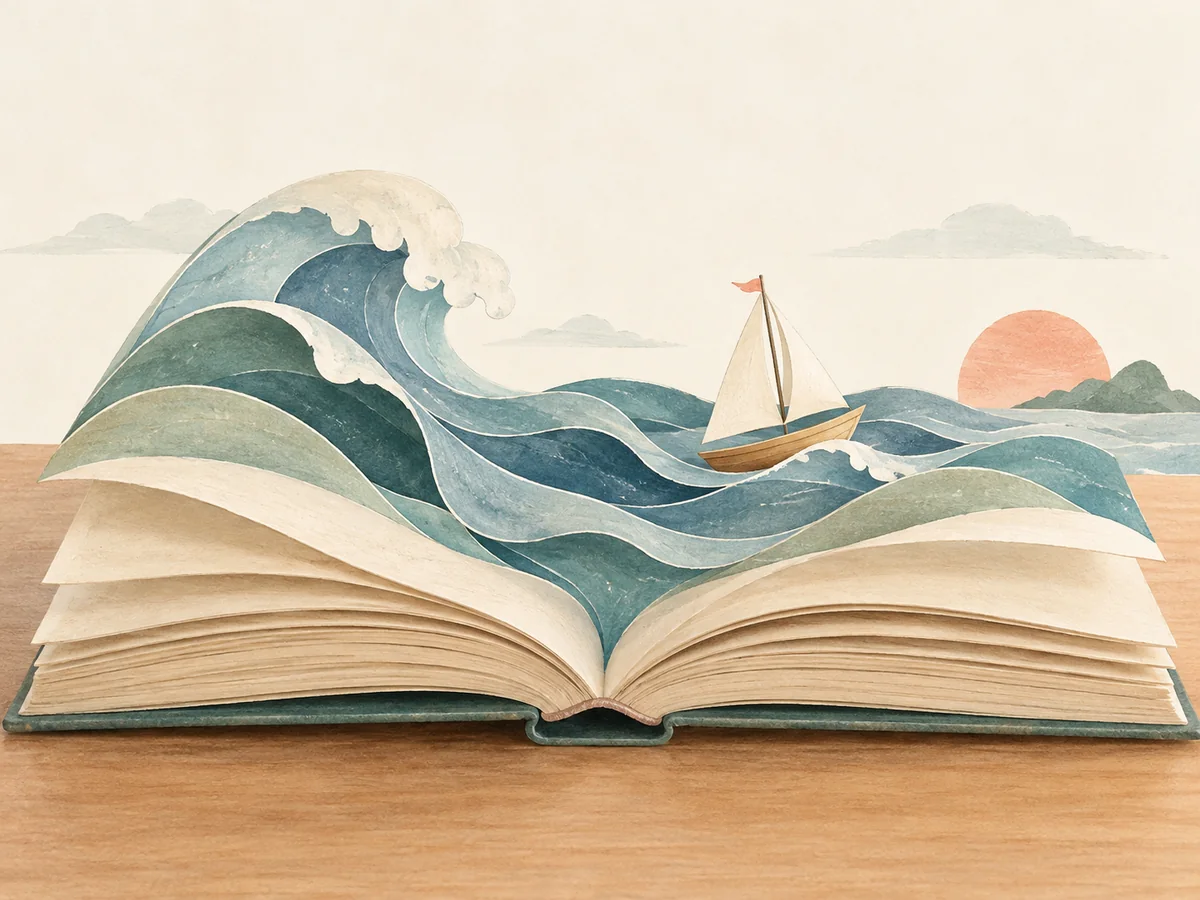
Illustrate scenes and visual metaphors for articles, books, newsletters, covers, and other publishing projects.
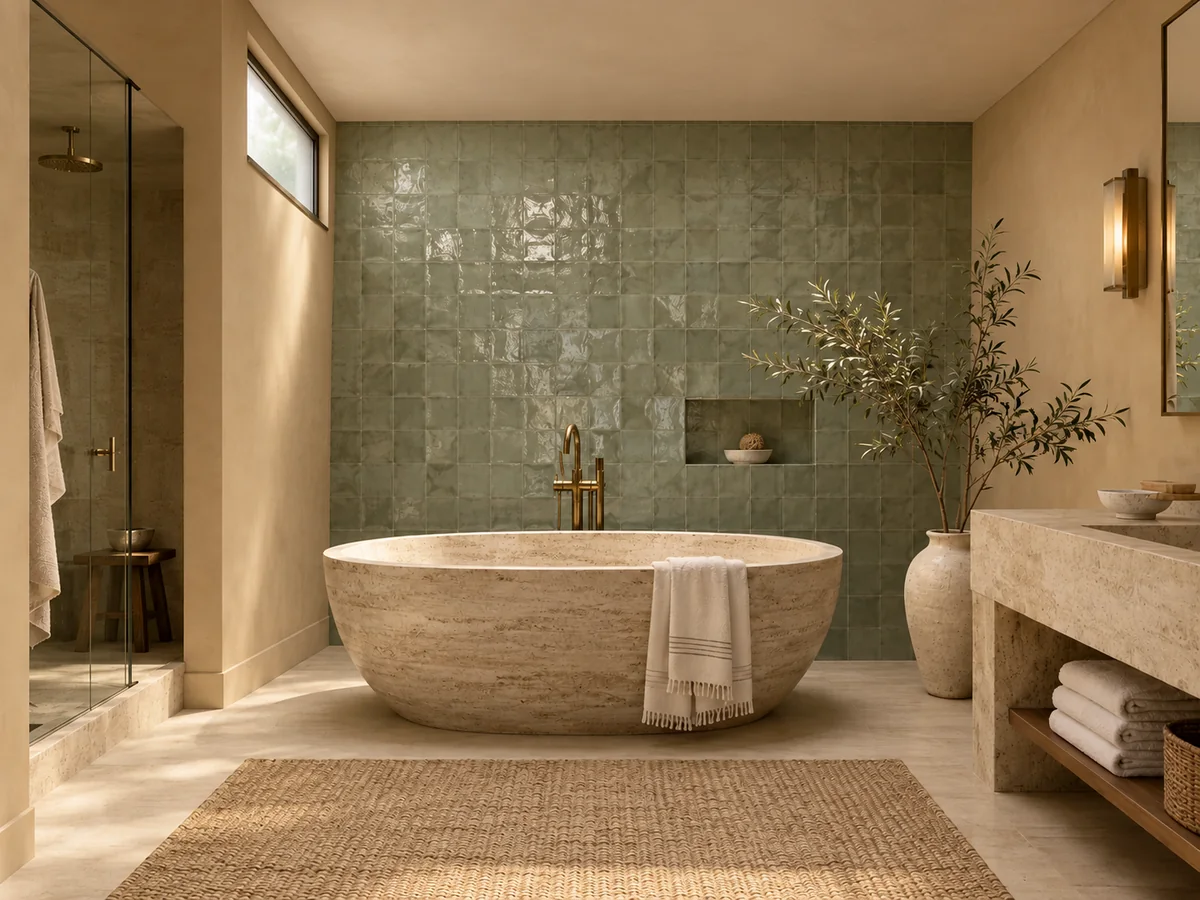
Use the AI image generator to compare room styles, materials, and furniture ideas for client moodboards.
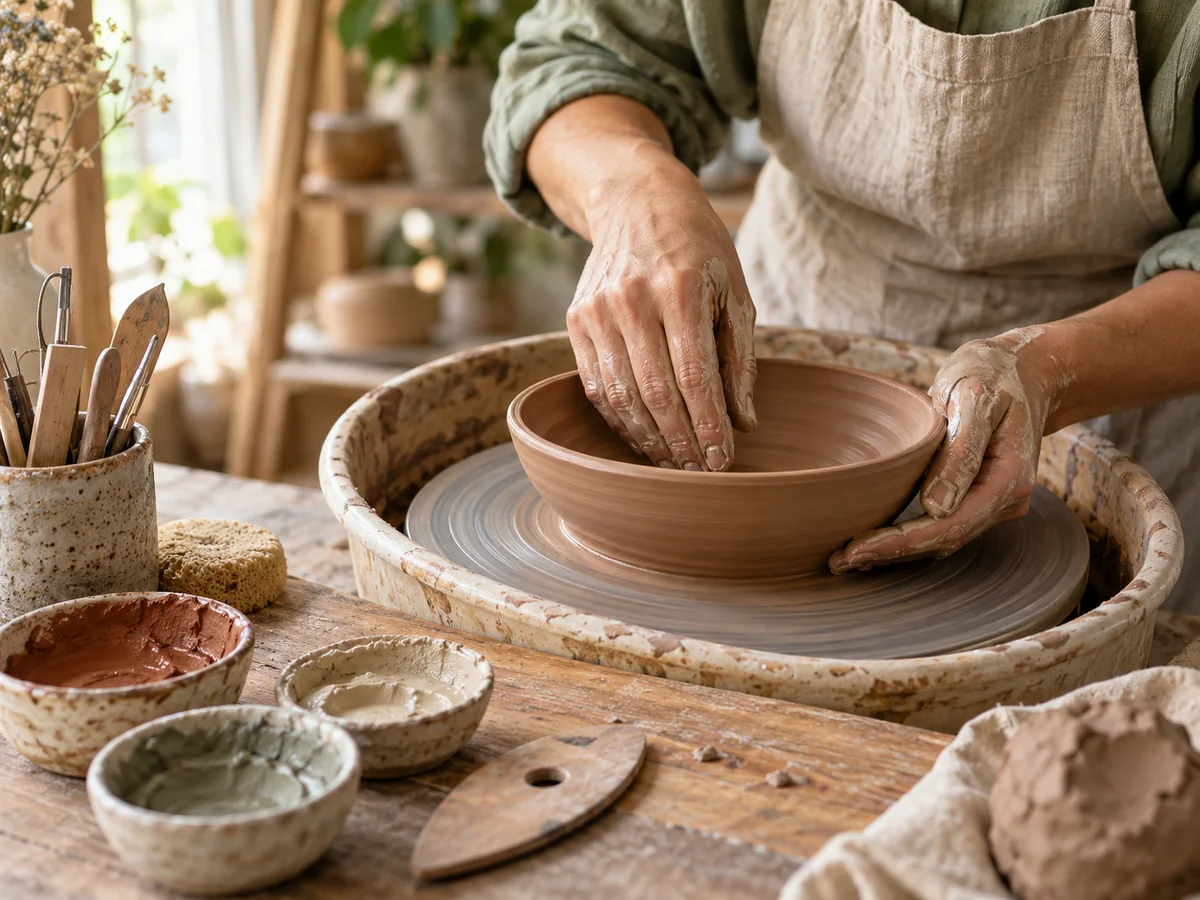
Produce original post images, thumbnails, channel banners, and recurring series covers for creator or community channels.
Compare available models in the AI image generator for different visual directions. Product concepts, illustrations, and text-heavy layouts may benefit from different choices.
Use the available size or aspect-ratio settings to plan a square post, portrait composition, landscape visual, or wide creative concept.
Review recent history and revisit a useful prompt while it is available. Try another variation with the AI image generator, then download any results you want to keep.
Inspect faces, hands, fine patterns, product shapes, and any visible lettering. Refine or edit the result when an important detail is off.
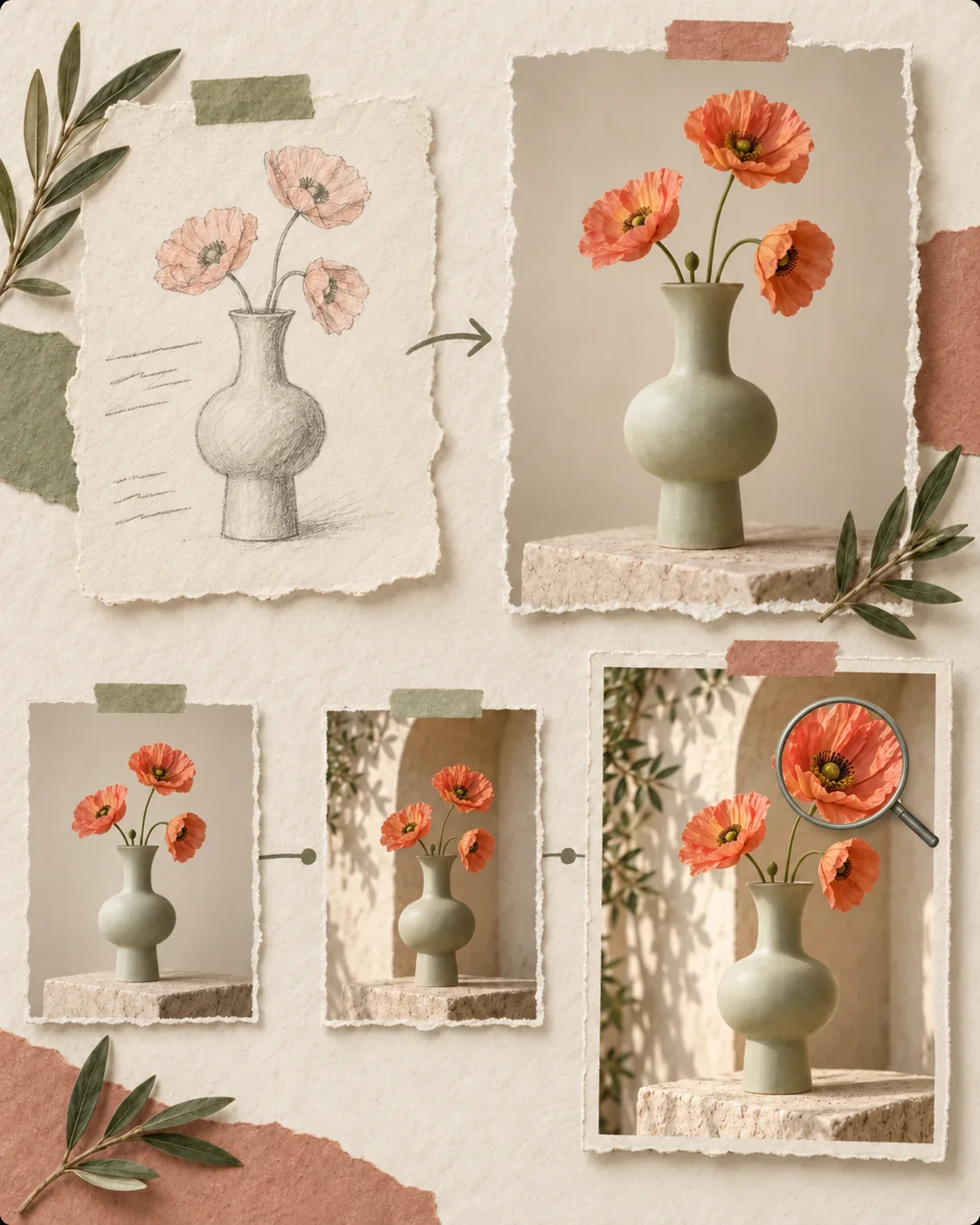
Use the AI image generator for a new visual direction, then move to a focused tool when the result needs a content edit, better clarity, or more pixels.
Generate images from text using a clear prompt. Compare each result with your brief and revise one detail before moving on.
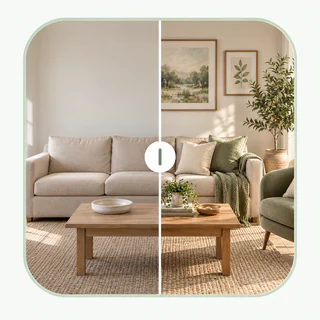
Need to change an object, background, or detail after the AI image generator creates a draft? Open AI Photo Editor and describe the specific edit while keeping the rest of the image in view.
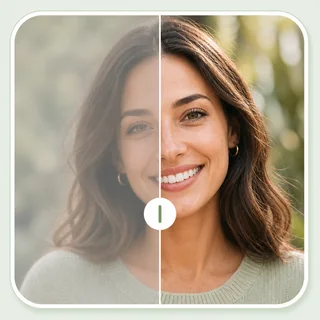
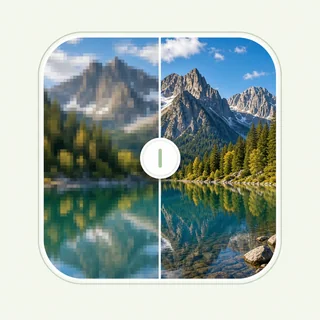
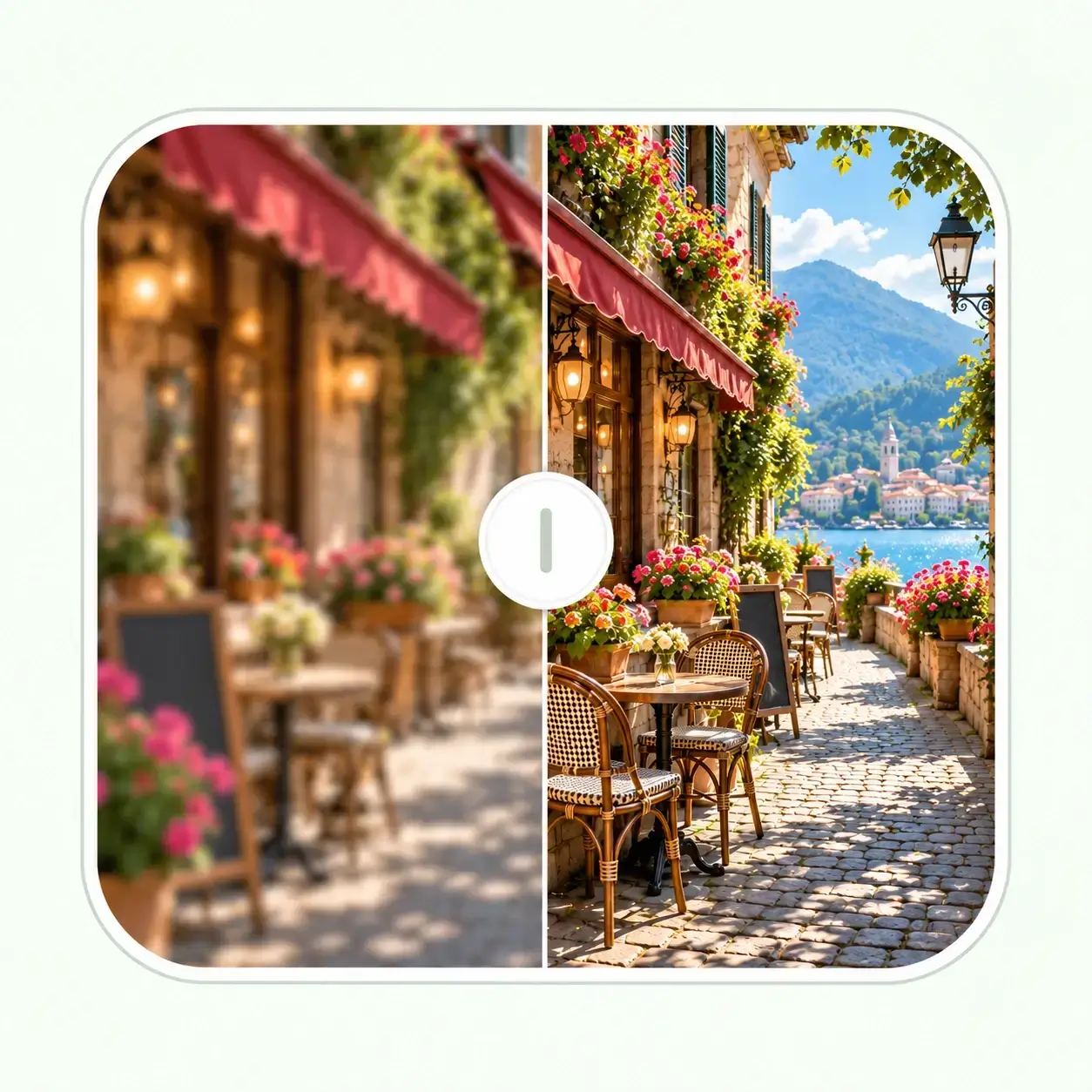
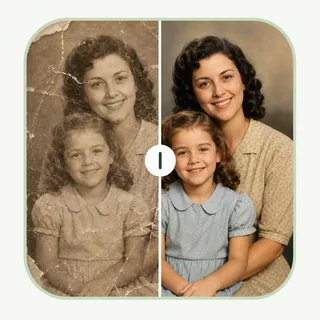
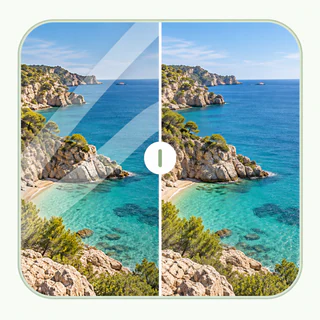
Use Photo Enhancer for clarity and color, then Image Upscaler when the final layout needs a larger file.
The AI image generator gives you a starting point. Use these focused tools for changes that are easier to control after you have an image.
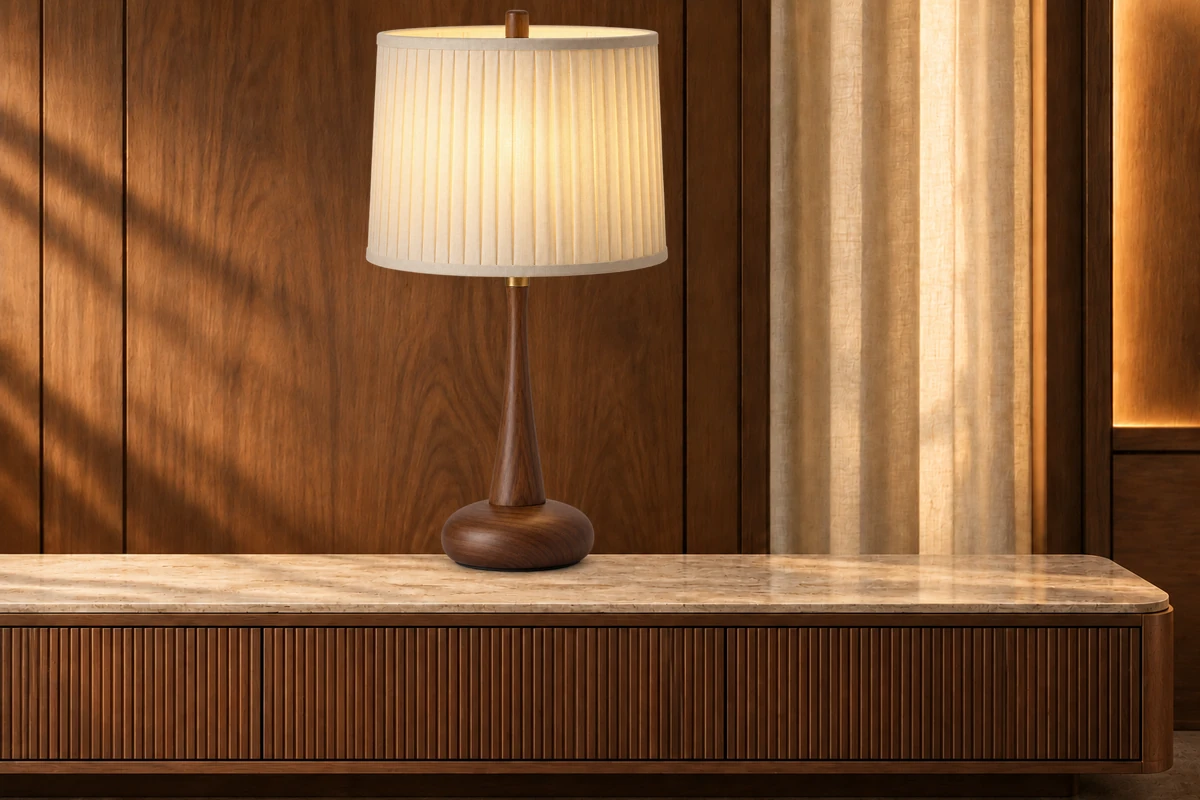
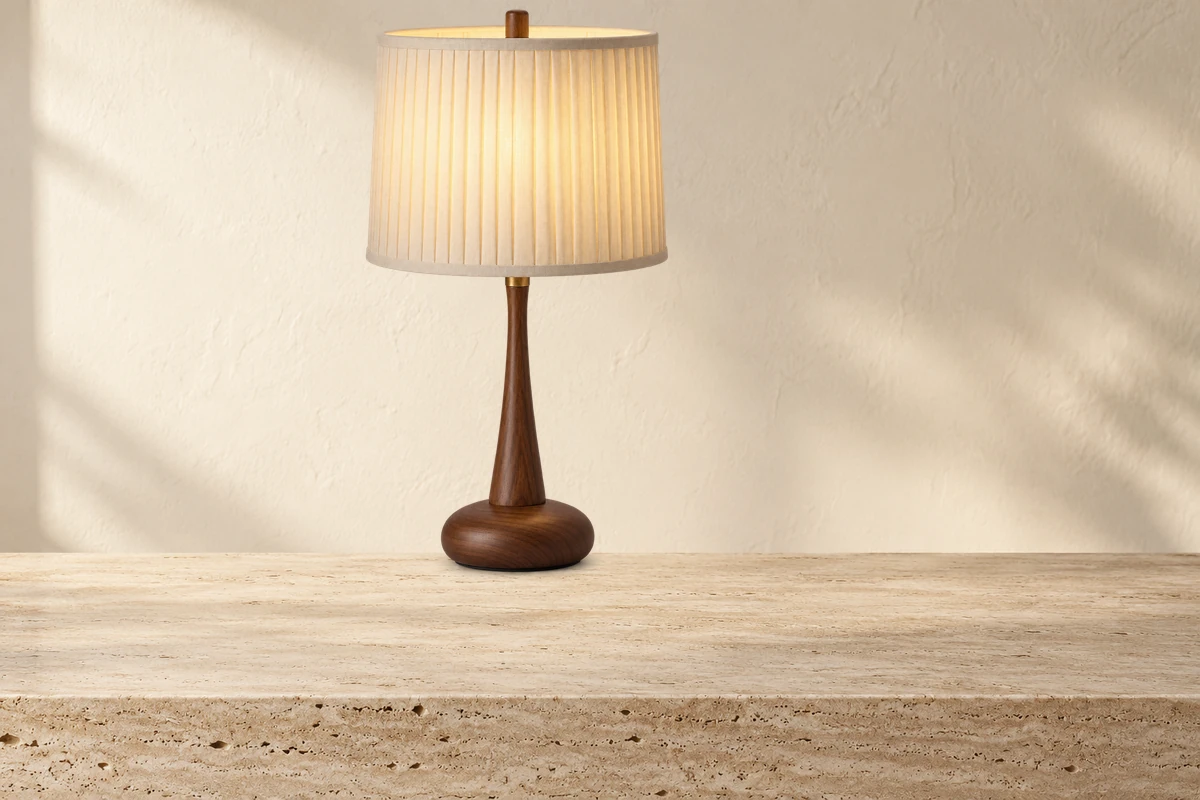
Use AI Photo Editor when the overall idea works but a background, subject, or smaller visual detail needs another pass.
Refine Your Image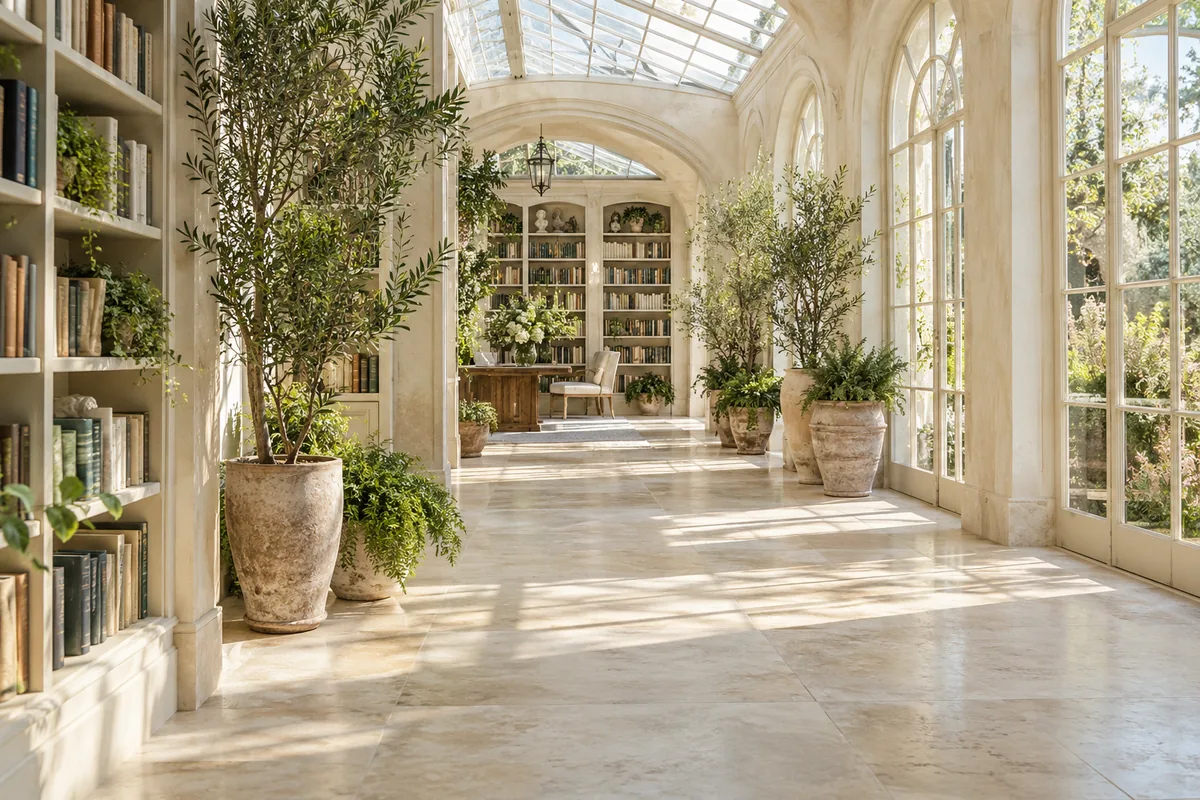
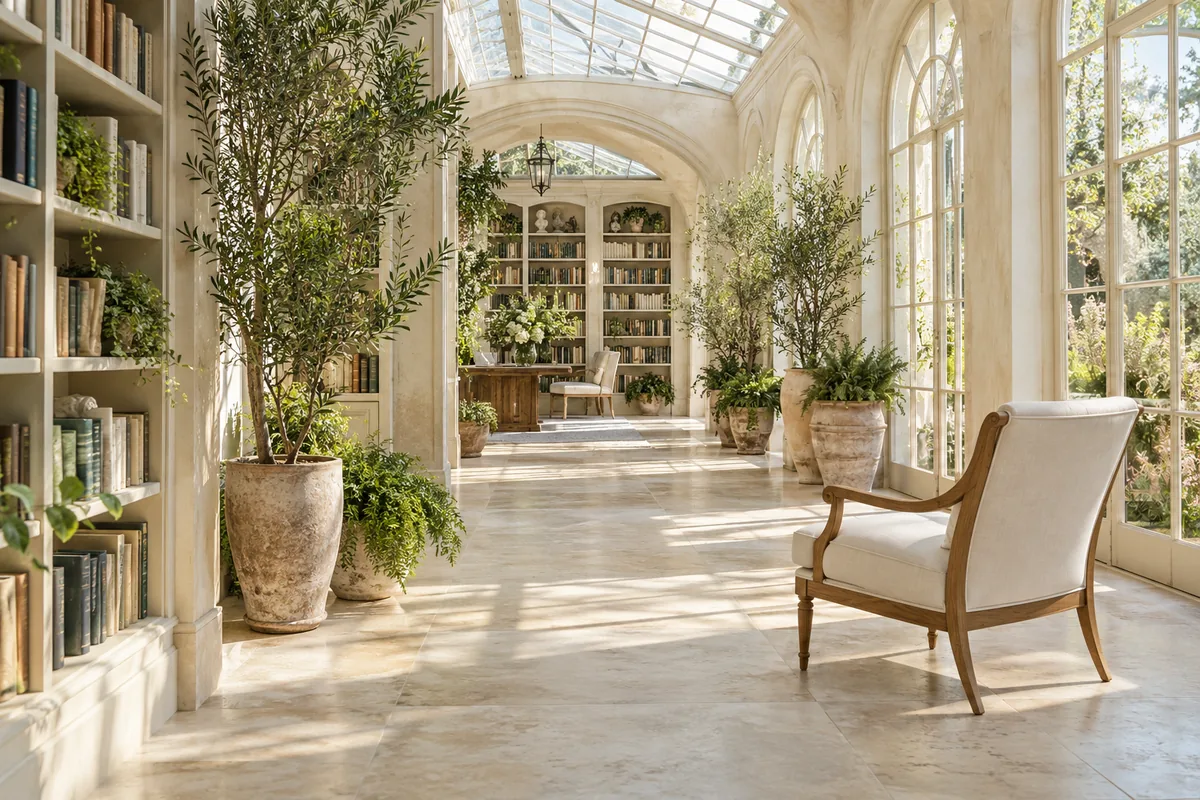
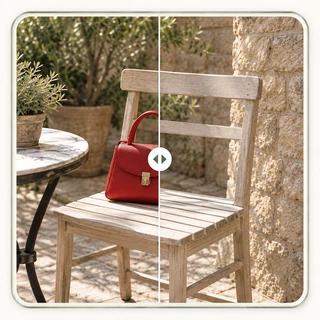
If one unwanted element pulls attention away from the image, use Object Remover to mark the area and review the cleanup.
Erase Unwanted Objects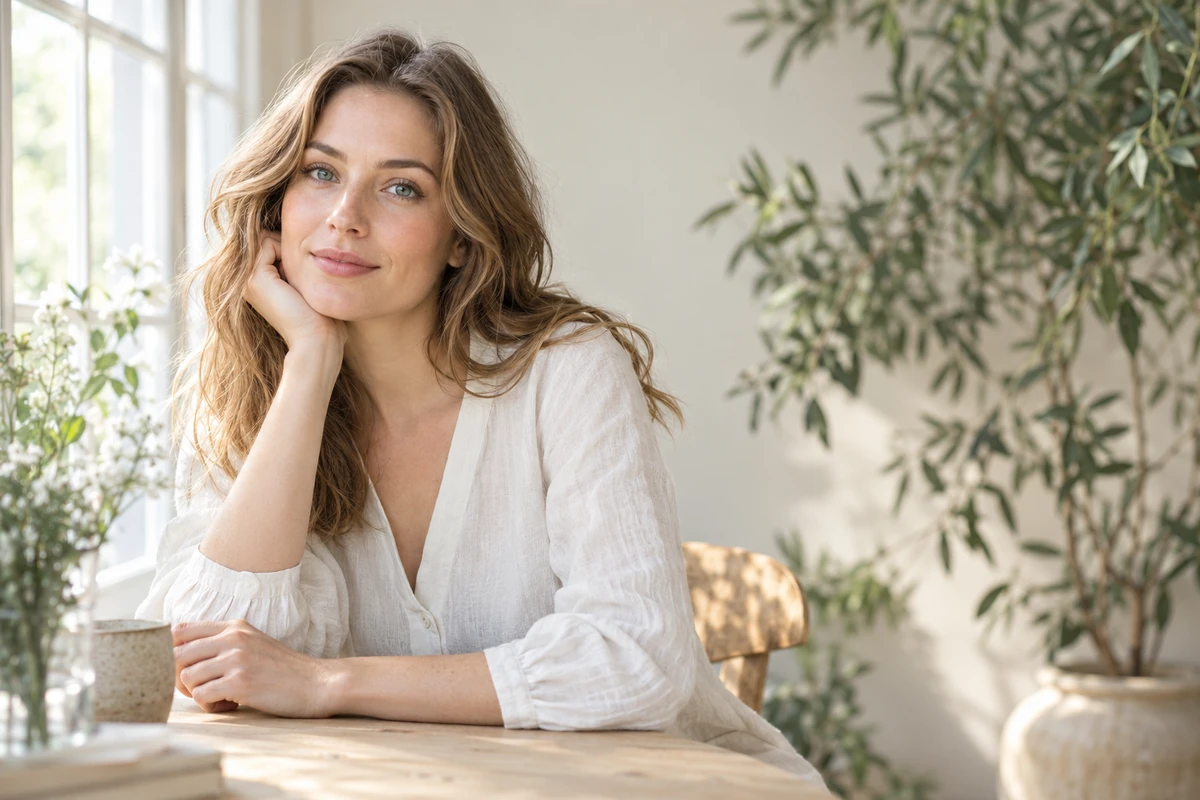
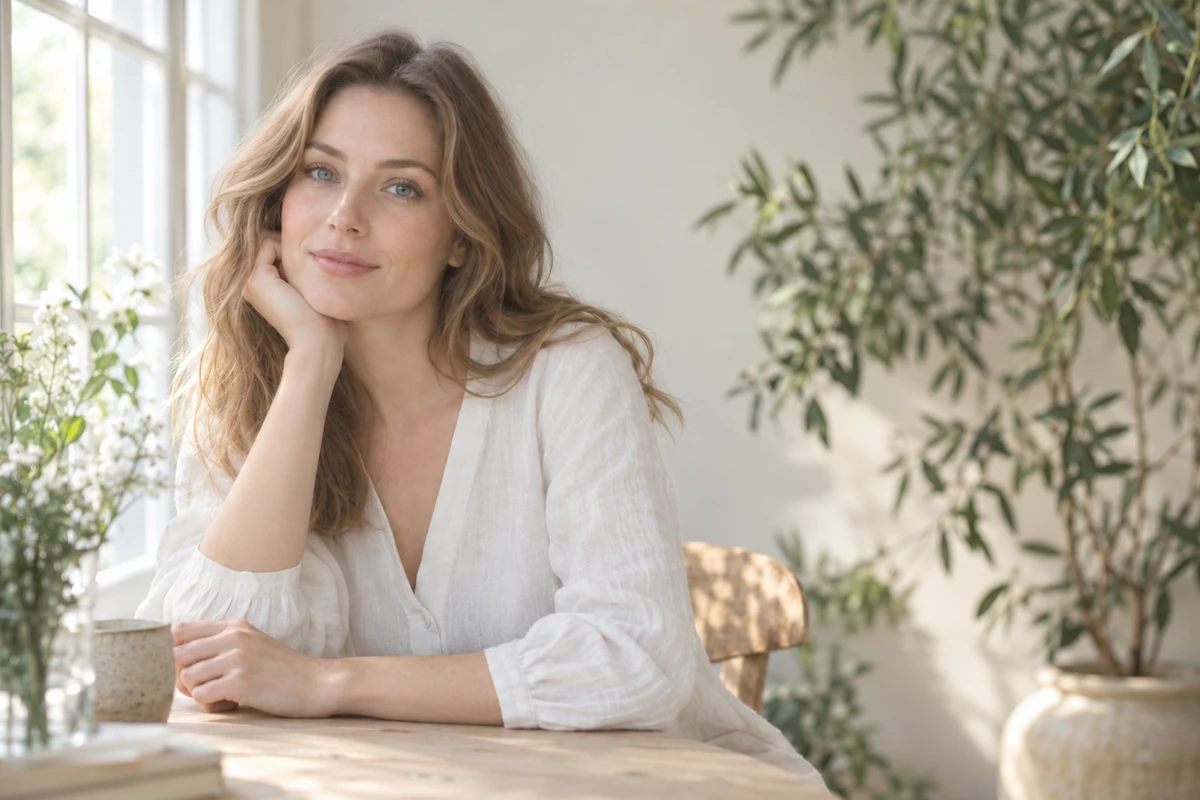
Use Photo Enhancer when the composition is right but the image needs a clearer, more balanced final look.
Enhance Clarity & Color