






How to Improve Holiday Product Photos Without Changing Items
Holiday shoppers may discover a product through a festive image, but they still need to see what they are buying. A warm background can help a handmade candle feel giftable. If the edit changes its glaze, label, size, or color, however, the image stops doing its most important job.
The safest way to improve holiday product photos is to start with an accurate source image, correct light and clarity, remove distractions, and add seasonal context only where it supports the item. Keep an untouched original beside every edited version so you can check what changed.
This guide gives small shops a repeatable workflow for making listing images feel ready for the holidays while keeping product details trustworthy.
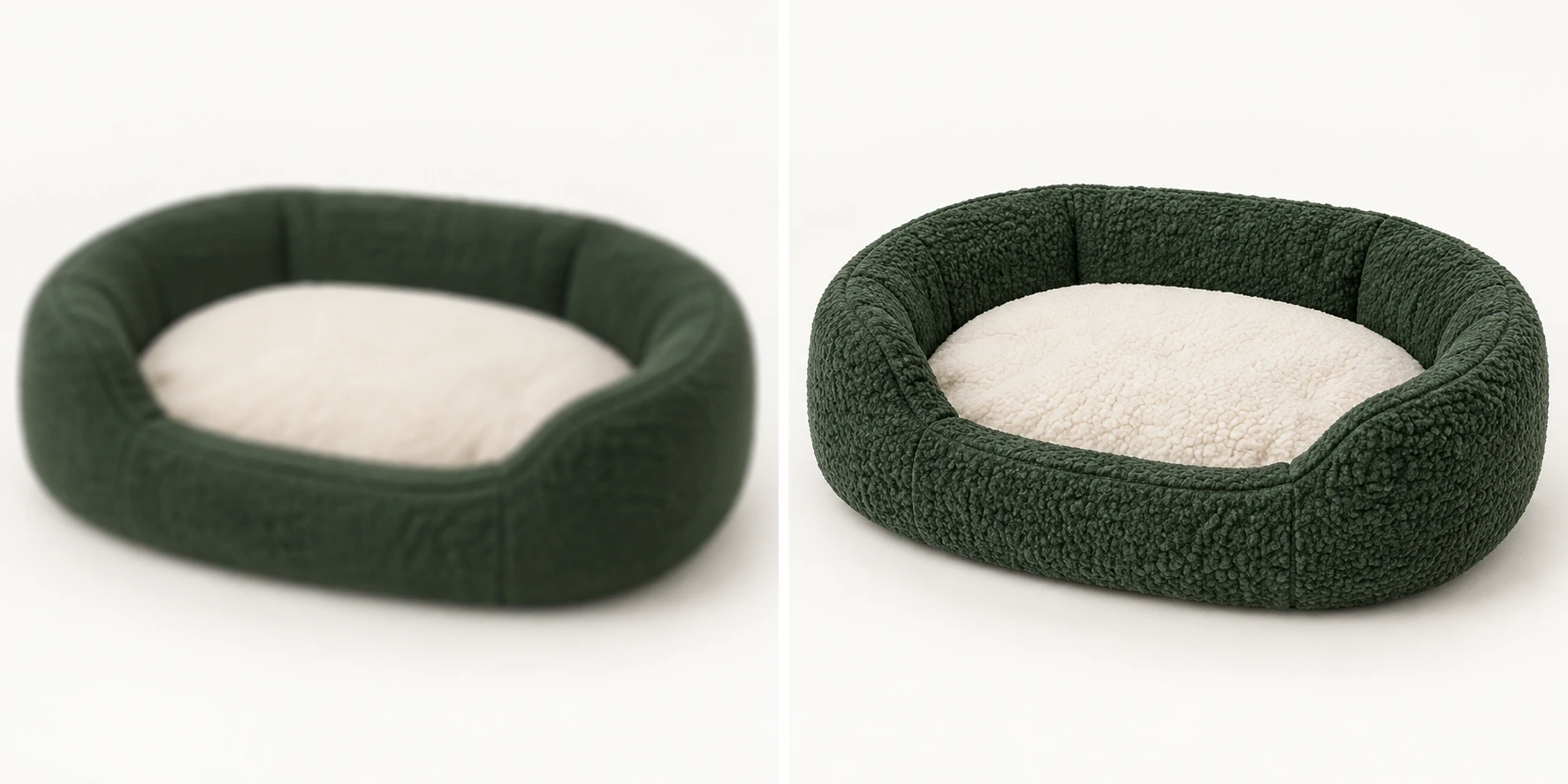
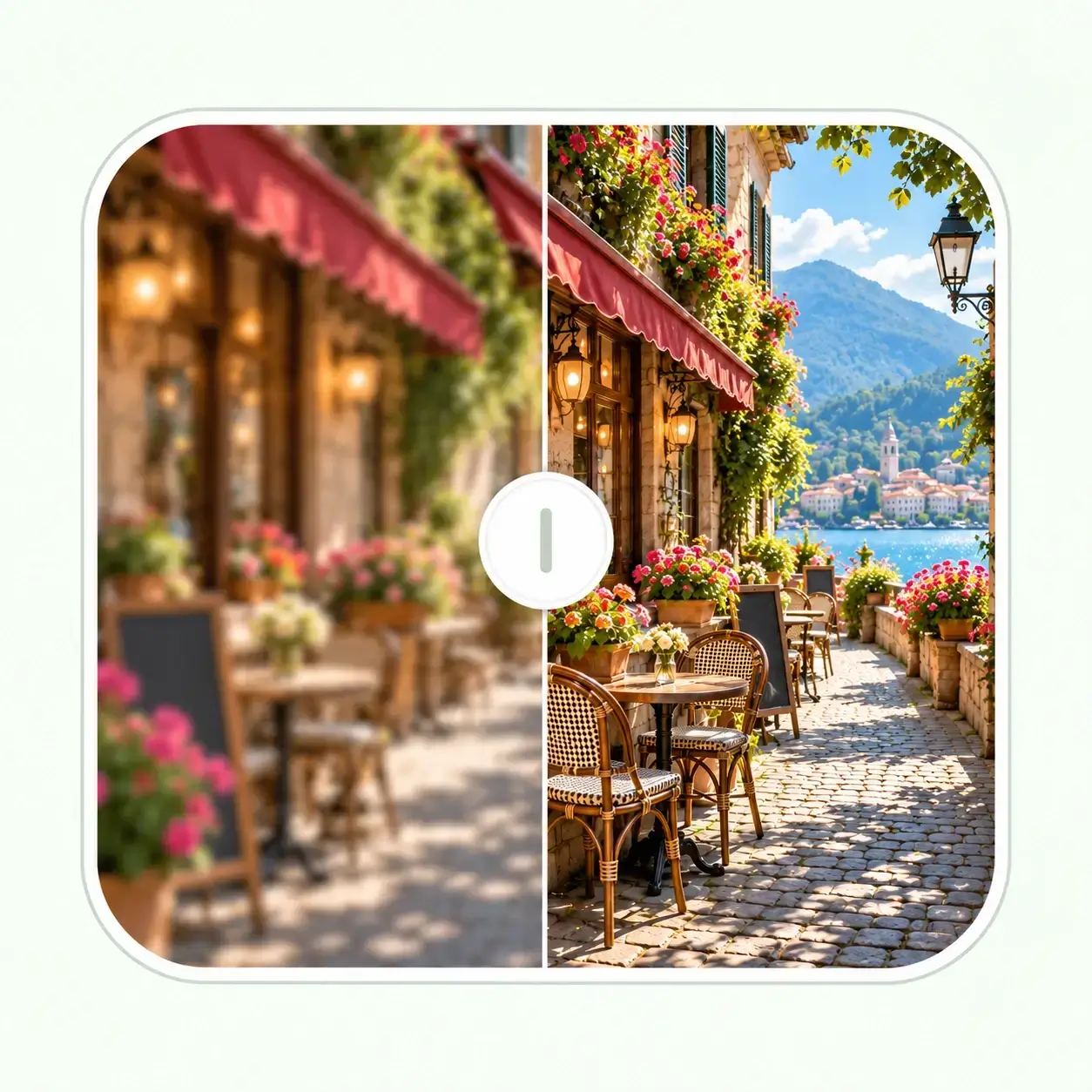
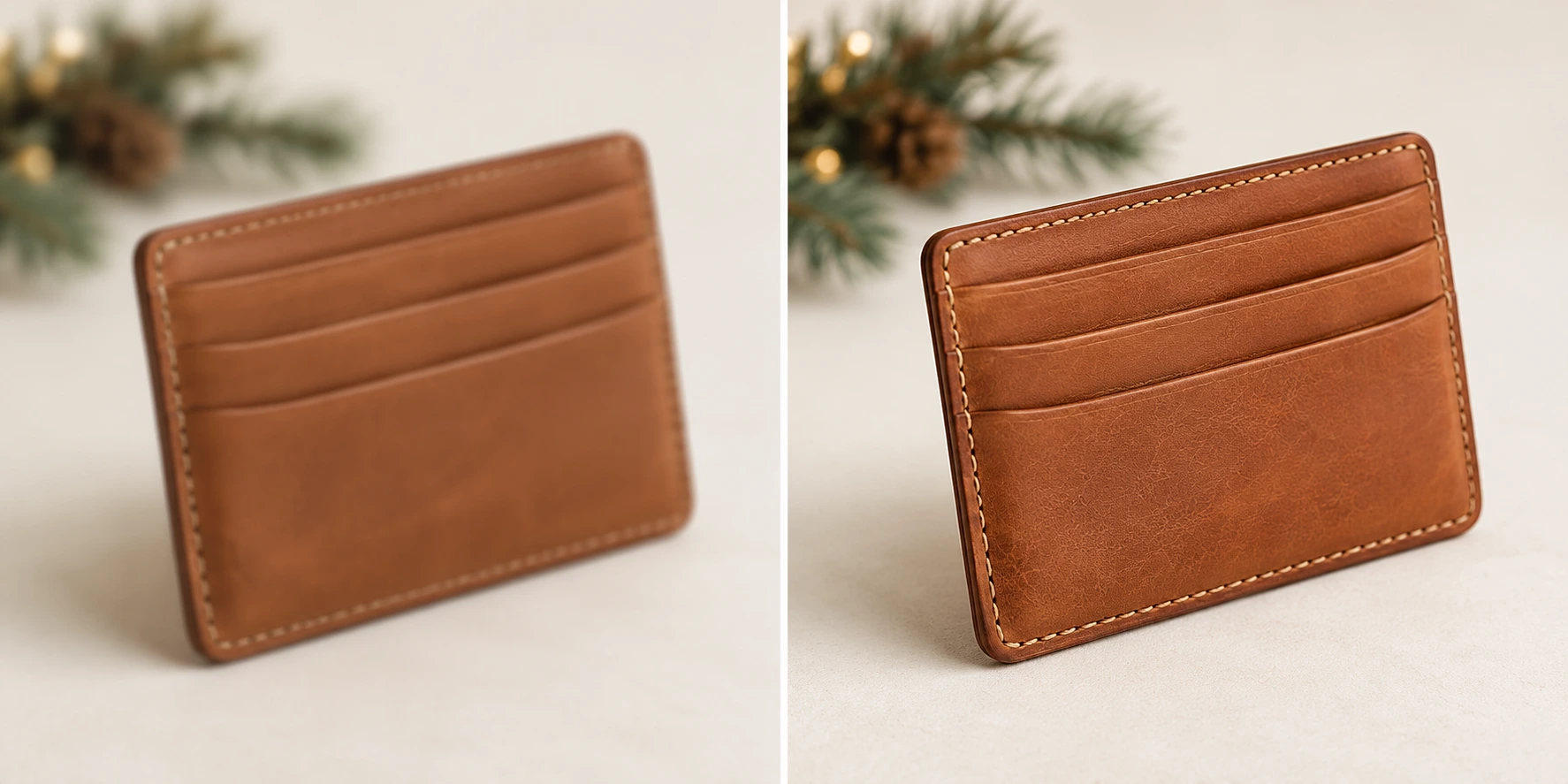
Illustrative before-and-after comparison: the left side is deliberately blurred; the right side shows a clearer product photo.
What makes a holiday product photo useful?
A strong listing image answers two questions at once: What is the item really like? and How might it fit into a gift or seasonal setting? The first question comes before the second. Shoppers should be able to judge material, color, finish, shape, and scale without guessing which parts were added by an editor.
Etsy's Fall and Winter 2026 Seller Trend Report highlights tactile details such as rhinestones, vintage jewelry, and rich fabrics, and advises sellers to use close-up photos that reveal texture and shine. That is useful direction for seasonal styling, but a trend does not justify changing the item itself.
| The photo should show | An edit can improve | An edit should not invent |
|---|---|---|
| True product color | White balance and exposure | A different colorway |
| Surface detail | Clarity in detail shots | Texture that is not there |
| Shape and scale | Crop and framing | A slimmer, larger, or altered item |
| Labels and hardware | Legibility when detail exists | Rewritten text or missing marks |
The distinction matters most for handmade goods, vintage items, jewelry, cosmetics, and anything with a label or a precise finish. A festive scene earns its place when it helps buyers imagine use or gifting; the clean product view still needs to stand on its own.
Start with a photo that gives editing room to work
Editing cannot reliably recover information that the camera never captured. Before you open an AI tool, choose the highest-quality original you have rather than a copy downloaded from a social app or messaging thread. If you can reshoot, five small adjustments usually save more time than an aggressive edit.
To improve holiday product photos consistently, set one lighting and color reference for the whole catalog before processing individual images.
- Use soft, consistent light. Set the item near a window or use diffused lamps. Hard mixed lighting can turn one side orange and the other blue.
- Set a reference for color. Put a neutral card or plain white paper in one test frame. Compare the final product against the item in person under ordinary light.
- Keep the camera steady. A tripod or stable surface helps preserve fine lettering and fabric texture. Tap the product to focus before taking the shot.
- Leave crop space. Give the item room around its edges so square, portrait, and banner crops do not cut off handles, ribbons, or packaging.
- Capture more than one view. Shoot a clean front view, a detail view, and one styled scene. A single festive hero image cannot answer every buyer question.
For marketplaces, check the current rules for your category before editing a main listing image. The image that attracts a click should also represent the specific item or variation being sold.
How to improve holiday product photos step by step
Work from factual corrections toward optional styling. Save a new file after each major step so you can reverse an edit without starting over.
1. Choose a truthful anchor image
Pick the clearest photo in which the product's silhouette, color, label, and important details are visible. This becomes the reference for every later version. If a red sweater looks burgundy because of warm light, correct that before adding a holiday backdrop.
Do not use a generated lifestyle image as your only reference. Keep the camera original available for side-by-side review, especially if the product has stones, stitching, wood grain, reflective metal, or printed text.
2. Correct exposure and color before sharpening
Lift dark areas just enough to reveal material and edges. Reduce an obvious color cast, but keep natural shadows so the item retains depth. Over-brightening a glossy surface can erase the highlight pattern that tells buyers what the finish is like.
If the source is soft or compressed, an AI image enhancer can help balance light, color, noise, and visible detail. Review the product at full size after processing. Improvement is useful only if it clarifies details already supported by the original.
3. Remove distractions, not evidence
A stray cable, dust on the backdrop, or unrelated object can compete with the product. Remove a distraction only when the result leaves the item's edges, shadows, and surroundings believable. EnhancePhoto.ai's object remover is suited to isolated background interruptions.
Do not erase a scratch on a vintage item, hide a manufacturing mark, or remove a flaw that the buyer should know about. If the background cleanup touches the product boundary, zoom in and compare with the original. Repeated patterns, glass edges, and shadows are common places for an edit to look wrong.
4. Add seasonal context with one clear purpose
Choose props that explain use or gifting: a folded napkin beside tableware, a pine branch near an ornament, or wrapping paper behind a boxed item. Let the product remain the largest and sharpest element. A quiet background often works harder than a pile of holiday decorations.
You can test a new setting in an AI photo editor, but describe both what to change and what to preserve. A focused instruction is easier to review than a vague request to “make it festive.” For example:
Replace only the plain background with a softly lit winter tabletop. Keep the ceramic candle jar's shape, ivory glaze, ribbed texture, lid, proportions, and camera angle unchanged. Add a small evergreen sprig behind the jar. Preserve realistic contact shadows. Do not add text, a logo, or another product.
Treat the output as a draft. AI can create plausible but incorrect product details. Reject any version that changes a label, colorway, material, number of components, or the way the item is assembled.
5. Export for each placement, then inspect the final crop
A square listing thumbnail, a vertical social post, and a wide email header can crop the same photo differently. Create each crop from the best edited original rather than repeatedly enlarging small exports. Leave the product visible in a mobile thumbnail; seasonal props should not become the only thing a shopper sees.
If a larger file is genuinely needed, use an image upscaler after the color and content are settled. Upscaling can increase dimensions, but it cannot verify a label or recover factual details missing from the source. Inspect the downloaded file at the size people will actually see.
Build a three-image set for one product
To improve holiday product photos across a listing, give each image a different job. This is more useful than applying the same festive treatment to every frame.
| Image | Main job | Suggested treatment | Check before publishing |
|---|---|---|---|
| Clean product view | Show the exact item clearly | Neutral background, accurate color, balanced light | Shape, included pieces, label, finish |
| Detail view | Prove material and workmanship | Close crop with gentle clarity adjustment | Texture, stitching, stones, print |
| Seasonal context view | Help buyers picture gifting or use | Restrained props and warmer setting | Product remains dominant and accurate |
For a knitted scarf, the clean view shows its full length and true color. The detail view shows the weave and fringe. The seasonal image might place the same scarf beside a gift box, without changing the number of fringe strands or making the fiber appear softer than it is.
For a handmade candle, photograph the jar on its own first. Then show the glaze and lid in close-up. Only after those views are secure should you create a warm tabletop scene. If the jar's label is too small to read, shoot another detail view; do not ask AI to reconstruct the words.
More autumn and winter product comparisons
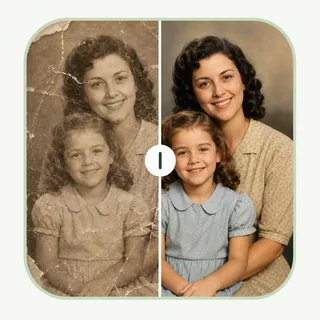
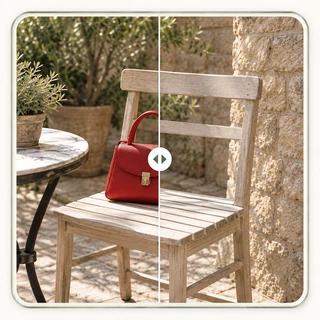
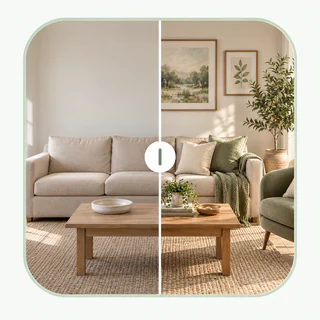
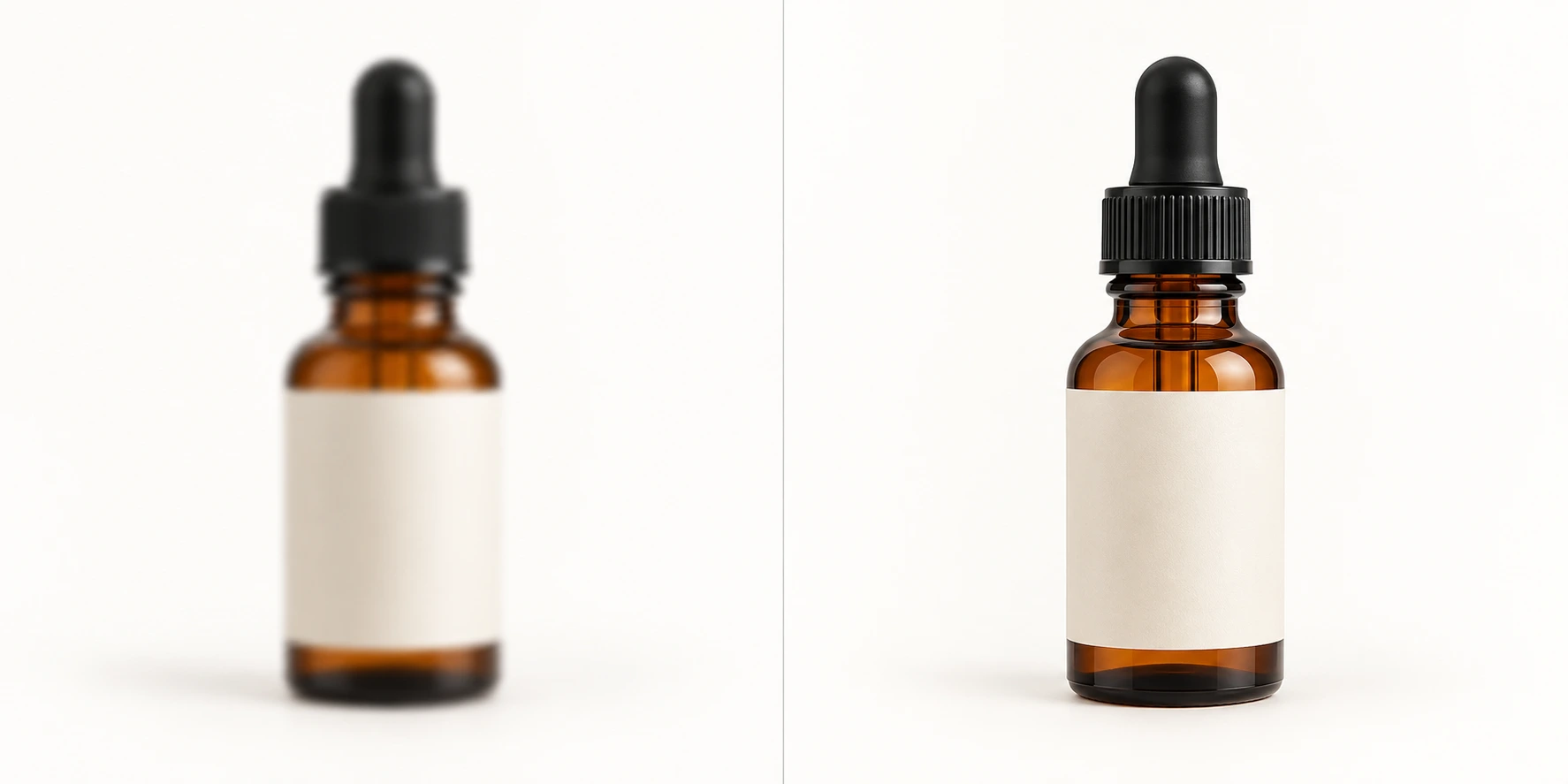
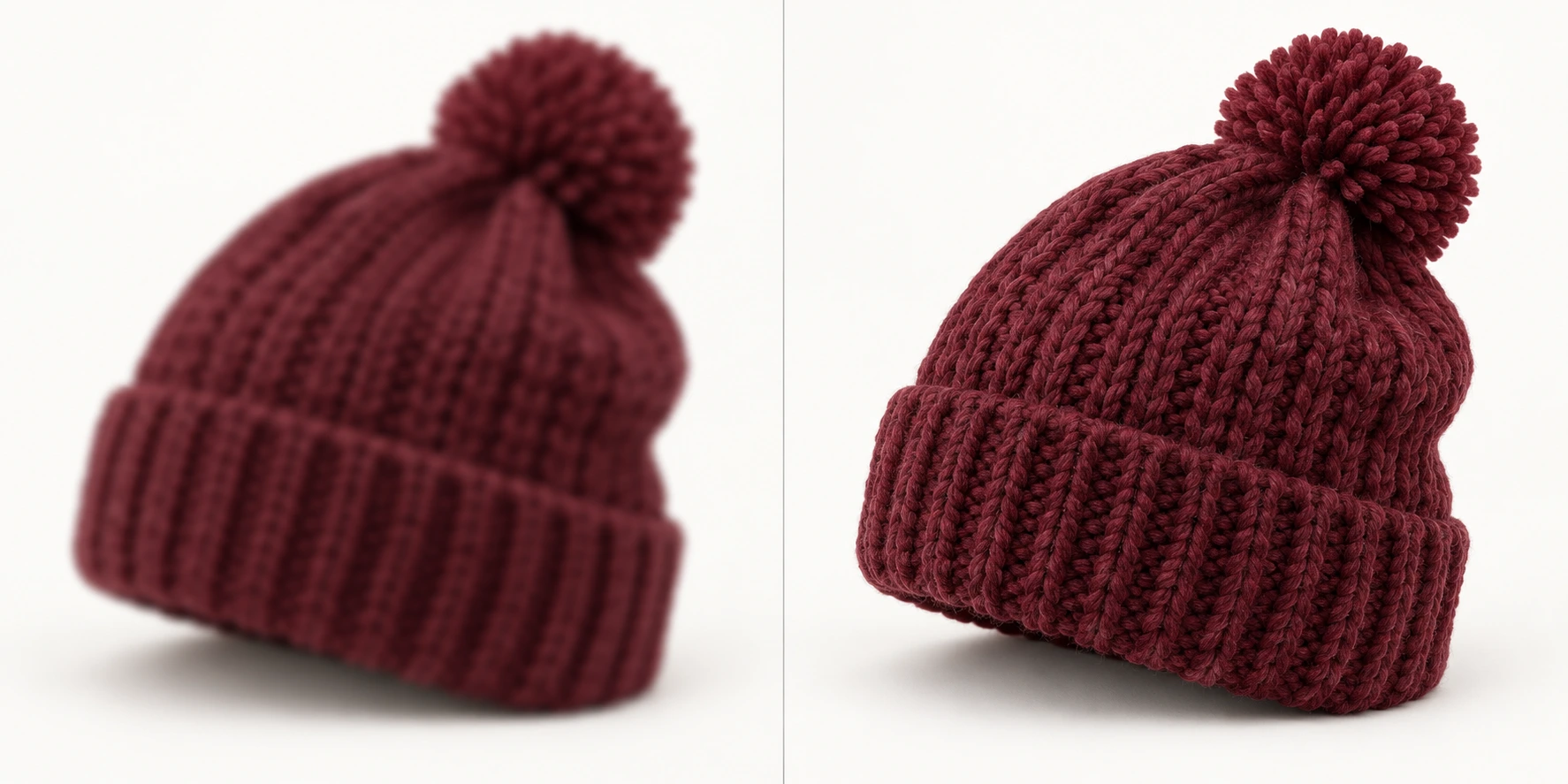
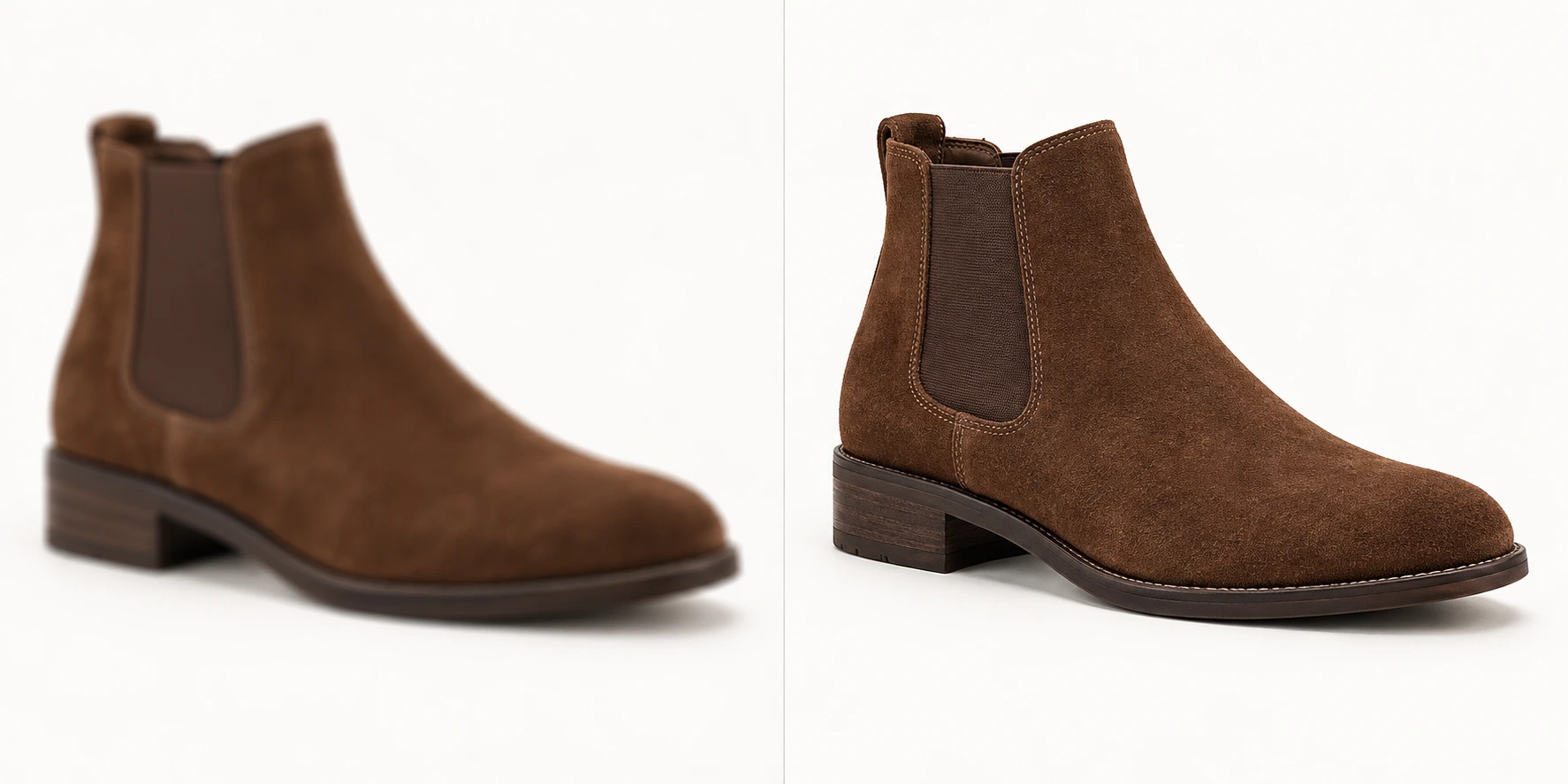
Different products call for different detail checks. The following illustrative comparisons use a plain background so the change in image quality is easy to see.
Common edits that make a product look less trustworthy
Over-sharpening. Halos around jewelry, crunchy fabric, and doubled lettering are signs that clarity has gone too far. Compare a small detail at 100% zoom and lower the effect if texture stops looking like the real item.
Color drift. Warm seasonal lighting can make cream look yellow or forest green look black. Keep a neutral reference image and check the edited file on more than one screen if color is central to the purchase.
Unrealistic backgrounds. A product that floats above a table or casts a shadow in the wrong direction can undermine an otherwise polished image. Contact shadows and perspective should match the camera view.
Invented details. AI may add extra gems, straighten handmade irregularities, change a package label, or duplicate a component. These changes are especially easy to miss in a thumbnail.
Too much styling. A holiday backdrop should not obscure scale, material, or what is included. If a shopper needs to zoom past props to identify the product, simplify the composition.
Etsy's product photography checklist also recommends showing multiple views and keeping colors true to the item. Use that as a final reality check: the edited image should make the product easier to understand, not merely more eye-catching.
Where EnhancePhoto.ai fits in the workflow
EnhancePhoto.ai provides browser-based tools for separate editing needs. Use the one that matches the actual limitation in your source image, then inspect the result against the original.
| If the photo needs... | Use this step | What to verify |
|---|---|---|
| Better light or clarity | Image enhancement | True color, label, surface texture |
| One background distraction removed | Object removal | Clean edges and natural shadow |
| A different seasonal setting | Prompt-based photo editing | Product shape, material, text, and scale |
| A larger final file | Upscaling after other edits | Detail at the target display size |
This sequence is a guide, not a requirement to use every tool. A well-lit photo with a good backdrop may need only a crop. The right outcome is an image that gives a buyer more confidence in the real item.

A final five-minute publishing check
Before uploading holiday images, open the camera original and final export side by side. Then run through this short list:
This comparison is the quickest way to improve holiday product photos without allowing a polished edit to misrepresent the product.
- Is the product's color, shape, finish, label, and number of pieces still accurate?
- Can a shopper understand the item from the first image at thumbnail size?
- Does the detail image show real texture rather than AI-created texture?
- Do shadows, reflections, and background perspective look plausible?
- Are the crops suitable for each channel without hiding key features?
- Is the final file sharp enough at its intended display size, without obvious artifacts?
If one answer is uncertain, use the original or reshoot that view. You can always add a more atmospheric image later. Accuracy in the first few frames is worth more than an edit that looks polished but changes what the buyer receives.
Frequently asked questions
Can AI improve a holiday product photo without changing the item?
Yes, when the source already contains enough information and each edit is checked. Start with exposure, color, and distraction cleanup. For generated backgrounds, state the product attributes that must remain unchanged and compare the result with the original before publishing.
Should my first listing image be a holiday scene?
Use the image that identifies the item most clearly and follows the marketplace's current image rules. A seasonal lifestyle view can help buyers imagine gifting, but a clean product view is often easier to judge for color, shape, and included pieces.
Will upscaling fix a blurry product label?
Not reliably. Upscaling makes a file larger; it does not confirm what the label says. If lettering is unreadable in the source, take a new close-up photo rather than publishing guessed text.
How many photos should one holiday listing have?
There is no universal number. Cover the distinct questions a buyer will have: the complete item, the important details, and how it looks in use or as a gift. Add views when they reveal information, not just to fill slots.
Make the product the reason the photo works
The most reliable way to improve holiday product photos is to preserve the item and improve the presentation around it. Start with a clear original, correct light and color, remove genuine distractions, and use seasonal styling with restraint. Keep checking against the source as you work. The final photo should help a shopper recognize the real product when it arrives.