

Free Online AI Headshot Generator
Turn a selfie into a polished professional headshot online, with no photoshoot to schedule. Choose your style, background, outfit, and aspect ratio, then crop the result before downloading. Help recruiters, clients, and new connections recognize you at a glance.
Upload Image
Drag & drop or click to browse
Upload 1–20 images.Batch processing requires .
Create a Professional Headshot Your Way
The AI headshot generator lets you choose a style and use presets or reference images for the background and outfit. Set an aspect ratio before generating, then crop the result to fit its destination.
Professional Headshots From One Selfie
Start with one clear, recent photo. You can turn a selfie into professional headshots without collecting multiple angles or arranging a photoshoot.
Professional Headshot Styles
The AI headshot generator offers formal business, business-casual, and creative styles. Choose one that suits your role and personal brand.
Choose Your Background and Outfit
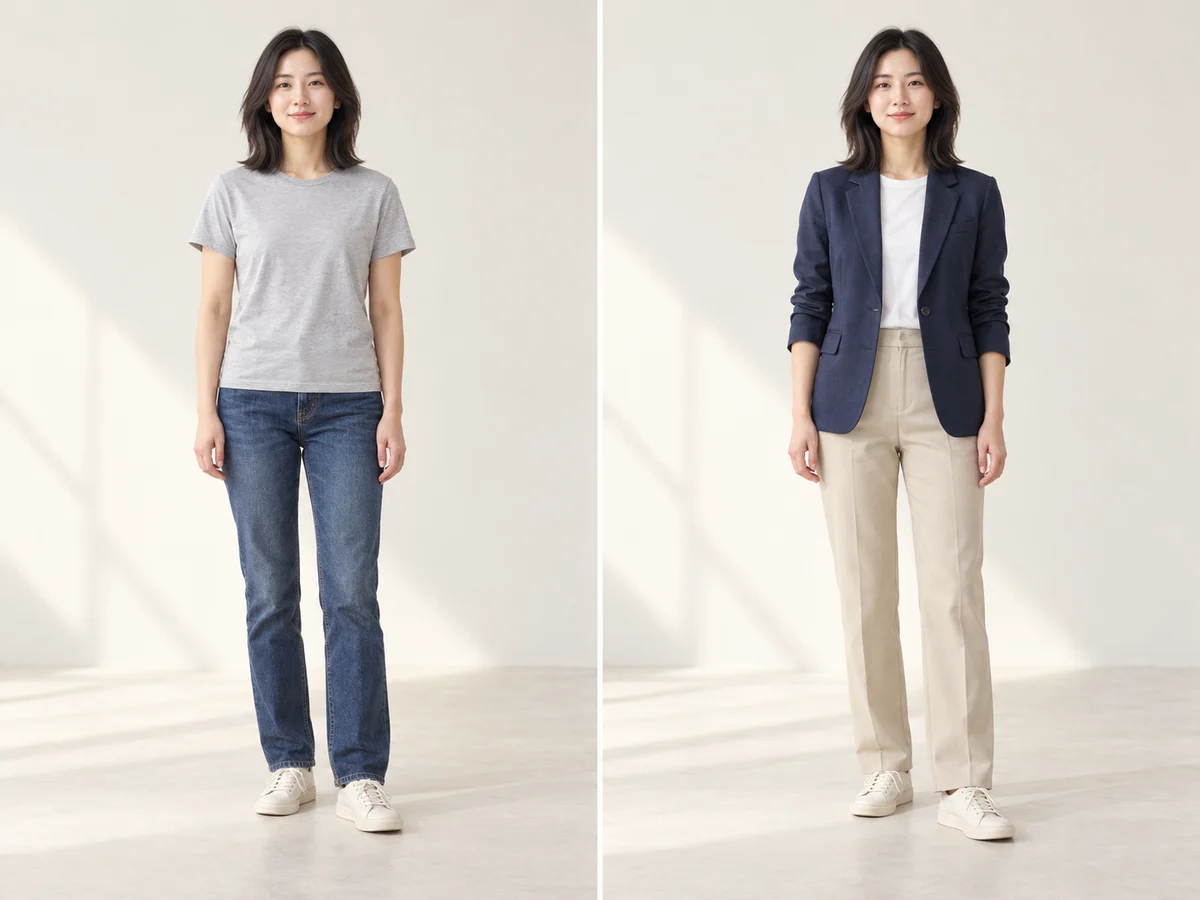
Choose from the background and outfit presets, or upload your own images as references.
Profile Pictures That Fit Your Layout
Choose a square, portrait, or landscape aspect ratio for LinkedIn, a company bio, or your website. After generating, adjust the crop in the download screen.
How to Use the AI Headshot Generator
1. Upload Your Photo
Choose one recent photo with a clear view of your face so the AI headshot generator has a useful reference.
2. Choose Your Look
Choose a style, then select background and outfit presets or upload your own images as references. Set the aspect ratio for your layout.
3. Generate Your Headshot
Compare your headshot with the original, then adjust the crop in the download screen and save a version that fits your needs.
Choose the Right Photo for Your AI Headshot
The AI headshot generator uses your photo as a facial reference. Choose a clear image to help preserve the details that make you recognizable.
Start with a Clear Photo
The AI headshot generator works best with a sharp view of your eyes and facial features. Avoid blurry images and low-resolution screenshots that lose detail when enlarged.
Use Even Lighting
Soft, even light helps show your face. Avoid backlighting or deep shadows that hide one side of it.
Keep Your AI Portrait True to You
Skip heavy beauty filters. A recent photo that reflects your current face shape, hair, and features is a better starting point.
Use a Photo of Yourself Alone
To turn a selfie into professional headshots, choose an image without other people, sunglasses, or objects covering your face. Keep your head and shoulders visible for a classic look.
Professional Headshots for
LinkedIn, Work, and Your Website
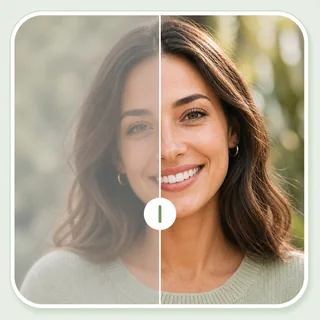
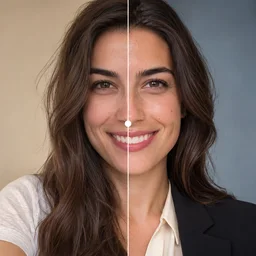
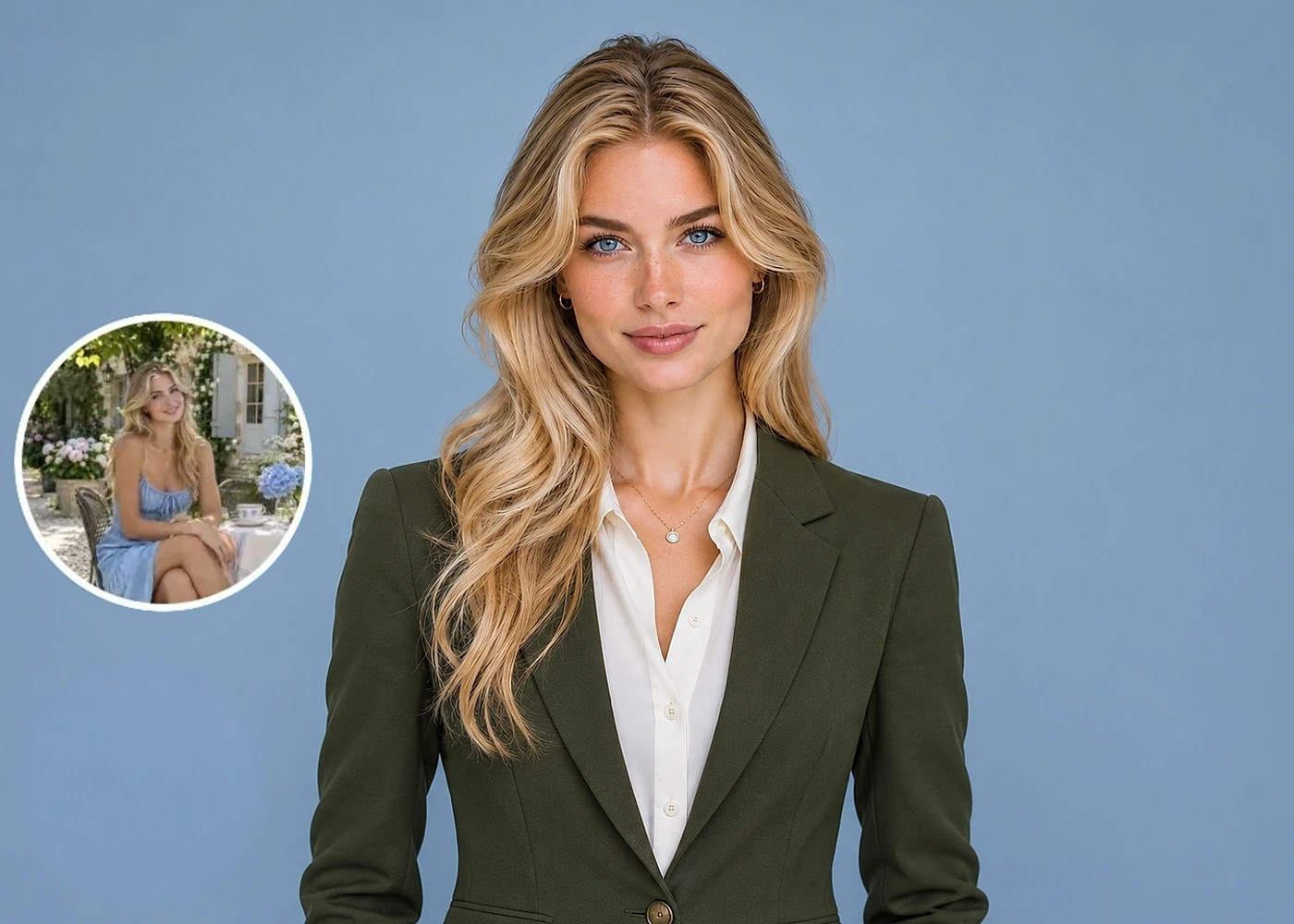
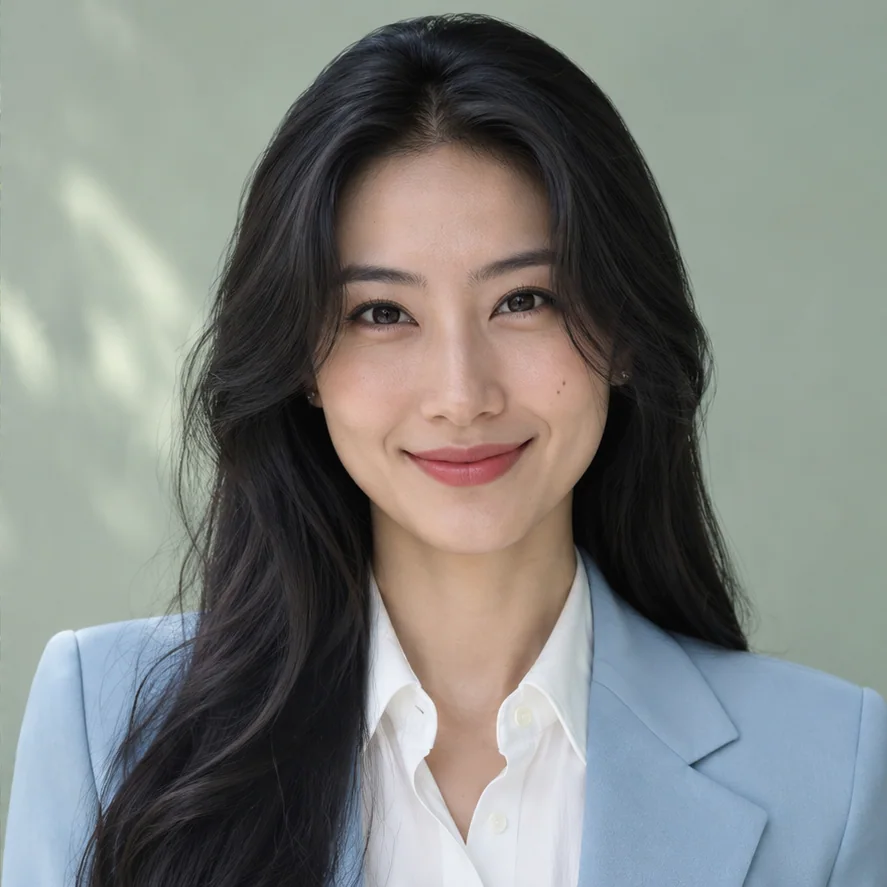
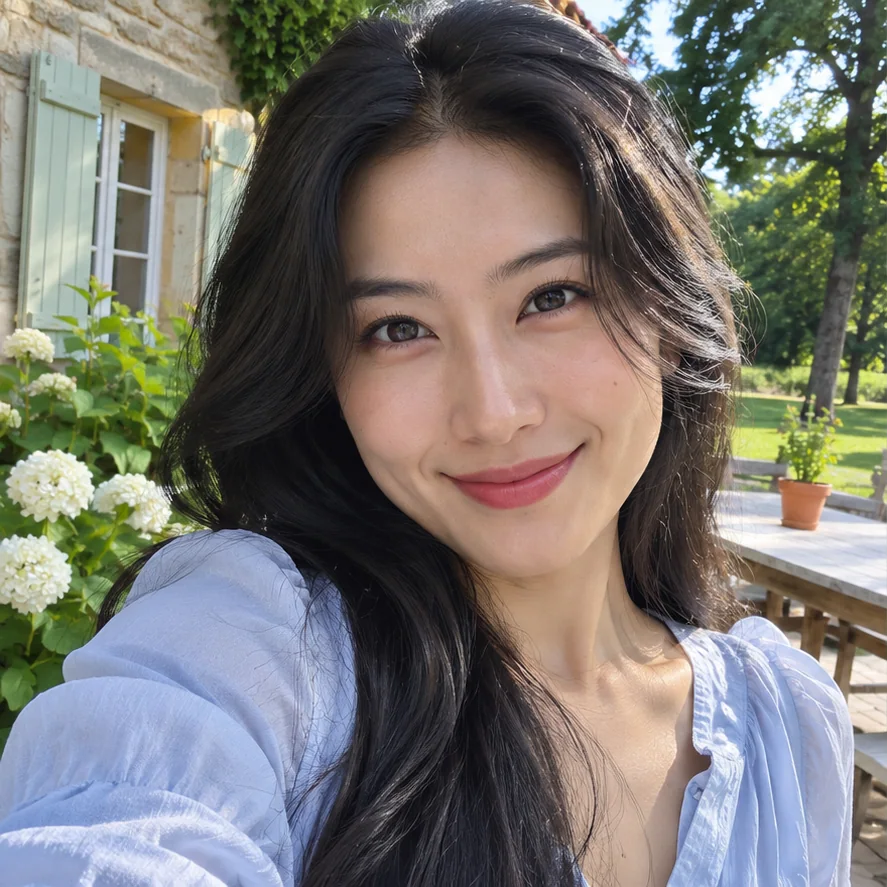
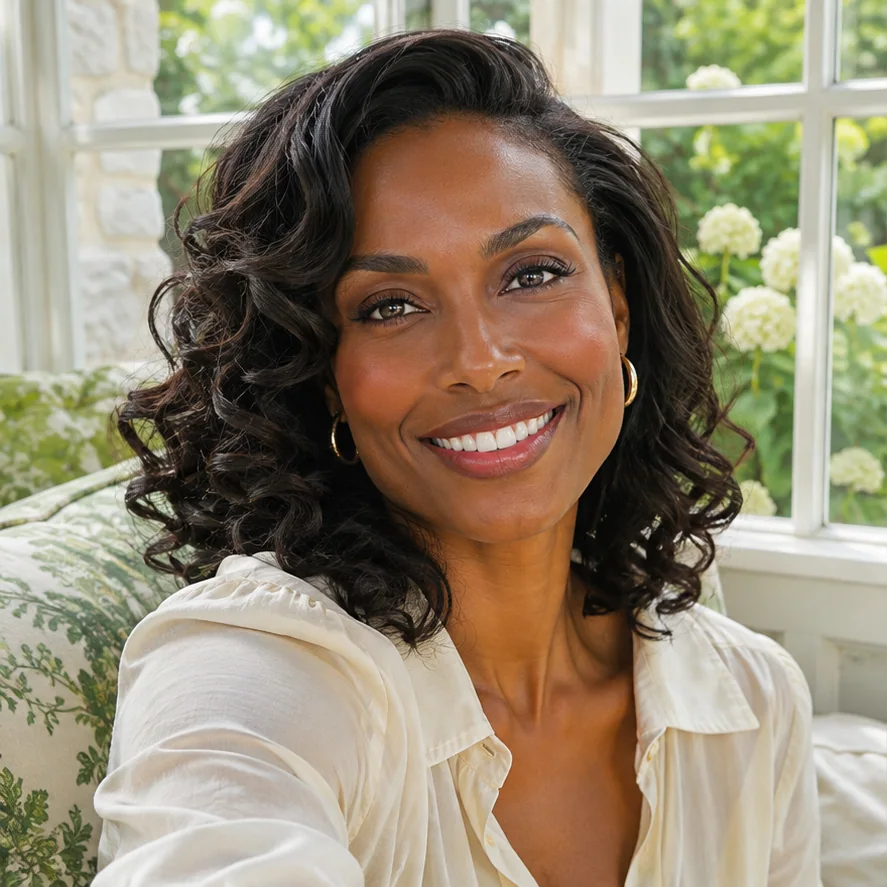
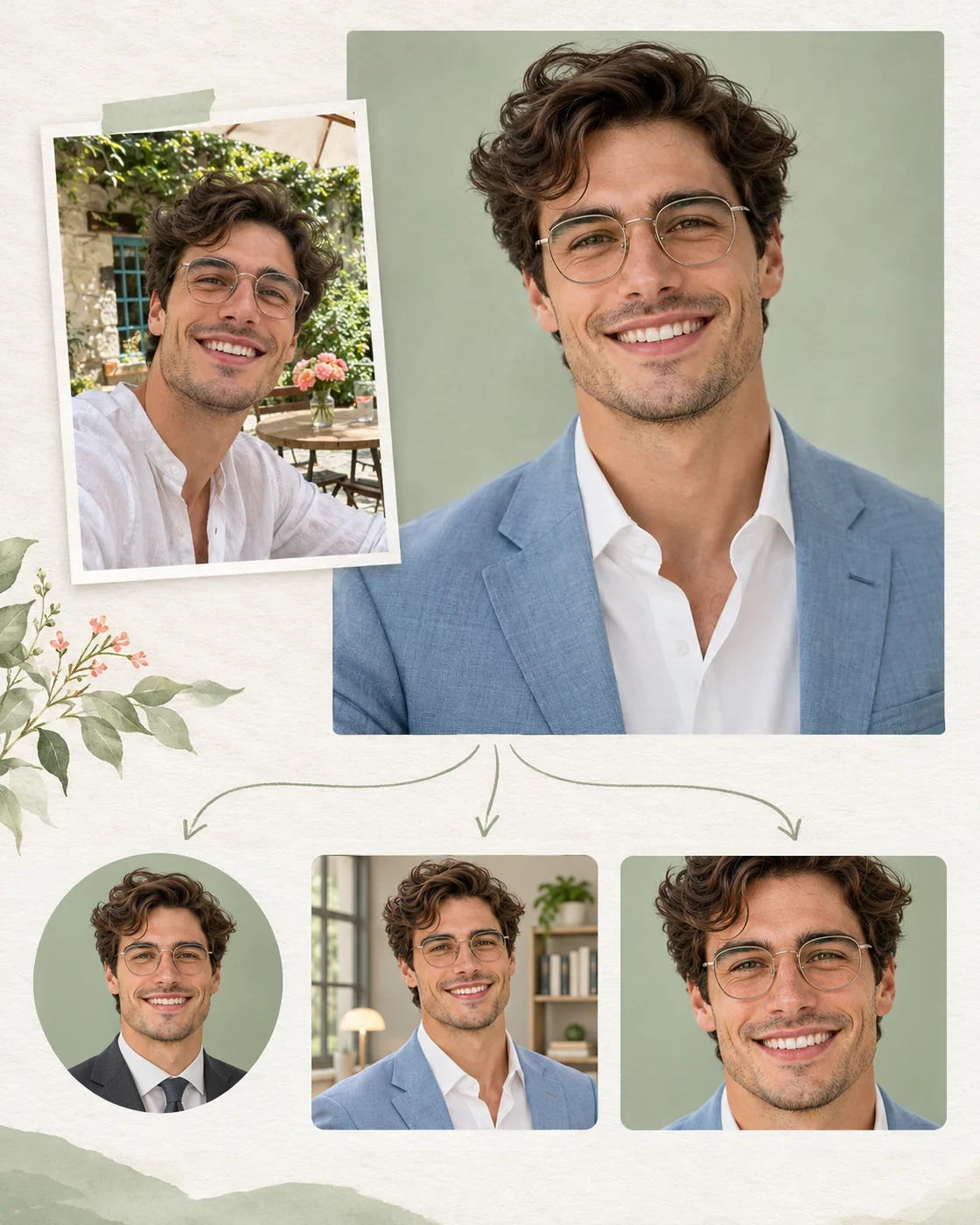
When you create professional headshots online, think about where each photo will appear. Compare an everyday source photo with a headshot tailored to its purpose. These AI-generated examples are illustrative; results vary.
LinkedIn Headshots
Use the AI headshot generator to replace an old selfie or cropped group photo with a current profile picture. Give recruiters, colleagues, and new connections a clear, recognizable face to put to your name.
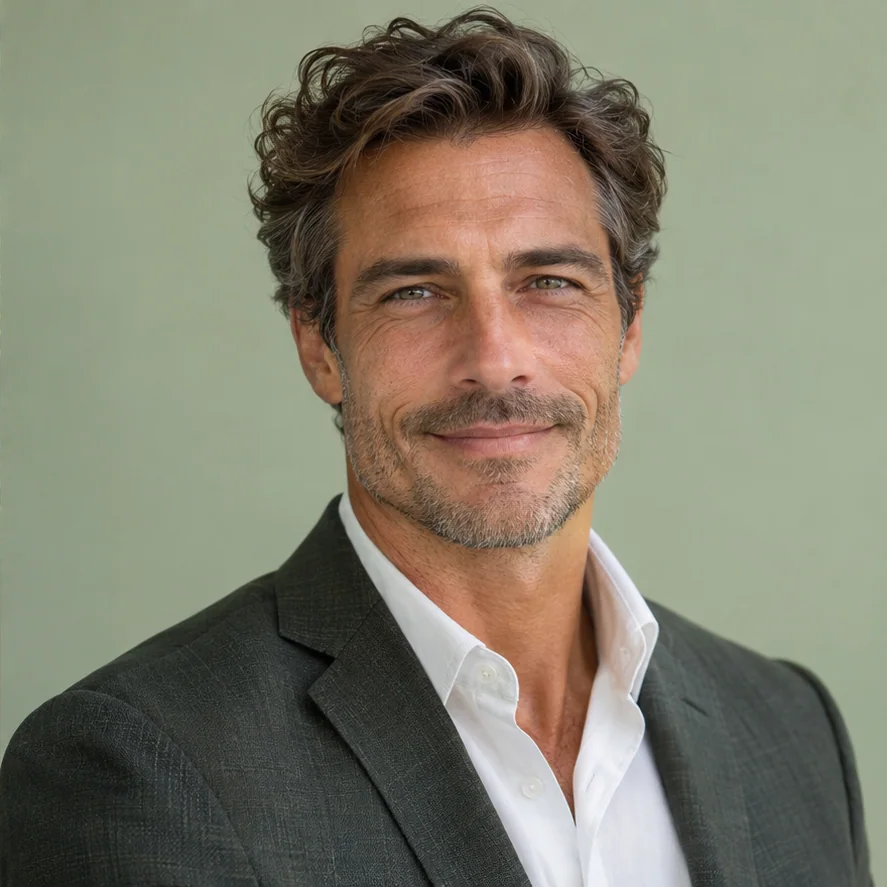 Business Headshot
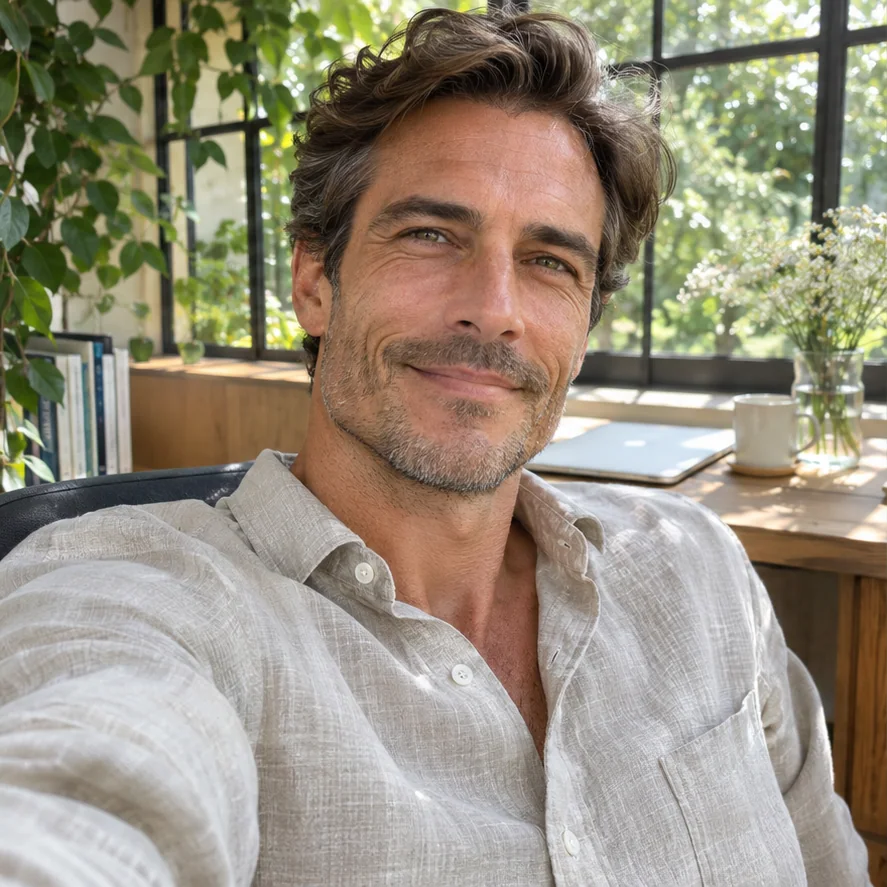
Business Headshots
Create professional headshots online that suit your role and make a clear first impression on prospective clients.
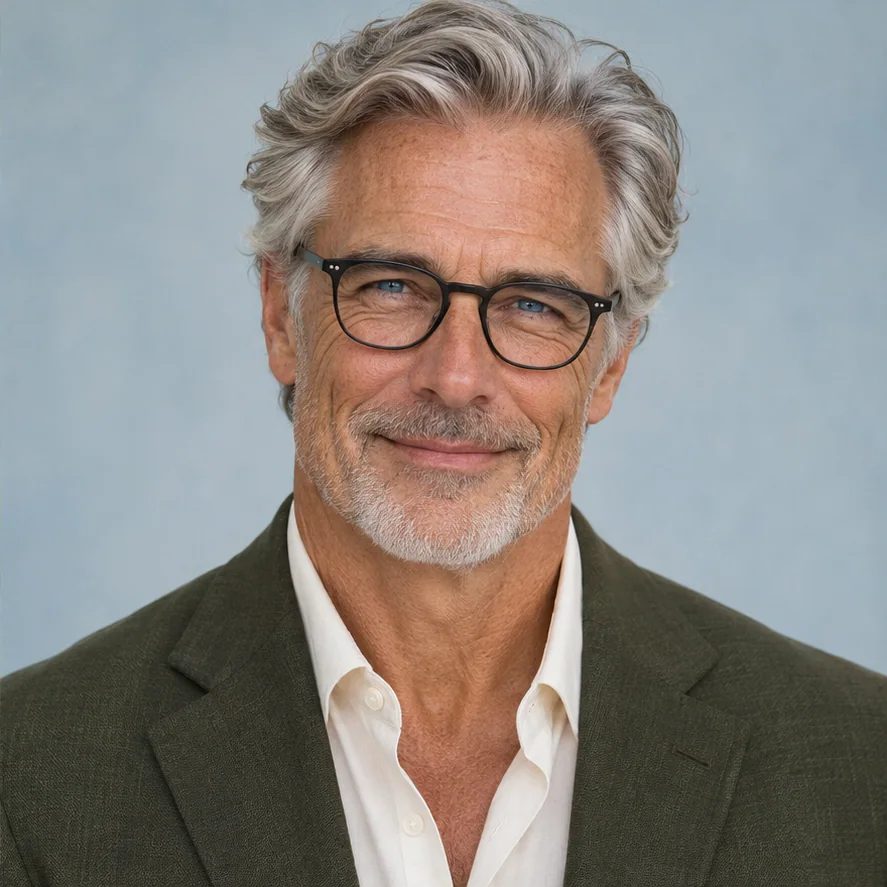
Speaker and Author Headshots
A professional headshot gives organizers and publishers a current portrait for event programs, podcast pages, and author bios. With the AI headshot generator, you can prepare a dedicated image instead of searching through personal photos each time an invitation arrives.
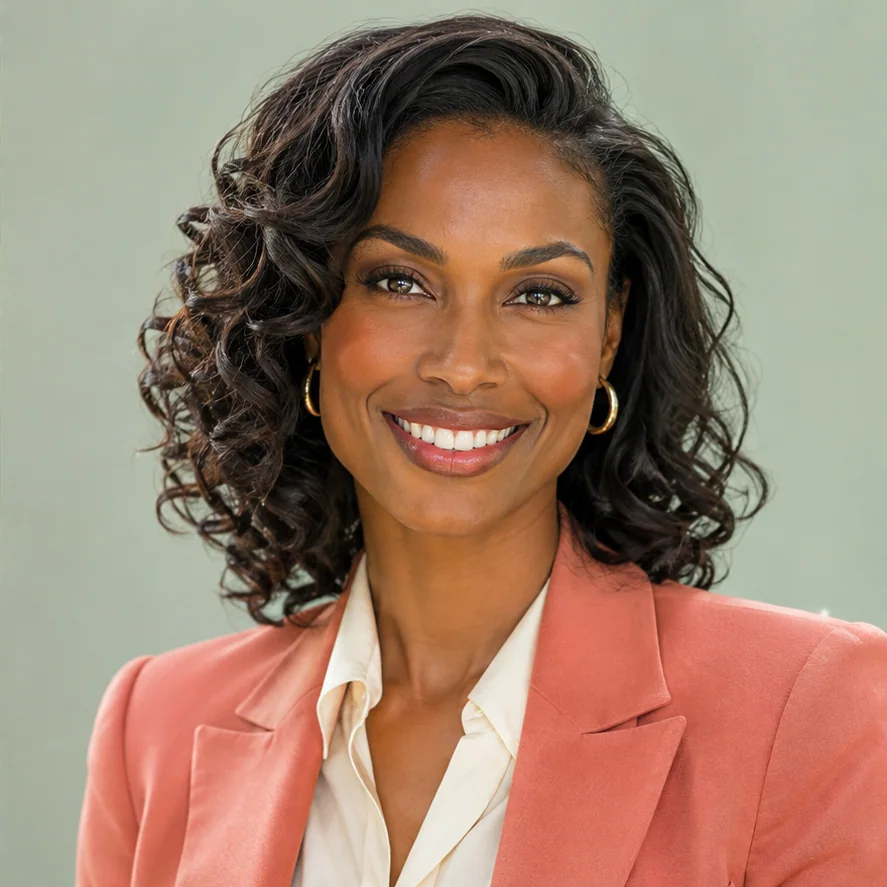
Company Website Headshots
Create a portrait for your team bio or leadership page. Choose a style, background, and outfit that suit your team, then crop the result to match the other portraits.
Why Use the EnhancePhoto AI Headshot Generator?
Make More Than a Cropped Selfie
Turn a selfie into professional headshots online, using your face as the reference while a preset style guides the look.
Choose a Look for the Job Ahead
Choose a style, background, outfit, and aspect ratio to create a headshot for LinkedIn, a company bio, a resume, or your website.
See Whether It Still Looks Like You
Compare the new headshot with your original and inspect your eyes, face shape, hair, glasses, and clothing before publishing.
Know How Your Photo Is Handled
Our Privacy Policy explains how photos are processed and stored, and what rights you have over your personal data.
Put Your Headshot to Work
Choose your outfit and background on this page before generating your headshot. Use the tools below if the saved result needs finer edits or a larger size.
- 01
Match Your Professional Dress Code
Before generating, choose an outfit preset on this page or upload an outfit reference. For further changes to the style or details, upload the saved headshot to AI Clothes Changer. Describe the outfit you want, then compare the edit with the original result from the AI headshot generator. Check that your face, hair, and expression still look like you.
- 02
Refine Your Headshot Details
To further adjust the lighting, skin tone, hairstyle, clothing, or background, upload your generated headshot to AI Photo Editor. Describe the details you want to change and the elements to keep, so the result better fits your professional image and intended use.
- 03
Prepare a Larger Headshot
If your saved headshot is too small for a speaker page, media kit, or print layout, take it to Image Upscaler. Check the eyes, hair edges, and skin texture at the final display size.
More Ways to Prepare Your Profile Photo
A clearer source photo gives the AI headshot generator more detail. You can then adjust the finished headshot for where you plan to use it.
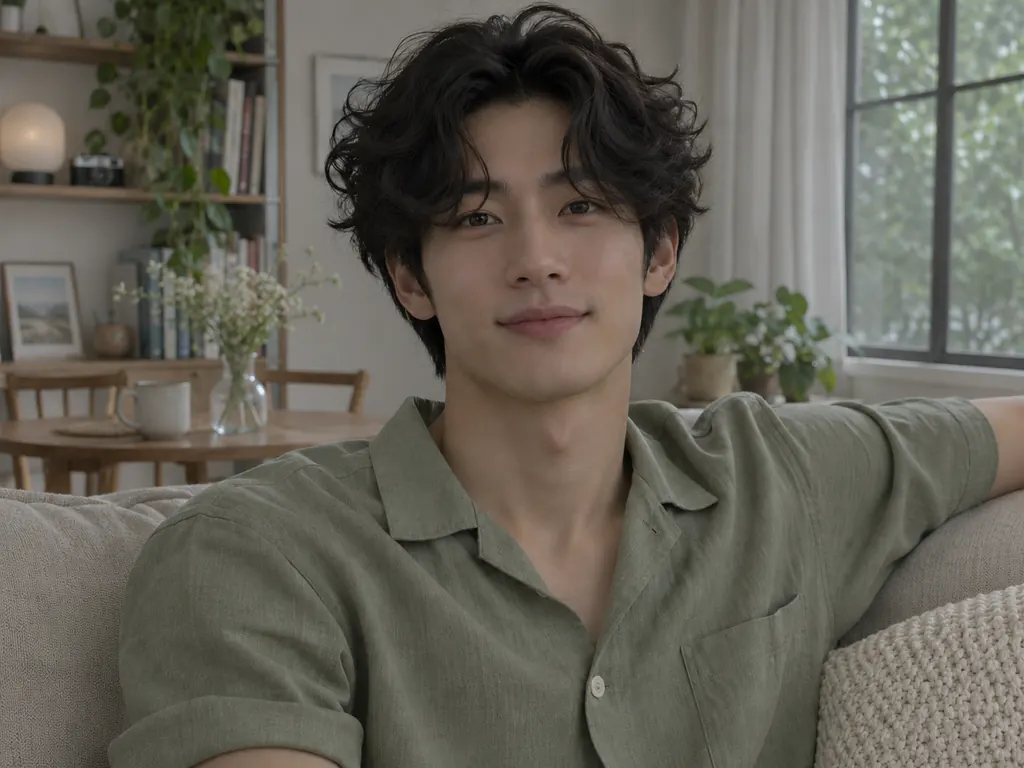
Make a Soft Selfie Clearer
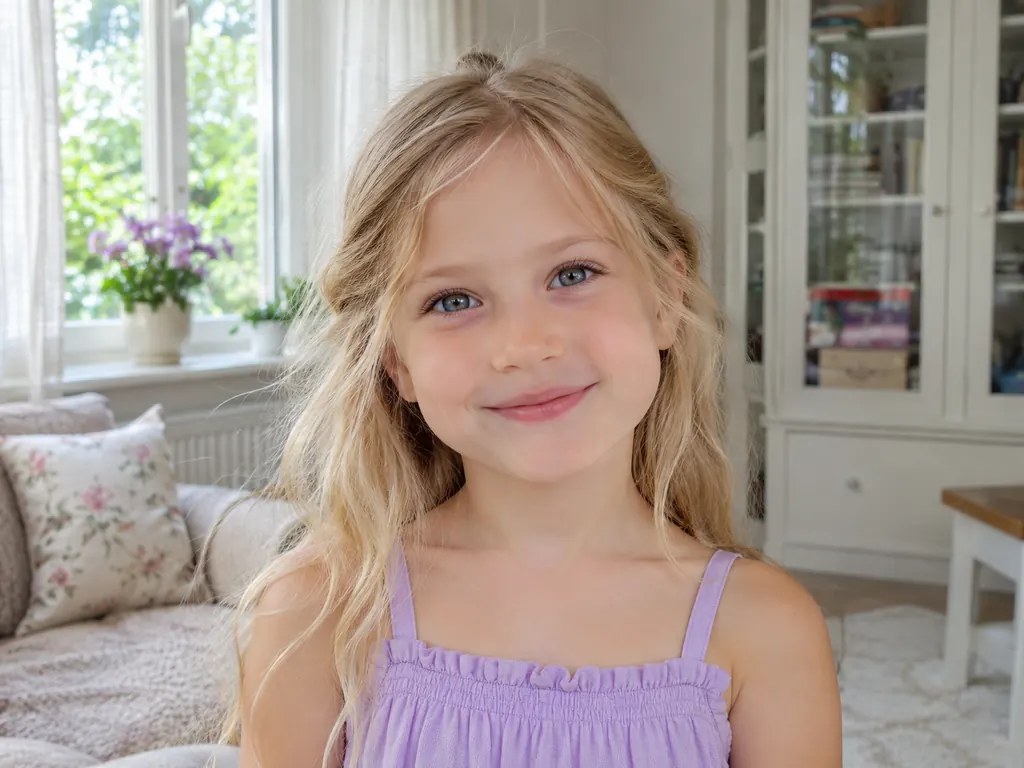
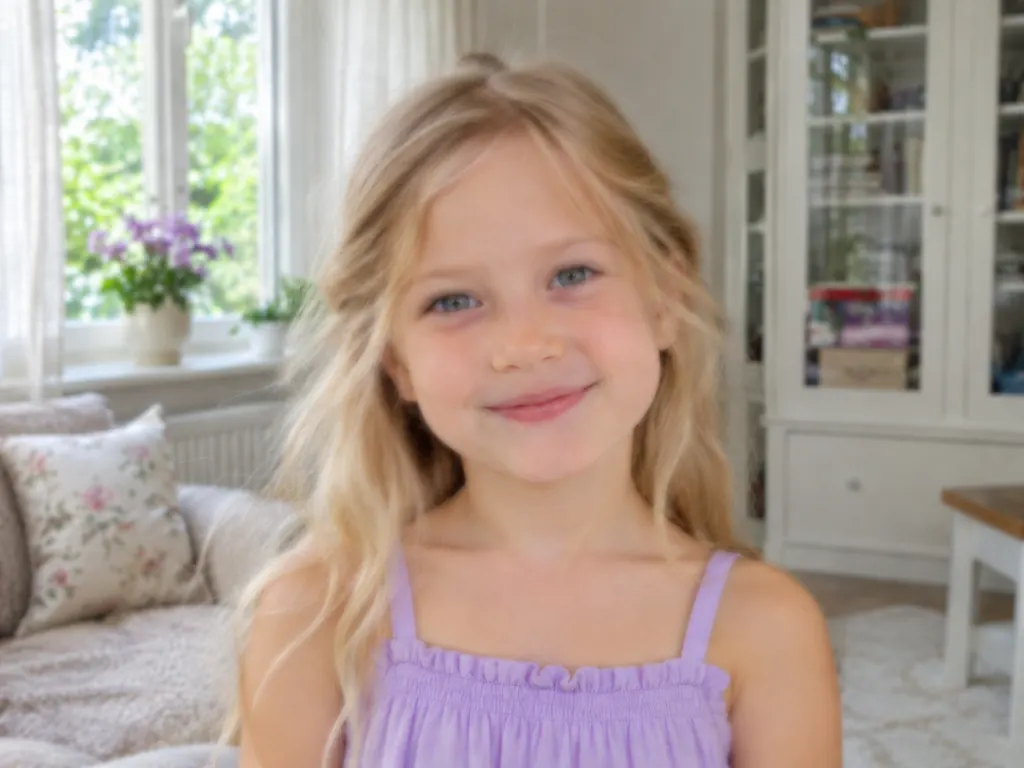
Start with a clearer source when your favorite recent selfie looks soft. Use Unblur Image before uploading it as a reference, then check that the eyes and hair still look natural.
Sharpen My Photo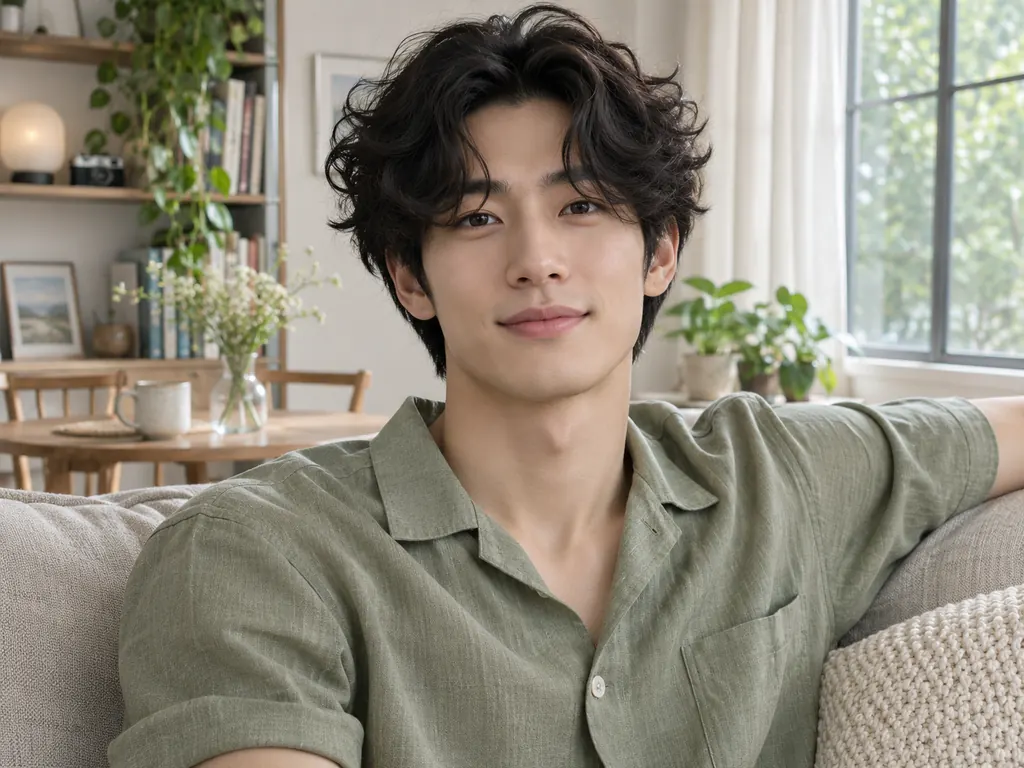
Brighten a Dim Portrait
Give a flat or dim business headshot more balanced light and color with Image Enhancer. Review skin tones and facial details before adding it to your profile.
Brighten My Headshot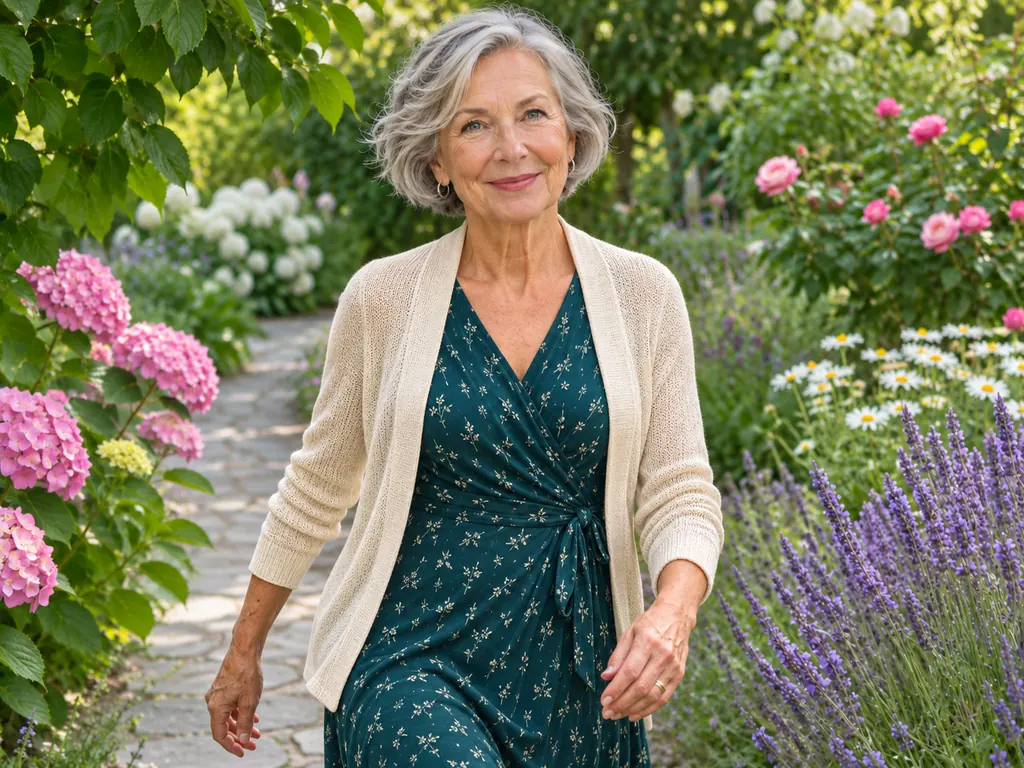
Make a Larger Copy
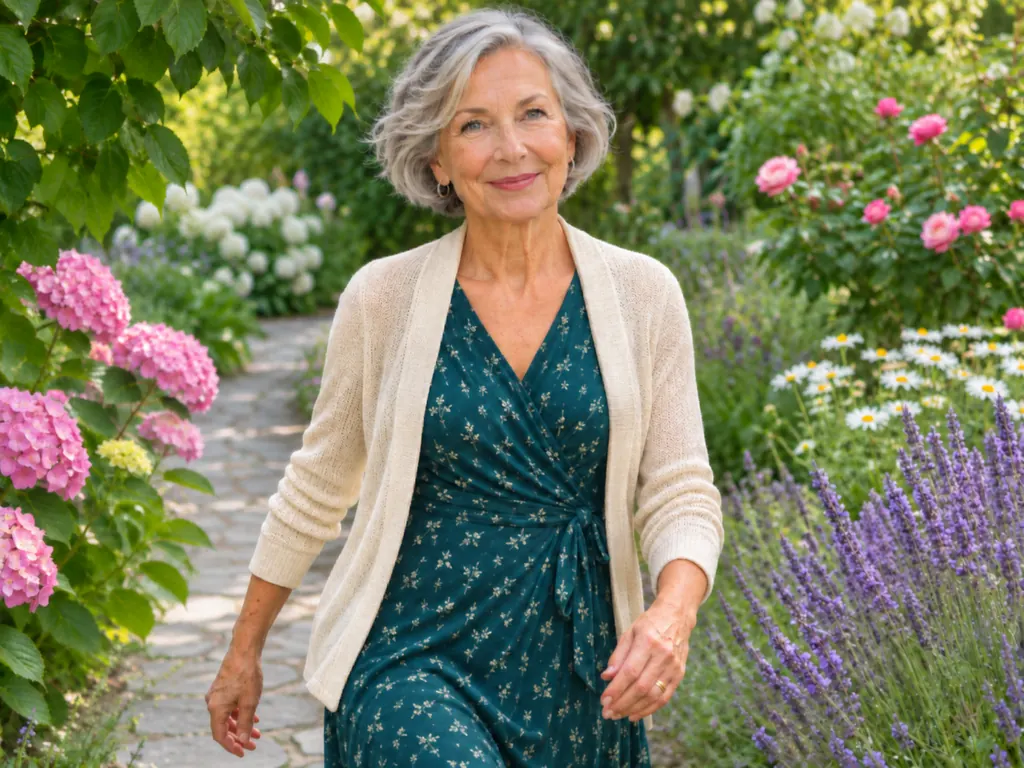
For a team page or website bio, a small headshot may need more pixels. Create a larger copy with Image Upscaler, then inspect it at the final display size before publishing.
Enlarge My Portrait