



How to Fix Blurry Halloween Photos Taken at Night
A great costume photo can look sharp on your phone screen and disappointing once you zoom in. Porch lights, glowing pumpkins, moving children, and quick group shots are difficult combinations for a camera. If you need to fix blurry Halloween photos, start by identifying the defect. A dark image, a noisy image, and a blurred image need different corrections.
Quick answer: Choose the best original frame, check whether the blur comes from camera movement, subject movement, or missed focus, and use a deblur tool only when the image still contains recognizable detail. Correct brightness and noise separately. Compare the result with the original at full size, especially around faces, costume patterns, and pumpkin edges. Severe blur may improve, but no editor can verify detail the camera never recorded.
How to fix blurry Halloween photos: identify the cause
Before editing, zoom to 100% on the most important subject. Look at the eyes or mask edge, costume texture, hands, and high-contrast decorations. A quick diagnosis prevents an unnecessary chain of edits.
| What you see | Likely cause | Best first move |
|---|---|---|
| Light trails or doubled edges across most of the frame | Camera shake during a long exposure | Find a steadier frame; then try gentle deblurring |
| One moving person is smeared, but the porch stays sharp | Subject motion | Look for a second frame; test deblurring on the best candidate |
| The background is sharp while faces are soft | Missed focus | Choose another frame if possible; use AI cautiously |
| Speckles and blotchy dark areas, with reasonably defined edges | High ISO noise or underexposure | Improve tone and noise before judging sharpness |
| Everything looks soft after a photo was sent through a chat app | Compression or a small copy | Locate the camera original before editing |
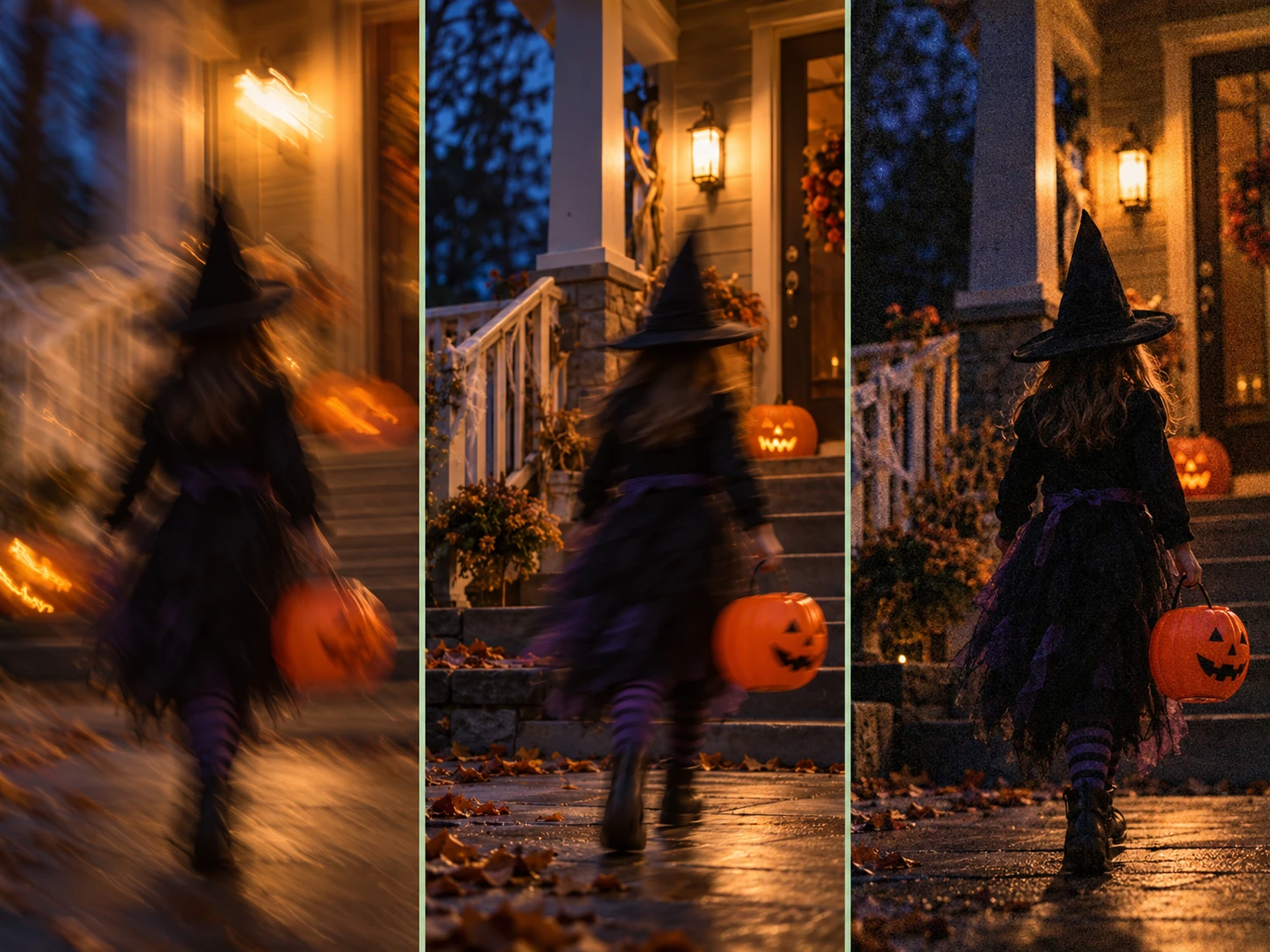
Do not confuse intentional background blur with a failed photo. If the child in costume is sharp and the porch lights glow softly behind them, that separation may be exactly what makes the image work. To fix blurry Halloween photos efficiently, treat the subject's sharpness as the first decision point.
1. Find the strongest source file
Open the camera roll, not just the image someone posted to a group chat. Phones often capture several frames around one tap; a neighboring frame may have a clearer expression or less movement. If you used burst mode, compare those frames before trying to repair the weakest one.
Keep the original untouched. Work on a copy, and note the file's pixel dimensions. A 4,000-pixel original usually gives an editor more usable information than a tiny image downloaded from a social feed. Repeated saves and aggressive crops can make artifacts more visible.
Choose the frame where the important subject is most recognizable, even if another frame has a brighter background. A slightly dark face can often be improved more convincingly than a face that is heavily smeared across the frame.
2. Deblur the photo before making it larger
When edges have a clear but soft outline, start with a dedicated deblur pass. EnhancePhoto.ai's Unblur Image tool accepts an uploaded photo and targets motion blur, missed-focus softness, and compression softness. Save its output as a separate version so you can compare it with the original.
Zoom in on the details viewers will notice first:
- Faces and masks: Are eyes, seams, and printed patterns still plausible?
- Hands and props: Did the edit create extra fingers or reshape a candy bucket?
- Lights: Are porch bulbs and pumpkin cutouts cleaner without bright halos?
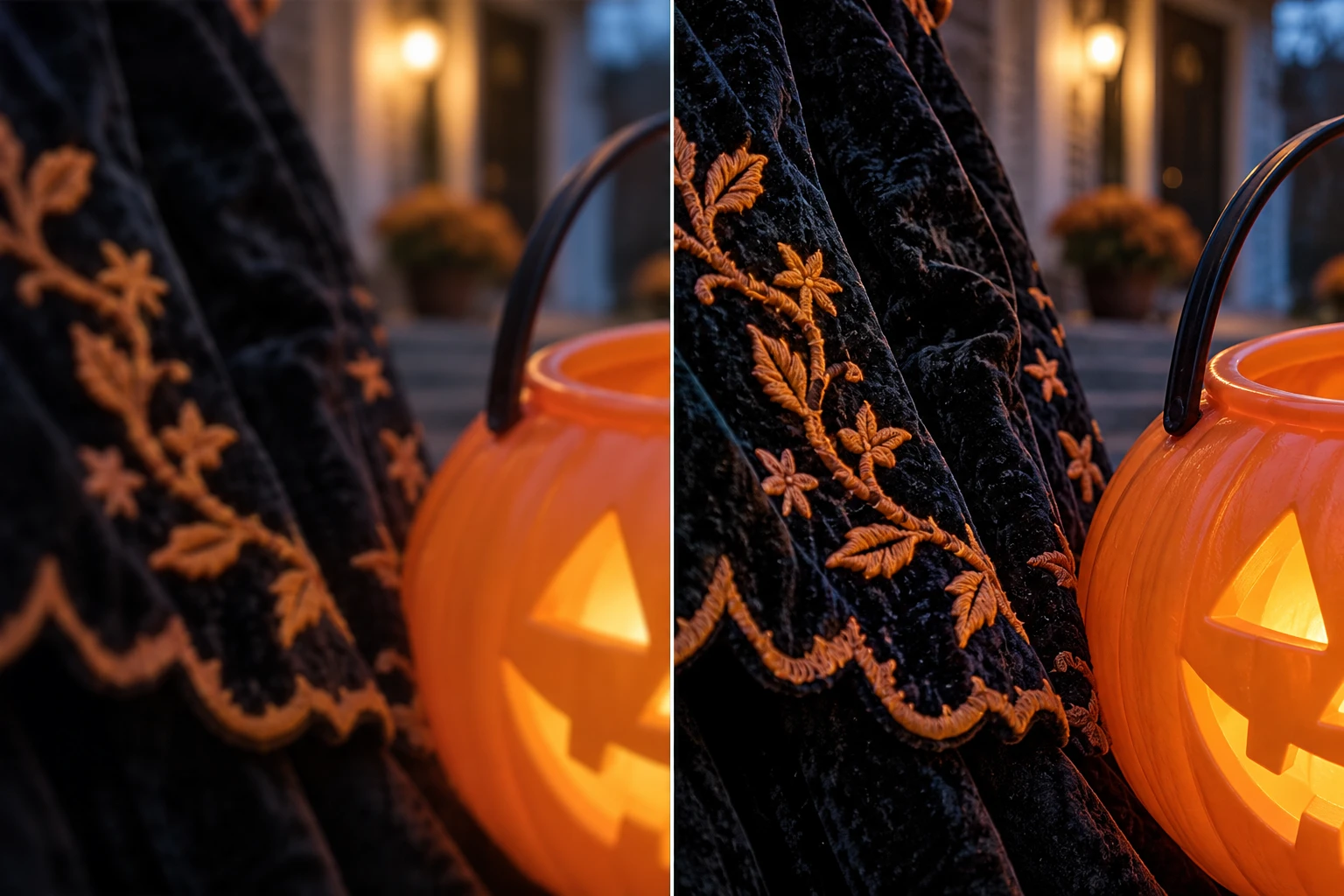
- Fine textures: Does fabric still look like fabric, rather than a painted pattern?
If a face was only mildly soft, a clearer result may be useful. If it was a streak with no visible structure, AI may invent plausible-looking features. In that case, use a different frame or accept a smaller display size.
3. Correct darkness and noise as a separate step
Blurry and dark are related, but they are not the same defect. Brightening a photo does not remove camera shake. Deblurring alone will not fix a green streetlight cast or muddy shadows.
After the subject is as clear as it can reasonably be, use photo enhancement for a measured improvement in lighting, color, and visible detail. Raise dark areas enough to see the costume while keeping the scene recognizably nighttime. Preserve the warm glow inside a jack-o'-lantern; turning the entire frame bright orange loses the atmosphere you wanted to remember. When you fix blurry Halloween photos after dark, a brighter result should still look like a night photograph.
Inspect dark walls, hair, and skies for blotchy noise. Then check the bright regions for clipped detail. If the pumpkin becomes a featureless orange patch, pull back the correction or return to the better original.
Why did the photo blur in the first place?
In low light, a camera may keep its shutter open longer. Any movement during that time can register as blur. Nikon's Halloween low-light guide recommends a stable camera position, more available light, or a higher ISO when the subject is moving. Those capture choices explain why editing has limits: the cleanest fix is often the sharper frame you already took.
4. Keep Halloween color and texture believable
Night photos often mix orange porch bulbs, blue twilight, green decorations, and dark costumes. Automatic corrections can flatten that mix into a generic daylight look. Compare the edited version at normal viewing size and at 100% zoom.
Use a short review checklist:
- Does the costume retain its real color and material?
- Can you still tell which light sources were warm and which were cool?
- Are shadows dark enough to preserve the evening setting?
- Did the edit add lettering, facial details, or decorative shapes that were not visible before?
The goal is a clearer memory of the same scene, not a newly imagined costume. For children's photos and recognizable portraits, favor a modest improvement over a dramatic transformation.
5. Remove only background distractions
A bright bin, passerby, or stray bag may pull attention from an otherwise good trick-or-treat photo. If it is separate from the subject, EnhancePhoto.ai's Object Remover lets you brush over an object, person, or text and review the filled area before downloading.
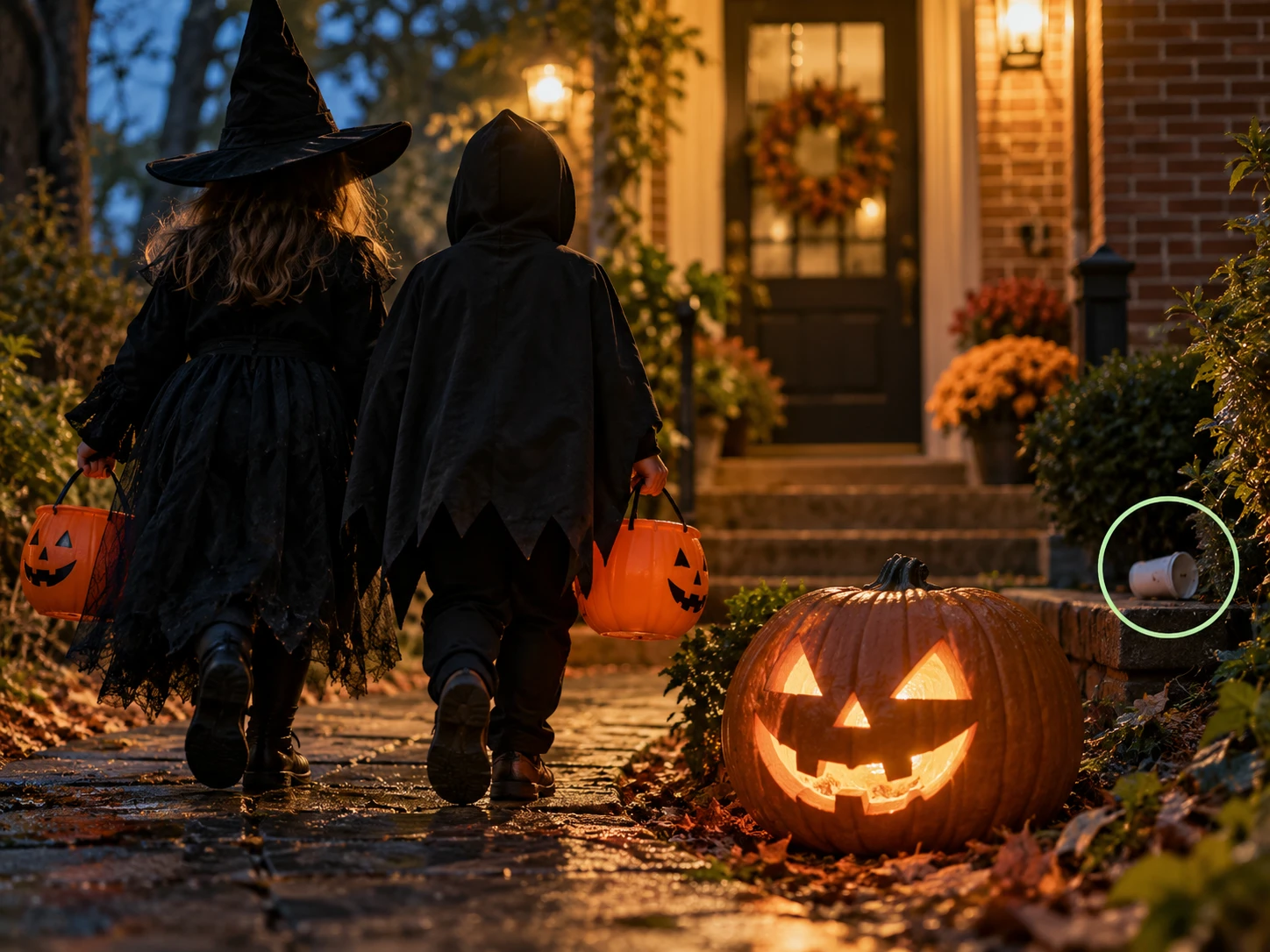
Do this after choosing the best frame, and check the repaired background at full size. Brickwork, porch rails, leaves, and shadows can expose a bad fill. Avoid removing details that are part of the event or that change what actually happened. A busy street does not need to become an empty street to make the photo worth keeping.
If removing the object would cut into a person's costume or a pumpkin's outline, a tighter crop may look more natural. Cropping also avoids asking software to rebuild a complicated overlap. This restraint matters when you fix blurry Halloween photos that you plan to keep as family records.
6. Export for where the photo will appear
Use the final destination to decide how far to edit. A family chat photo, a social post, and a framed print do not need identical files. Check the result at the size people will actually see, then keep a high-quality master copy before making smaller exports.
| Destination | What to check before export |
|---|---|
| Family chat | Faces read clearly on a phone; no obvious halos around lights |
| Social post | The crop keeps the main costume or group visible in the thumbnail |
| Photo book | Fabric, hair, and pumpkin edges look natural at the planned print size |
| Large print | The cropped file has enough pixels; make a test print if it matters |
Only enlarge the file if its pixel dimensions are too small for the destination. The Image Upscaler is a later step for a photo that is already edited and worth enlarging. Upscaling cannot confirm a missing face or costume detail. For print-size calculations, see the site's guide to AI image upscaling for print.
7. Take a sharper photo next time
You can reduce the amount of repair needed with a few small choices before the next porch or party shot. Ask people to pause near a light for a second, brace your phone or camera against something solid, and take several frames. For moving children, pets, or dancing guests, prioritize a faster shutter when your camera offers that control.
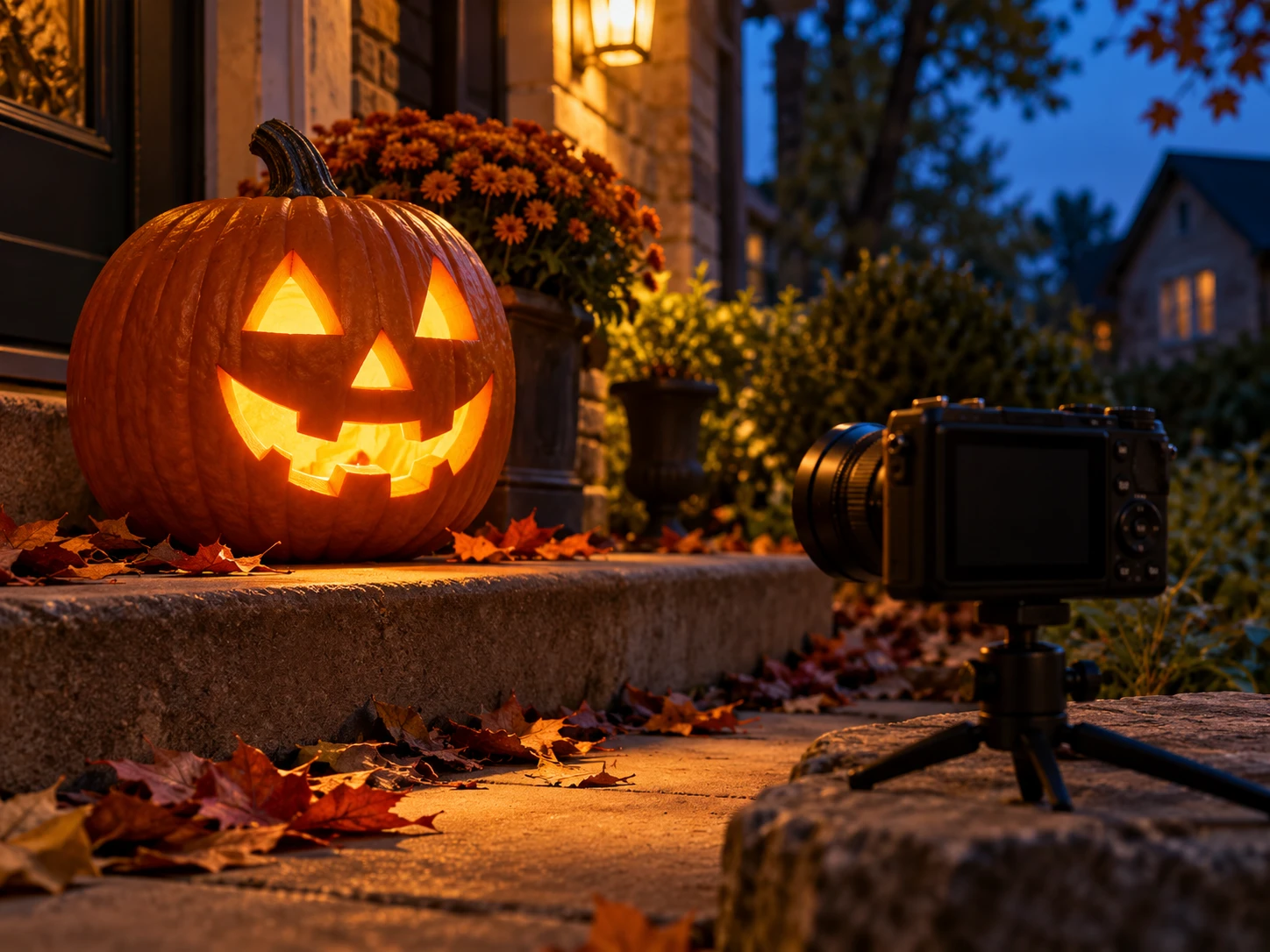
Adobe's explanation of shutter speed shows the core tradeoff: a longer exposure gathers more light but records more movement. For a still glowing pumpkin, a steady camera and slower exposure can be effective. For a moving costume parade, extra light or a faster shutter is usually more useful.
Before everyone moves on, check one image at full size. A quick look at the eyes, mask, and hands can tell you whether to shoot again while the moment is still there.
Which EnhancePhoto.ai tool fits the problem?
You do not need to run every Halloween image through every tool. Pick the step that matches the visible defect, and stop when the picture looks believable.
| Problem | Useful step | Important check |
|---|---|---|
| Soft subject or handheld blur | Unblur Image | Compare faces and costume edges with the original |
| Dark color or weak contrast | Photo Enhancer | Keep natural night shadows and warm lights |
| One isolated background distraction | Object Remover | Check repeated textures and contact shadows |
| Good edited photo, too few pixels | Image Upscaler | Inspect at the final display or print size |
EnhancePhoto.ai offers these steps in a browser. The homepage upload area starts a general enhancement task; for a specific defect, choose the matching tool page in the table. Start from the strongest original, save versions between meaningful edits, and keep only changes that help the subject read more clearly.

Three everyday phone-photo examples
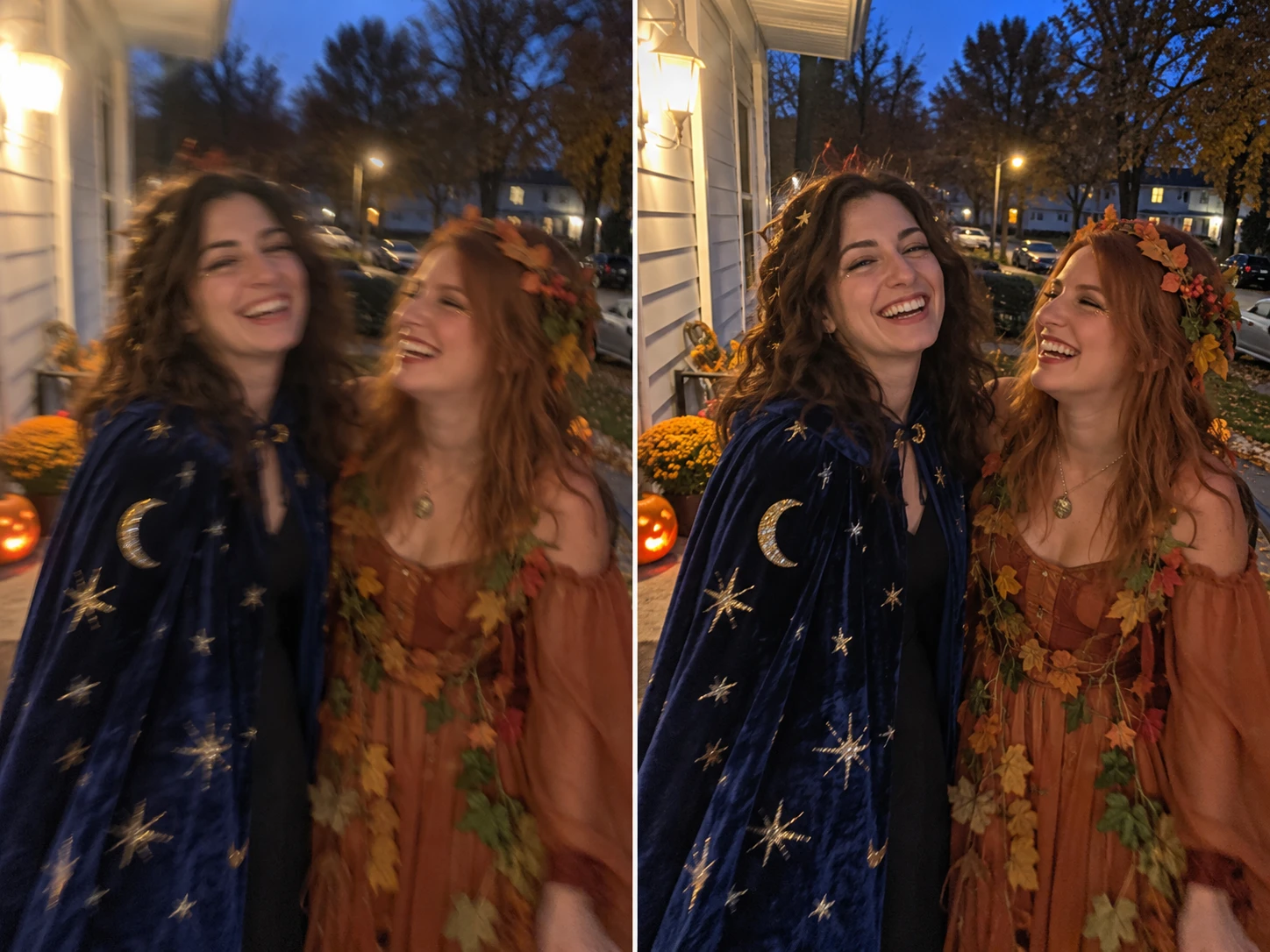
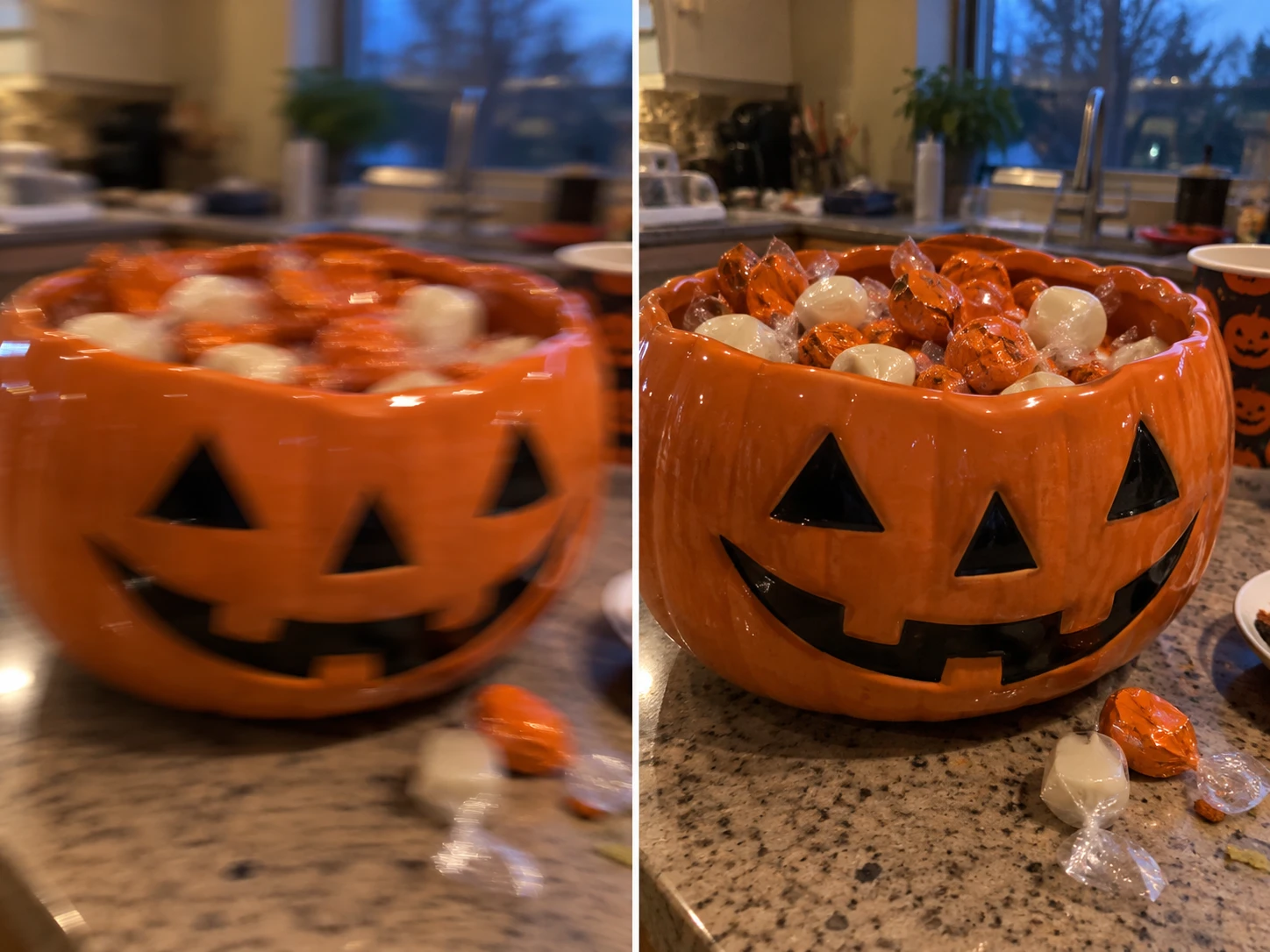
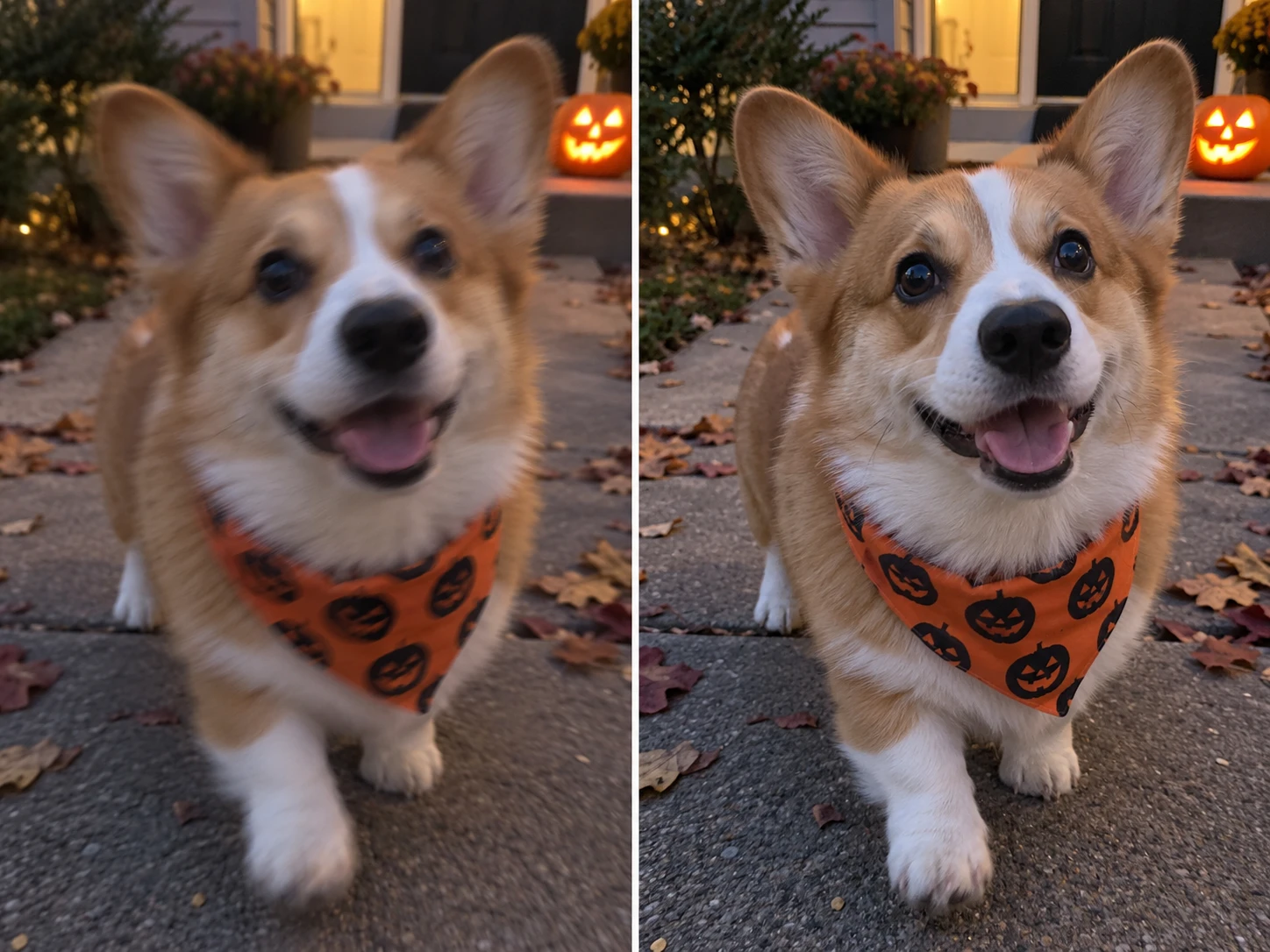
To fix blurry Halloween photos from a phone, match the edit to what the camera captured. In each pair below, the left side is soft and the right side is clearer. The three scenes show why it helps to inspect the subject, the light, and the original file before editing.
Friends in costume: check faces first
In a quick porch snapshot, both people may look soft when one person turns and the phone moves. Compare nearby frames before choosing one to deblur. In the clearer version, check that faces, hair, and handmade costume details still match the original.
Candy bowl: keep the room's light natural
An indoor candy-bowl photo can have camera shake and mixed window and ceiling light. Improve the bowl's edge and candy texture without turning the entire room bright or changing the arrangement of the sweets.
Pet in motion: inspect fur and markings
Pets rarely hold a pose for long. A mild deblur may make a dog's eyes and bandana easier to see, but compare the fur pattern, ears, and expression with the original. If those details shift, look for a sharper frame instead.
Common mistakes to avoid
- Sharpening before diagnosis. A noisy dark photo may need tone correction; a severely blurred face may need a different frame.
- Running the same image through multiple tools repeatedly. Each pass can exaggerate artifacts or create new texture.
- Judging only the full-screen preview. Check a face, costume label, and pumpkin edge at 100% zoom.
- Making every night scene bright. Strong shadows and small pools of light are part of Halloween's look.
- Upscaling first. Larger pixels do not make an unreliable detail more accurate.
- Discarding the original. You need it to tell a true improvement from a convincing invention.
Frequently asked questions
Can AI completely fix a blurry Halloween photo?
Sometimes it can make mild blur much less noticeable, especially when the original still shows recognizable edges. Heavy subject motion or a badly missed focus point may have removed too much information. Compare several frames first, then check any AI result against the original before sharing it as a record of the moment.
Should I brighten or unblur a dark photo first?
Diagnose the image before doing either. If the subject's edges are soft, try a deblur pass and then adjust light and color. If the edges are defined but the photo is simply dark and noisy, start with a gentle enhancement. Save intermediate versions so you can compare the effect of each step.
Will upscaling fix a blurry face?
No. Upscaling primarily increases image dimensions. It can improve apparent detail in a usable source, but it cannot verify features hidden by severe blur. Choose the sharpest original or try deblurring first, then enlarge only if the final destination needs more pixels.
How do I fix blurry Halloween photos from a messaging app?
Ask for the original camera file if one exists. A copy shared through a messaging app may have fewer pixels and more compression artifacts. If the original is unavailable, try a conservative deblur or enhancement pass, keep the result at a modest display size, and avoid treating newly generated detail as factual.
Keep the moment, not the artifacts
The best way to fix blurry Halloween photos is to choose the clearest source, identify the real defect, and make one measured correction at a time. Deblur when there is recoverable structure, improve light when the image is mainly dark, and enlarge only for a specific output size. A natural-looking photo that still feels like that night is more valuable than a perfectly crisp version that changes the people or scene.
AI Image Upscaling for Print: Keep Details Natural in 2026
AI image upscaling for print made simple: calculate pixels, choose 2× or 4×, protect natural detail, and prepare sharper photos for printing.
How to Improve Holiday Product Photos Without Changing Items
Learn how to improve holiday product photos while keeping real colors, textures, labels, and shapes accurate. Follow a simple editing and review workflow.