

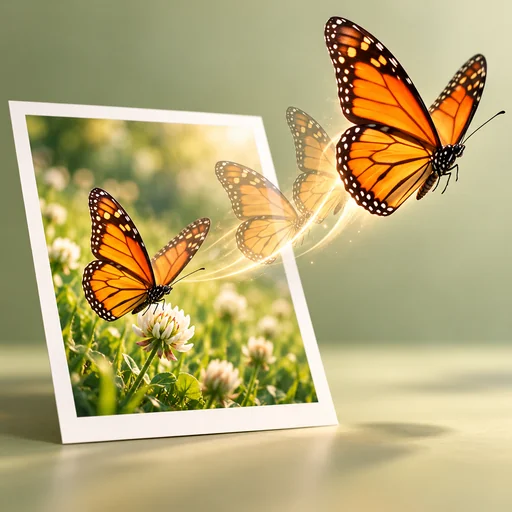

Free Online Image to Video AI: Bring Your Photos to Life
Turn photos into videos with image to video AI. Upload a picture, describe the motion, and preview your clip before downloading. Use available free credits to bring photos to life online.
Image to Video
Upload Image
View Result
History
Click to select the video
What Makes Photo Animation Difficult?
You Have Photos, but No Video Footage
A product launch, travel story, or character introduction may begin with a single picture. Without footage, you still need a way to make photos move and hold the viewer's attention.
Slide Transitions Leave the Scene Still
A slideshow moves between photos, but a breaking wave or a character's gesture needs movement within the scene. Slide transitions alone cannot bring those moments to life.
Manual Animation Takes Time
Manual photo animation can involve keyframes, layers, and a separate editing workflow. You want to animate photos without building every movement by hand.
One Crop Does Not Fit Every Format
A wide photo may lose important details in a vertical crop. Both the subject and its movement need room in the frame where your video will appear.
Convert Image to Video in Three Steps
Step 1: Add Your Image
Choose a model and upload a clear photo or illustration. Keep the main subject easy to distinguish from the background.
Step 2: Describe the Motion
Describe what should move and how the camera should travel. Set your clip's format and length, then check the credit estimate.
Step 3: Generate and Review
Generate your clip, watch the motion, and download the result you want to use.
Shape the Motion with AI Image Animation
Your Image Sets the Scene
Use this AI image to video generator to animate photos and illustrations. Your picture guides the subject, setting, and composition, giving the movement a clear visual starting point.
Choose What Moves in the Frame
Animate photo details such as rolling waves or swaying curtains, or move the camera closer to a still subject. Keep each image to video prompt focused on the movement you want.
Guide the Shot with Frames and References
Animate images with the inputs your model supports, from a starting image to first and last frames or references. Use frames to guide the shot's endpoints and references to guide the subject and scene.
Frame the Clip for Its Destination
Choose the length, resolution, and aspect ratio for a product post, travel story, or other placement. Audio options are available on supported models, letting you plan the clip before generation.
Image to Video
Before and After
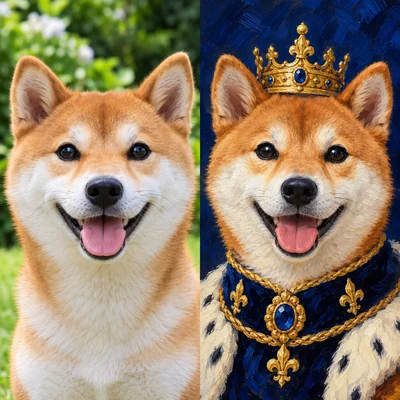
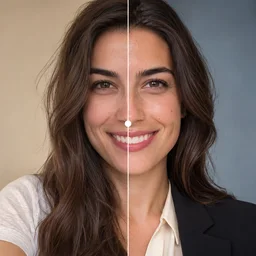
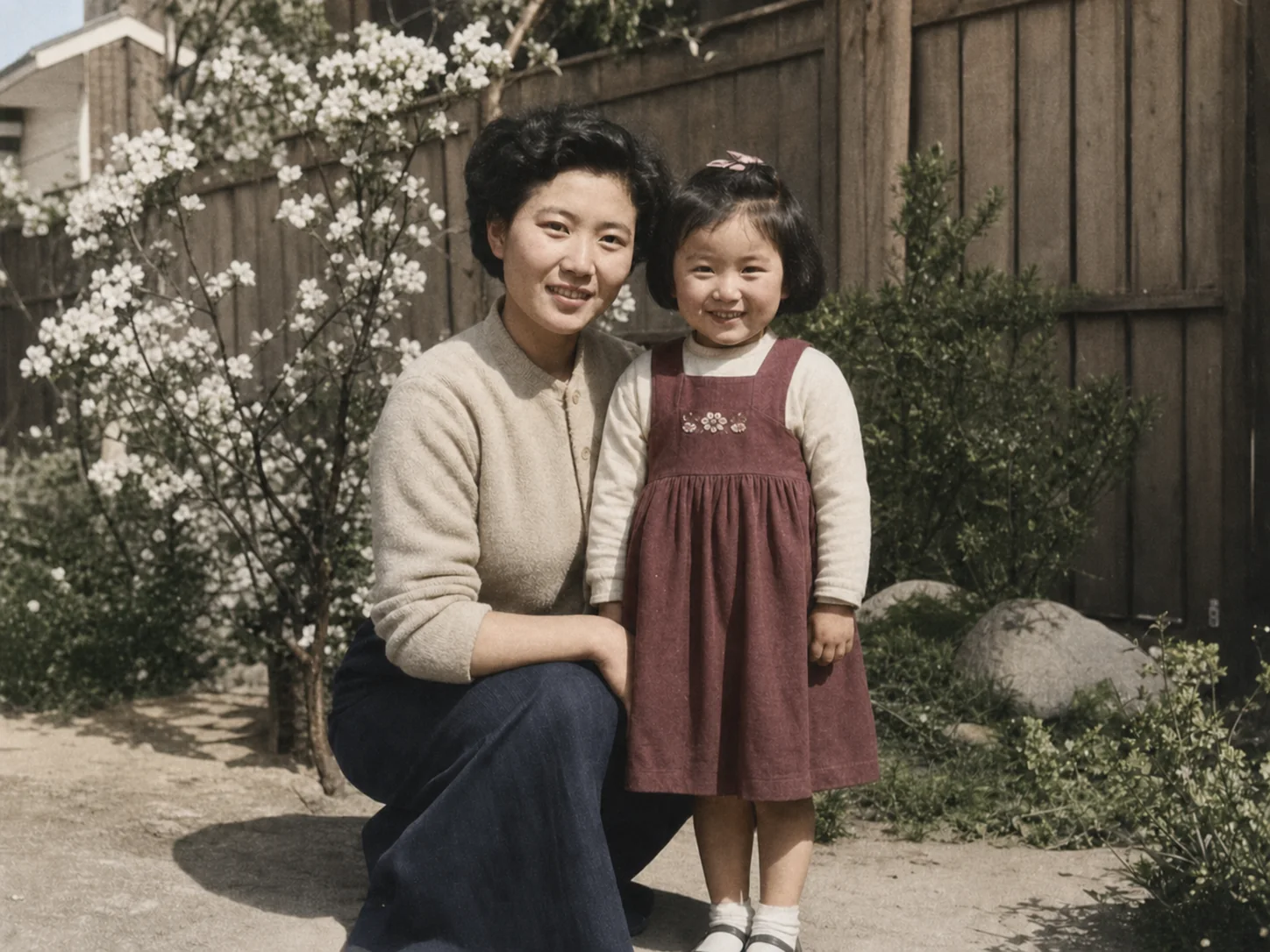
See how you can animate images for product posts, travel stories, character introductions, and interiors. Each image to video example pairs a source picture with its moving result.
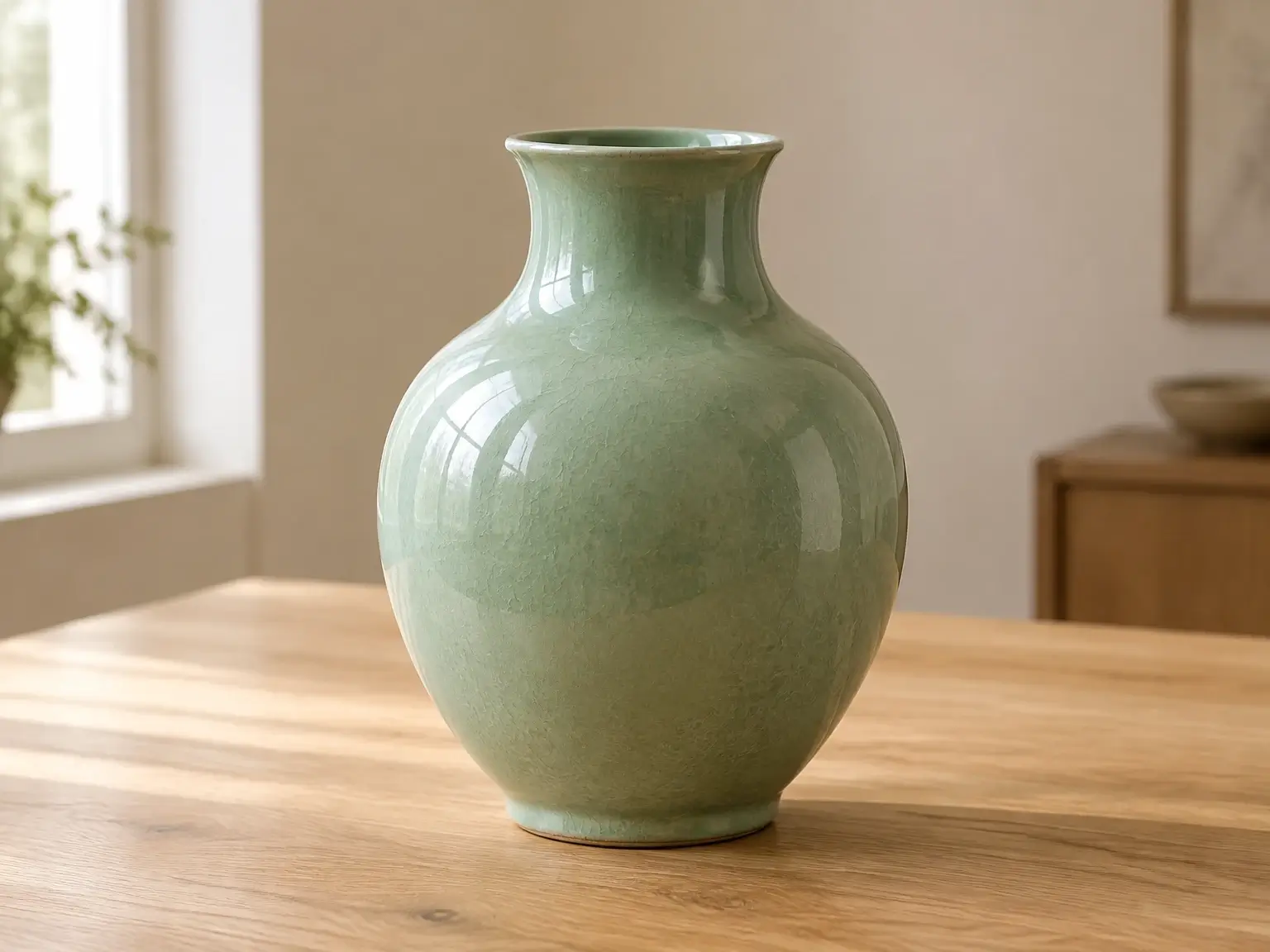
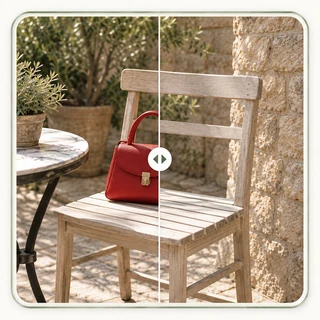
Product Photo to Promotional Video
A slow camera push draws attention to a ceramic vase's rim and glaze while the product stays still. This image to video example turns a simple product shot into a focused promotional clip.
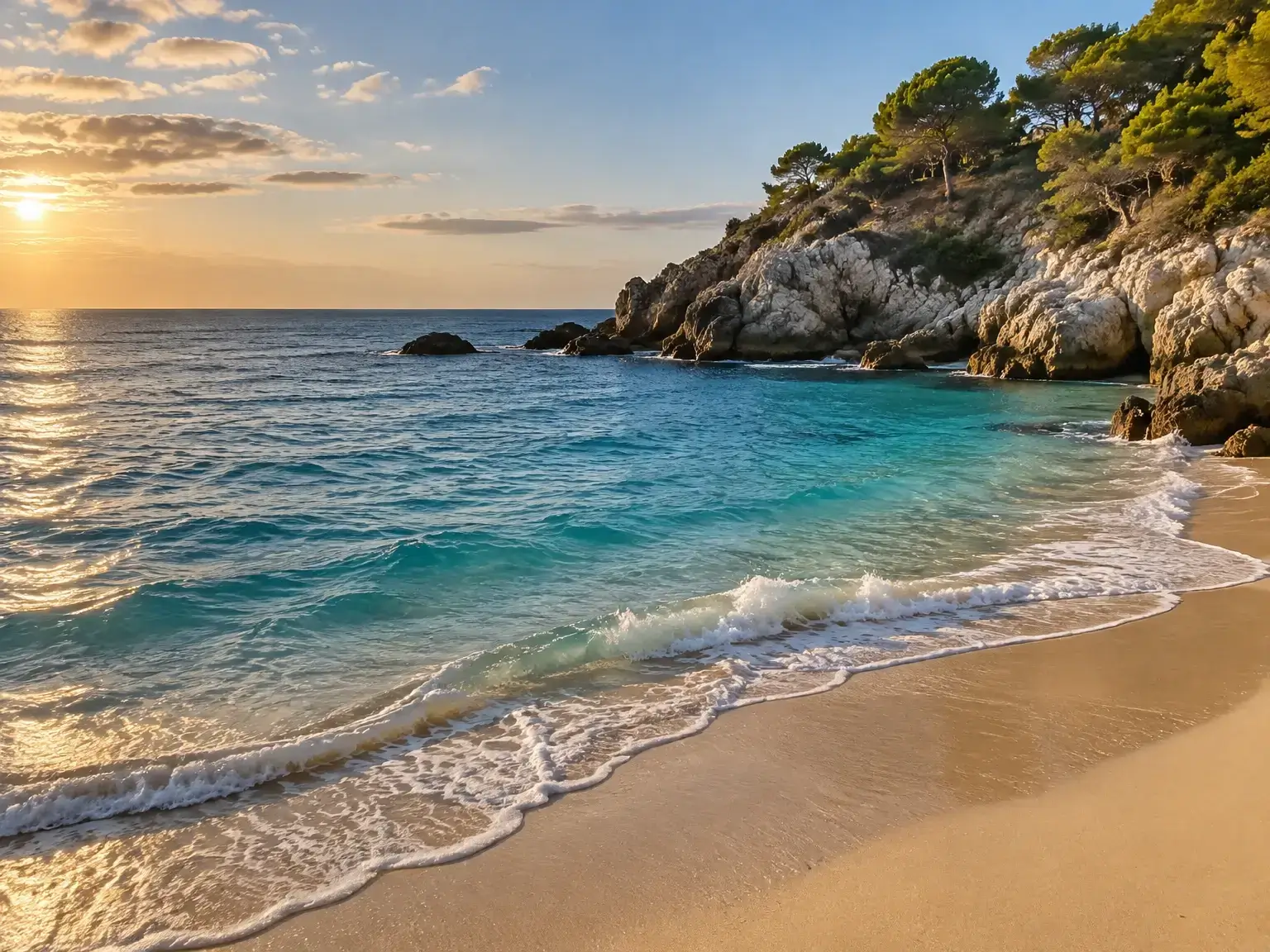
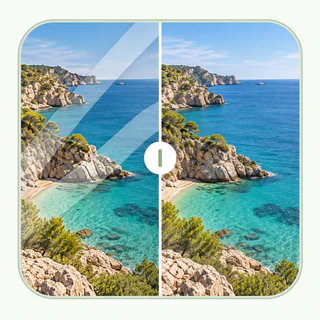
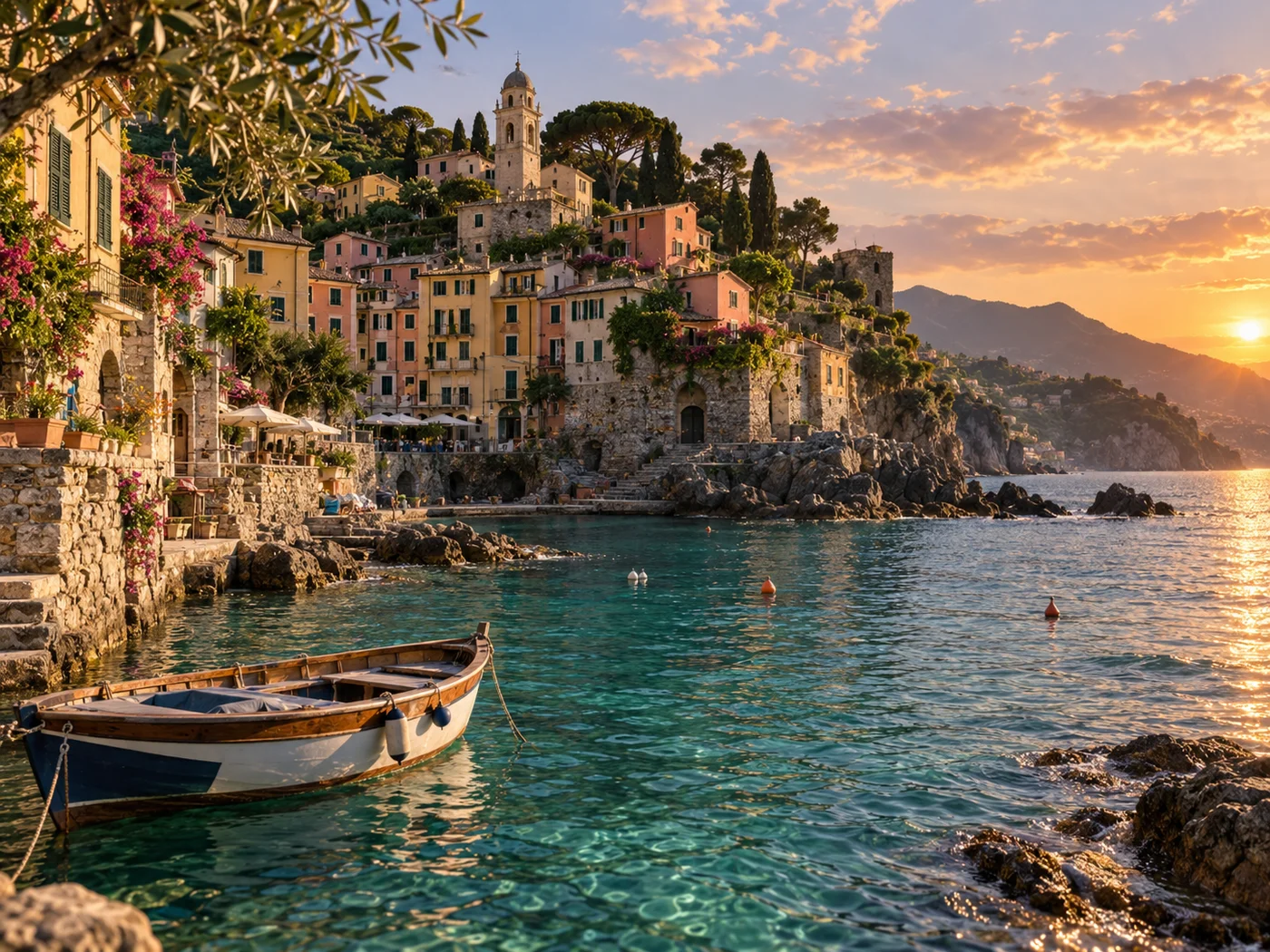
Coastal Photo to Travel Video
Rolling waves and a gentle camera pan turn a coastal photograph into a short travel scene. The movement gives a destination feature or travel story a stronger sense of place.
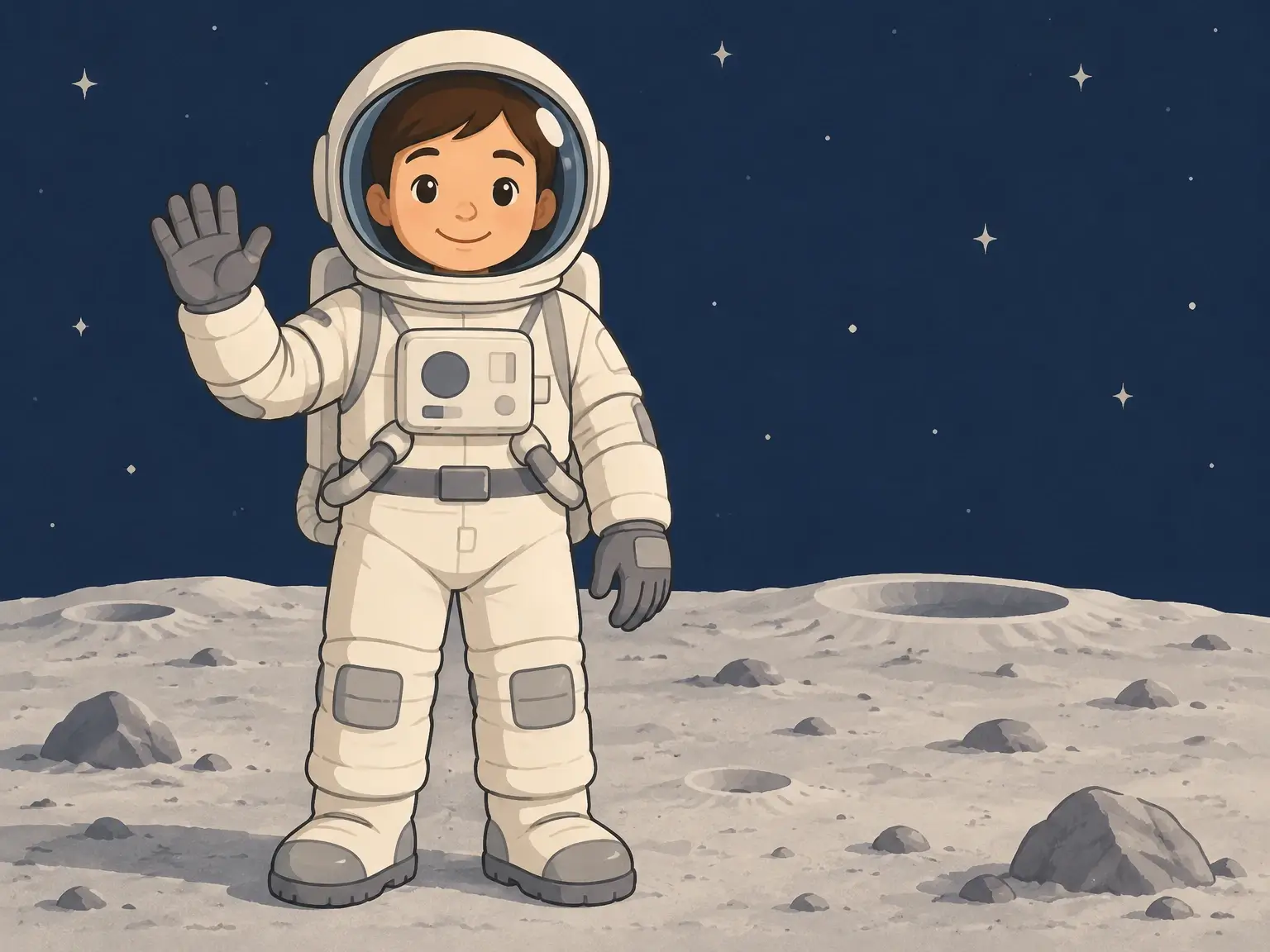
Illustrated Character to Animated Clip
An illustrated astronaut waves in a short character introduction. This image to video example shows how one gesture can give a still illustration a moment in a story.

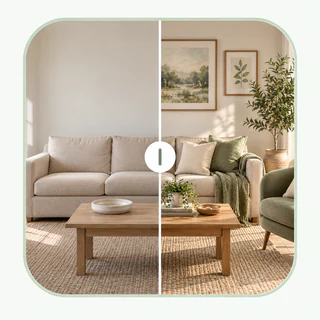
Interior Photo to Ambient Video
Curtains sway in a sunlit room while the camera stays fixed. This subtle photo animation adds atmosphere to a room tour or interior presentation without distracting from the space.
A Simpler Way to Create Videos from Images
No Desktop Setup
Create videos from images in your browser, from the first upload to the final preview. Bring photos to life without adding desktop animation software to your workflow.
Compare Models in One Workspace
Try an image to video idea with different models in one familiar workspace. Compare camera movement, subject consistency, and fine details in the resulting clips.
See the Cost Before You Generate
View the credit estimate before you generate. Changing your settings updates the estimate, helping you choose a setup that fits your available credits.
Preview Before Downloading
Watch the full clip to check expressions, movement, and framing. Download the AI photo animation that fits your brief, ready for your next post or project.
Give Your Image to Video Clip a Final Polish
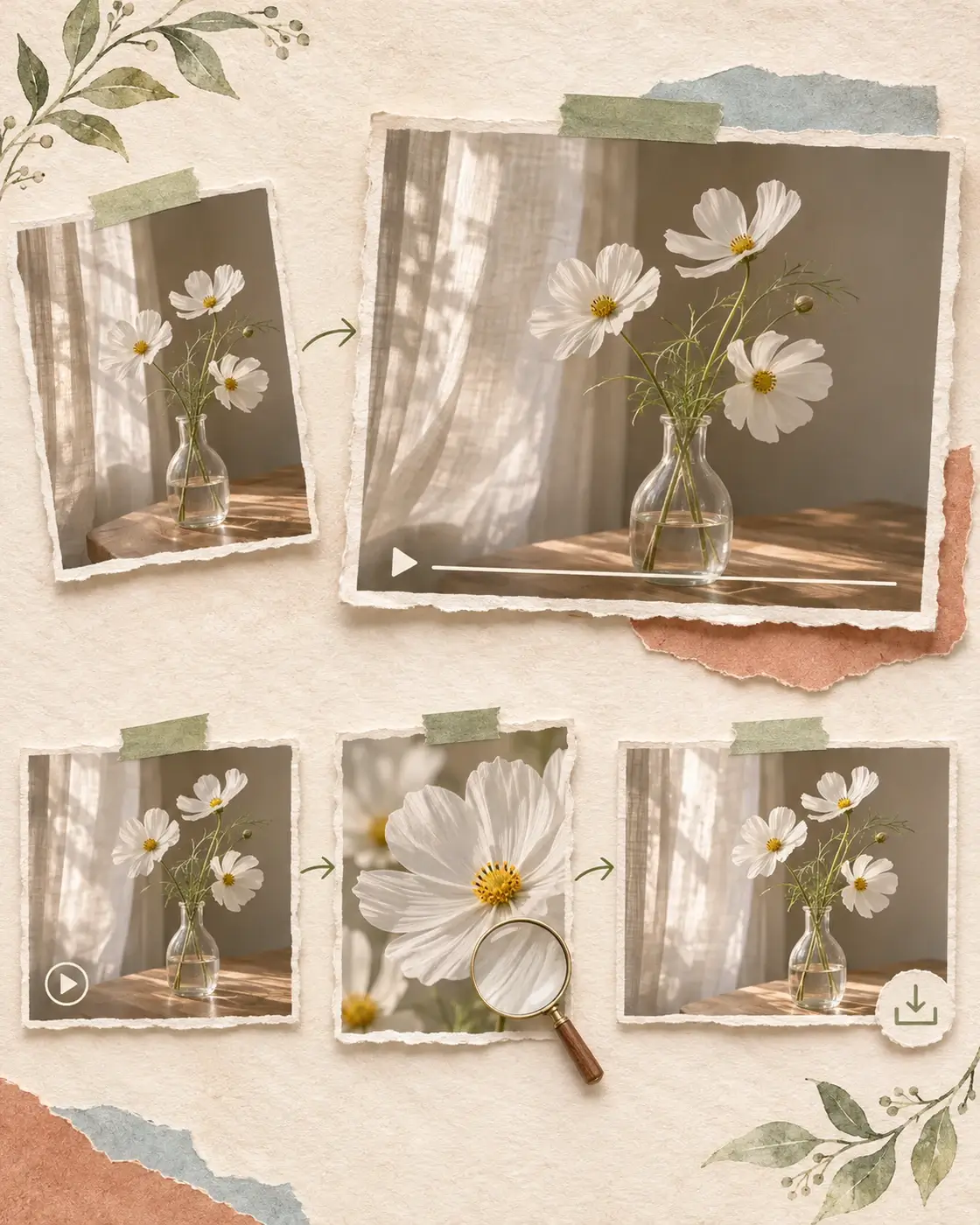
Once you convert an image to video, check that the motion works, enhance clarity if needed, and save the clip for your project.
- 01
Review the Generated Motion
Watch your image to video clip from start to finish. Check faces, product shapes, and camera movement; if those need to change, refine the prompt and regenerate before moving on.
- 02
Enhance Video Clarity
Happy with the motion but want sharper detail or a higher resolution? Download the clip and upload it to Video Enhancer. Compare the enhanced preview with the original before saving.
- 03
Save the Version You Want to Use
Save the version that suits your social post, product presentation, or video edit. Keep the original generation alongside any enhanced version for comparison.
Take Your Image to Video Project Further
Prepare your source for photo animation or refine the finished clip. These tools support your image to video project before and after generation.
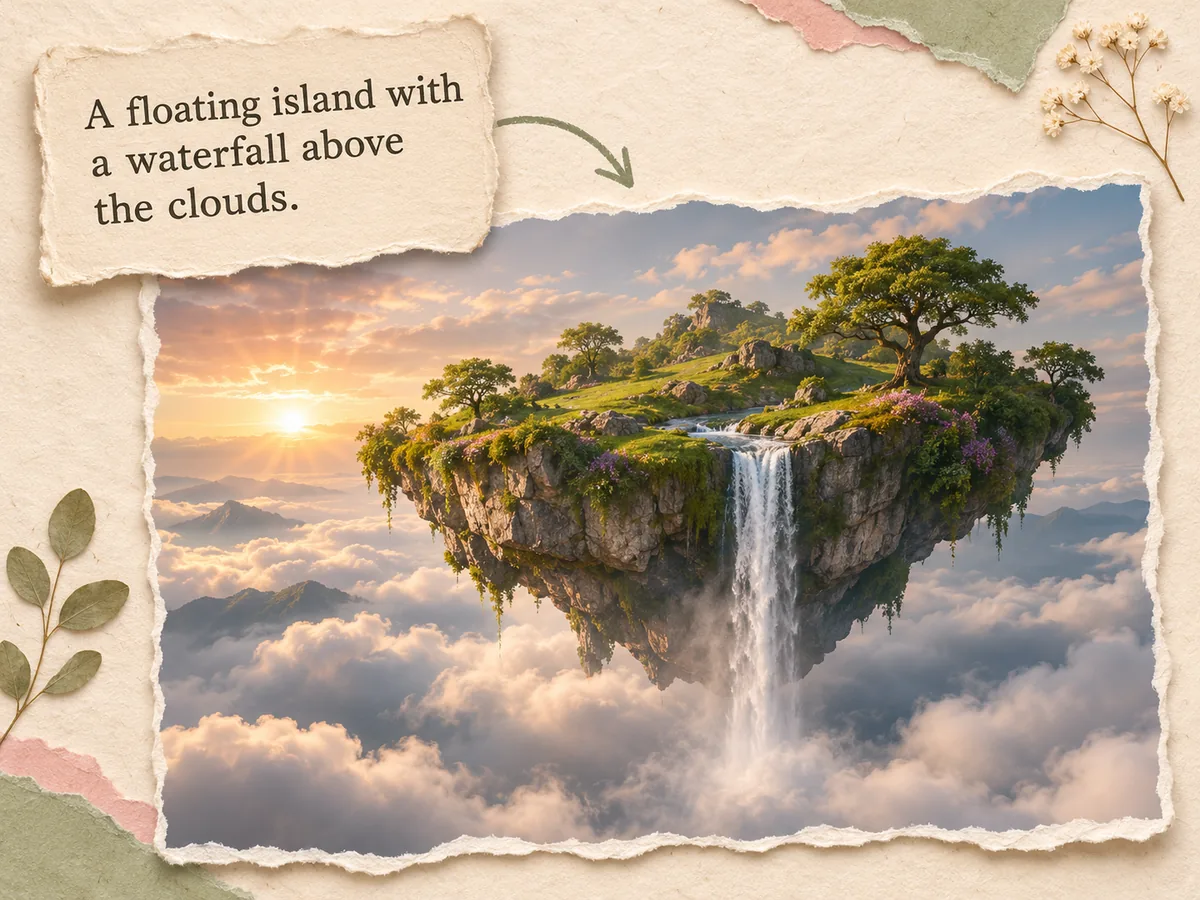
Generate Your Starting Image
Create the scene you have in mind from a text prompt. Bring the generated image back here as the starting point for your image to video project.
Create Your Image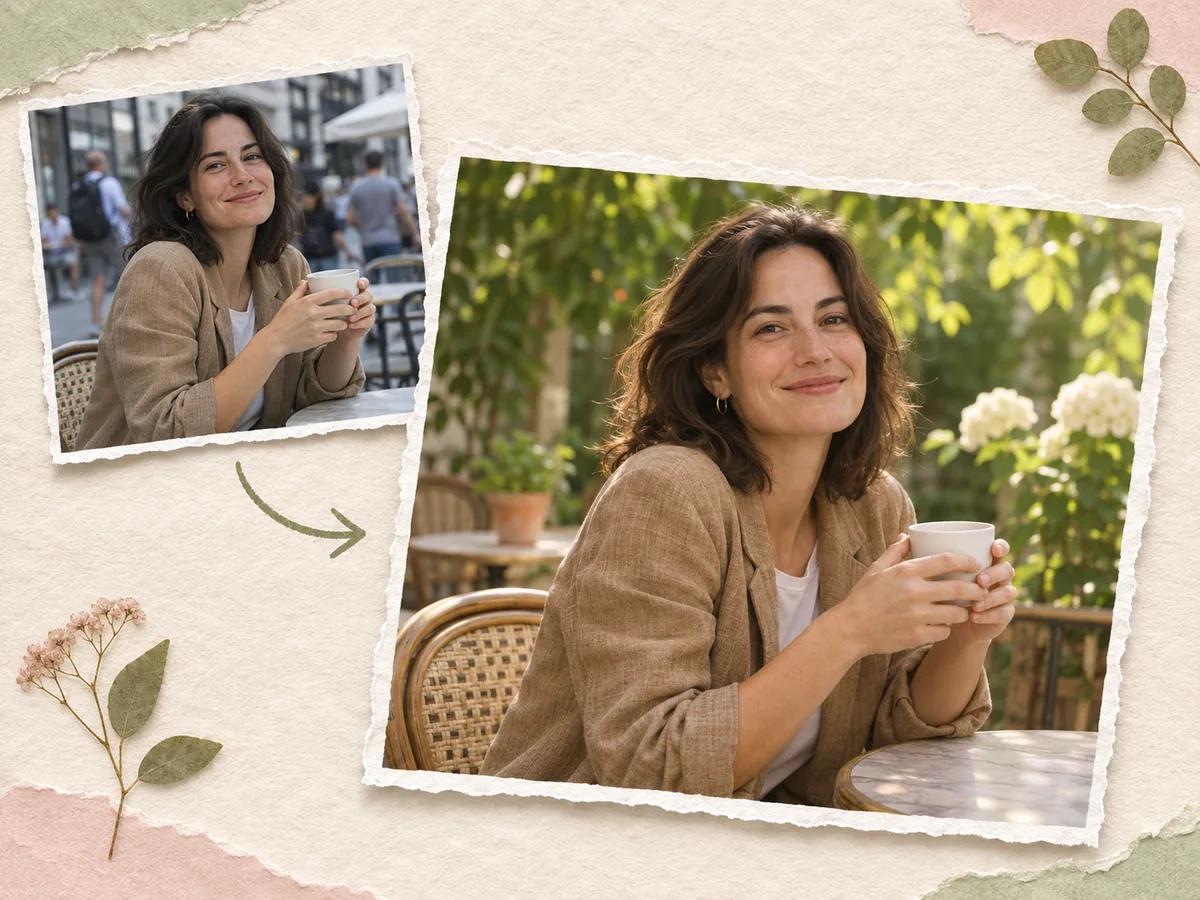
Edit Your Image Before Animation
Adjust a distracting background, refine the lighting, or change the style before you animate photos. A prepared source image gives your next clip a clearer visual direction.
Edit Your Image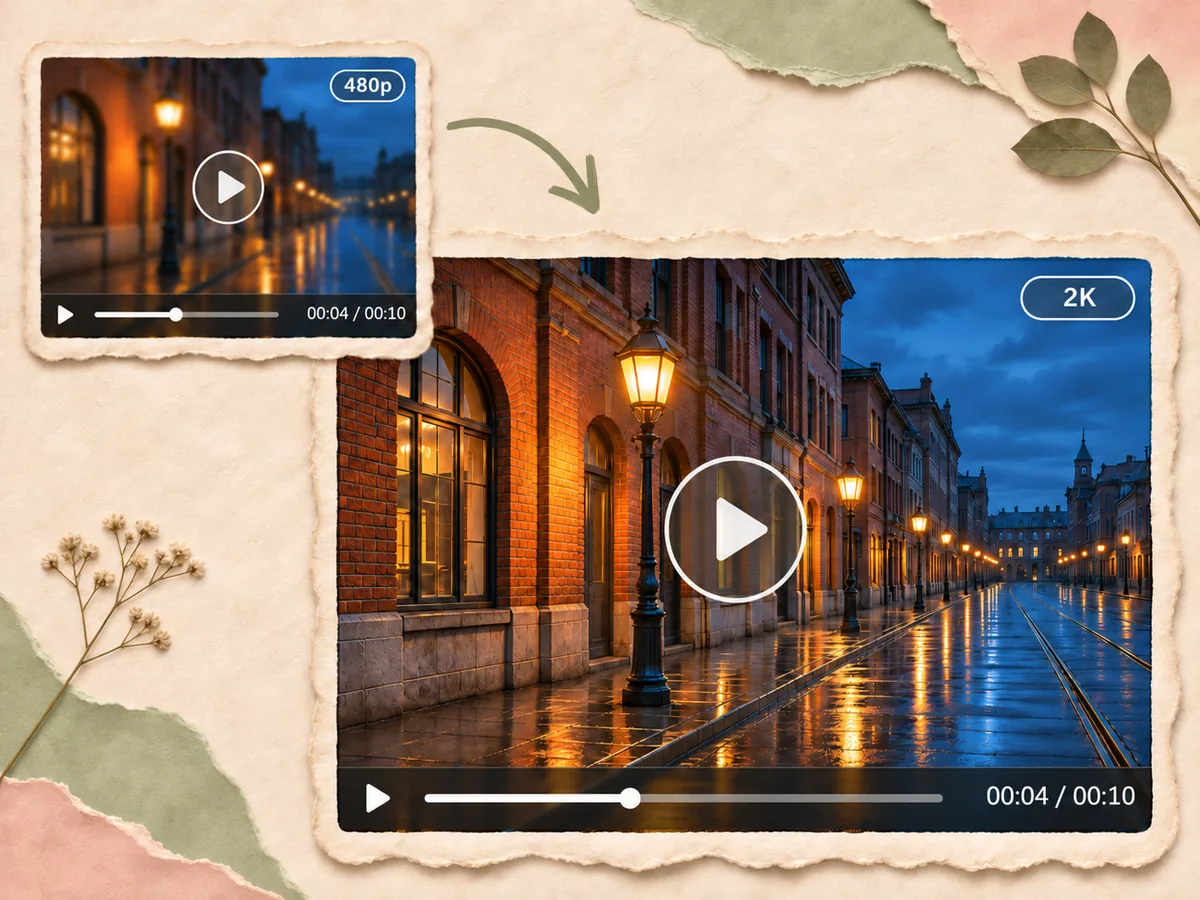
Enhance Your Generated Video
Give your photo animation a clearer presentation with Video Enhancer. Refine soft details and increase resolution so your finished clip is ready to share.
Enhance Your Video