










AI Video Enhancer for Old Videos: What It Can Fix
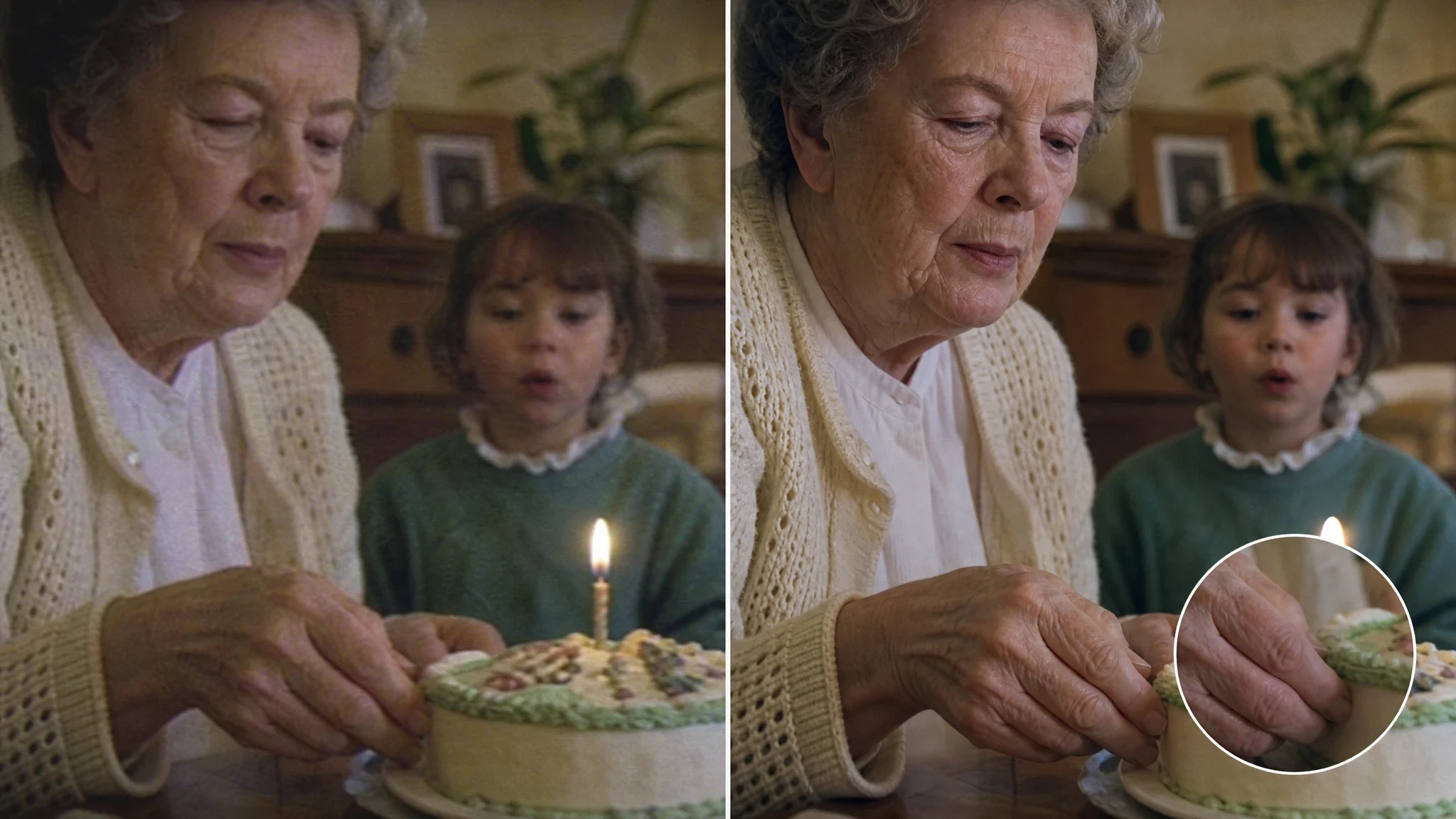
An AI video enhancer for old videos can make a fading family clip easier to watch, but it is not a time machine. It can reduce noise, soften compression damage, and make mild blur look cleaner. It cannot recover a face or an object that the original camera never captured clearly.
That distinction matters because “blurry” describes several different problems. A video editor may be able to improve one clip dramatically and produce a strange, over-smoothed result on another. The safest workflow starts with the best source file, tests a representative section, and judges the output in motion.
Quick answer: AI enhancement can improve mild softness, low-light noise, compression artifacts, and perceived clarity in old footage. It cannot recover information that was never recorded. Heavy motion blur, tiny background faces, unreadable text, and badly clipped highlights may remain unclear or contain invented detail.
What an AI Video Enhancer for Old Videos Can Improve
Useful enhancement begins with detail that still exists in the file. A model can recognize patterns, sharpen weak edges, compare neighboring frames, and estimate what a cleaner frame might look like. BasicVSR's video super-resolution research shows how temporal information across frames supports reconstruction; it is still not the same as recovering the exact missing pixels.
| Problem | Likely improvement | What to check |
|---|---|---|
| Mild softness | Edges, clothing, and facial contours may look cleaner | Faces remain recognizable and skin keeps natural texture |
| Low-light noise | Grain and colored speckles may become less distracting | Small details do not turn into smeared patches |
| Compression blocks | Blocking in skies, walls, and flat backgrounds may calm down | Fine texture and motion remain stable |
| Low apparent resolution | The clip may hold up better on a larger screen | The result still looks like footage, not a digital painting |
| Dull color and contrast | A moderate cleanup may improve separation | Skin tones and known object colors stay believable |
The best results usually look like a modest upgrade. A 480p clip may become more comfortable to watch, but a successful upscale does not prove that every missing detail has been restored. This is especially important when the subject occupies only a small part of the frame.
What It Cannot Recover
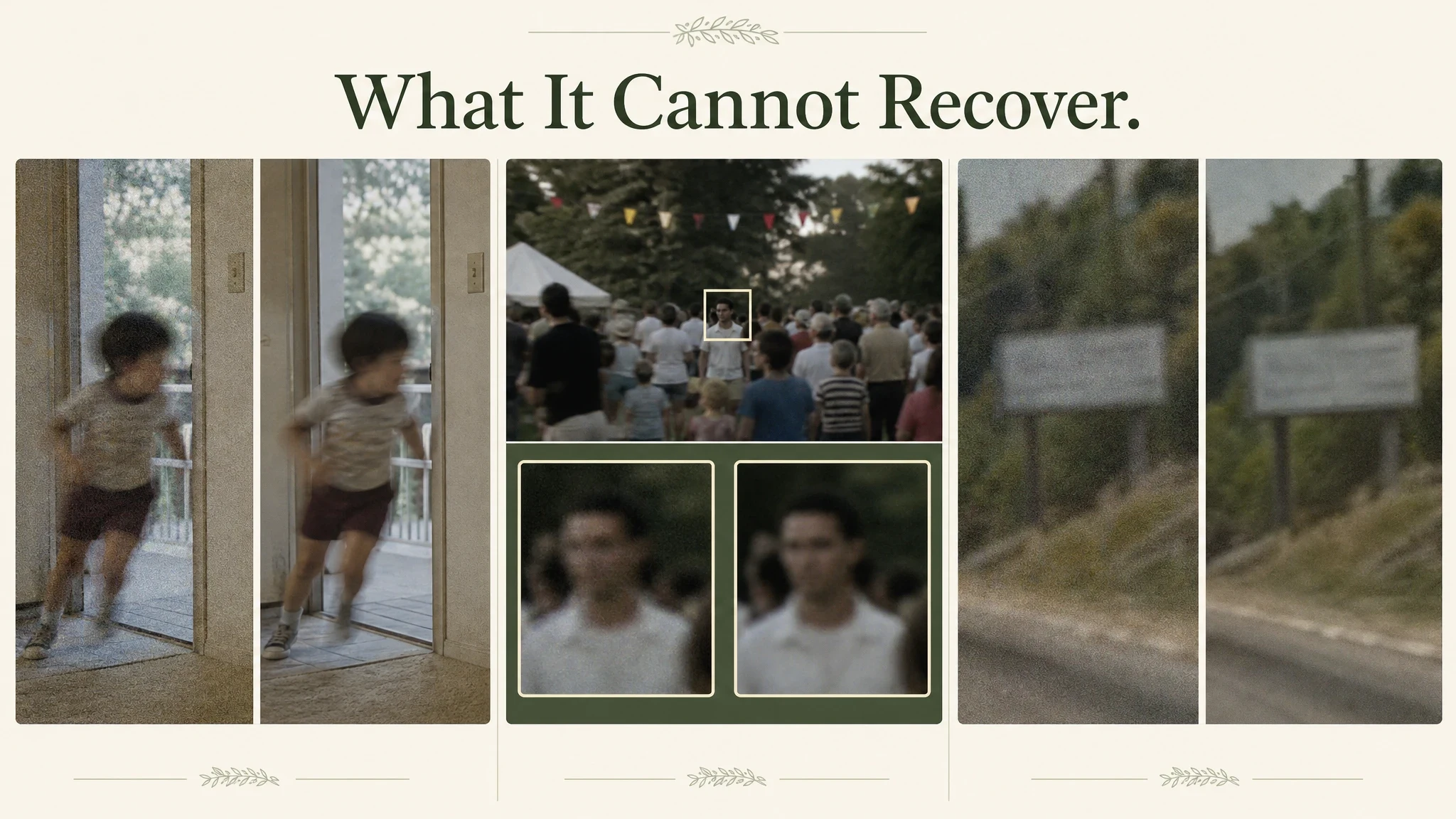
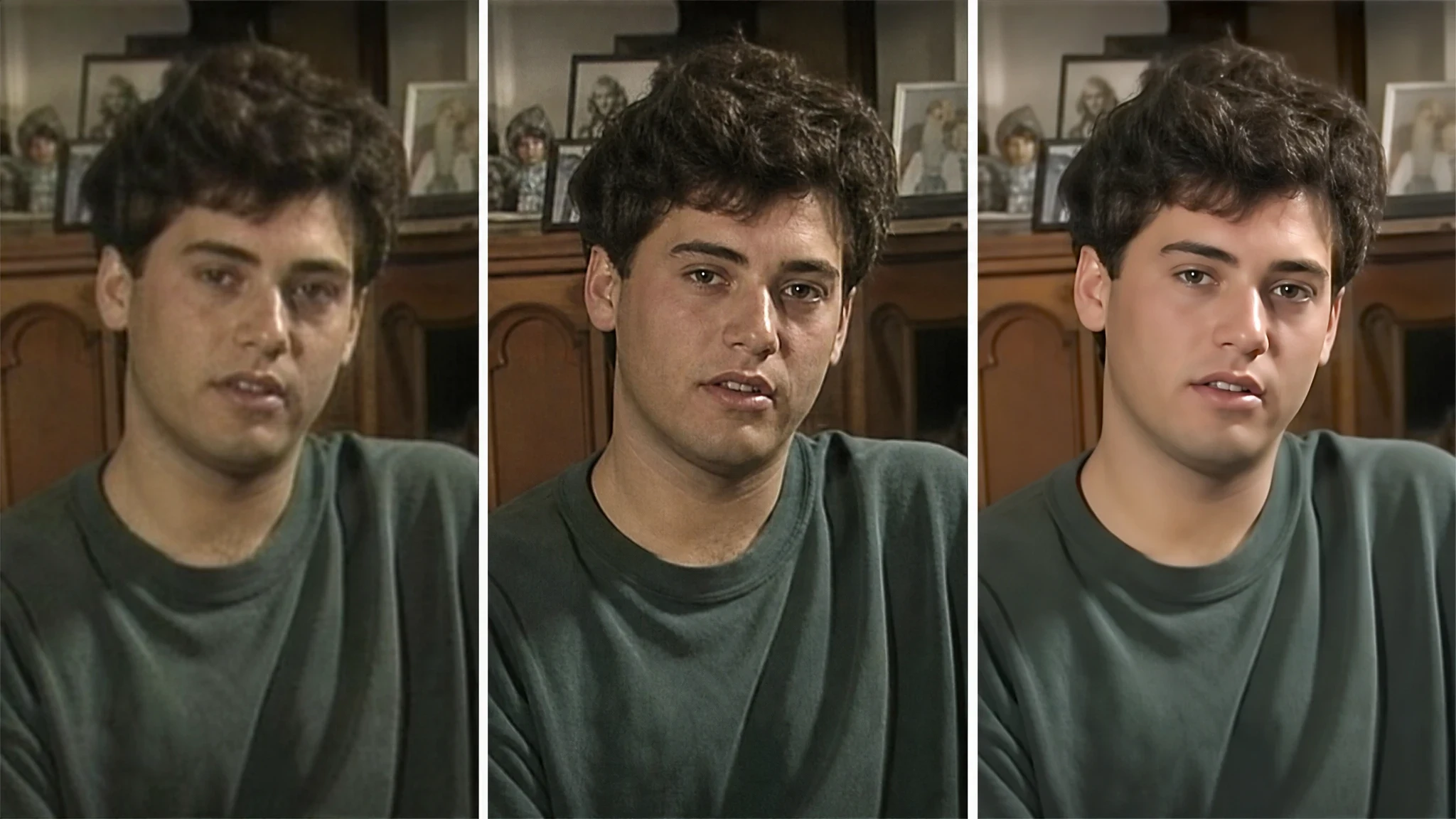
AI enhancement is a reconstruction process. When the source contains enough evidence, the model can make a convincing improvement. When the evidence is missing, it may create a plausible guess instead. A cleaner-looking result can therefore be less accurate than the messy original.
| Source problem | Why it is difficult | Realistic outcome |
|---|---|---|
| Heavy motion blur | Direction and texture are baked across each frame | The smear may soften, but true focus usually does not return |
| Tiny faces in a crowd | Very few pixels describe the person | The model may create generic features rather than the real face |
| Unreadable text | Letter shapes were not captured | Text may remain unclear or become confident-looking gibberish |
| Clipped highlights or crushed shadows | The tonal information no longer exists | Bright or dark areas may stay blocked |
| Damaged frames or missing sections | There is no source evidence for the missing content | Enhancement can improve nearby frames but cannot restore the event |
A recent explanation of AI video enhancement limits makes a useful point: the practical question is not whether a tool can “fix” the footage, but how much reliable information remains for it to work with. That is the right standard for evaluating an old video.
Diagnose the Clip Before Choosing a Setting
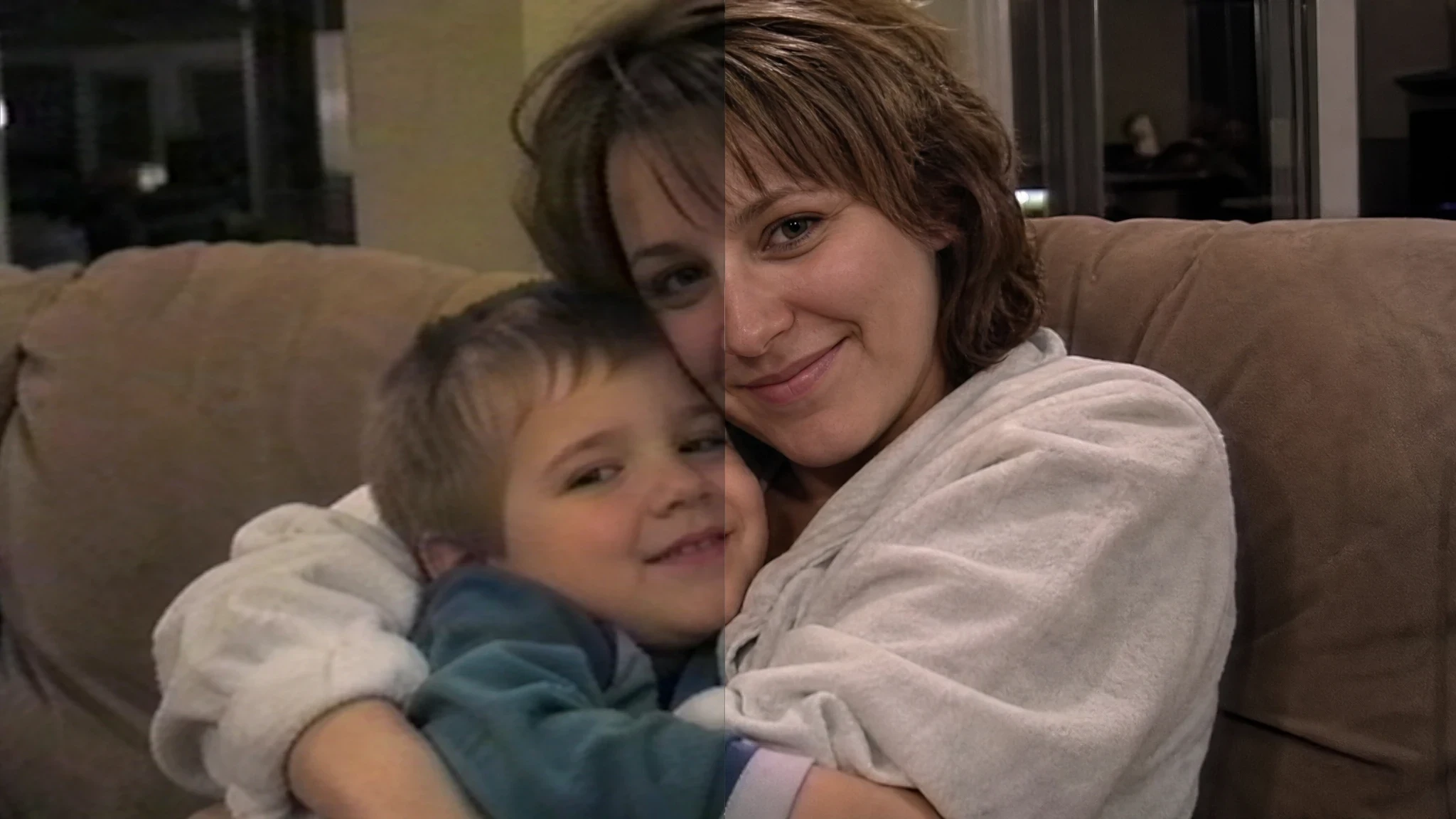
Before using an AI video enhancer for old videos, separate soft focus from motion blur, low resolution, compression damage, and tiny-subject problems. Each calls for different expectations.
- Soft focus: The detail is present but smeared. This is usually the friendliest problem to improve.
- Motion blur: Movement erased detail across the frame. A small improvement is realistic; recovered focus is not.
- Low resolution: The scene was stored with too few pixels. Enhancement estimates new detail.
- Compression damage: Repeated exports created blocks and banding. Cleanup may help, but aggressive processing can erase texture.
- Tiny subjects: A face that occupied only twenty pixels cannot become a reliable portrait.
Check the original file before touching an output setting. Compare the clip at its natural playback size, then zoom into faces, hands, fabric, signs, and the edges of moving objects. Write down which problem dominates. That diagnosis prevents the common mistake of using maximum strength on a clip that needed only gentle noise reduction.
Check Resolution and Output Before Uploading
Resolution labels can be misleading. What matters is the number of usable pixels and the size at which the result will be watched. Upscaling a short social download will not restore the quality of the original camera file.
On EnhancePhoto AI Video Enhancer, output is capped at 1080p or 2K. If the source's shorter edge reaches 960 pixels, the interface uses 2K instead of offering 1080p, because 1080p would produce a smaller result. Sources with a shorter edge of 1440 pixels or more are not processed. Portrait and landscape videos follow the same rule.
That makes source selection more important than chasing the highest label. Use the best copy available: the original camera file, an uncompressed export, or the earliest camcorder transfer you can find. Do not start with a copy that a social platform has already compressed.
A Six-Step Workflow for Old Videos
Step 1: Preserve the Original
Keep an untouched copy before you process anything. Enhancement is not a reversible slider. You may want the original later for comparison, a different tool, or a more accurate archive.
Step 2: Choose a Representative Preview
Select a short section that includes the people, movement, and objects you care about. Avoid choosing only the cleanest moment. A typical or slightly difficult shot is more useful for judging the tool.
Step 3: Match the Output to the Destination
Choose 1080p for a modestly sized screen or 2K when the source and viewing context justify it. Do not assume that a higher setting always means a better result. Overprocessing can make skin look plastic and introduce flicker.
Step 4: Run a Short Preview
The browser preview handles up to 15 seconds at 1080p or 10 seconds at 2K. Watch it from beginning to end rather than judging a single still frame. Look for a detail that changes shape from frame to frame.
Step 5: Compare at the Same Size
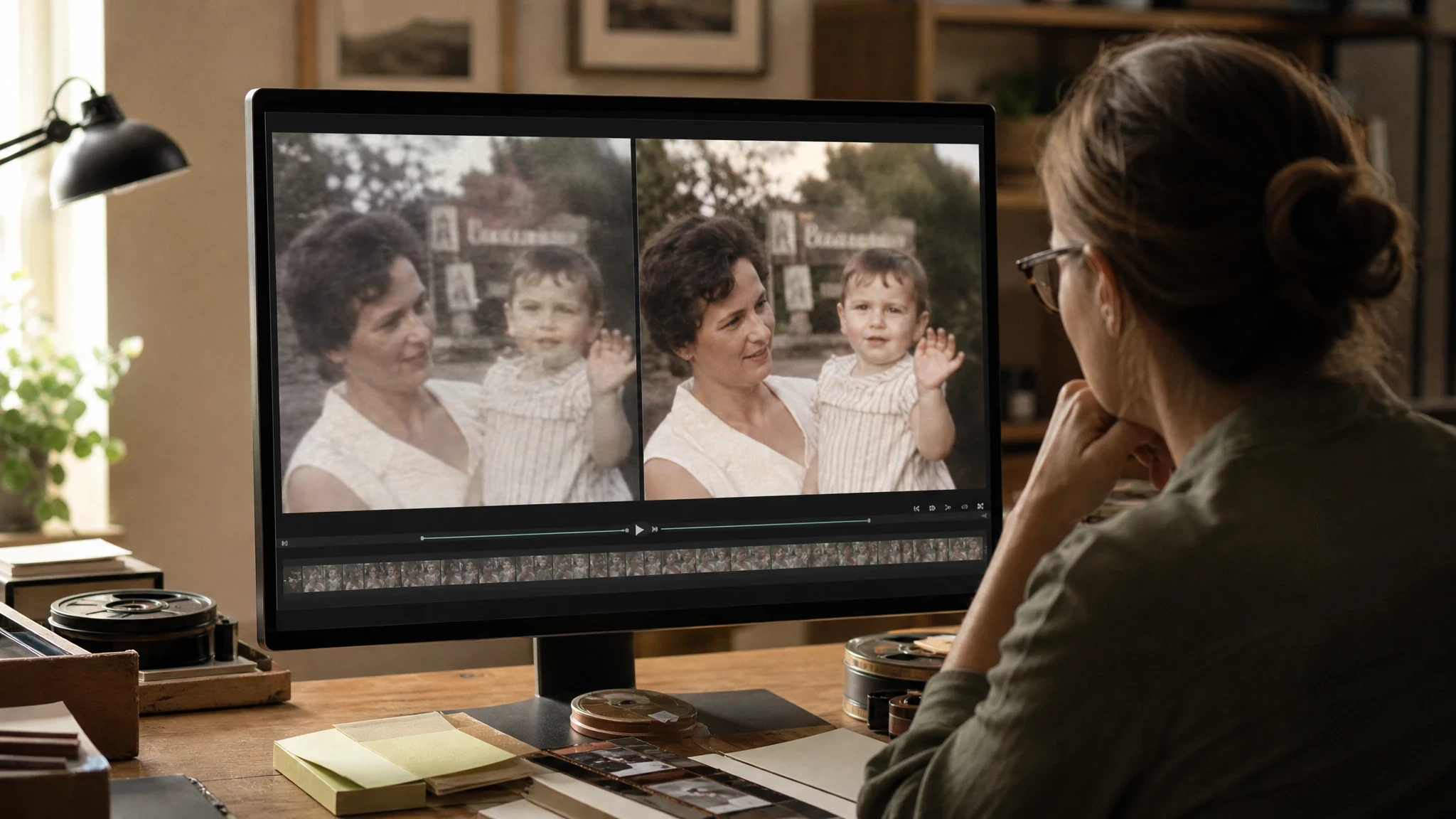
Place the original and enhanced clips side by side at the same display size. Then watch the enhanced version alone. Ask whether it looks like clearer footage or like a painting of footage.
Step 6: Review Faces, Text, and Motion
Scrub around moving hands, hair, captions, and the boundary between foreground and background. Back away from the edit if a face changes identity, text becomes nonsense, or the background crawls and shimmers. Export only after the motion looks stable.
How EnhancePhoto.ai Supports the Workflow
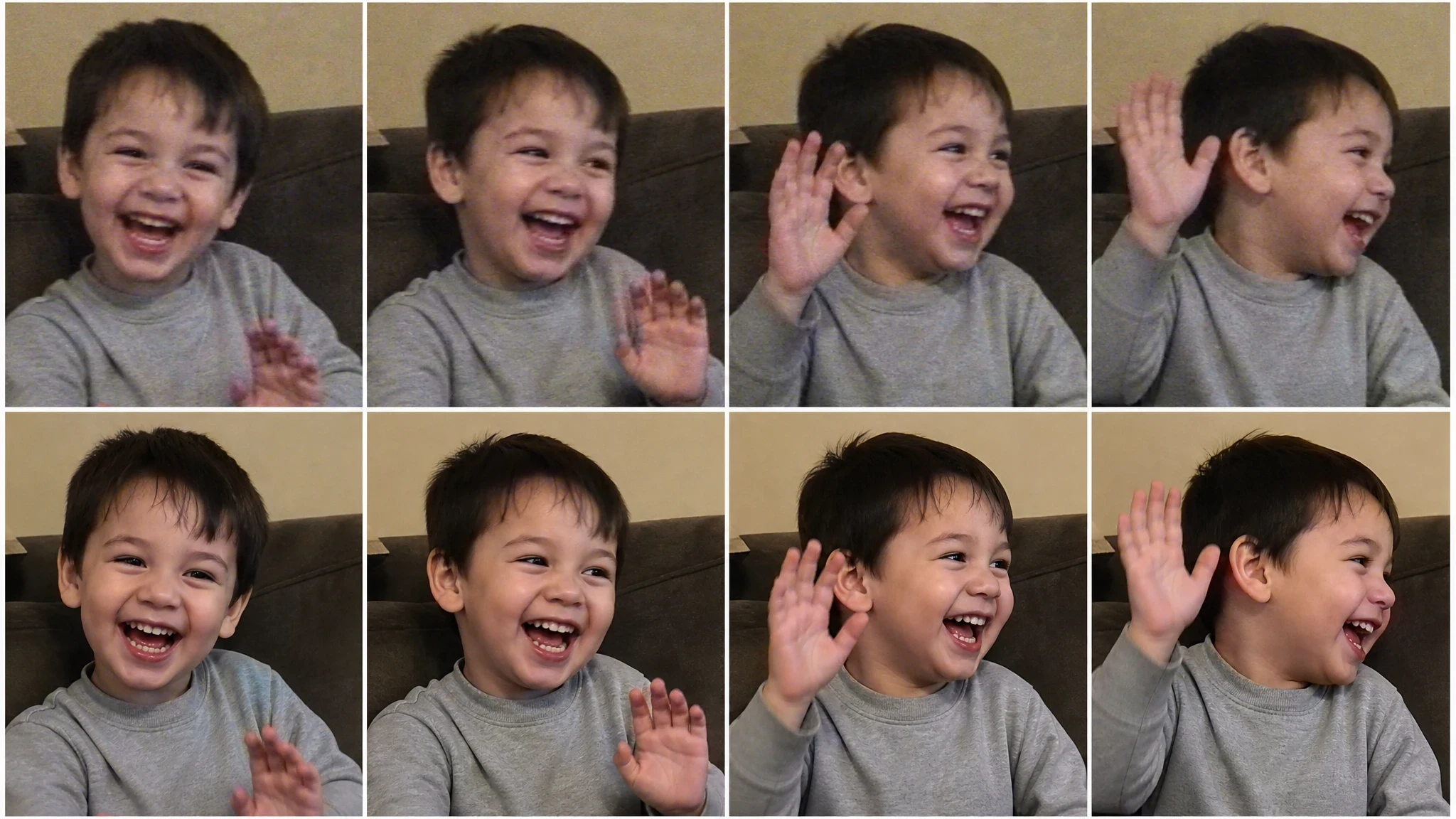
A practical AI video enhancer for old videos workflow needs a clear source, a controlled test, and a review stage. EnhancePhoto.ai keeps that workflow browser-based: upload a clip, select the available output, review a preview, and play the result before downloading.
| Workflow need | Tool feature |
|---|---|
| Start with an existing recording | Upload MP4, MOV, M4V, or AVI video |
| Work with portrait or landscape phone clips | Use the same short-edge-based resolution rules |
| Avoid a long unverified run | Preview up to 15 seconds at 1080p or 10 seconds at 2K |
| Understand the task limit | Process up to 90 seconds at 1080p or 60 seconds at 2K per task |
| Review before publishing | Play the enhanced clip and check motion, faces, and text |
The processing limit is important for long family recordings. The tool handles the opening segment of each task, so a longer reel must be divided into separate clips when the entire video needs attention. Keep those sections in order and preserve the source files.
EnhancePhoto.ai is useful when the goal is a careful visual cleanup of a short clip, not forensic restoration. For a family slideshow, pair it with Photo Restoration for damaged still photographs and Image Enhancer for the slideshow cover. If you pull one important still from the video, the dedicated Unblur Image page covers that separate workflow.
Common Mistakes That Create an Artificial Result
- Starting from a compressed copy. Use the best original file available.
- Processing the whole clip before checking a preview. One representative section reveals most problems.
- Treating a sharp still frame as proof. Play the entire clip and inspect motion.
- Oversharpening soft skin. A softer, believable face is usually better than a porcelain finish.
- Trusting invented faces or text. If the original evidence was missing, added detail is storytelling rather than restoration.
- Using enhanced footage as evidence. Legal, security, and journalistic work should retain the original and disclose processing.
- Deleting the source. Keep the original so the comparison remains available.
Which Old Videos Are Good Candidates?
| Use case | What enhancement can reasonably offer |
|---|---|
| Family archive | A cleaner, steadier viewing copy while preserving the emotional moment |
| Social repost | Better edge definition and less visible noise before another compression pass |
| Presentation or memorial video | Improved clarity on a larger screen, with careful checking for invented detail |
| Client draft | A quick preview of what may be possible before promising a final result |
| Evidence or identification | No. Enhancement is not a reliable way to establish missing facts |
The best AI video enhancer for old videos workflow starts with a sharp-ish source that has mild softness, moderate noise, or compression damage. A clip with severe motion blur and tiny faces may still be worth keeping for its emotional value, but it is not a good test of what enhancement can achieve.
Frequently Asked Questions
Can AI make a blurry video perfectly sharp?
No. It can improve mild softness and the appearance of low resolution, but it cannot restore exact detail that was never recorded. Heavy motion blur and missed focus usually remain visible.
Can I enhance old family videos?
Yes, within limits. Start with the best original file and test a short, representative preview. Moderate enhancement often makes an old family clip easier to watch without pretending it was recorded today.
Should I always choose 2K?
No. Choose the setting that matches the source and viewing context. On this tool, sources with a shorter edge of 960 pixels or more use 2K to avoid a smaller output, while 1080p remains an option for smaller sources.
Can an AI video enhancer for old videos recover a distant face?
Usually not. When only a few pixels describe the person, enhancement may generate generic facial detail. A clearer-looking face is not necessarily the real face.
Why does enhanced text look wrong?
Small text often lacks enough letter shapes for reliable reconstruction. The model may create plausible edges that still form the wrong word. Do not treat enhanced text as accurate.
Can I upscale 480p to 1080p?
You can select 1080p for a compatible 480p source. The result may look cleaner, but it will not contain the same information as a native 1080p recording.
Can I enhance a portrait video from my phone?
Yes. Portrait and landscape videos use the same short-edge resolution rules. Upload a supported file and review the preview, especially around faces and any on-screen captions.
Why does the enhanced video flicker?
Flicker occurs when the model makes slightly different guesses between frames. Back off aggressive settings, compare the motion at normal speed, and favor a more stable result over a sharper single frame.
Final Takeaway
An AI video enhancer for old videos is most useful as a careful cleanup tool. It can calm noise, reduce compression artifacts, and make mild blur easier to watch. It cannot recreate the past with perfect accuracy. Start with the strongest source, preview a representative scene, compare the result in motion, and keep the original safe. A softer but honest clip is usually more valuable than a strangely perfect one.
AI Image Upscaling for Print: Keep Details Natural in 2026
AI image upscaling for print made simple: calculate pixels, choose 2× or 4×, protect natural detail, and prepare sharper photos for printing.
How to Colorize Old Family Photos Before Thanksgiving
Learn how to colorize old family photos before Thanksgiving, repair damage, review AI colors, and prepare meaningful prints or digital gifts.