


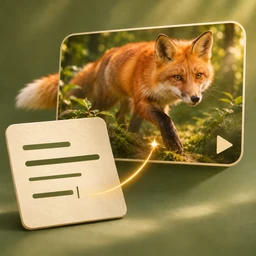
Free AI Video Editor — Create a New Take Online
Upload a video reference, describe the change, and preview a new AI-generated version for your next post or project. Reference-based AI editing for new creative takes. Generated framing, motion, and timing may vary.
Click to select the video
What Is Holding Back Your Next Video Idea?
AI video editing can begin with footage you already have. An AI video editor helps you explore a different mood, movement, or setting for your next project.
The Mood No Longer Fits
Your campaign has changed, but the original footage still tells the old story. You want to edit videos with AI to explore a look that suits the new idea.
Movement Is Hard to Put into Words
A gesture or camera turn can take paragraphs to explain. Video references show the movement behind your idea when words leave too much open to interpretation.
Revision Notes Pull in Different Directions
A request for more energy can mean faster movement, a new camera move, or different sound. Conflicting video editing notes make the next version harder to define.
Your Materials Are Scattered Across Tools
Source files, revision notes, and previous settings can be difficult to keep together. Rebuilding that context slows down a small creative experiment.
How to Use the AI Video Editor
Step 1: Choose a Model and Add a Video
Select a model and upload at least one video. Add optional audio references where supported, then choose a supported clip length, resolution, and aspect ratio.
Step 2: Describe Your New Version
Tell the AI video editor what should change, then review the credit cost for your chosen settings.
Step 3: Generate and Download
Sign in and submit your request. Play the finished clip, then download it for your project.
Give Each Reference a Clear Purpose
For AI video editing, explain what each reference should guide and what should change. Use this four-part structure to write a clearer AI video editor prompt.
Set the Starting Point
To edit videos with AI, state whether your video references should guide movement, framing, or subject appearance. For example, "follow the runner's movement and camera angle."
Identify the Details That Matter
Name the details that identify the subject. "Keep the red jacket and park setting" sets a clearer priority for the model than "keep it similar."
Request One Main Change
Write a specific request, such as "make the camera approach slower." Change one instruction at a time so you can assess its effect on the next result.
Define the Final Moment
Finish with a visible endpoint: "The runner stops at the gate, and the camera holds." Add the desired sound or silence where the model supports it.
AI Video Editor Practical Edits for Existing Footage
AI video editing is useful when a shot needs a different setting, look, camera move, or sound. Start with footage you already have and describe the specific change your project needs.
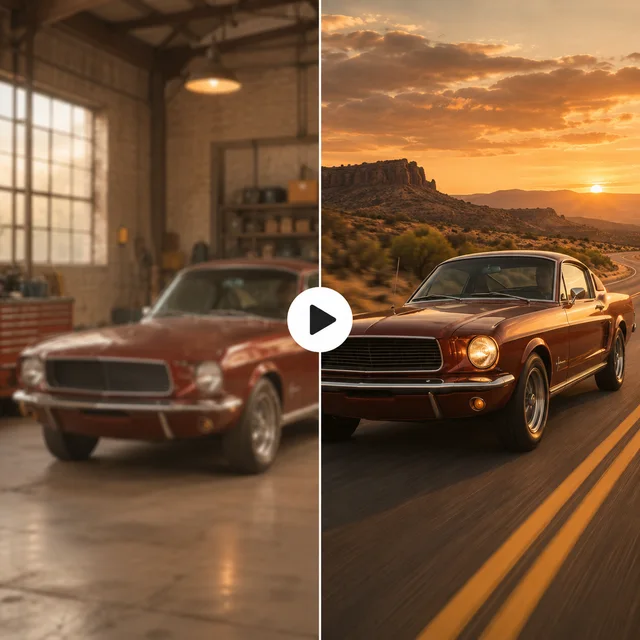
Change the Background of an Existing Shot
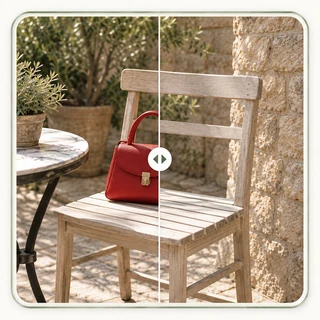
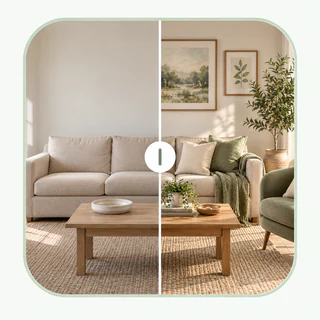
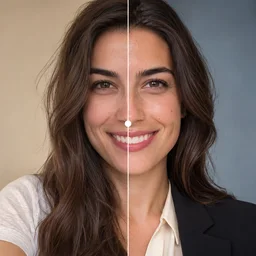
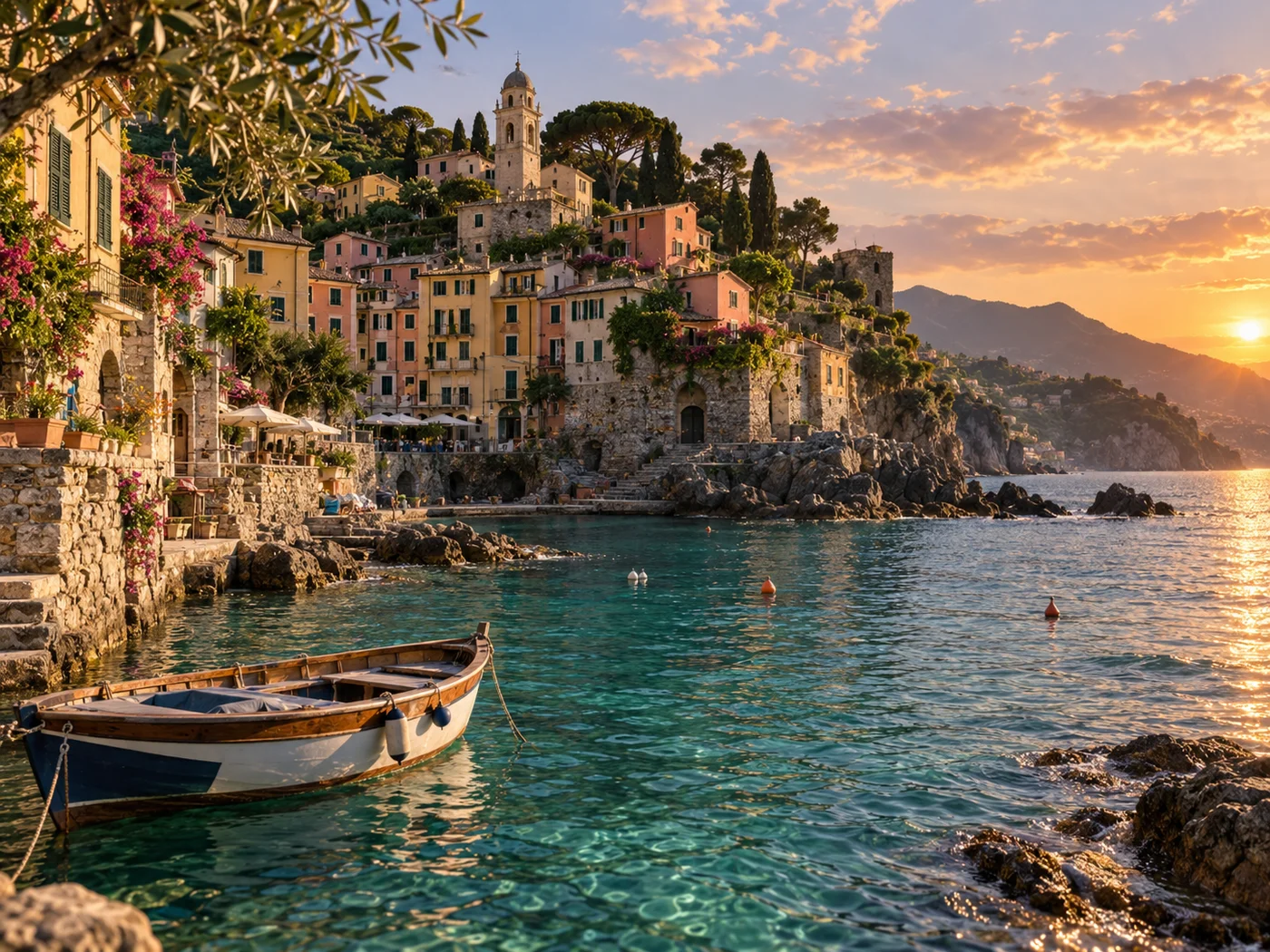
A cycling clip works for the story, but the street feels too busy. Use the existing take to request a quieter park setting while naming the rider and bicycle details you want to retain.
Give a Scene a Different Visual Style
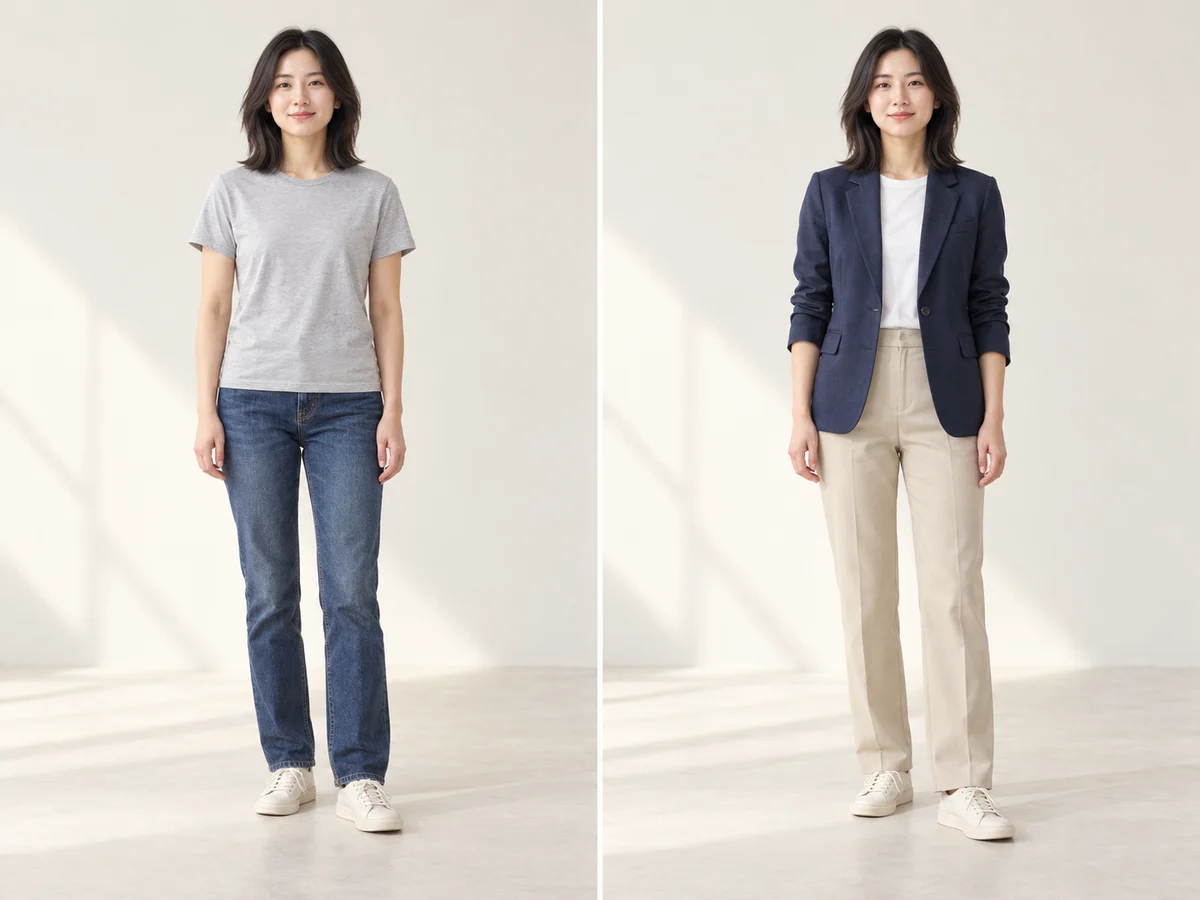
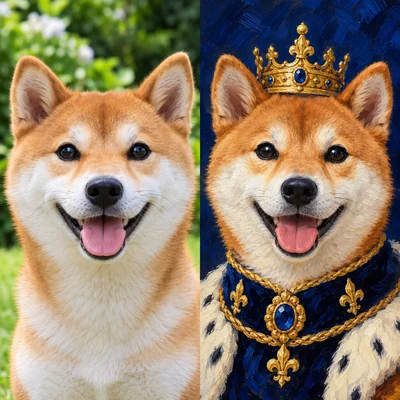
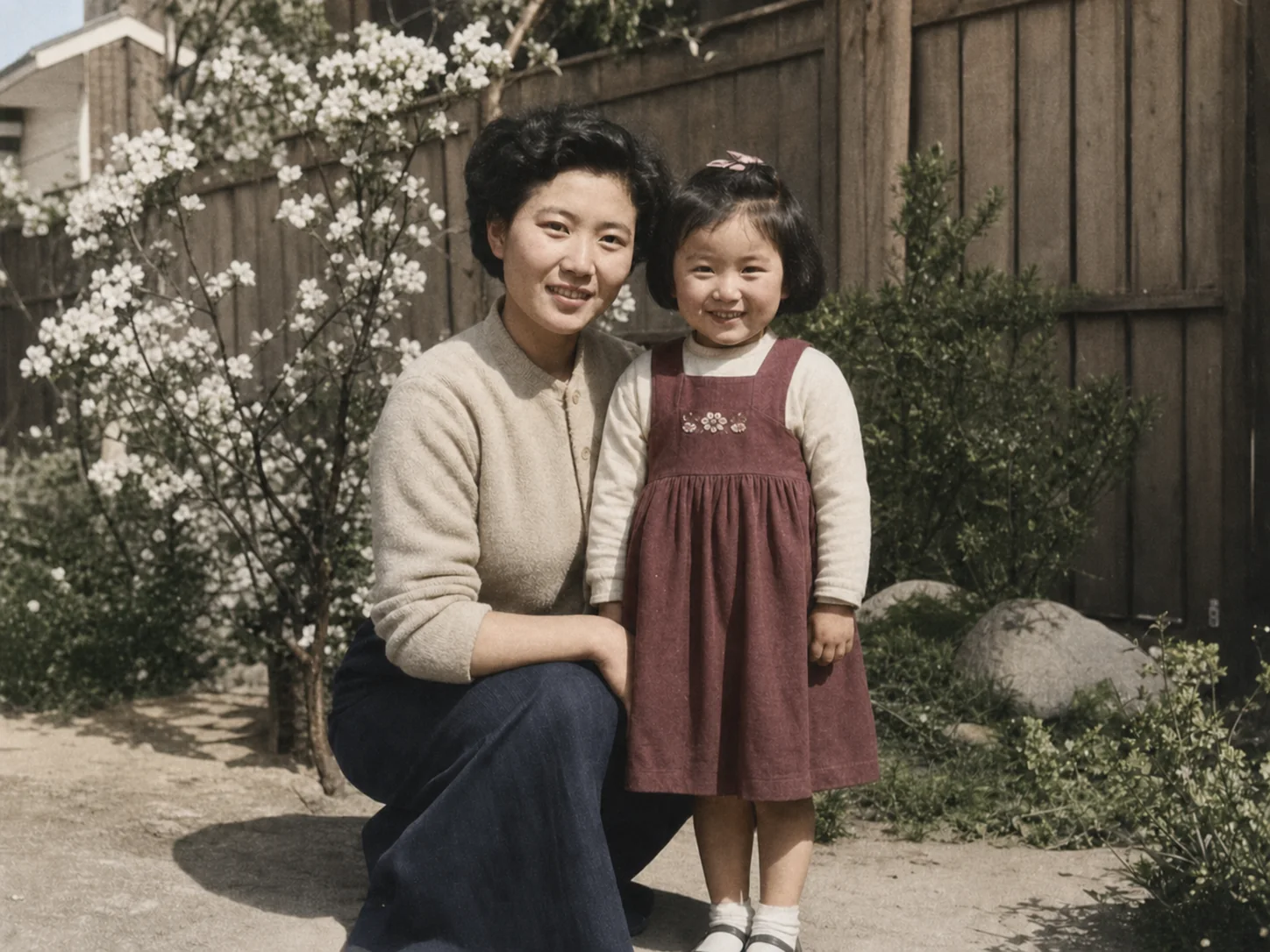
Reimagine a clay robot scene for a revised concept. Describe the materials, palette, and lighting you want to explore, using the original action to guide the new visual treatment.
Rework the Camera Movement
A watch reveal moves past the dial too quickly. Ask the AI video editor for a slower camera approach, using the original clip to guide the product, framing, and angle.
Change a Scene's Sound and Mood
A dog waiting at a doorway can feel playful or suspenseful depending on the sound. Use audio references on supported models to guide a different mood for the same scene.
Why Choose Our AI Video Editor?
Keep the Work in Your Browser
Keep uploads, prompts, and previews together in an online video editor. Explore a new take without installing another desktop application.
Choose a Model That Fits Your Footage
Compare the models in this online AI video editor, including support for video and audio references. Choose the inputs and output settings that fit your project.
Know the Credit Estimate Up Front
The AI video editor updates the estimate when you change settings. Choose options that fit your available credits before submitting.
Return to a Recent Setup
Recover a recent prompt and its compatible settings from this browser's History. Start the next variation from saved choices instead of setting up everything again.
Keep Creating After Your Edit
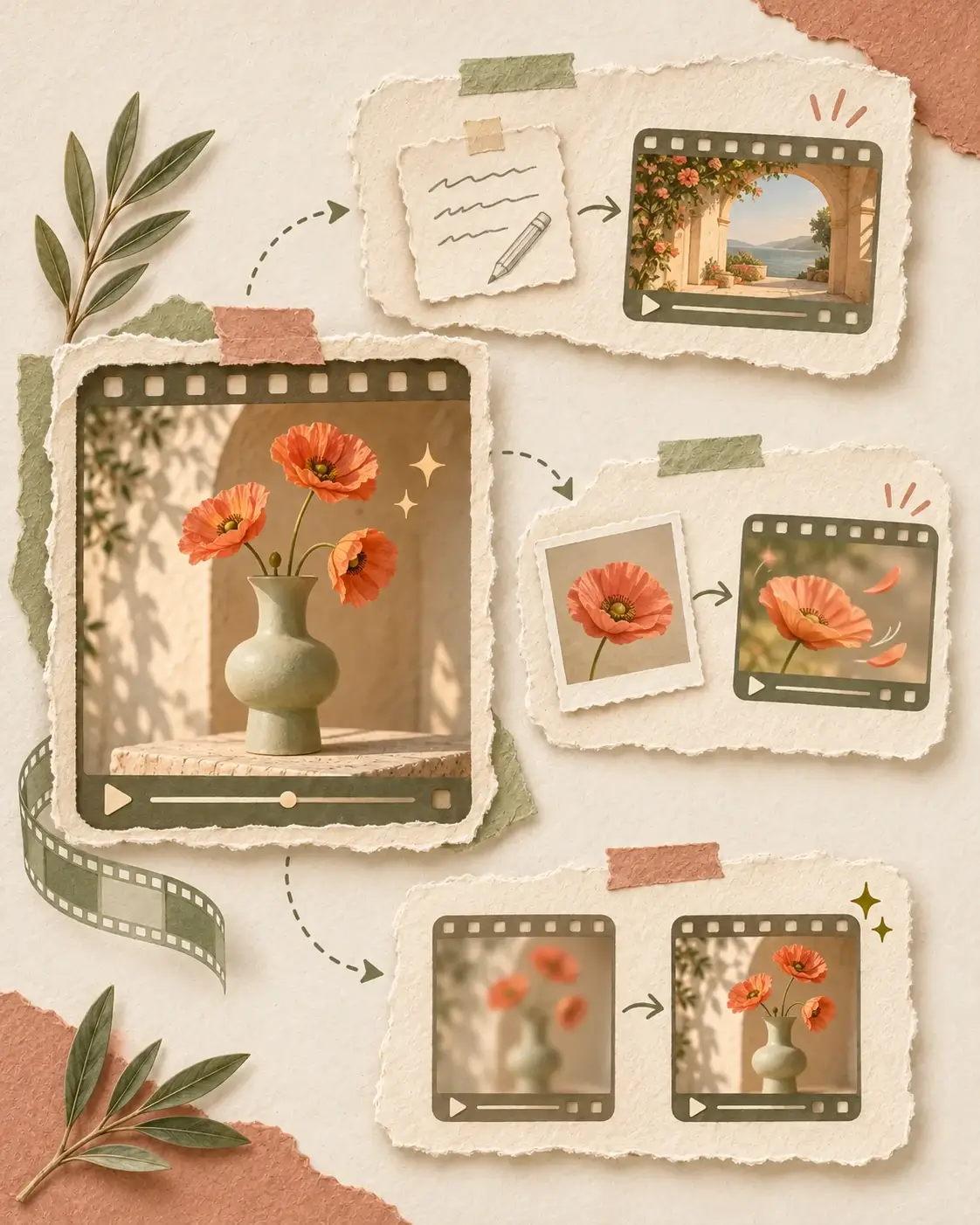
Build on your AI video editor result. Add missing scenes, animate supporting images, and improve clarity before assembling the clips into your finished video.
- 01
Fill a Missing Scene
Create an opening or connecting shot with Text to Video. Match the setting and mood to your edited scene.
- 02
Animate a Supporting Image
Turn a photo or illustration into a supporting clip with Image to Video. Add a close-up or a visual bridge between scenes.
- 03
Polish Your Edited Clip
Improve clarity and resolution with Video Enhancer. Compare the enhanced version, then download the clips you want to use in your final edit.
More AI Tools for Your Video Projects
Pair the AI video editor with tools for generating footage, animating images, and improving clarity. Turn video references, stills, and written ideas into assets for the same project.
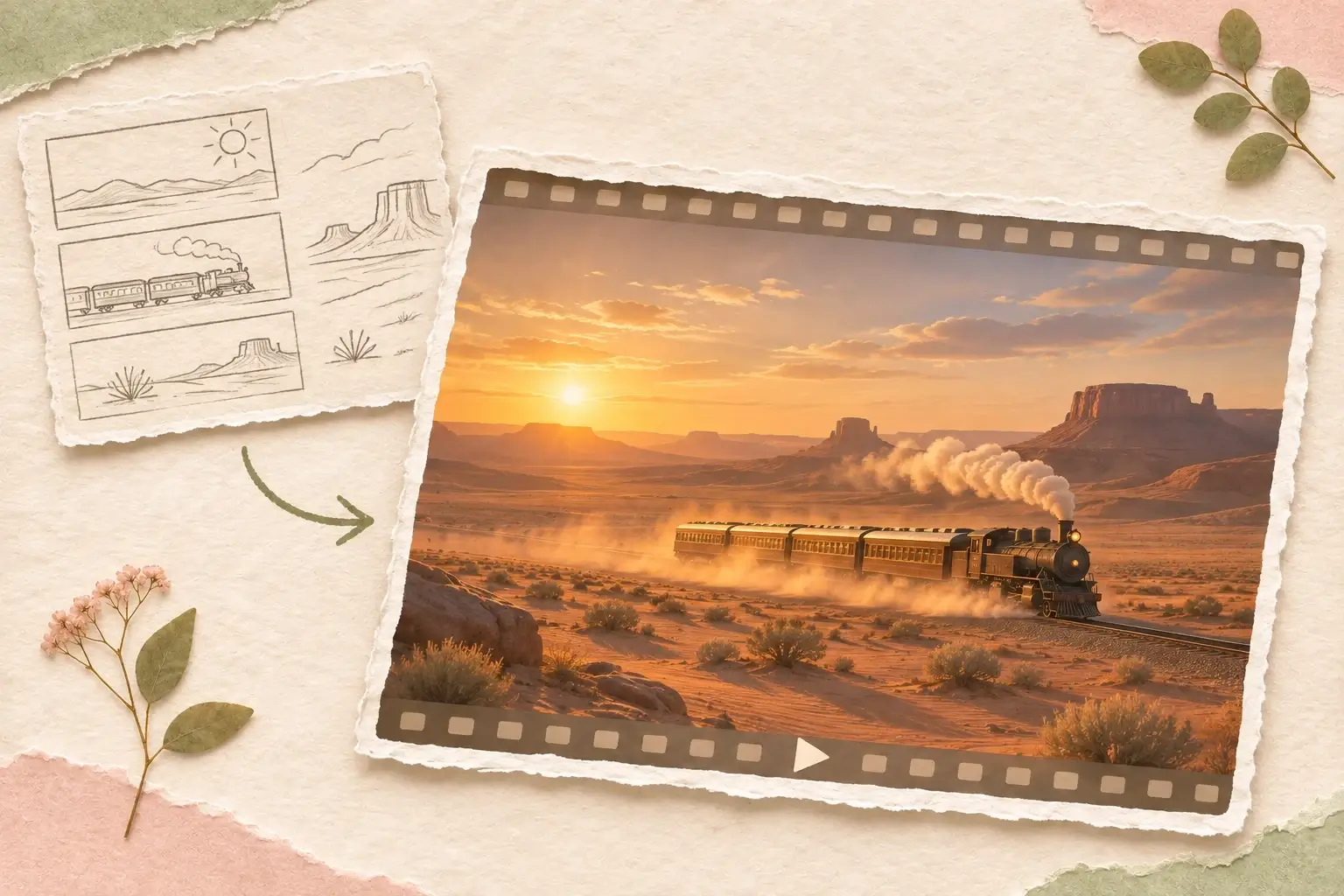
Text to Video for New Scenes and Story Ideas
Generate a new clip from a written scene description. Text to Video is useful for story ideas, establishing views, and other footage you want to create without a source video.
Create from a Prompt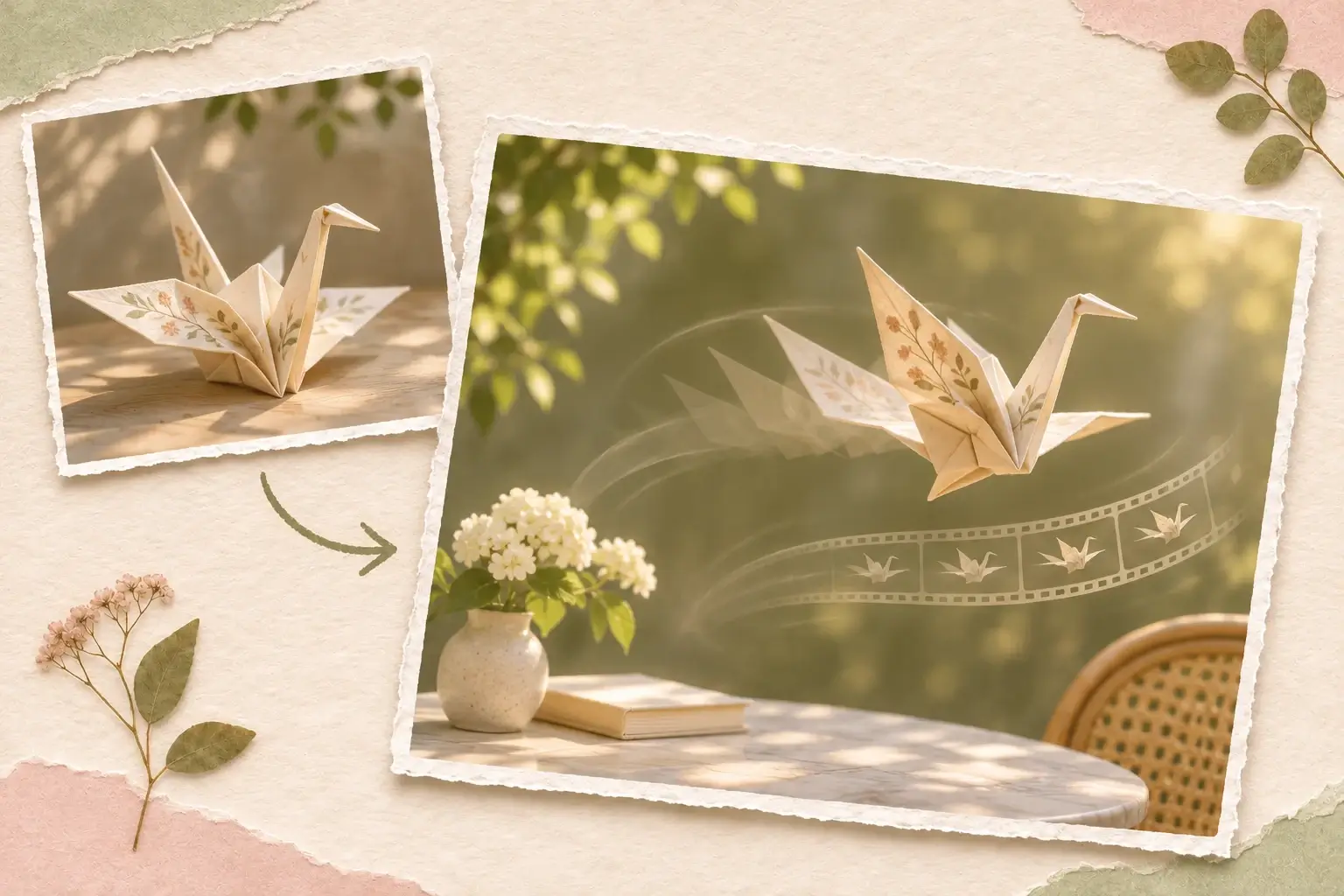
Image to Video for Photos and Illustrations
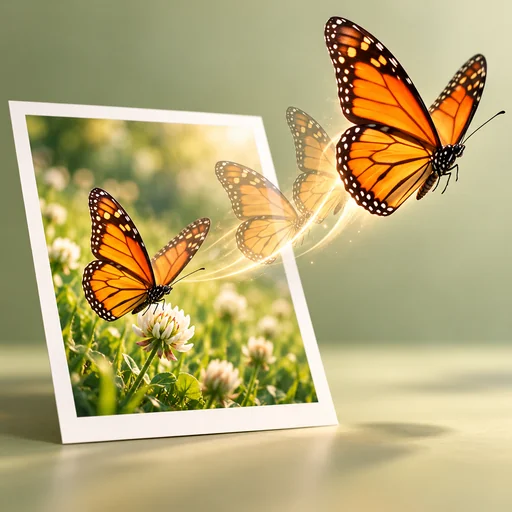
Add movement to an existing visual with Image to Video. Start with a photo or illustration when its subject and composition already express the scene you want to develop.
Animate Your Image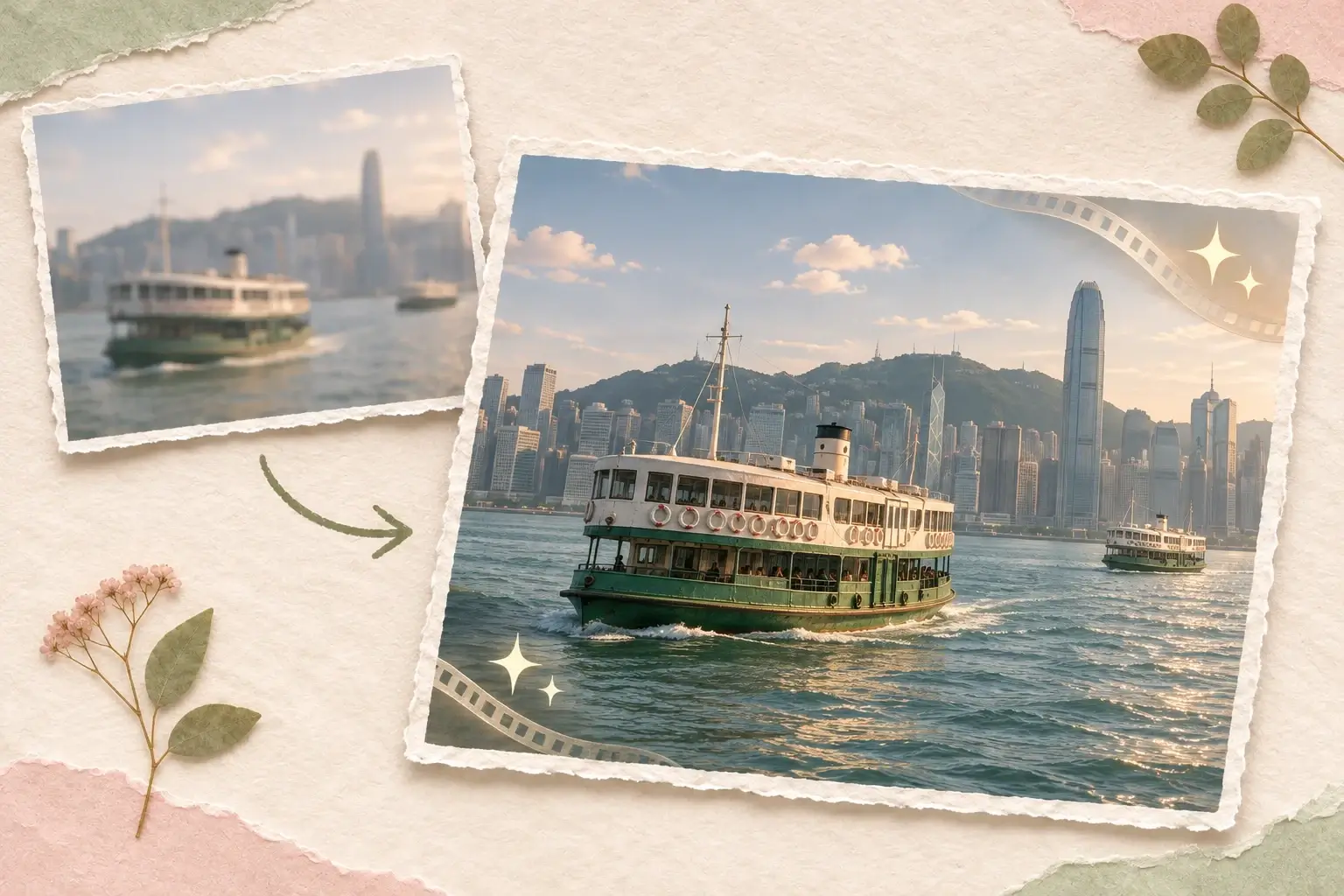
Video Enhancer for Clearer Existing Footage
Improve the clarity and resolution of a clip with Video Enhancer. Choose this tool when you want clearer detail in footage that already fits your project.
Improve Video ClarityAI Video Editor FAQs: Creative Changes and Results
Can the AI video editor change a background while keeping the subject?
Can I restyle a video without changing the action?
Why does the AI video editor change faces, clothing, or small objects?
How can I keep several edited shots visually consistent?
How does AI video editing handle original or reference audio?
When should I regenerate an edit instead of enhancing it?
How does reference editing differ from a timeline edit?
Create your next result with AI Video Editor
Choose your inputs and settings in the workspace, then start your next creation.