




Flaky Pastry Cutting ASMR
Text to Video AI Generator — Create Video Clips from Text Online
Describe the subject, action, camera movement, and ending in one prompt. The text to video AI generator turns that brief into a short clip you can review, revise, and download for your next edit. Write the beat · Direct the camera · Review the clip
View Result
History
Click to select the video
Text to Video Examples for Product, Story, and Social Clips
Explore ready-to-use text to video prompts, then load one into the generator. Each example defines the opening state, action order, camera path, and ending so the clip has a clear purpose in an edit.
Write Time and Motion into Every Text to Video Prompt
A strong text to video prompt describes change over time, not just a still image. State the order, pacing, camera movement, and final hold so viewers know what to notice next.
01
Set the First and Last Frame
Tell the model what appears first and where the clip should settle. A clear ending leaves a usable hold frame instead of an abrupt stop.
02
Keep One Main Beat
A short clip can carry one main event well: a reveal, a turn, a pass, a reaction, or a transformation. Unrelated beats compete for the same seconds.
03
Choose a Camera Path
A locked shot, orbit, crane, tracking move, or push-in changes what the viewer understands. Choose one path before adding decorative detail.
04
Leave Time for the Payoff
A pause can create suspense, a quick move can create energy, and a held final frame can make an edit easier. Write the rhythm instead of leaving pacing to chance.
How to Generate a Video from Text
Step 1: Write the Beat
Describe what appears first, what changes, and where the clip ends. Keep one main action so it fits the selected duration.
Step 2: Stage the Camera
Choose a shot size and camera path, then add lighting, environment, and supported audio cues that reinforce the moment.
Step 3: Review the Clip
Watch the full clip, including the final second. If the timing or movement is wrong, revise one beat or camera instruction and generate again.
Text to Video Prompt Formula for Consistent Motion
Build a text to video brief in layers that describe time and movement. Each layer solves a different problem in the shot.
Open with the Starting State
Say what the viewer sees before anything changes. This gives the AI video generator a stable first frame and prevents the action from starting mid-motion.
Write the Action in Order
Use a short text to video sequence such as “the door opens, warm light spills out, the camera moves closer.” Ordered verbs make it easier to convert text to video without losing the beat.
Give the Camera a Route
Name where the camera begins, how it travels, and where it stops. A simple route creates stronger continuity than several competing camera moves.
Reserve Time for the Payoff
Leave enough seconds for the reveal, reaction, or final state to read. If every moment is motion, the viewer has no time to register the result.
Plan the Transition or Loop
For a loop, describe how the ending matches the opening. For an edit, finish on a clean hold or a clear direction of movement that can lead into the next shot.
Add Sound Only When It Helps
When the selected model supports audio, add a footstep, room tone, engine hum, or soft impact to reinforce the action. Keep sound separate from visual instructions.
What Can a Text to Video Clip Add to Your Edit?
Use a text to video generator for moments that benefit from timing: a product reveal, a seamless loop, a character reaction, or a transition between worlds. Each example starts with a clear job for the clip.
Product Reveal with a Hold
Build suspense, reveal the product, and hold the final frame long enough for a title card or voiceover. Use this shot when you need a clean ending.
Looping Atmosphere
Create a repeatable background for a landing page, stream, presentation, or social post with a matching first and last frame.
Reaction Shot
Give an edit a human beat: a pause, a glance, a turn, or a small reaction that changes the tone of the scene.
Transition Between Worlds
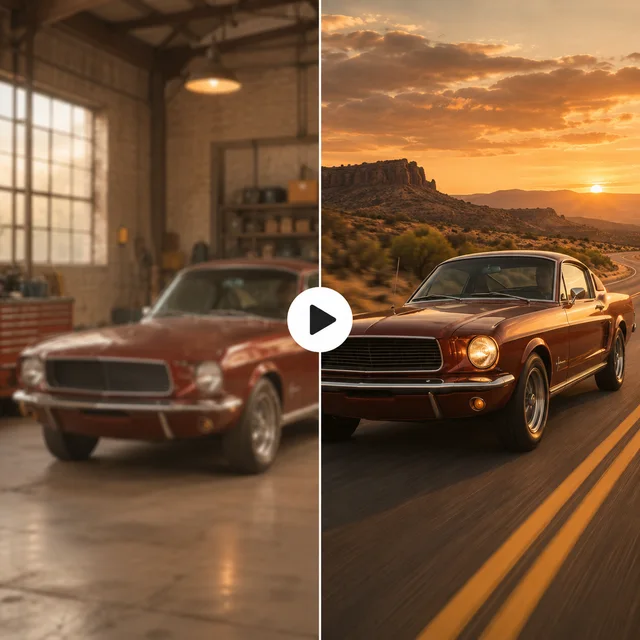
Use one camera move to bridge two environments, making the change of place feel continuous rather than like a hard cut.
Plan, Generate, and Review Short AI Video Clips
Adjust Settings Before Generating
Change the model, duration, resolution, aspect ratio, or supported audio option, then review the estimated credit cost before submitting.
Compare Motion Across Models
Use the same shot brief with available models when you need to compare camera smoothness, action timing, detail, or audio support.
Return to Earlier Attempts
Use your generation history to revisit a prompt and its settings when one version has the right movement but needs a different opening or ending.
Review the Clip Like an Editor
Preview the complete result and look for a readable first frame, a clear beat, a stable ending, and movement that can sit beside the rest of your edit.
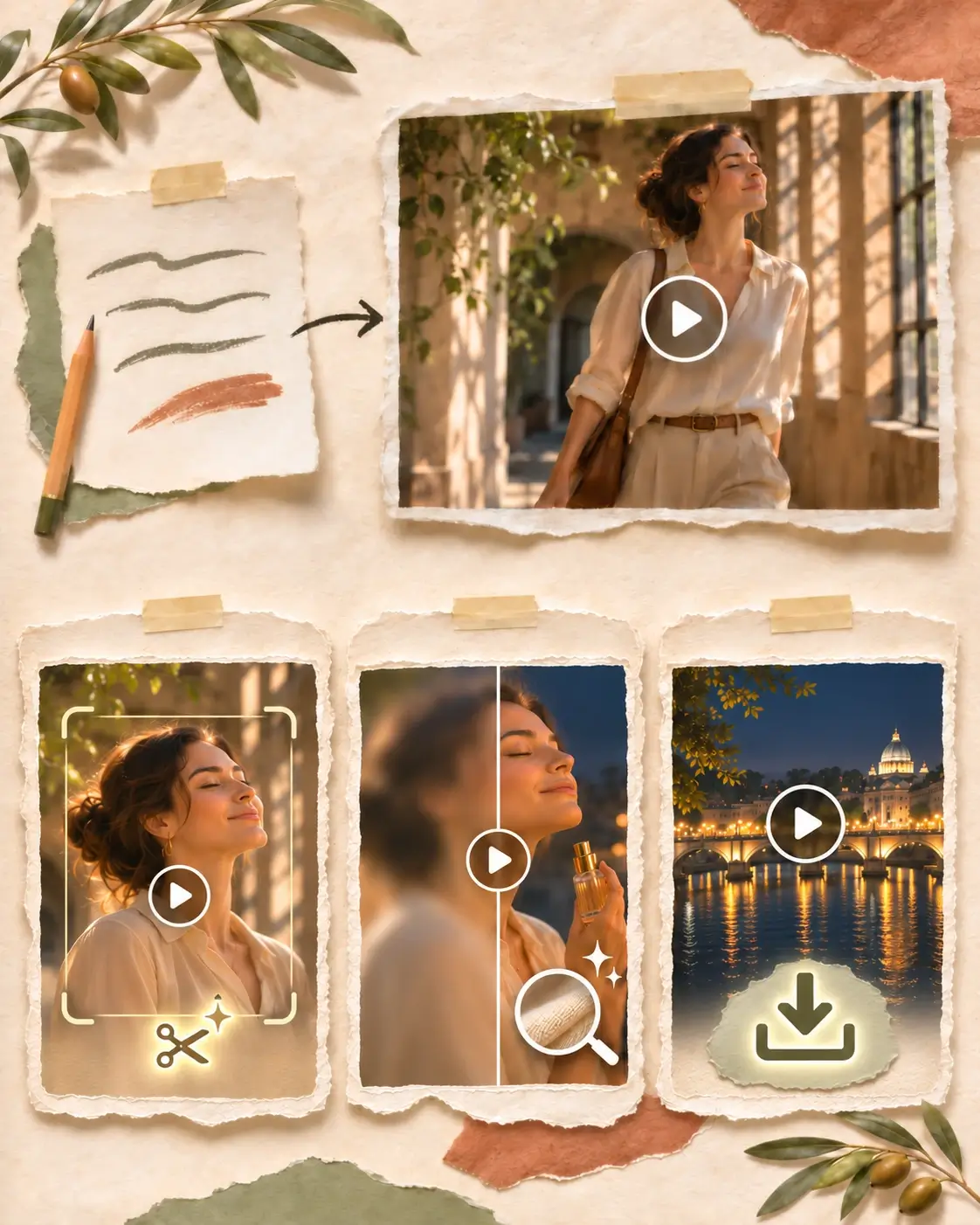
From Text Prompt to a Usable Video Clip
Review the result, refine the scene with AI, improve clarity when needed, and download a version ready for your next edit.
- 01
Refine the Scene with AI
If the scene needs a new look or timing, continue with the AI Video Editor to reframe, retime, or apply a new treatment.
- 02
Enhance the Video
If the motion is right but the details look soft, continue with Video Enhancer and compare the clearer version with the original.
- 03
Download the Final Video
When the result is ready, download it for your next post, presentation, or edit.
Keep Building Your AI Video Project
A text to video draft is one part of a larger project. Sharpen the generated clip, animate a still image for another scene, or refine an existing shot when the story grows.
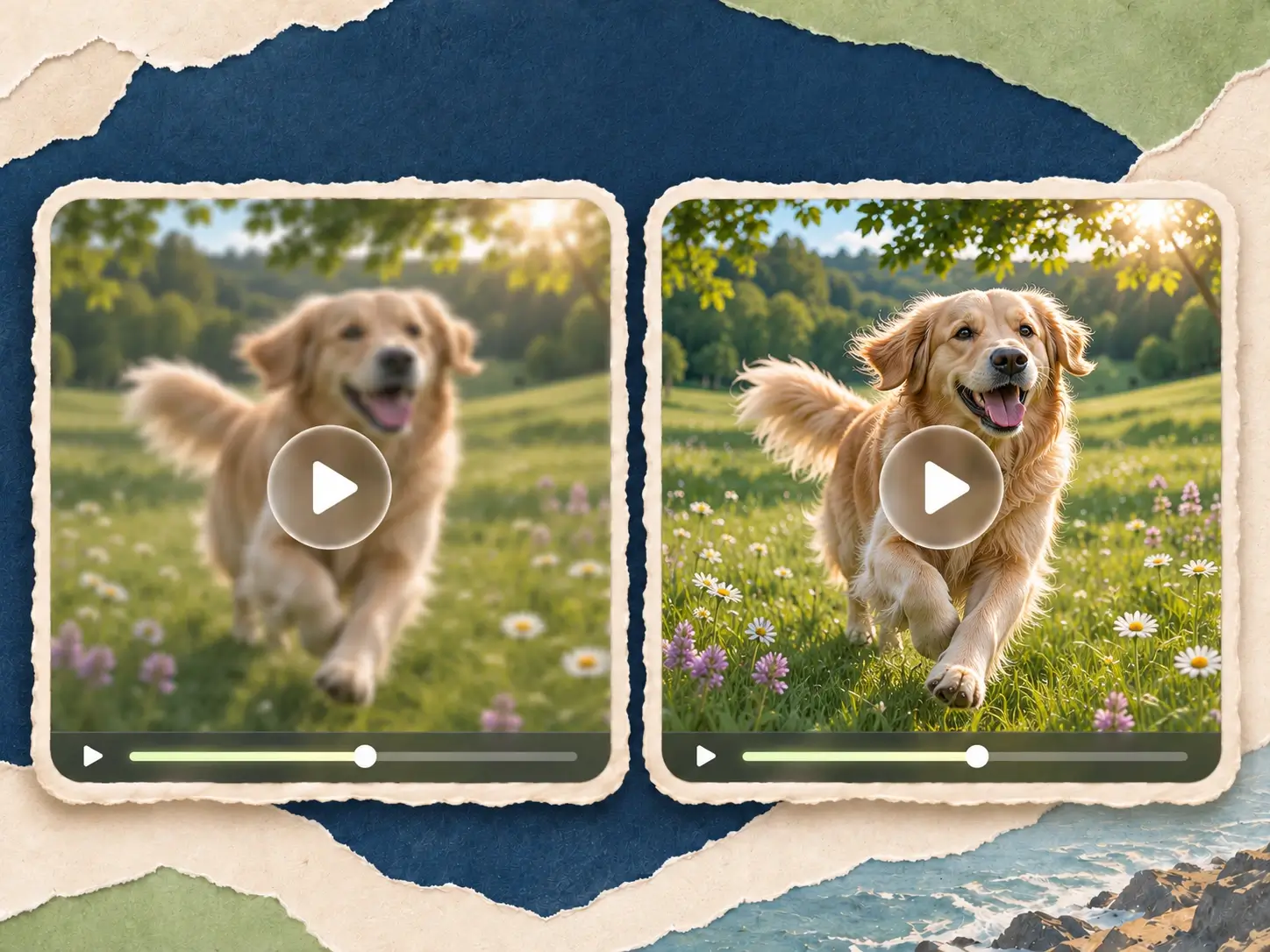
Sharpen the Generated Scene
Keep the motion and timing you already like, then improve the clip's clarity, fine detail, and output resolution before you share it or place it into a larger edit.
Enhance Your Video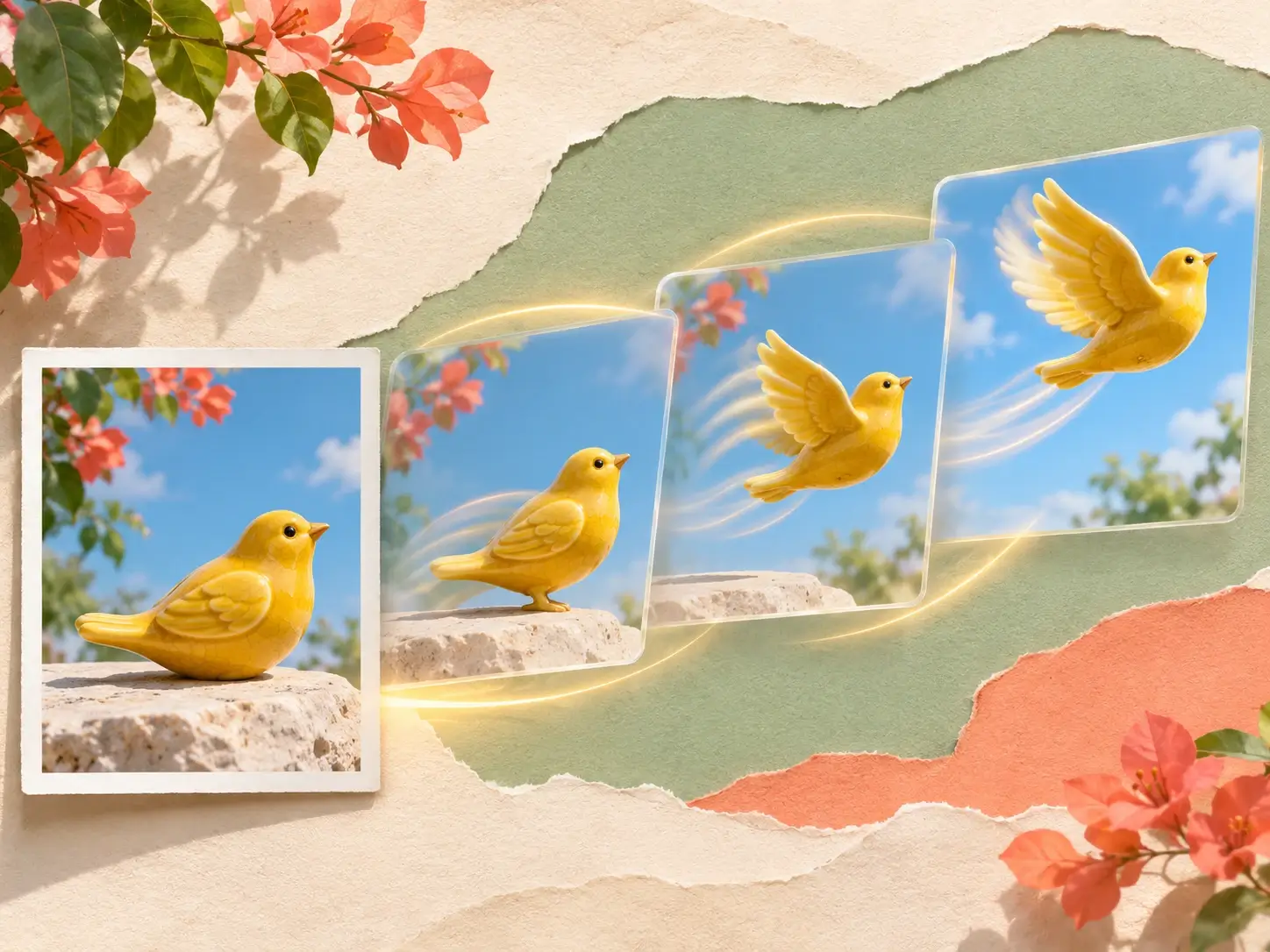
Animate a New Visual
Need a different scene or a fresh visual direction? Start with a new photo or illustration, describe the movement, and turn that still image into a focused video shot.
Create from an Image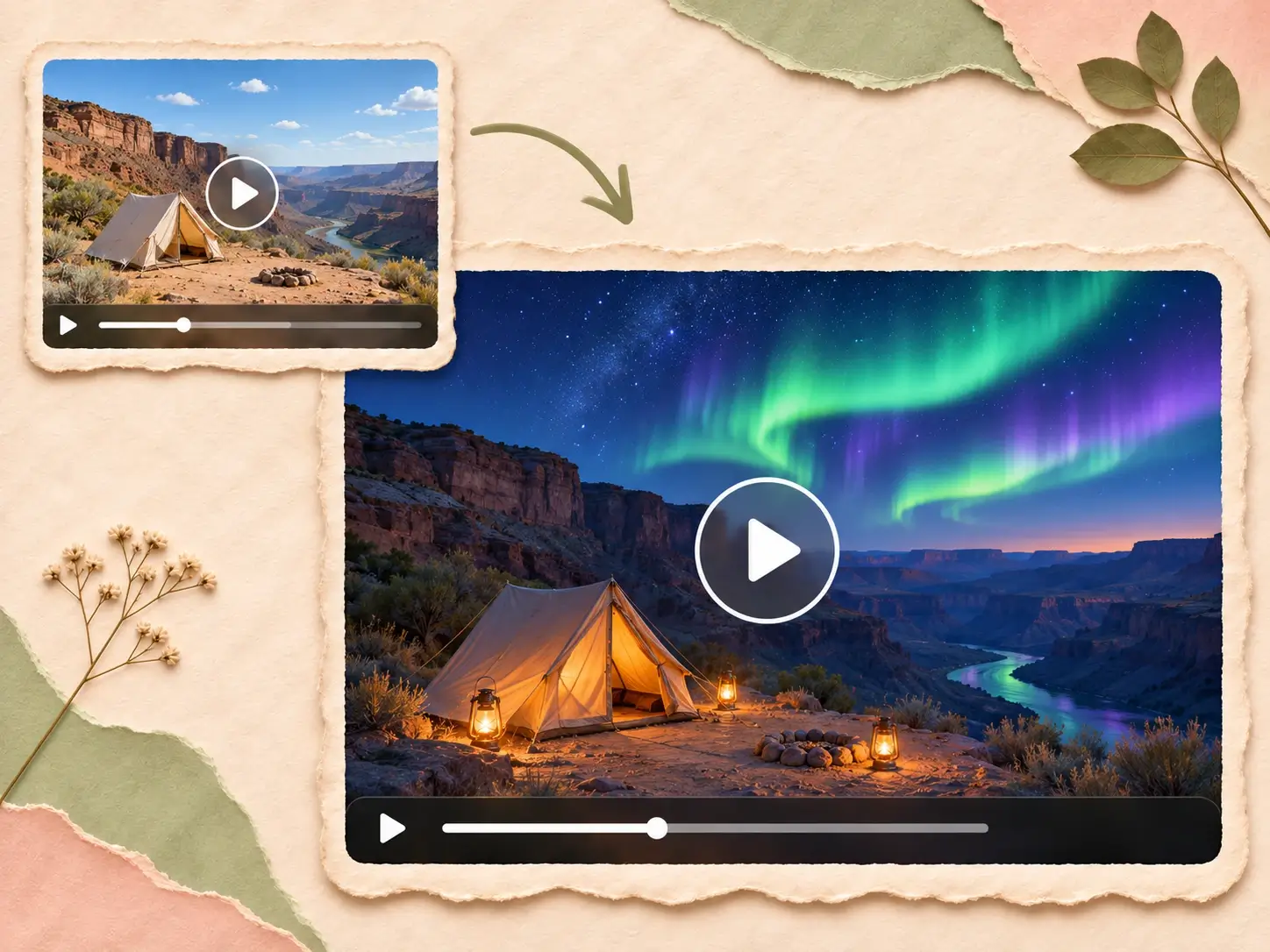
Let AI Refine the Scene
When the generated idea is right but the framing, pacing, or visual treatment needs another pass, use AI to reshape the clip without starting from scratch.
Edit Your VideoText to Video AI Generator FAQs
How do I write a text to video prompt?
Say what appears first, what happens next, and how the clip should end. Focus on one main moment, then add simple details about the setting, movement, and camera.
How do I keep the main subject consistent?
Describe the same person, object, clothing, setting, and lighting throughout the prompt. Keep one main action and avoid adding a new place or character halfway through.
How can I control the camera movement?
Say where the camera starts, choose one simple move such as a push-in or a tracking shot, and say where it stops. Too many camera directions at once can make the result unstable.
Can I choose the duration, resolution, aspect ratio, or audio?
The available options depend on the selected model. Choose from the settings shown in the workbench, review the estimated credit cost, and use audio only when that model supports it.
Can I turn a longer script into one video?
Split the script into short shots rather than placing every beat in one prompt. Give each shot its own action, camera path, and ending, then review the clips together in your editor.
When should I use text to video instead of image to video?
Use text to video when the scene, subject, and camera idea are still open and you want to define them in words. Start with image to video when an existing photo or illustration should guide the composition.
Create your next result with Text to Video AI Generator
Choose your inputs and settings in the workspace, then start your next creation.