


Canva Video Enhancer for Design-Ready Footage
Enhance product videos, campaign clips and presentation footage for your next design. Enhance footage · Design · Share
Upload Video
Drag & drop or click to browse
Supported Formats
- MP4
- MOV
- M4V
- AVI
Separate the Footage Problem from the Design Problem
Identify what looks wrong
A dark clip and a low-resolution clip need different decisions. Review lighting, source dimensions and compression before choosing a tool.
Prepare resolution first
A larger layout can expose a small source video. Process an eligible clip at 1080p or 2K, then judge its appearance at the intended design size.
Add graphics after processing
Keep headlines and brand typography editable in Canva. Enhance the source footage before placing text and layout elements over it.
Review the finished design
Download the processed clip, upload it to your Canva project and check the crop. More output pixels do not guarantee restored detail.
Footage for Campaigns, Presentations and Small Businesses
Product launches
Check a product’s outline and surface before placing the clip in a promotional layout.
Workshop invitations
Prepare a short demonstration that gives your event design a clear visual focus.
Local business promotions
Review cafe, shop or studio footage before combining it with opening hours and an offer.
Presentation inserts
Judge a clip at its slide size. Enlarging a low-quality source can make its limits more visible.
Better Inputs
For Your Designs
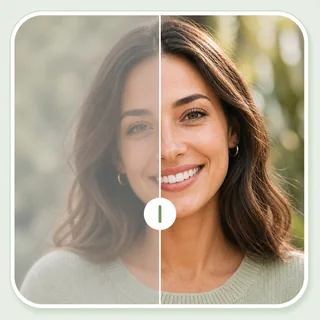
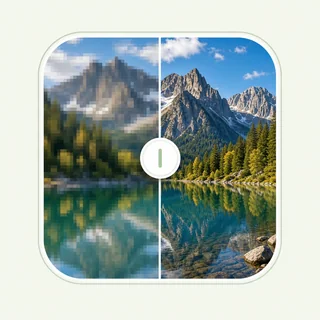
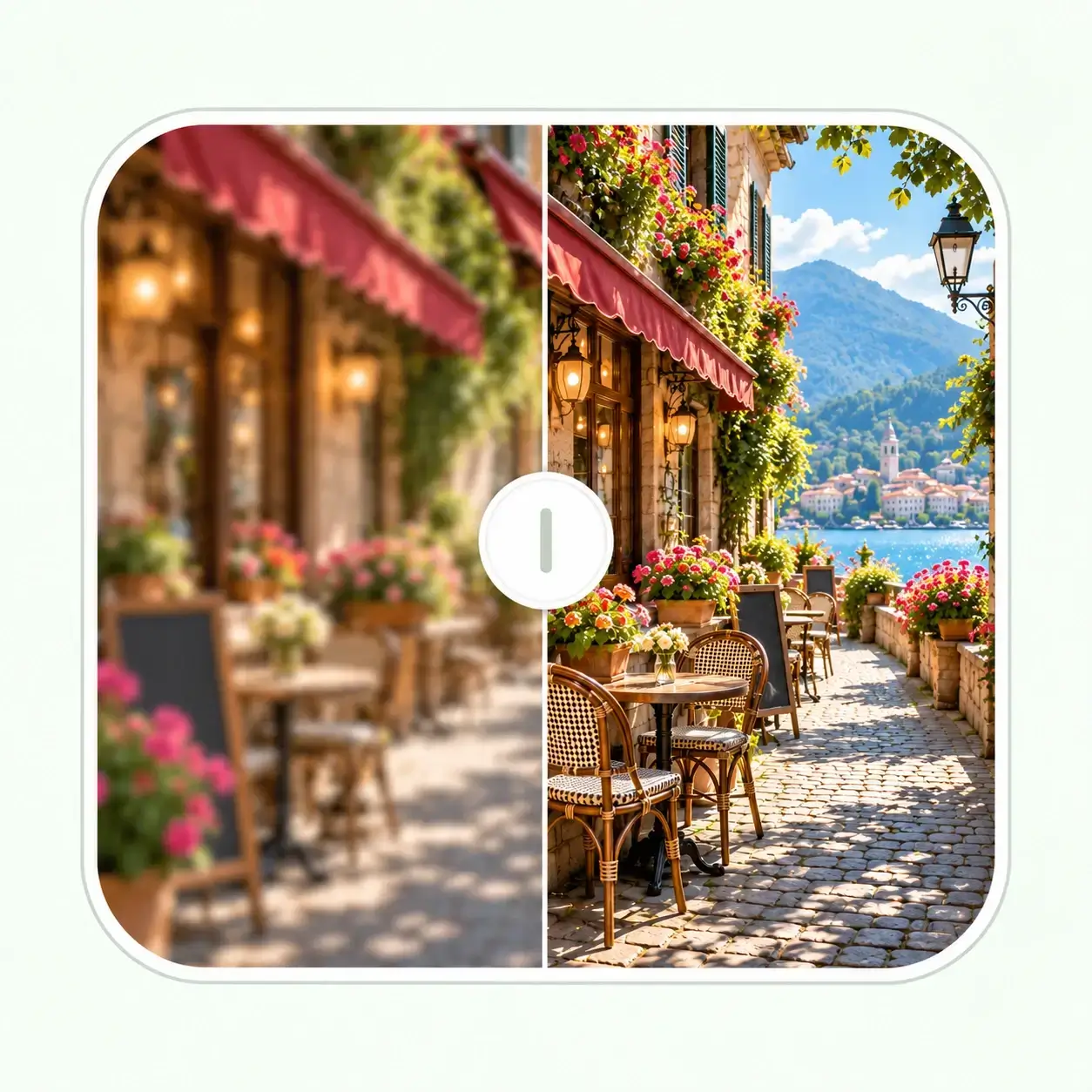
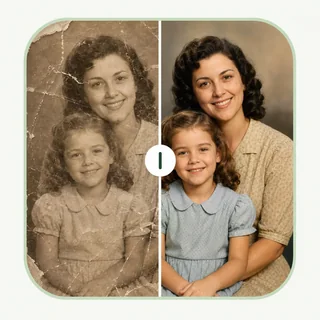
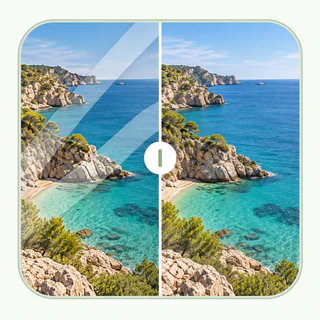
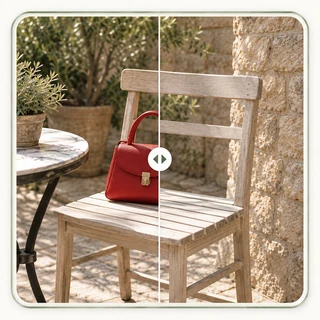
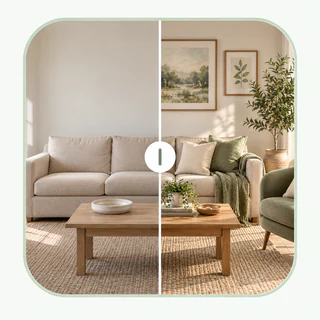
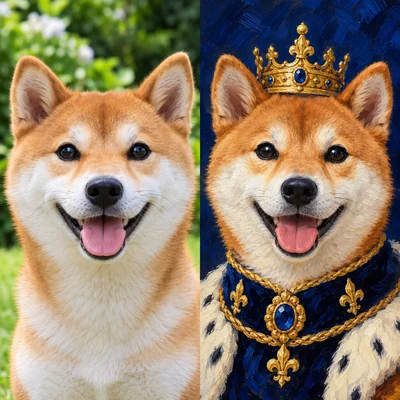
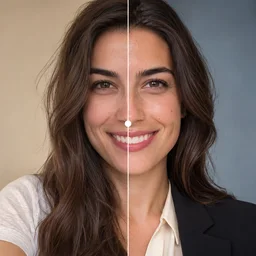
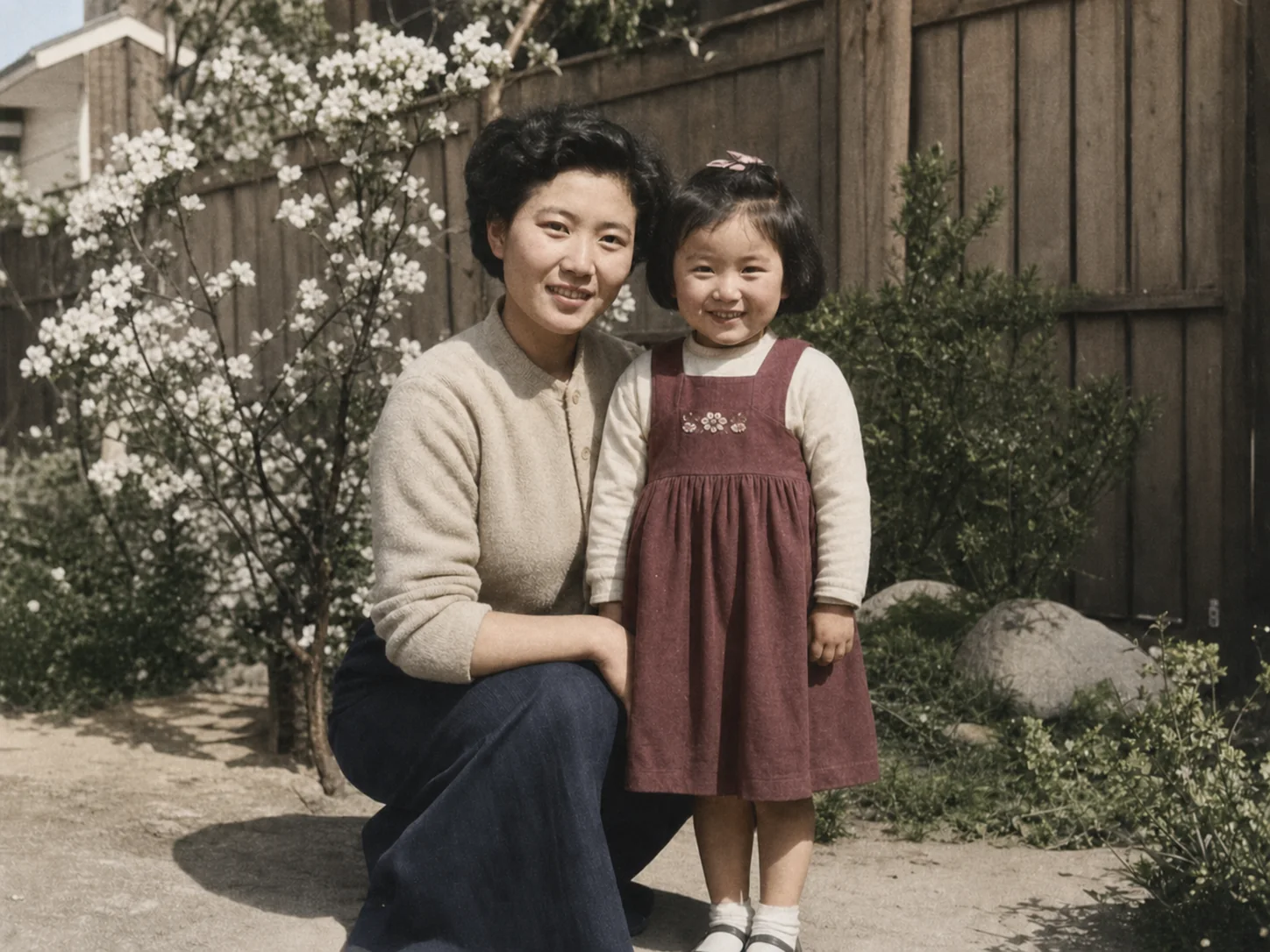
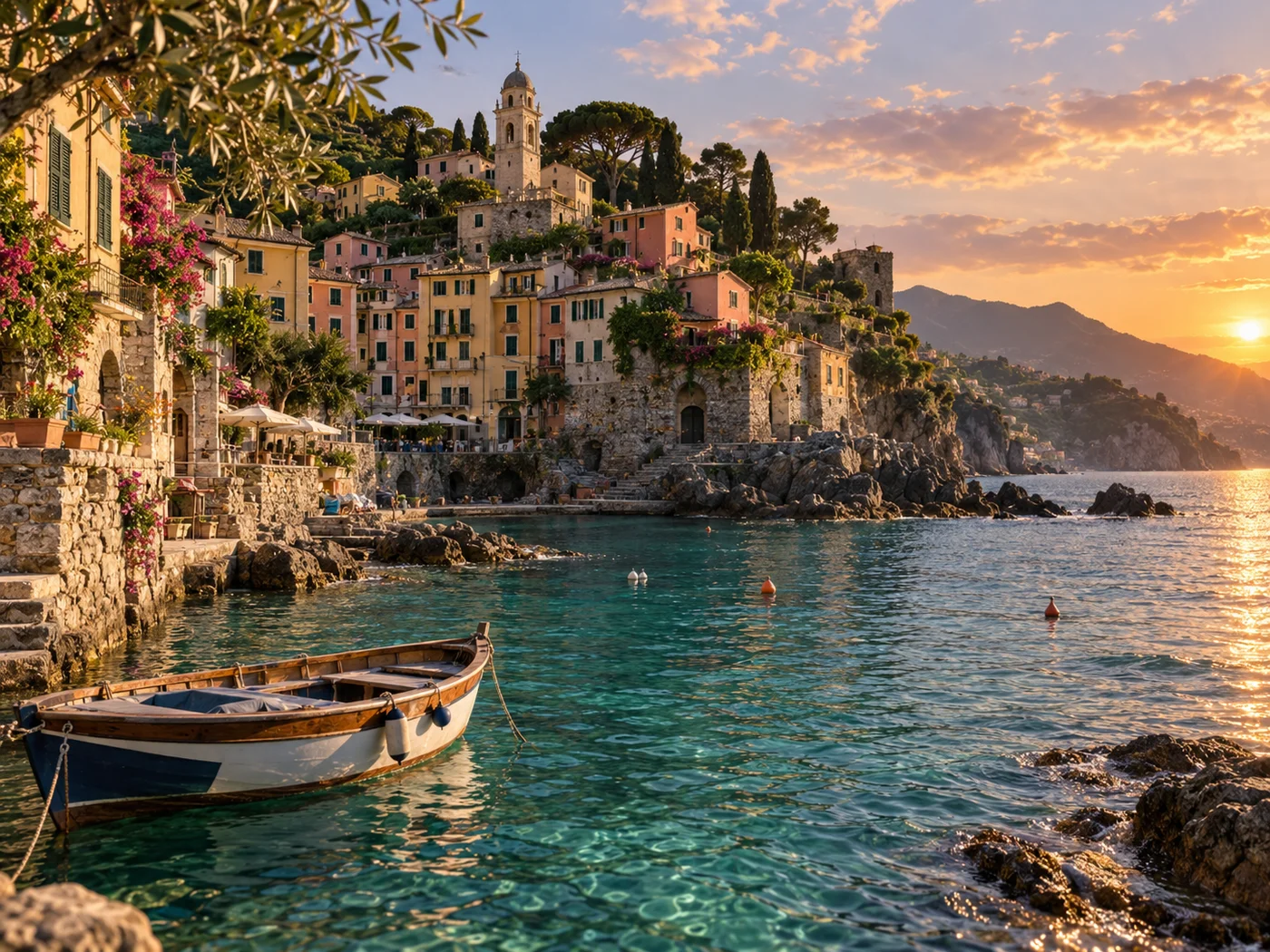
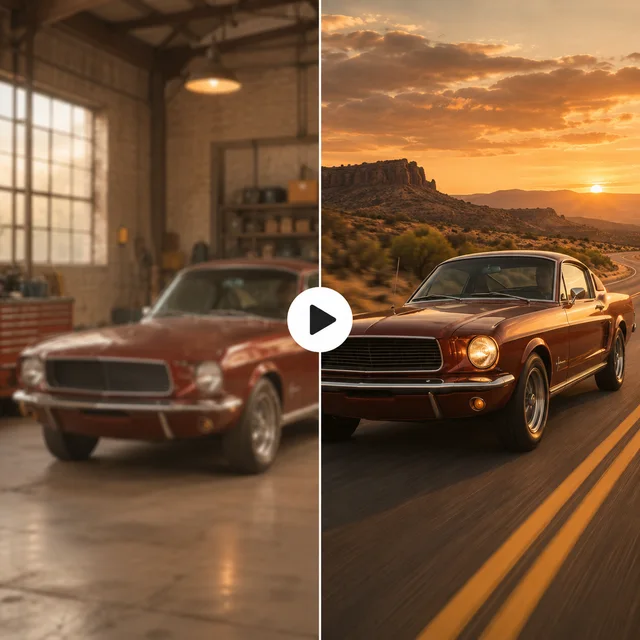
Compare product, workshop and café footage before adding it to your design. Move the slider to inspect the scene, then review your own processed clip at the size your Canva layout needs.
A product clip for a launch
Check the ceramic texture and product silhouette before placing the footage beside a headline. Keep the logo and offer as editable design elements.
A workshop moment for an invitation
A close-up demonstration gives viewers context for the event. Inspect moving hands and materials before using it in a presentation or invitation.
A cafe scene for a local promotion
Use a clear visual setting behind opening hours or an announcement. Add those details in Canva after preparing the footage.
Bring a florist campaign into focus
Petal edges, stems and folds in the wrapping can soften when a video fills a design. Review the bouquet in motion, then add your offer and shop details as editable text in Canva.
How to Enhance a Video Before Adding It to Canva
Choose the source footage
Upload a supported video at least 3 seconds long. Use a clip without finished headlines or overlays when possible.
Process and inspect a preview
Choose 1080p or 2K and review the estimated credits. Check the product, people and edges at the size your design will use.
Finish the design in Canva
Download the MP4, upload it to Canva and add your layout, headline and brand elements. Review the exported design as a whole.
Three Checks Before a Campaign Goes Live
Check the final crop
Make sure your subject survives the layout’s crop. Enhancement does not create missing space around the frame.
Keep text editable
Add headlines after processing. Rebuild an unreadable product label as a separate design element only when you know the correct text.
Inspect at delivery size
Watch the exported presentation or social post. A nice source preview does not guarantee that later compression will preserve it.
Plan the Enhancement Step
Preview the useful segment
Preview mode processes the opening 15 seconds at 1080p or 10 seconds at 2K. Trim your source beforehand if the key moment occurs later.
Budget per clip
1080p costs 1 credit per second and 2K costs 2. Previews are charged too; daily free credits may cover a short test.
Keep campaign clips manageable
Full mode processes up to 90 seconds at 1080p or 60 seconds at 2K. It does not enhance a full multi-slide Canva project.
Respect the source size
Clips with a 960–1439px short edge use 2K. Input at 1440px or above is not accepted for further enhancement.
Prepare Still Images for Your Canva Campaign
Bring product photos, event images and local business visuals into the same campaign. Prepare each still image before combining it with your video, text and layout in Canva.

Upscale a product image for the layout
If the campaign also needs a larger product photo, use the image upscaler for that still asset. Return here for moving footage.
Upscale a Product Image
Enhance workshop photos for an invitation
Prepare sharper, more balanced still photos to accompany a workshop video. Enhance the image first, then bring it into Canva alongside your event title, schedule and booking details for a consistent invitation.
Enhance an Event Photo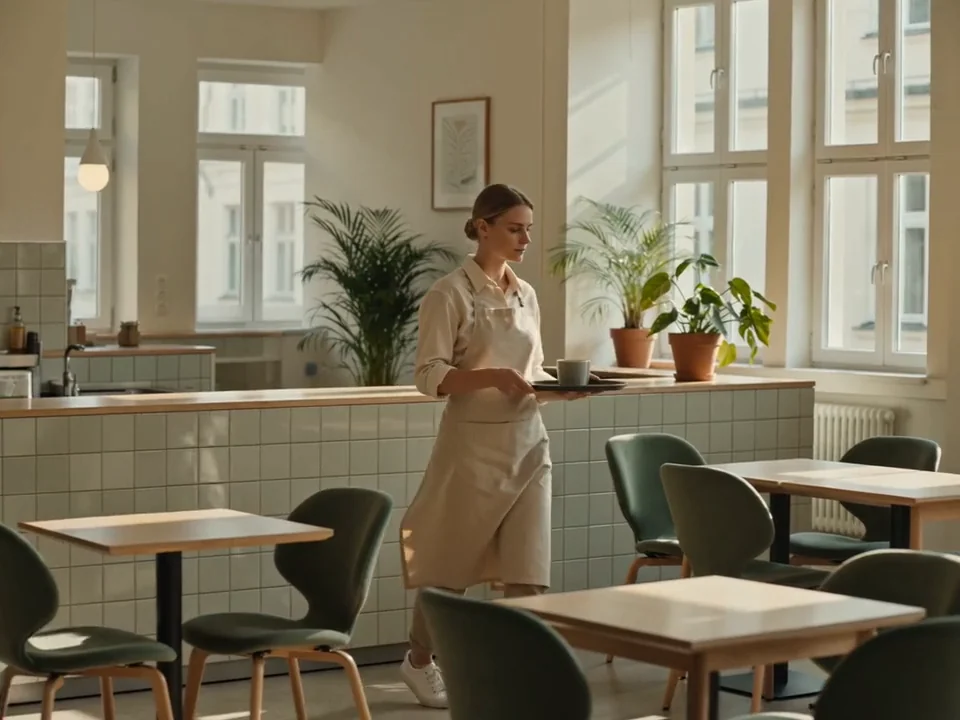
Unblur a café photo for a local campaign
Improve a soft café or shop photo before using it in a promotional layout. Review edges, furniture and faces at the intended design size, then add opening hours and offers as editable text in Canva.
Unblur a Campaign Photo