
DeepAI Colorizer Colorize Photos with Natural AI Color
Upload an old photo to EnhancePhoto.ai and create a natural AI color version in your browser. Free to try · Natural-looking color · No software download
Upload Image
Drag & drop or click to browse
Upload 1–20 images.Batch processing requires .
A Practical Photo Colorizing Workflow
Colorize Black and White Photos
Turn monochrome portraits, family albums, travel photos, and archive scans into believable color images.
Choose the Scene That Fits
Give the AI context for family, archive, vintage, or everyday photos so the result better matches the original.
Keep Faces and Texture Believable
The model considers faces, clothing, skies, foliage, and indoor light instead of applying one flat color layer.
Download a Useful Result
Review the result and save it for sharing, printing, or archiving.
What You Can Colorize
Family albums
Add warmth and visual context to treasured family portraits and school photos.
Historical archives
Explore a plausible color interpretation for local-history images and older public scenes.
Vintage fashion
Reveal the mood of classic clothing, interiors, and studio portraits with a balanced palette.
Travel and places
Bring skies, greenery, architecture, and familiar streets back into view with natural color.
DeepAI Colorizer
Before and After
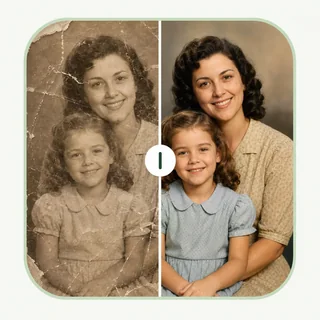
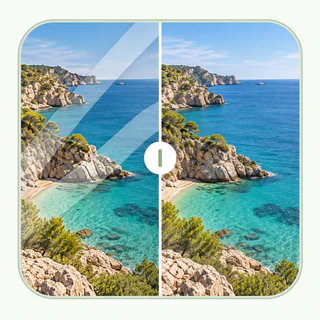
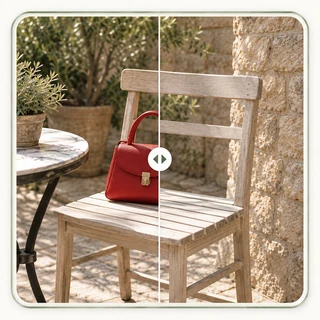
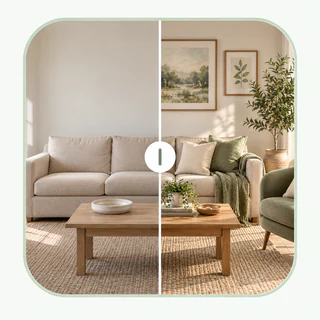
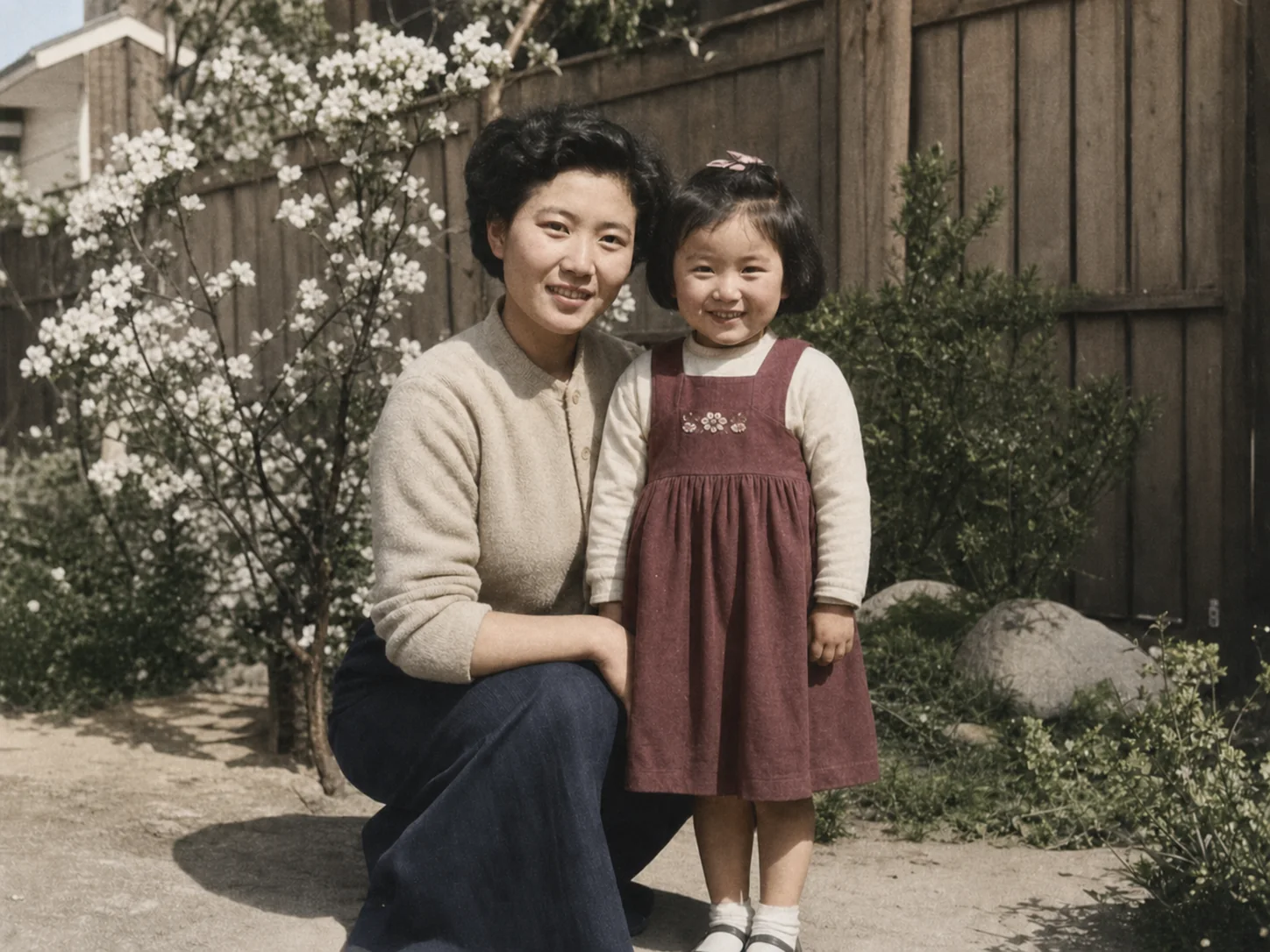
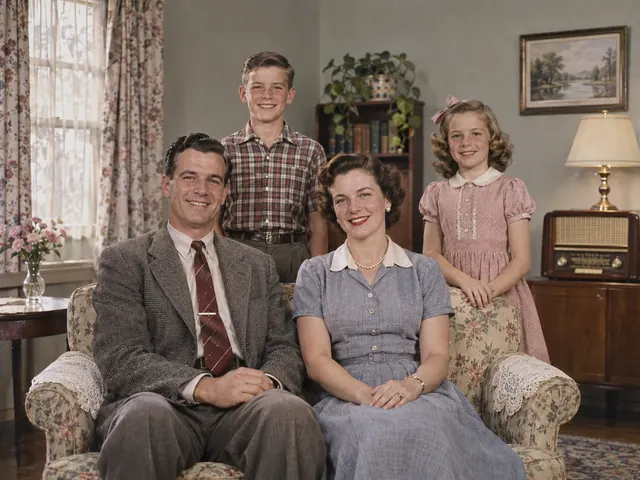
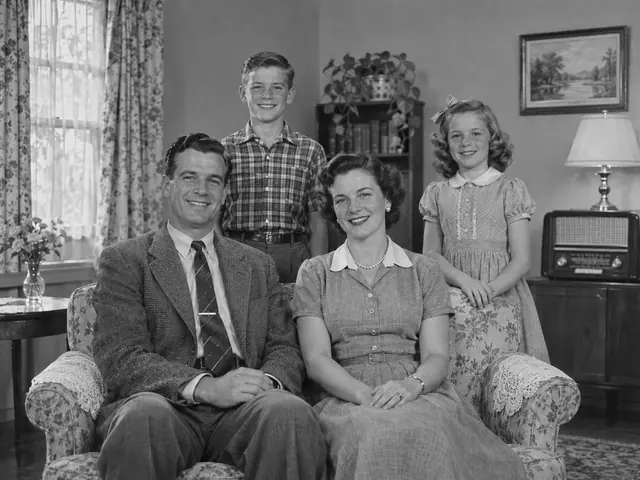
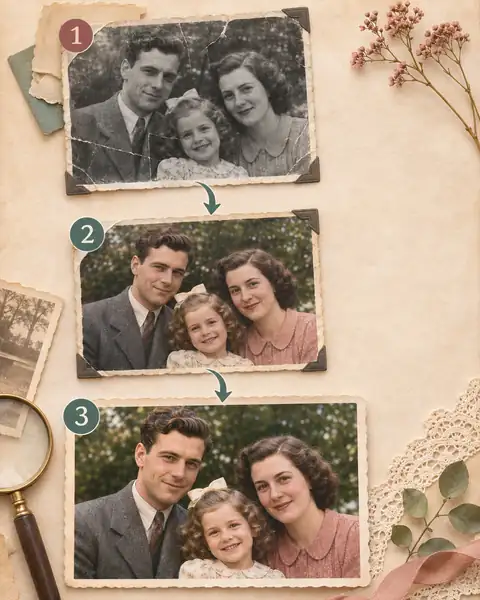
Compare a monochrome family portrait with a gentle AI color interpretation that keeps the original composition and period feel.
Colorize an old family portrait
A black and white family scene gains natural skin, clothing, and background color without changing the people or composition.
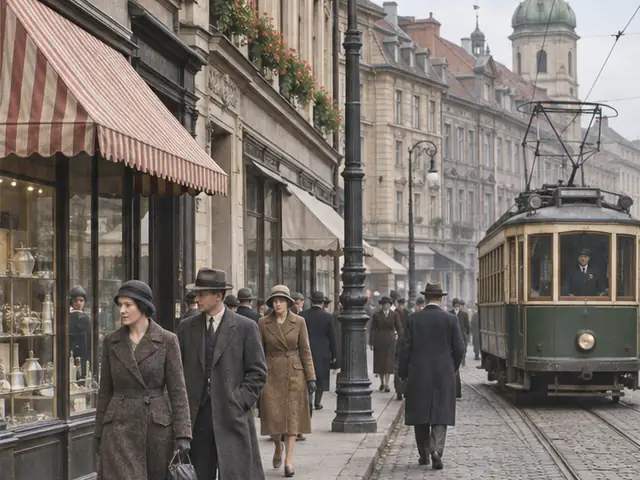
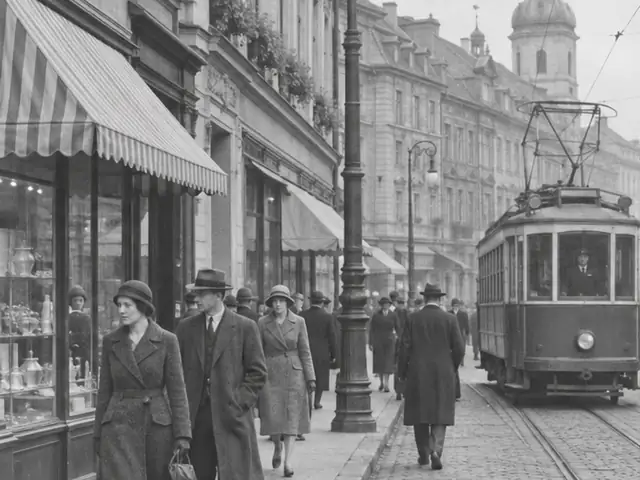
Bring color to a historical scene
Add visual context to an archive image while keeping the original monochrome file available for reference.
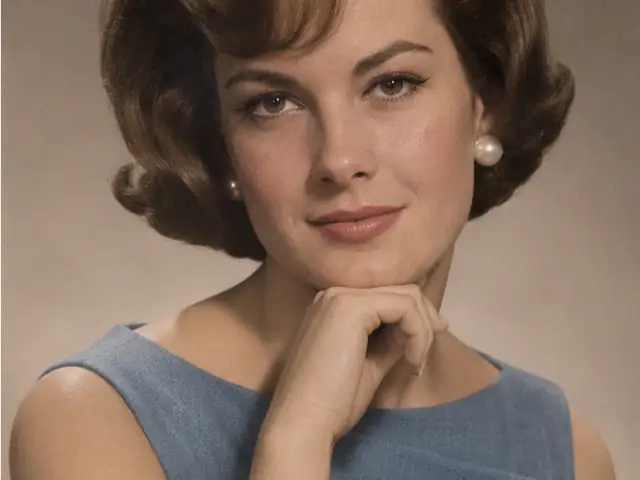
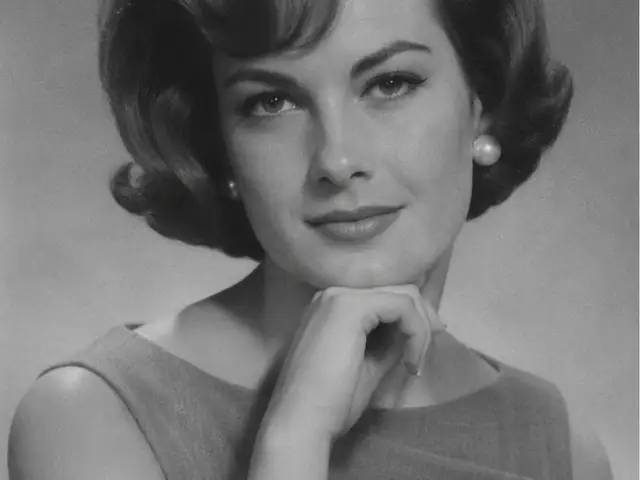
Colorize a vintage portrait
Use a vintage context for classic fashion, studio lighting, and old editorial photographs.
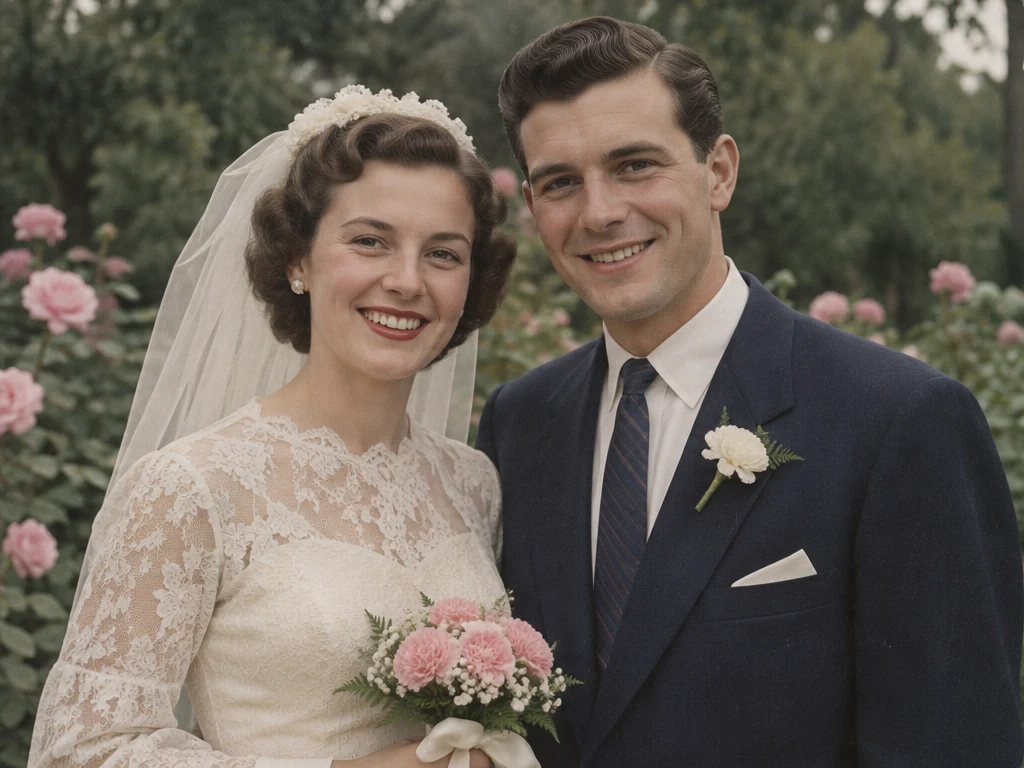
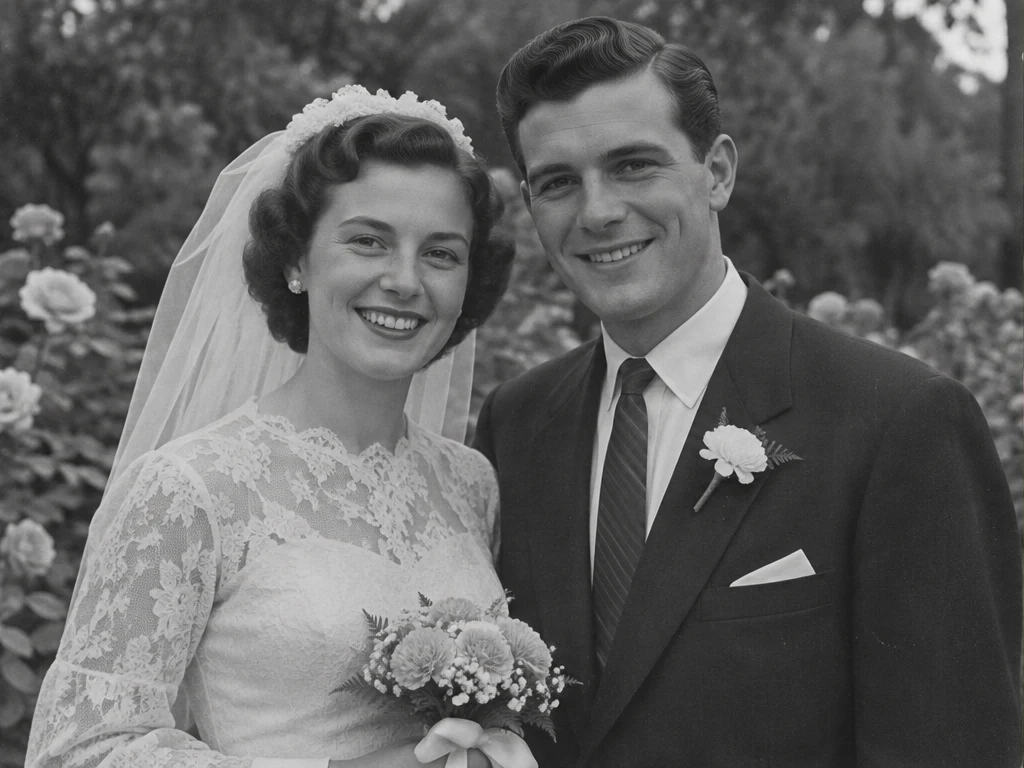
Colorize a vintage wedding photo
Bring soft, natural color to a wedding memory, from skin tones and flowers to the details of a lace dress.
How to Colorize an Old Photo in 3 Steps
Upload a black and white photo
Upload the image and keep the original as a separate copy.
Choose the photo context
Select the scene that best matches the image, then let AI build a natural color treatment.
Review and download
Check faces, clothing, and important details before downloading the colorized image.
Get Better Results from Any Photo Colorizer
Start with the clearest scan
A well-exposed source gives AI more information about faces, clothing, lighting, and surroundings.
Treat color as an interpretation
AI creates plausible color from visual context. Check historical details when exact accuracy matters.
Repair damage when needed
Restore heavy scratches, tears, fading, or blur first when those issues block important detail.
What to Do After Colorizing
Keep the colorized version alongside the original, then choose the next tool only when the photo needs repair, clarity, or a larger final copy.
- 01
Review the new color
Check faces, clothing, and important objects at full size, then save the colorized file beside the original.
- 02
Repair an aging original
If the scan has scratches or fading, use Photo Restoration before colorizing again.
- 03
Refine or enlarge
Use Image Enhancer for a final polish, or Image Upscaler for a larger display copy.
Why Use EnhancePhoto.ai
Portrait-aware color
Faces and clothing receive careful color treatment so family photos stay warm and believable.
Context for archive scenes
Choose an archive-oriented setting for historical documents, public scenes, and older photographs.
Practical downloads
Review the result and save it for sharing, printing, or archiving.
Simple browser flow
Upload a photo, choose the context, and download without installing software.
More AI Photo Tools
After colorizing a photo, continue with the next tool only when it needs repair, more detail, or a larger output.
Enhance Colorized Detail
Refine clarity, contrast, and texture after adding color to a family or archive photo.
Enhance Image
Restore the Original Photo
Repair scratches, fading, and tears before creating a cleaner colorized version.
Restore Photos
Make a Larger Colorized Copy
Upscale the finished color photo for a print, presentation, frame, or large display.
Upscale Image