
Picsart Unblur Unblur Photos with AI
Upload a blurry image to EnhancePhoto.ai and review a clearer version without opening a full desktop editor. Free to try · One click · No software download
Upload Image
Drag & drop or click to browse
Upload 1–20 images.Batch processing requires .
A Simple Photo Deblurring Workflow
Reduce Motion Blur in One Click
Rescue photos of children, pets, travel moments, and handheld shots when movement leaves the subject soft or smeared.
Make Faces and Edges Easier to See
AI rebuilds visible edges and texture in portraits, product photos, screenshots, and saved images that lost clarity.
Skip the Full Editing Workflow
If you only need to unblur a picture, upload it, run the tool, and download the result without layers or manual sliders.
Start with Free Daily Credits
Try the online unblur workflow in your browser with free daily credits and no app installation.
What You Can Unblur
Motion-blurred memories
Clear up a moving child, pet, sports moment, or handheld photo while keeping faces and textures natural.
Portraits and selfies
Improve soft eyes, hair, and facial edges when a portrait was captured slightly out of focus.
Product photos
Make a soft listing image easier to inspect before you publish it to a shop or marketplace.
Chat-shared images
Recover readable detail from photos and screenshots that became fuzzy after repeated sharing.
Picsart Unblur
Before and After
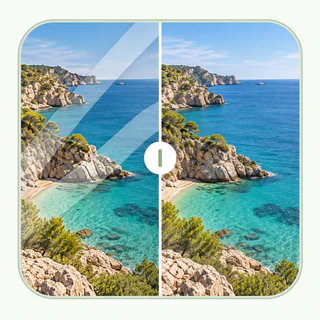
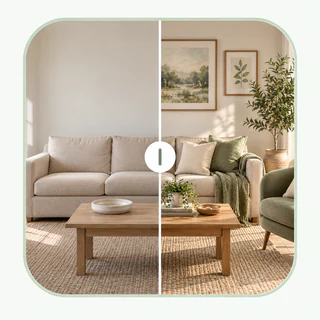
See how a fast AI unblur workflow can turn soft everyday photos into clearer, more usable images.
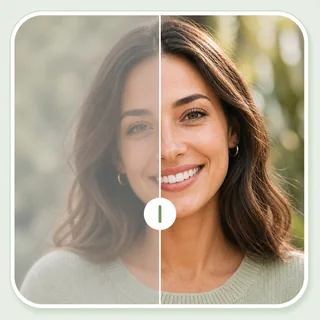
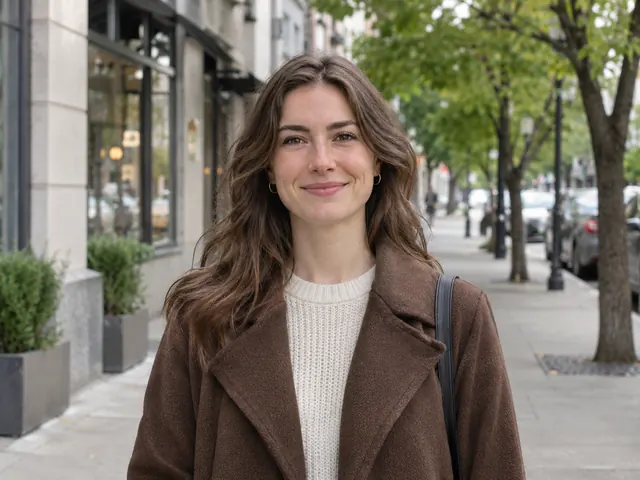
Portrait detail restored
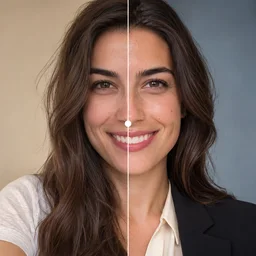
A soft street portrait becomes clearer around the eyes, hair, and knit texture while keeping the face natural.
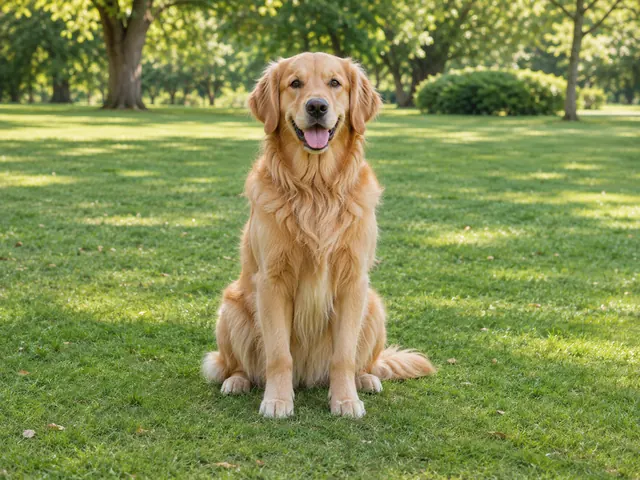
Unblur a pet photo
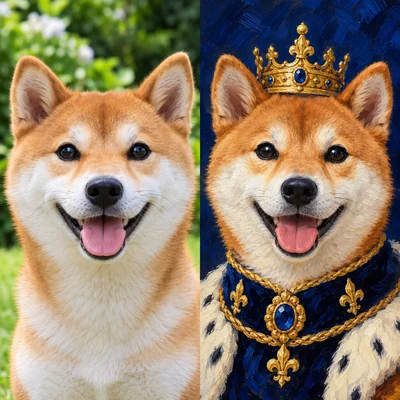
Motion blur from a playful pet can be reduced so the eyes and fur read more clearly.
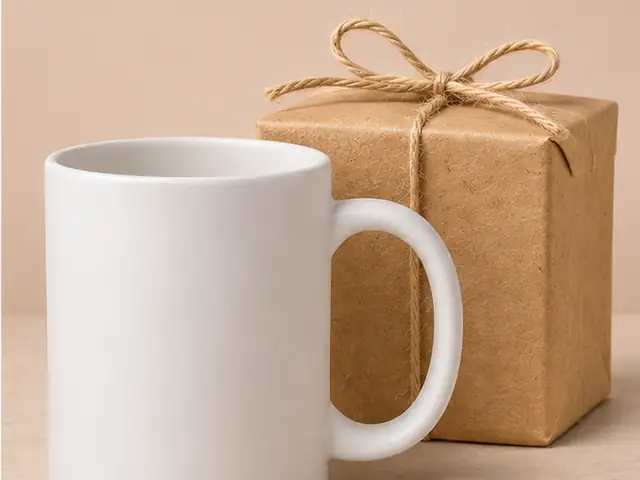
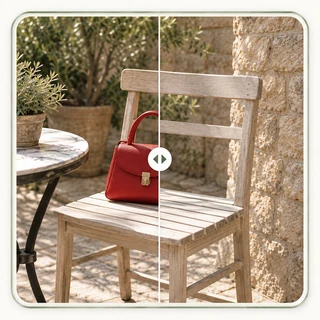
Clear a soft product image
Recover more visible edges in a compressed product image before sharing it again.
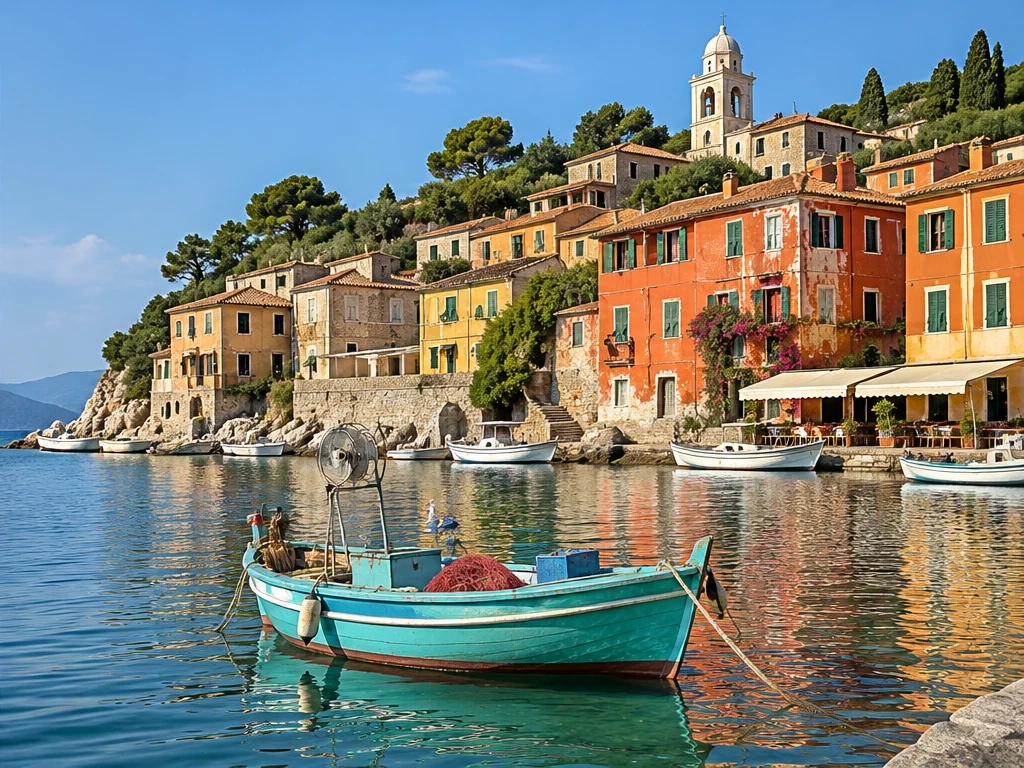
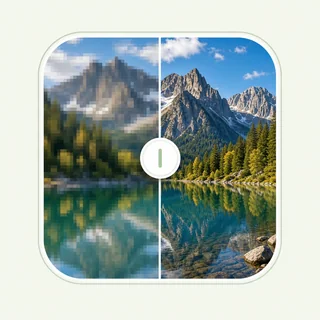
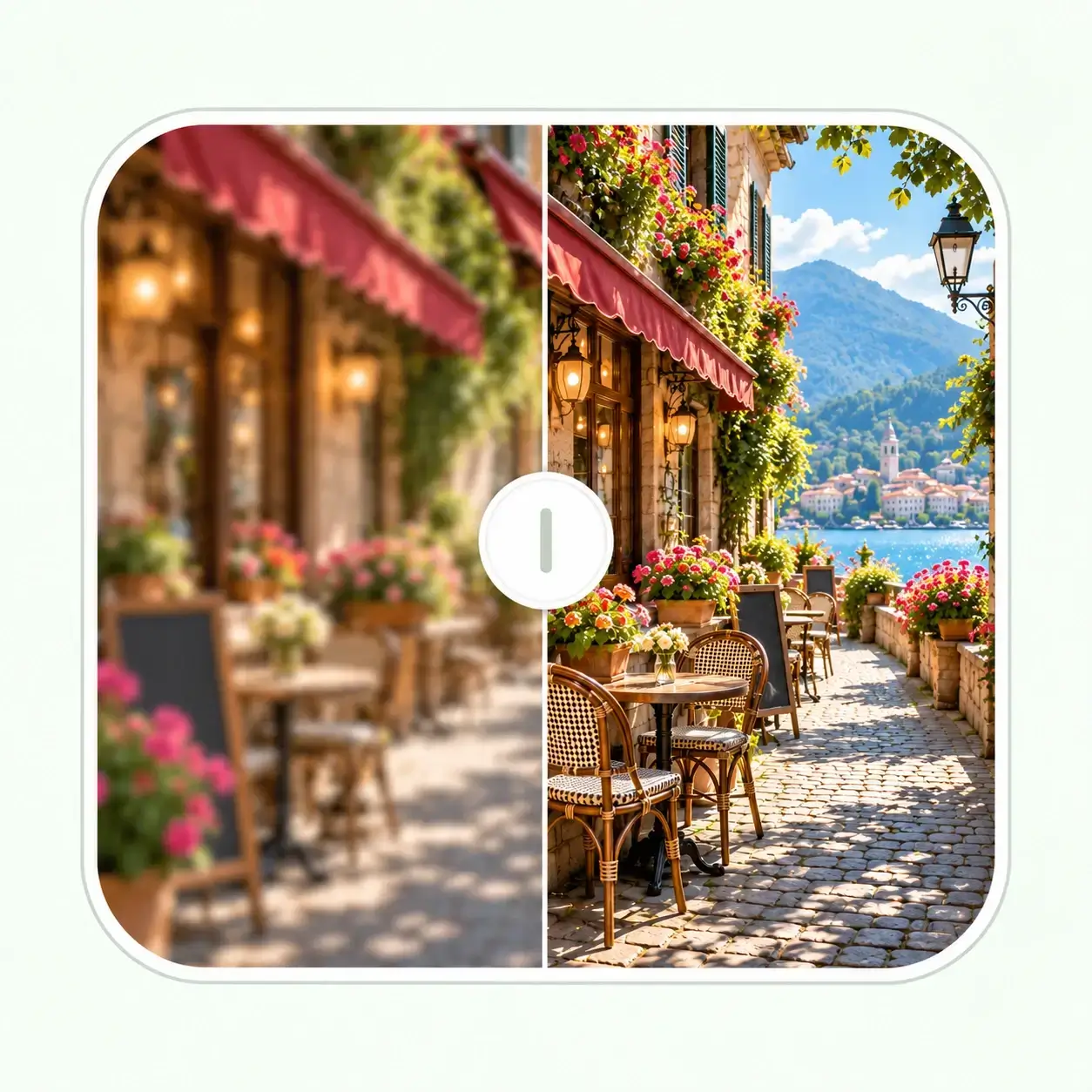
Bring a travel photo back into focus
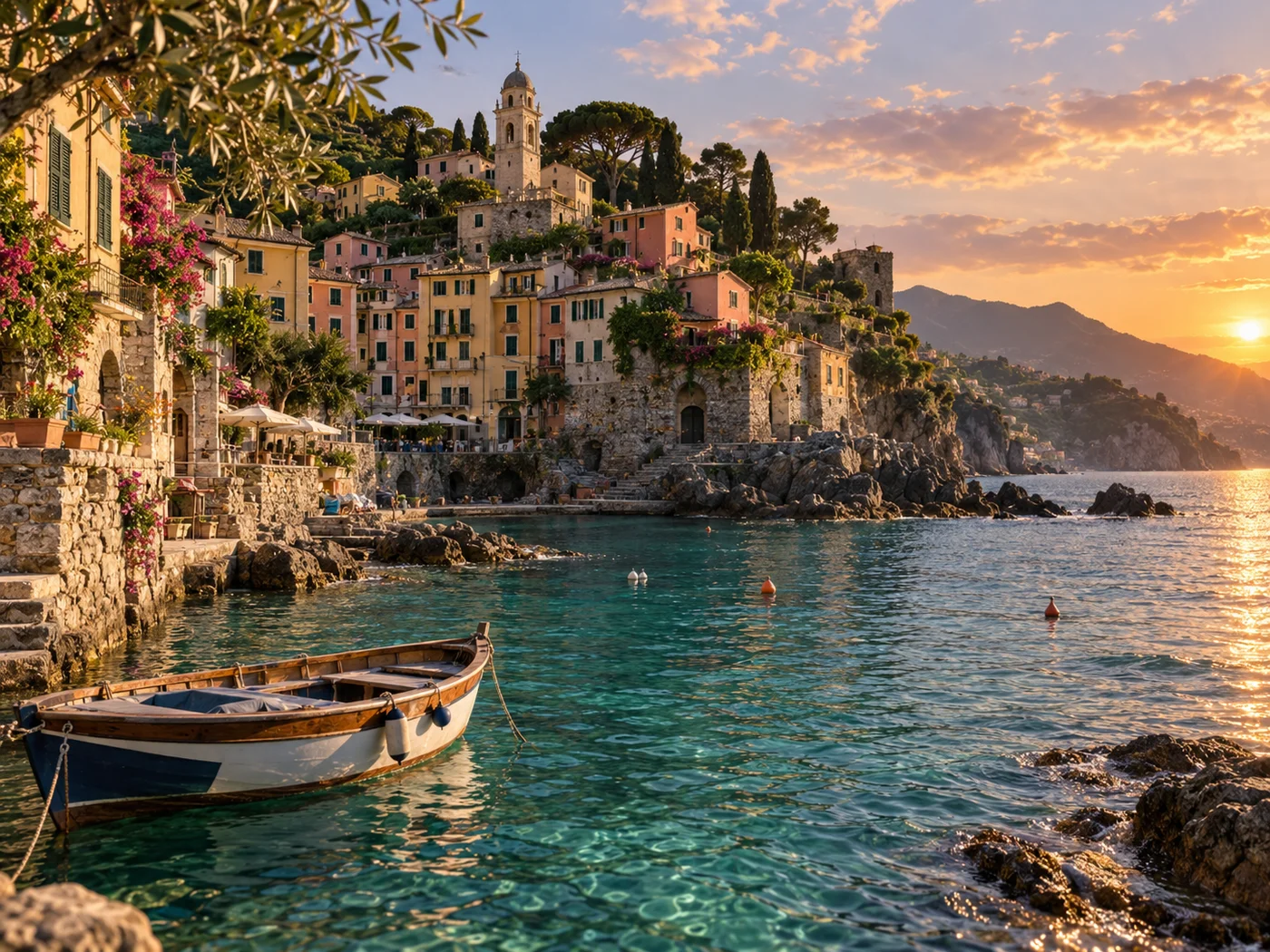
Reduce soft focus in a holiday snapshot so boats, buildings, and waterfront details are easier to see.
How to Unblur a Photo in 3 Steps
Upload your image
Upload the image and keep the original as a separate copy.
Let AI unblur it
Run the one-click process to reduce motion blur, soft focus, and compression softness.
Download the clear result
Review the result at its intended size and download it for your project.
Get Better Results from Any Unblur Tool
Use the clearest original you have
A larger source with recognizable edges gives AI more real detail to recover.
Check eyes, text, and fine edges
Zoom into the important subject after processing and keep the version that looks believable.
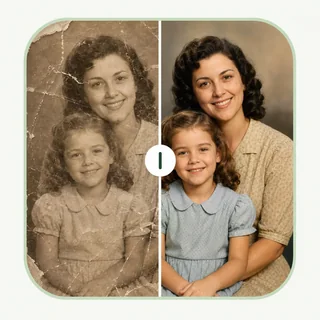
Use restoration for physical damage
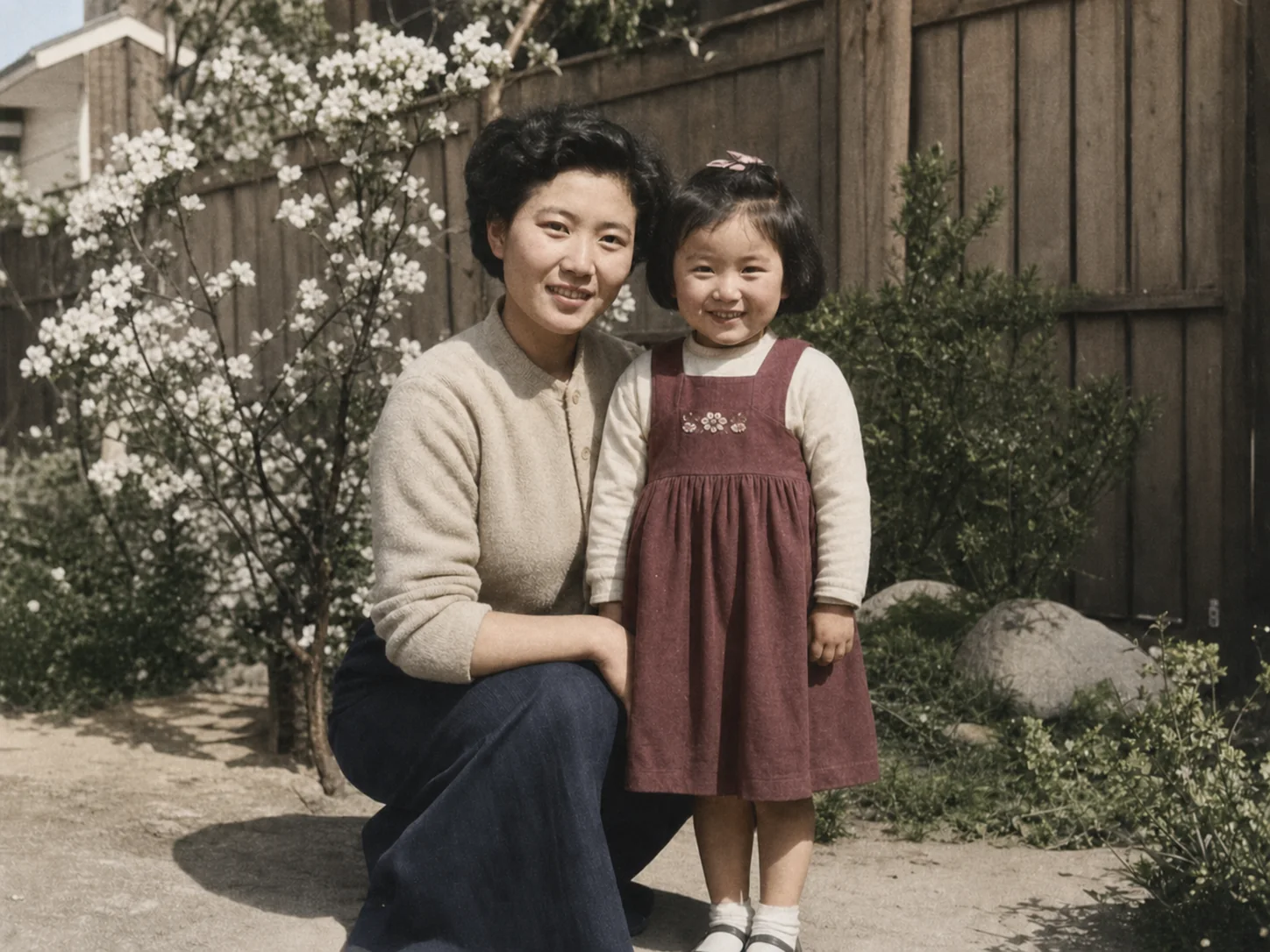
If an old photo has scratches or tears as well as blur, restore it after deblurring.
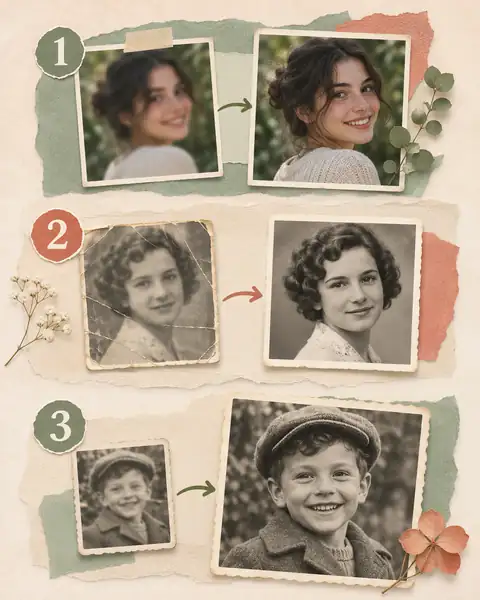
What to Do After Unblurring
Keep the clear result as your new starting point, then choose the next tool only if the image needs repair, color, or more size.
- 01
Unblur and review
Compare the clear version with the original and keep the result that preserves natural faces, edges, and texture.
- 02
Repair an aged original
If it has scratches or fading, continue with Photo Restoration.
- 03
Make it larger or brighter
Use Image Enhancer for polish, or Image Upscaler for a larger file.
Why Use EnhancePhoto.ai
No editing experience needed
Upload a file and let the one-click workflow handle the deblurring.
Fast browser processing
Get a usable result online without installing a desktop editor.
Free to try online
Use available daily credits before deciding whether you need another photo tool.
Natural-looking output
The model rebuilds detail instead of adding harsh halos or crunchy edge noise.
More AI Photo Tools
After you unblur a photo, continue with the tool that matches the next job.
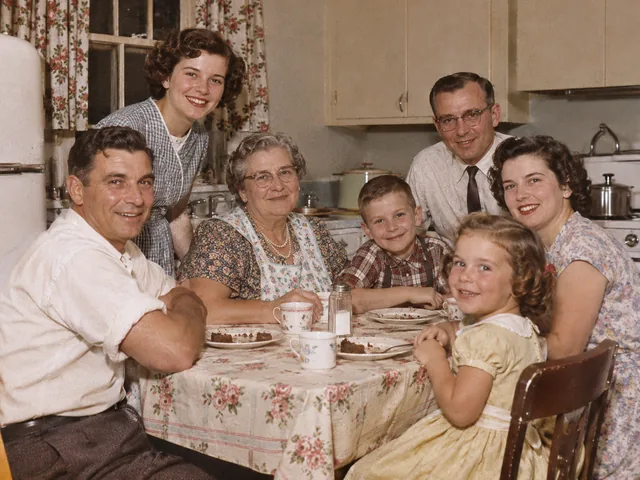
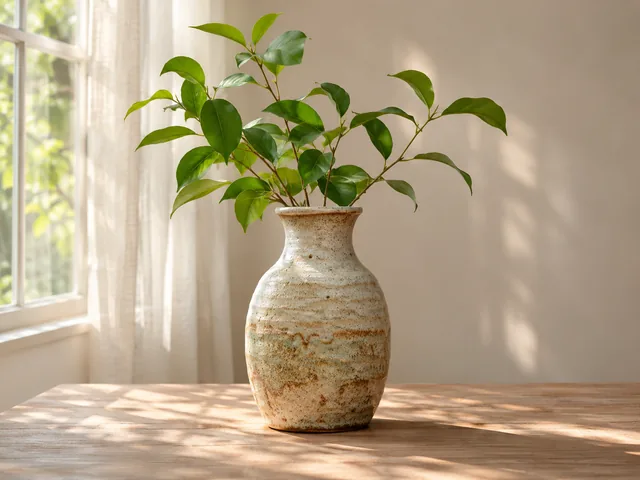
Enhance Color and Light
Refine contrast, lighting, and texture for a more polished final image.
Enhance Image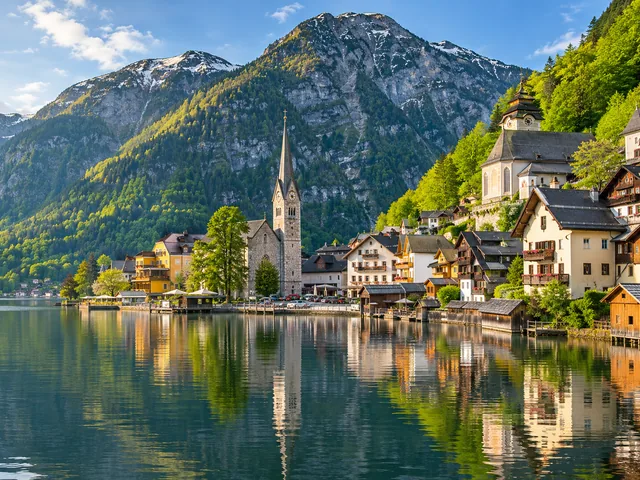
Upscale the Clear Result
Create a larger copy for print, product pages, or social posts.
Upscale Image