




Pixelcut Upscaler Upscale Images for Larger, Sharper Results
Upload a small image to EnhancePhoto.ai, choose 2x, 4x, or a target resolution, and review the enlarged result in your browser. 2x · 4x · 4K · 8K · 16K options
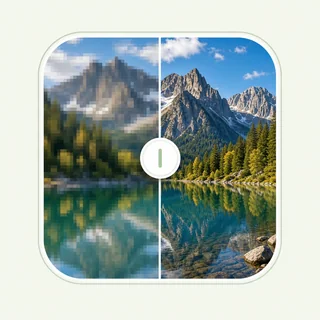
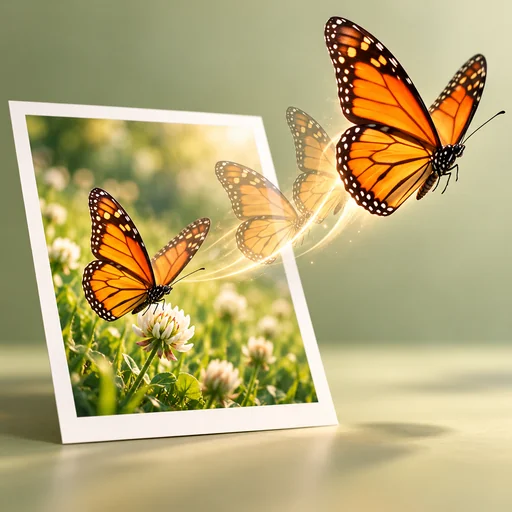
Original image expands to 4K resolution
Upload Image
Drag & drop or click to browse
Upload 1–20 images.Batch processing requires .
A Practical Image Upscaling Workflow
Upscale Images 2x or 4x
Choose a quick scale when you need a larger image for a listing, social post, presentation, or print draft.
Increase Resolution up to 16K
Use target resolution options when a project needs 2K, 4K, 8K, or 16K-ready output.
Rebuild Detail Instead of Stretching Pixels
AI analyzes edges and texture to create a cleaner enlargement than ordinary browser resizing.
Try It Online with Free Credits
Upload an image and test the workflow without downloading software or creating an account.
Where to Use an AI Image Upscaler
Product listings
Enlarge small catalog photos for storefronts, marketplaces, and campaign layouts.
Prints and displays
Prepare a larger file for posters, framed prints, presentations, and digital signage.
Social and portfolio work
Create sharper thumbnails, portfolio images, and content graphics when the original is too small.
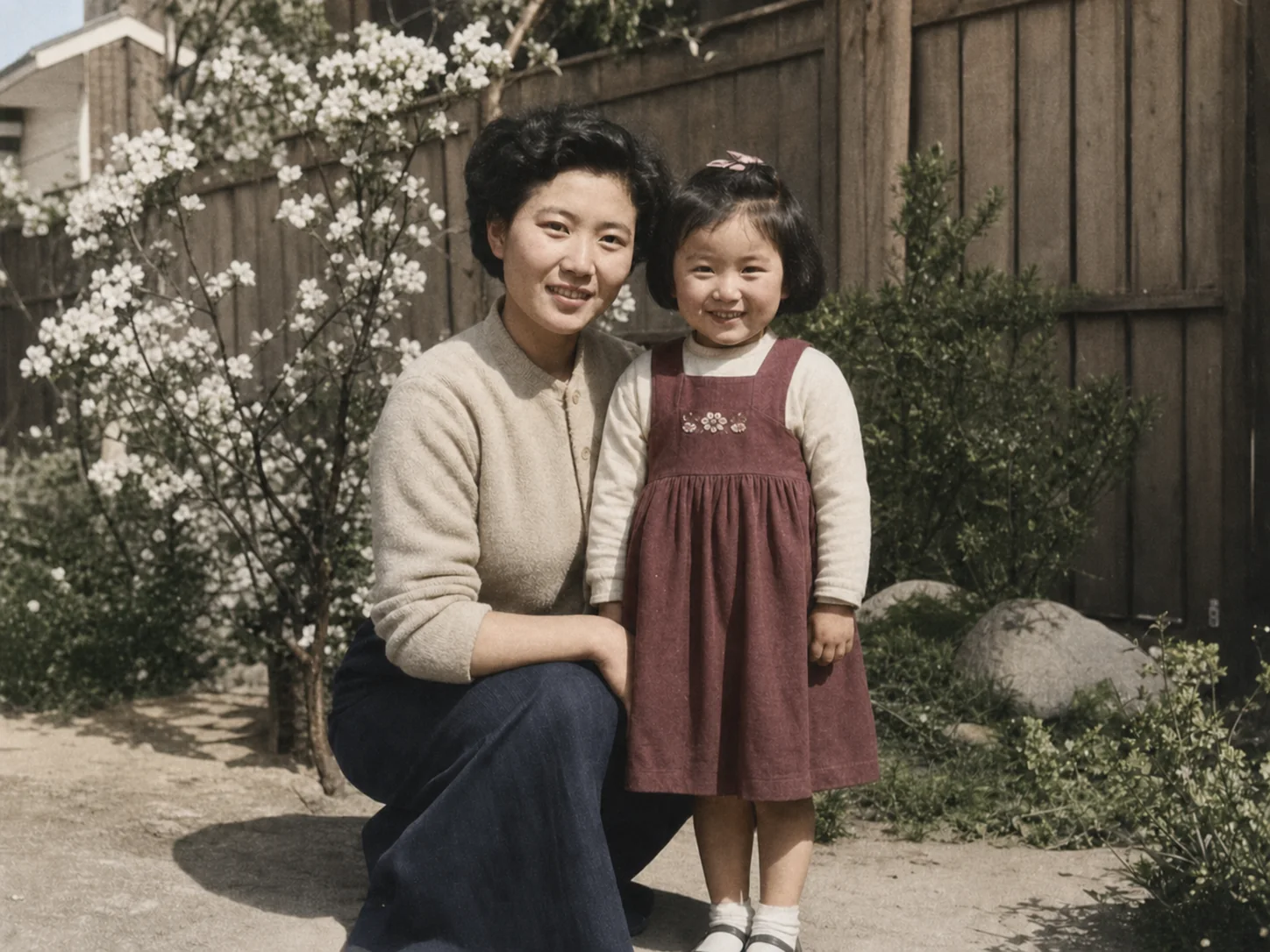
Old photos and scans
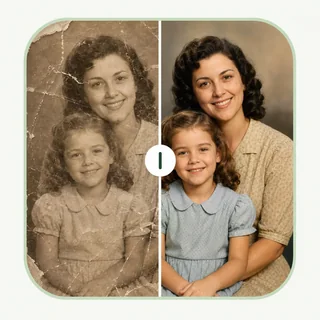
Make family photos and archive scans easier to view on modern screens or in a photo book.
Pixelcut Upscaler
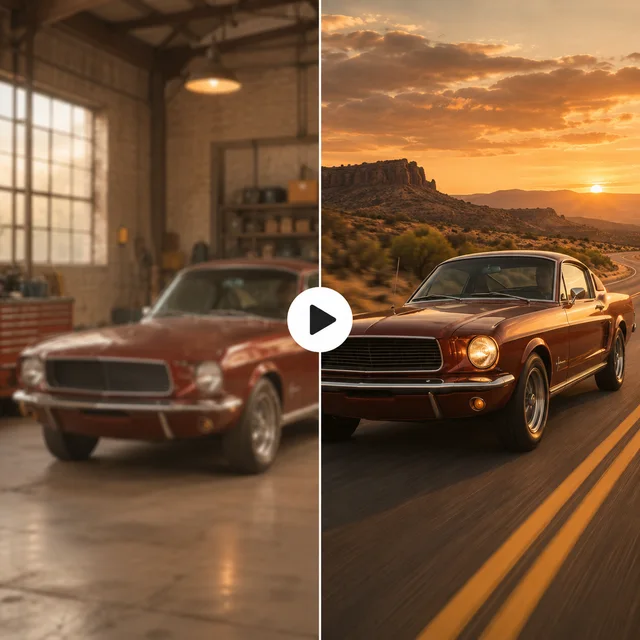
Before and After
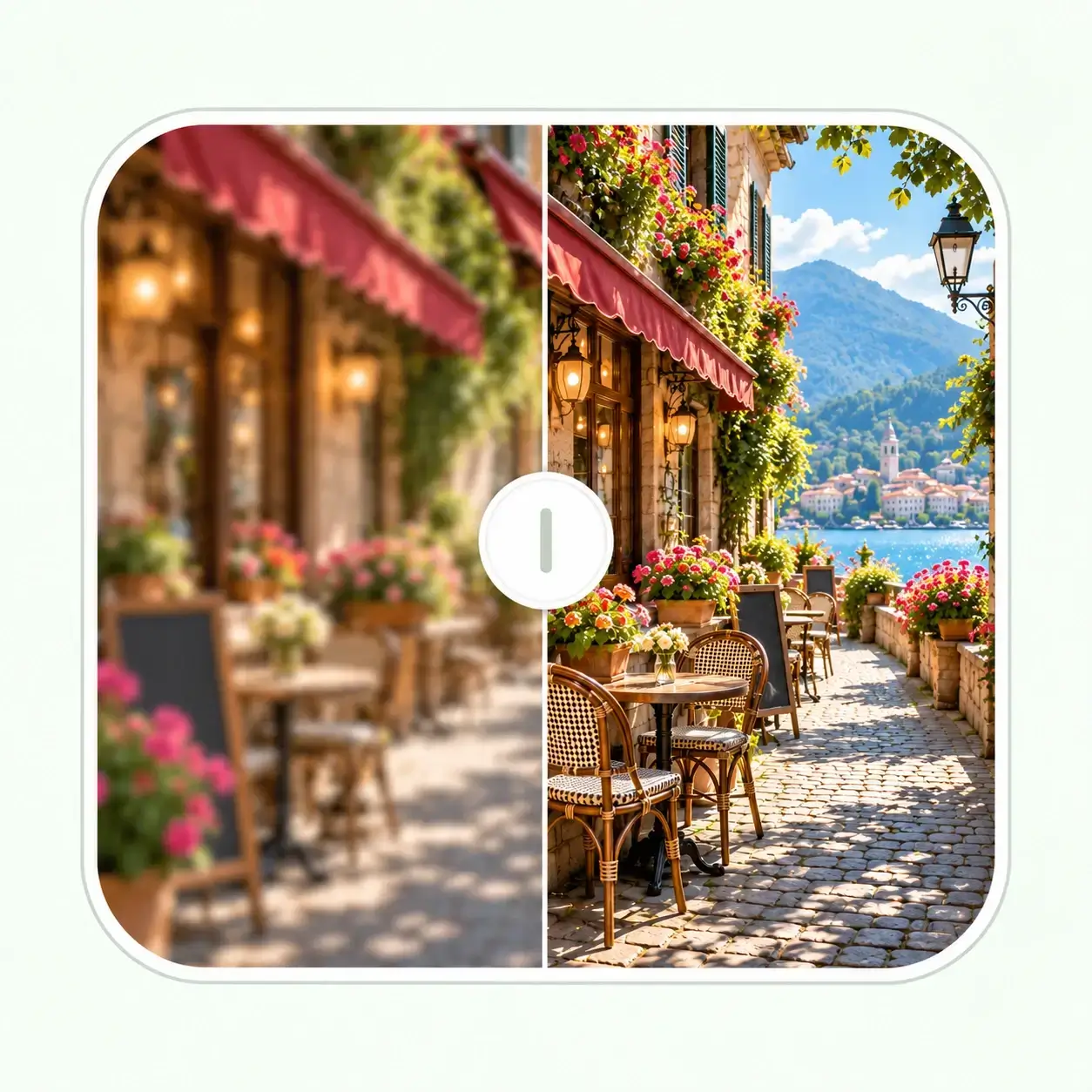
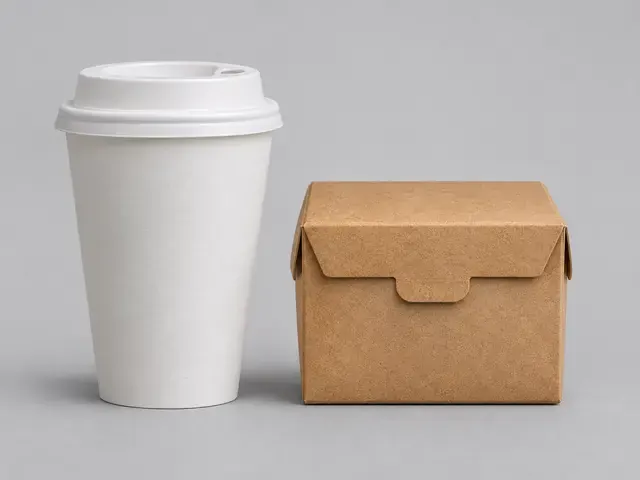
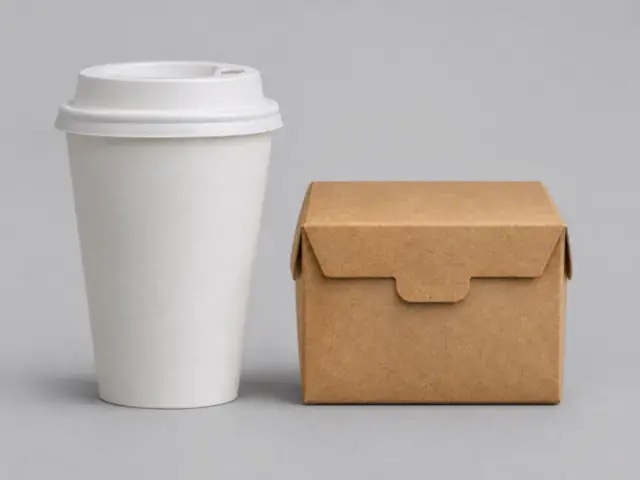
Compare a low-resolution product image with a sharper enlarged version designed for real listings, layouts, and screens.
Upscale a product photo
A pixelated cup and package become a cleaner product image with more usable edge and material detail.
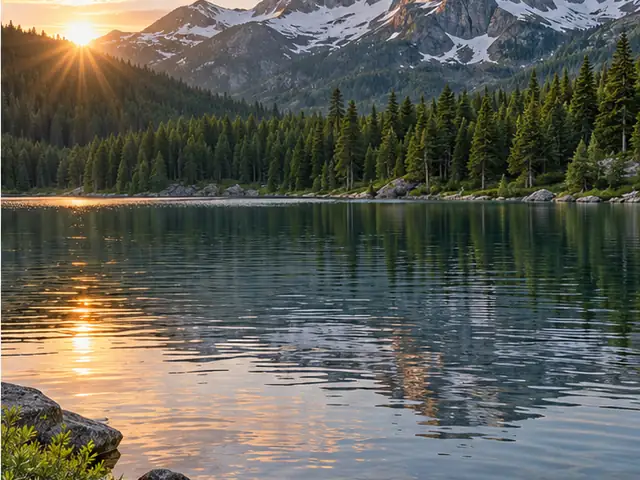
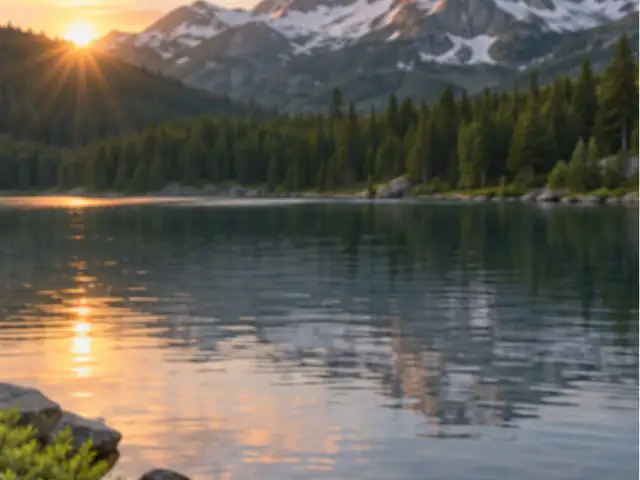
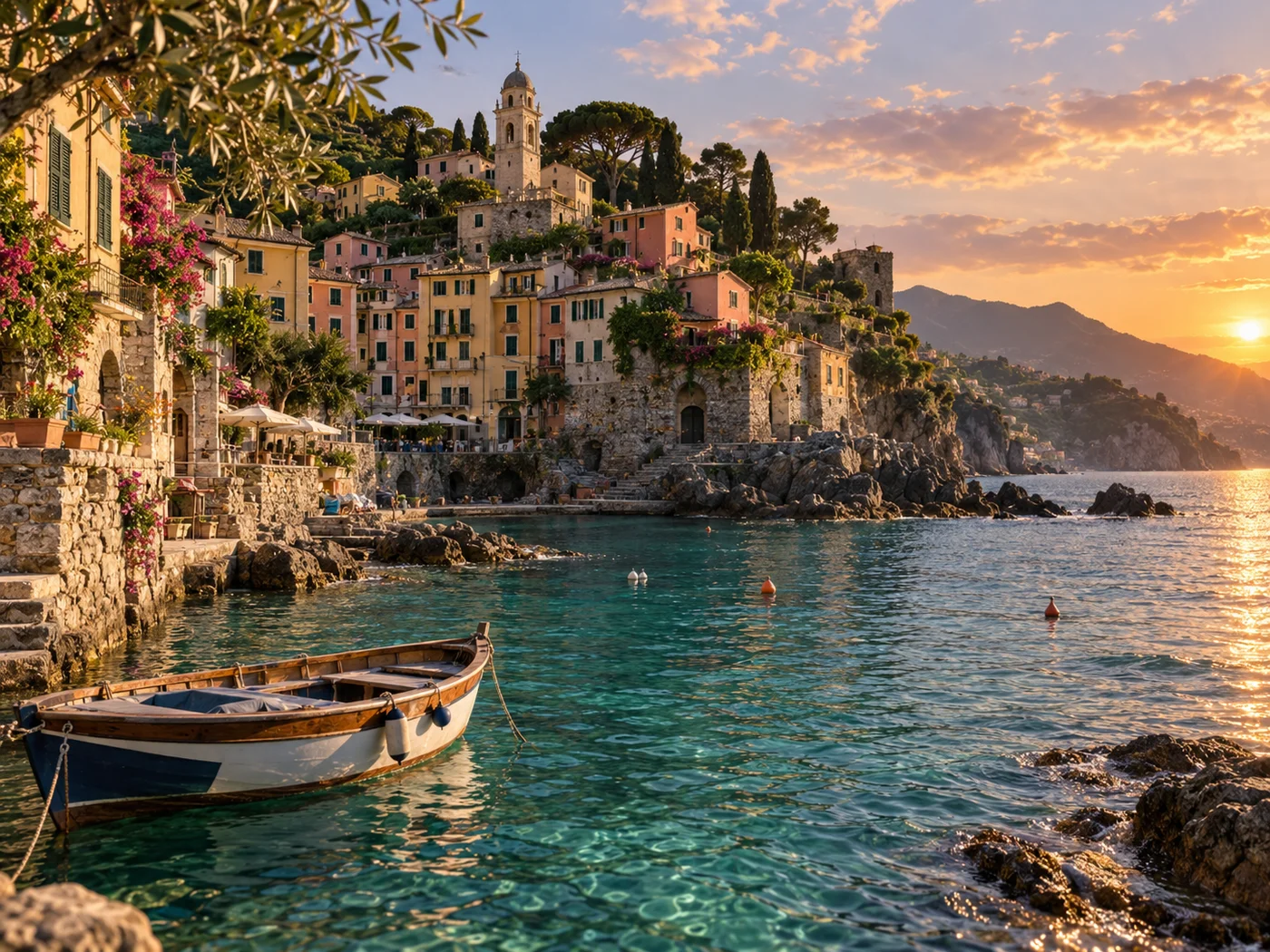
Create a larger wallpaper
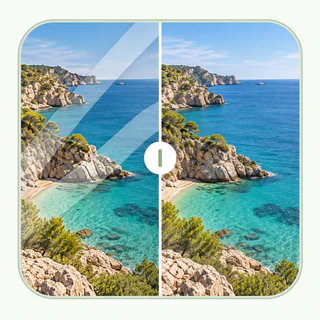
Enlarge a landscape for a desktop, presentation, or large screen while keeping textures readable.
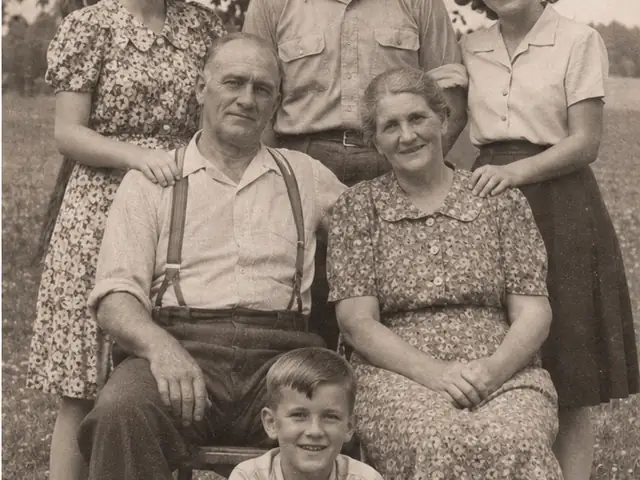
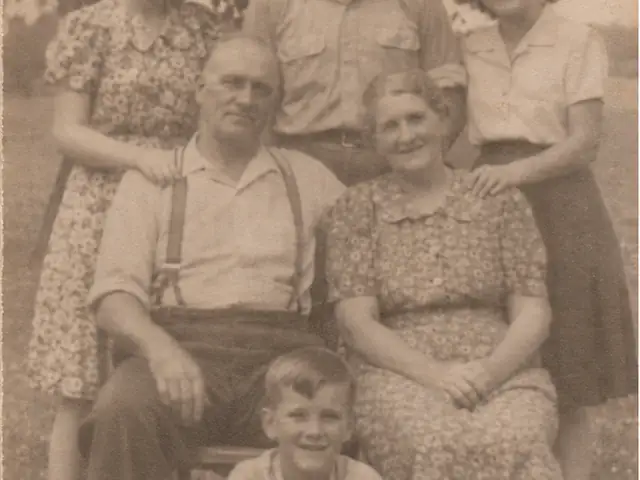
Prepare an old photo for display
Create a larger copy for a frame, album, or presentation after checking the important faces and details.
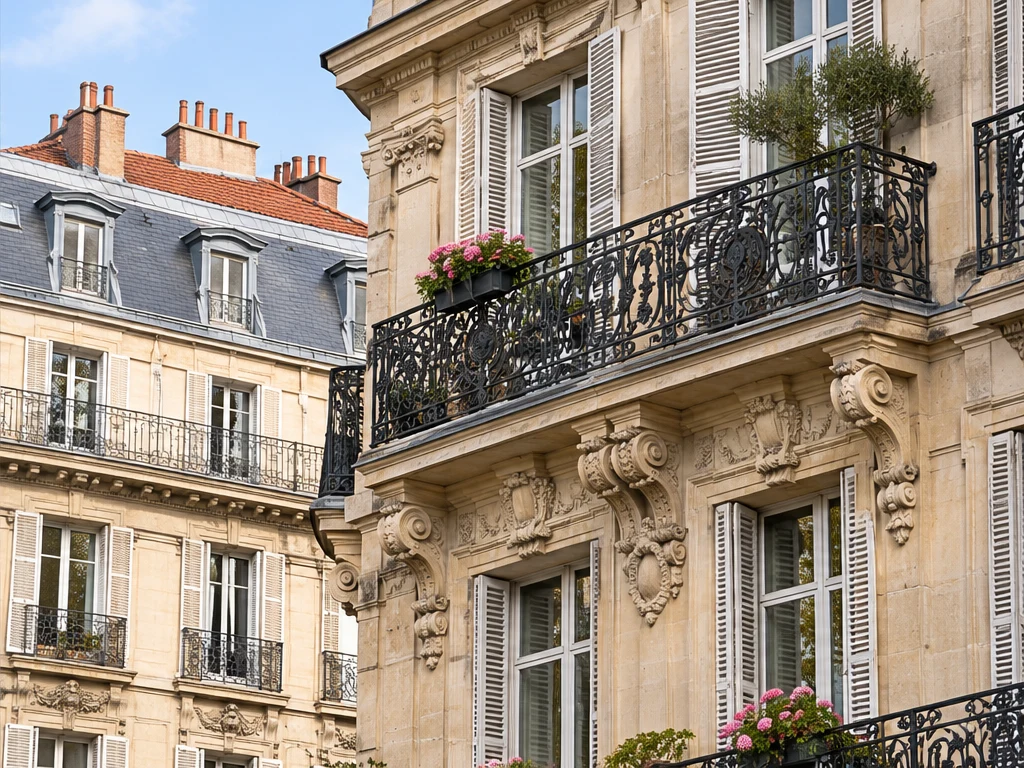
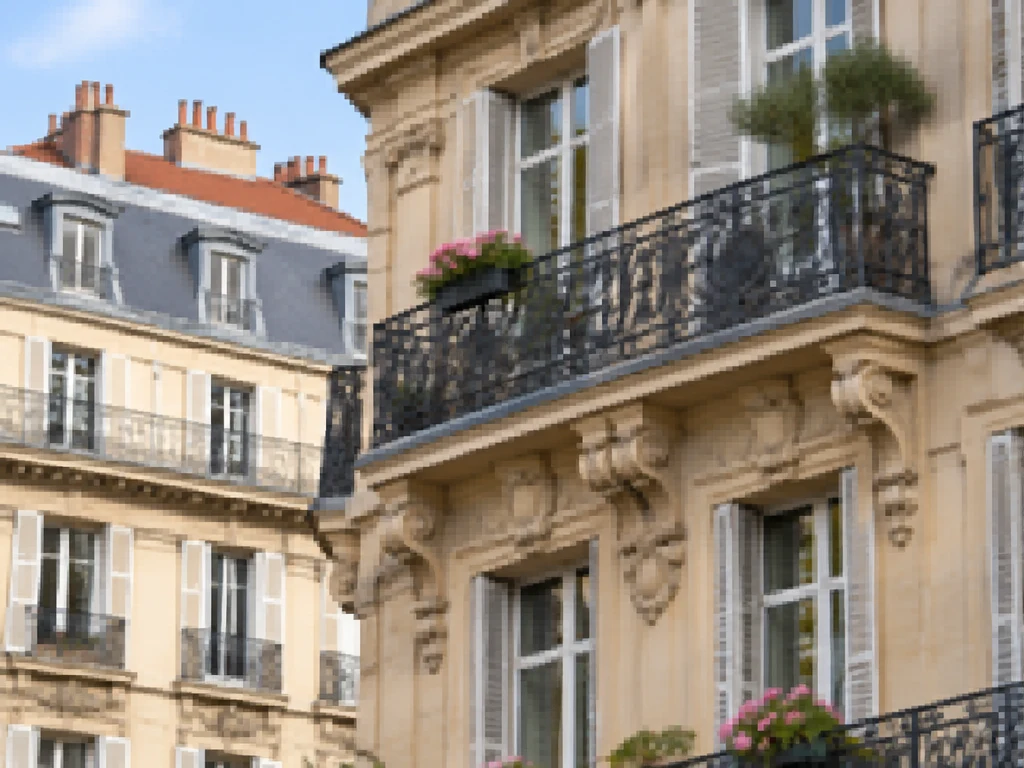
Enlarge architectural details
Make a small building photo ready for a larger layout with clearer window frames, stonework, and balcony details.
How to Upscale an Image in 3 Steps
Upload your image
Upload the image and keep the original as a separate copy.
Choose a size
Select 2x or 4x, or choose a target resolution such as 4K, 8K, or 16K.
Download the larger file
Review the result at its intended size and download it for your project.
Get Better Results from Any Image Upscaler
Start with the best source
A clear original gives AI more real detail to work with than a tiny screenshot or heavily compressed copy.
Review faces and small text
Zoom in at the final size to check important details before publishing or printing.
Match the output to the destination
Use a scale for speed, or a target resolution when a layout or display has a fixed requirement.
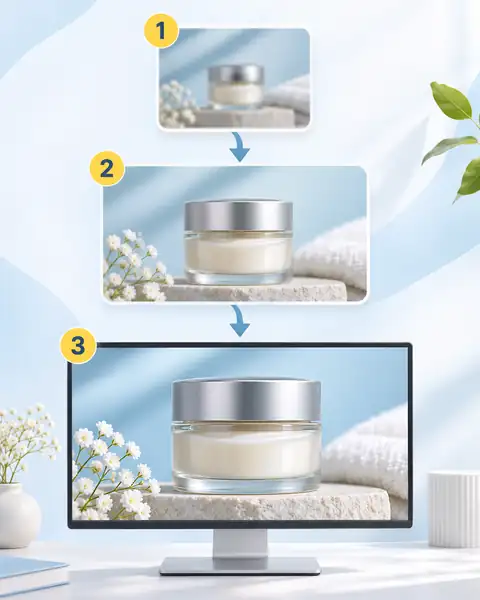
What to Do After Upscaling
Keep the larger image as your base file, then refine it only when the final destination needs more cleanup or polish.
- 01
Upscale to the needed size
Choose 2x, 4x, or a target resolution and check the output at the size where people will see it.
- 02
Refine the enlarged result
Use Image Enhancer for light, color, and texture polish.Unblur Image can help when softness is still the main problem before the final download.
- 03
Save for its final use
Download the larger file for a product page, print, presentation, wallpaper, or archive.
Why Use EnhancePhoto.ai
Flexible size controls
Switch between 2x and 4x enlargement or fixed target resolutions.
Detail-aware AI processing
Rebuild edges and textures so the image looks cleaner than a stretched copy.
Fast single-image workflow
Upload, choose a size, and process in your browser in a few simple steps.
Free to try online
Use available daily credits for image upscaling without a software download.
More AI Photo Tools
After upscaling, choose a related tool when the image needs cleanup, restoration, or a final quality pass.
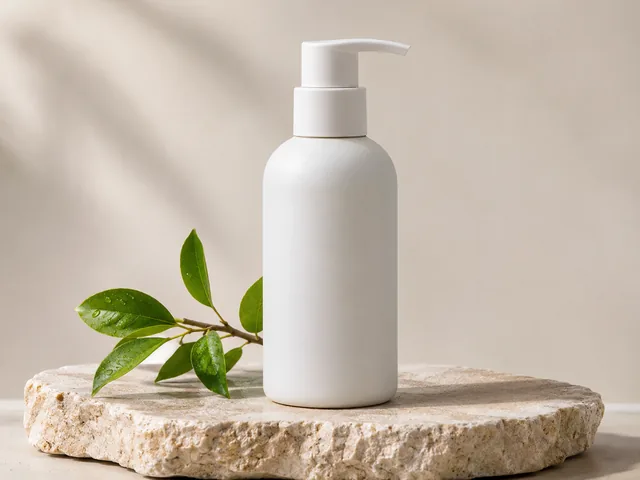
Enhance the Larger Image
Refine color, contrast, and visible detail after increasing the resolution.
Enhance Image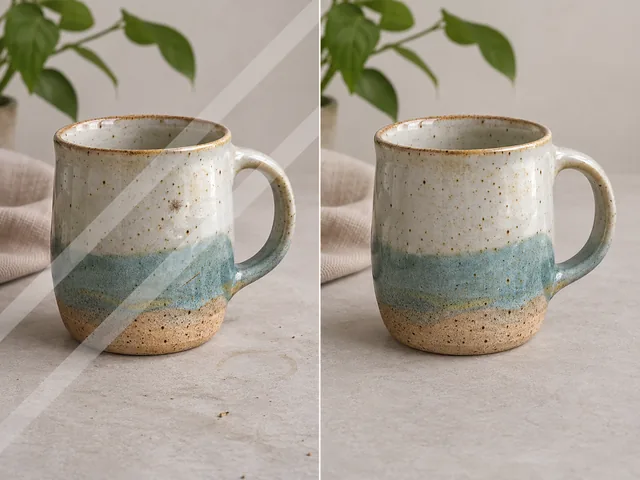
Remove an Allowed Watermark
Clean up text, logos, or stamps you have permission to remove before delivery.
Remove Watermark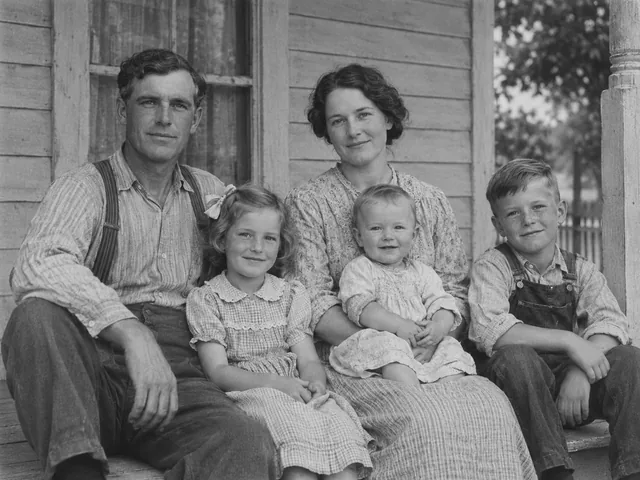
Restore an Old Photo
Repair scratches and fading when enlarging an old image makes damage more visible.
Restore Photos