









Adobe AI Assisted Editor vs Online Editors: Which Is Better?
Adobe AI Assisted Editor is a strong fit for people who already use Photoshop and want prompt-based editing with a path into professional controls. Online AI photo editors are usually better for quick browser-based fixes, one-off projects, and users who do not need a full layer-based workspace.
The better option depends less on which editor has the longest feature list and more on what you need to change. Replacing part of a scene, refining a mask, and continuing into a layered design are different jobs from sharpening a soft image, improving light, or removing one distraction before publishing.
This comparison uses current public documentation reviewed on November 24, 2026. It compares workflows and documented capabilities rather than claiming that one editor always produces better images.
Quick Verdict
| Choose | Best when you need | Main tradeoff |
|---|---|---|
| Adobe assisted mode | Prompt-led edits that may continue into Photoshop's professional workspace | Requires an eligible Photoshop subscription and uses generative credits |
| Online AI photo editor | Fast edits in a browser without installing a professional desktop application | Usually offers less layer, mask, and document control |
| AI image enhancer | Sharpening, denoising, color correction, lighting improvement, or resolution recovery | Designed to improve an existing image rather than rebuild a scene |
| Photoshop Pro Editor | Detailed masks, layers, compositing, color management, and production work | More controls, time, and learning are required |
Short answer: choose Adobe when the AI edit is one part of a larger Photoshop workflow. Choose an online editor when the goal is to upload a photo, describe or select the change, review the result, and download it with minimal setup.
What Is Adobe AI Assisted Editor?
Adobe AI Assisted Editor is a Beta editing mode inside Photoshop. It presents a simplified workspace built around prompts, markup, and guided actions instead of exposing the full Photoshop interface from the start.
According to Adobe's AI Assisted Editor documentation, the mode currently includes Prompt, Markup, Generative Restyle, Fill, Retouch and Remove, Crop and Expand, Upscale, and Remove Background. Users can also move a result into Pro Editor when a project needs deeper Photoshop controls.
That handoff is important. Adobe states that switching from Pro Editor back into the assisted mode creates a flattened copy of the document. The assisted experience is therefore useful for ideation and direct editing, but it is not simply the complete layer-based Photoshop workspace with a chat box added on top.
Adobe also says the Beta is available to eligible Creative Cloud subscribers, with generative-credit usage varying by feature and model. Availability and credit policies can change, so readers should check the current Adobe plan and regional documentation before treating access as permanent.
What Counts as an Online AI Photo Editor?
An online AI photo editor runs primarily in a web browser and reduces the number of steps between uploading an image and exporting a result. Common workflows include entering a prompt, brushing over an area, choosing an enhancement preset, or selecting a task such as background removal.
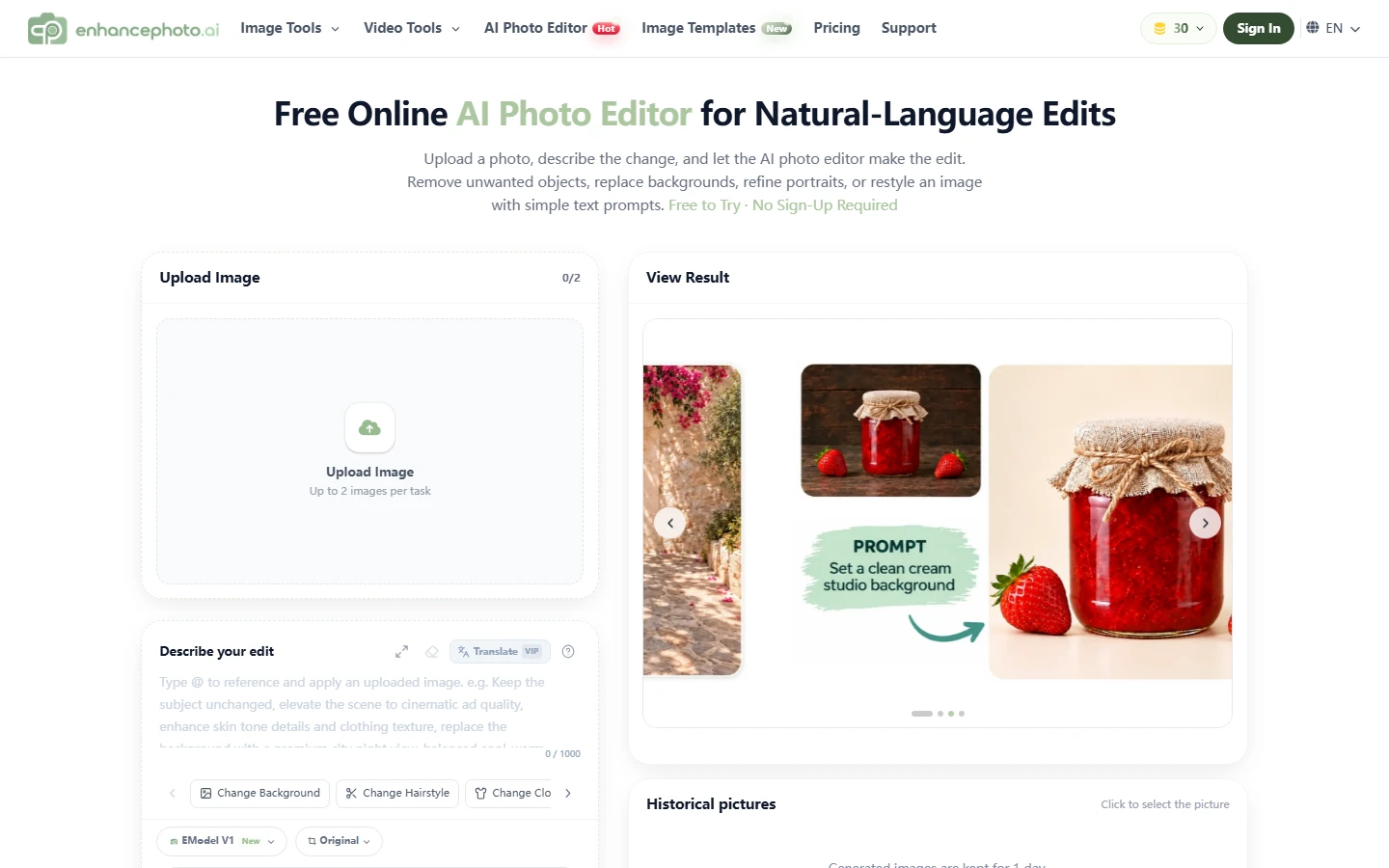
For example, EnhancePhoto.ai combines a browser-based AI Photo Editor with focused tools for image enhancement, object removal, image upscaling, and photo restoration. The site says users can start with daily free credits without creating an account, while optional paid credits are available for additional use.
This category is broad. Some online editors focus on one-click quality improvement, while others support generative filling, background replacement, or prompt-driven transformations. The common advantage is low-friction access, not identical capability.
Adobe AI Assisted Editor vs Online AI Photo Editors
| Comparison point | Adobe assisted mode | Typical online AI photo editor |
|---|---|---|
| Access | Runs inside the Photoshop desktop application | Runs in a browser |
| Starting workflow | Open or import a file, then use an assisted editing mode | Upload an image and choose a task or enter a prompt |
| Professional handoff | Can continue into Photoshop Pro Editor | Usually exports a finished image rather than a layered Photoshop document |
| Precision | Benefits from Photoshop's broader editing environment | Optimized for speed and simpler controls |
| Learning curve | Simpler than full Photoshop, but still connected to a professional application | Usually designed for occasional or first-time users |
| Payment model | Eligible subscription plus feature-dependent generative credits | Often free credits, subscriptions, or pay-as-needed credits |
| Best use | Projects that may need AI plus masks, layers, typography, or compositing | Social posts, product photos, portraits, old photos, and quick content preparation |
The table is a workflow comparison, not a universal rule. Individual online editors differ, and Adobe is continuing to change the Beta.
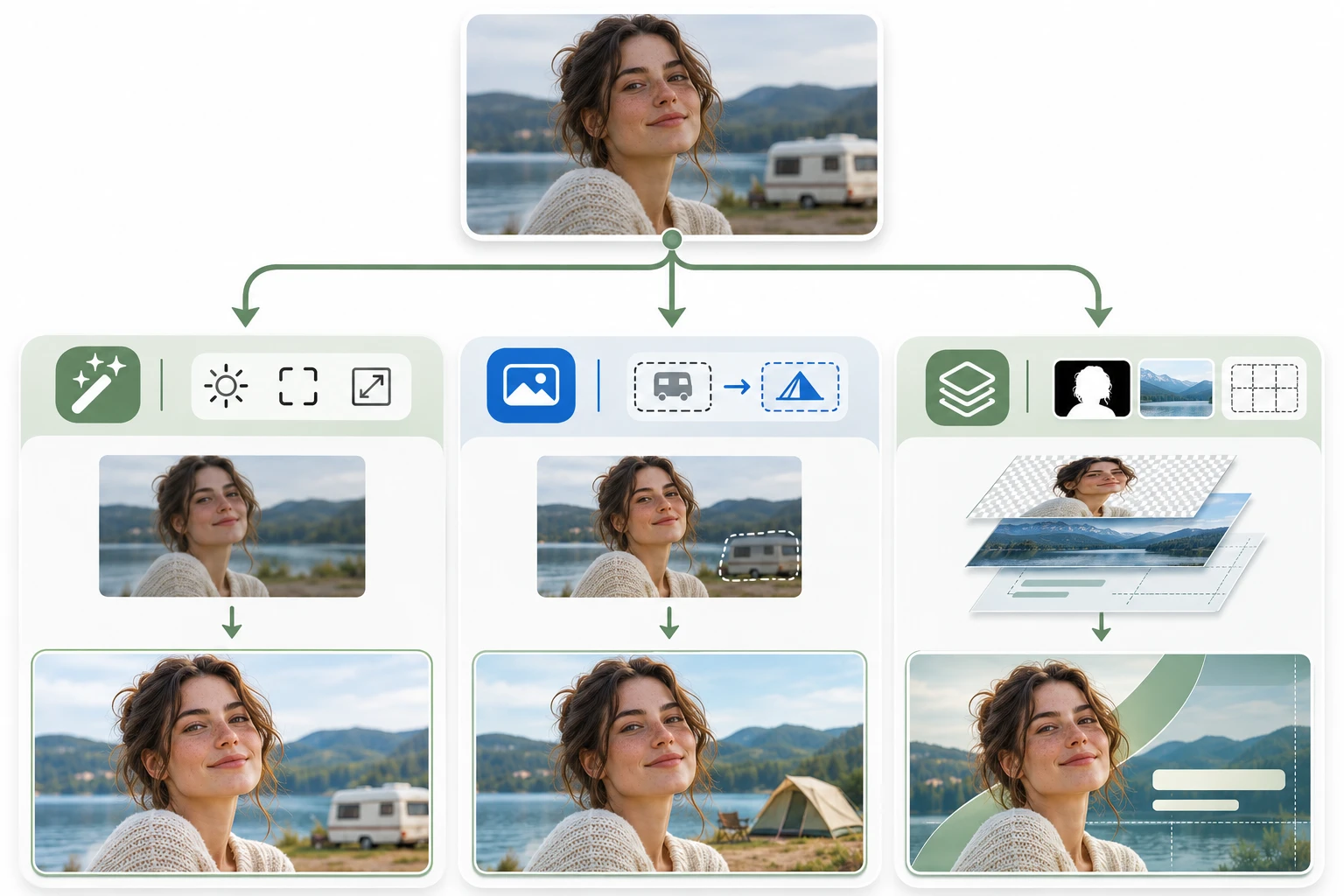
1. Quick Quality Fixes
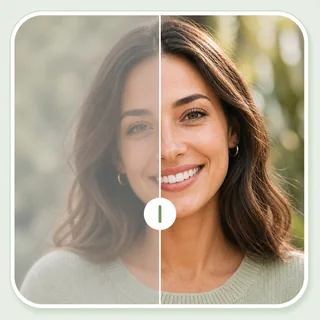
Use a focused enhancer when the subject and composition are already correct but the file looks soft, noisy, dull, or poorly lit. These tasks do not always require generative editing.
EnhancePhoto.ai's Image Enhancer is designed around clarity, color, light, contrast, and texture improvements. Its Image Upscaler is a more specific choice when the main problem is insufficient resolution. Keeping these tasks separate helps avoid changing content that only needed better presentation.

Adobe is moving in a similar direction with its broader AI workflow. At Adobe MAX on November 10, 2026, the company described Wonder 4 as combining upscaling, denoising, deblurring, and sharpening in a unified model. That release reflects a wider shift toward diagnosing several quality problems in one workflow, even though Adobe and browser tools package the experience differently. See Adobe's MAX 2026 Creative Cloud update for the original announcement.
2. Prompt-Based Scene Changes
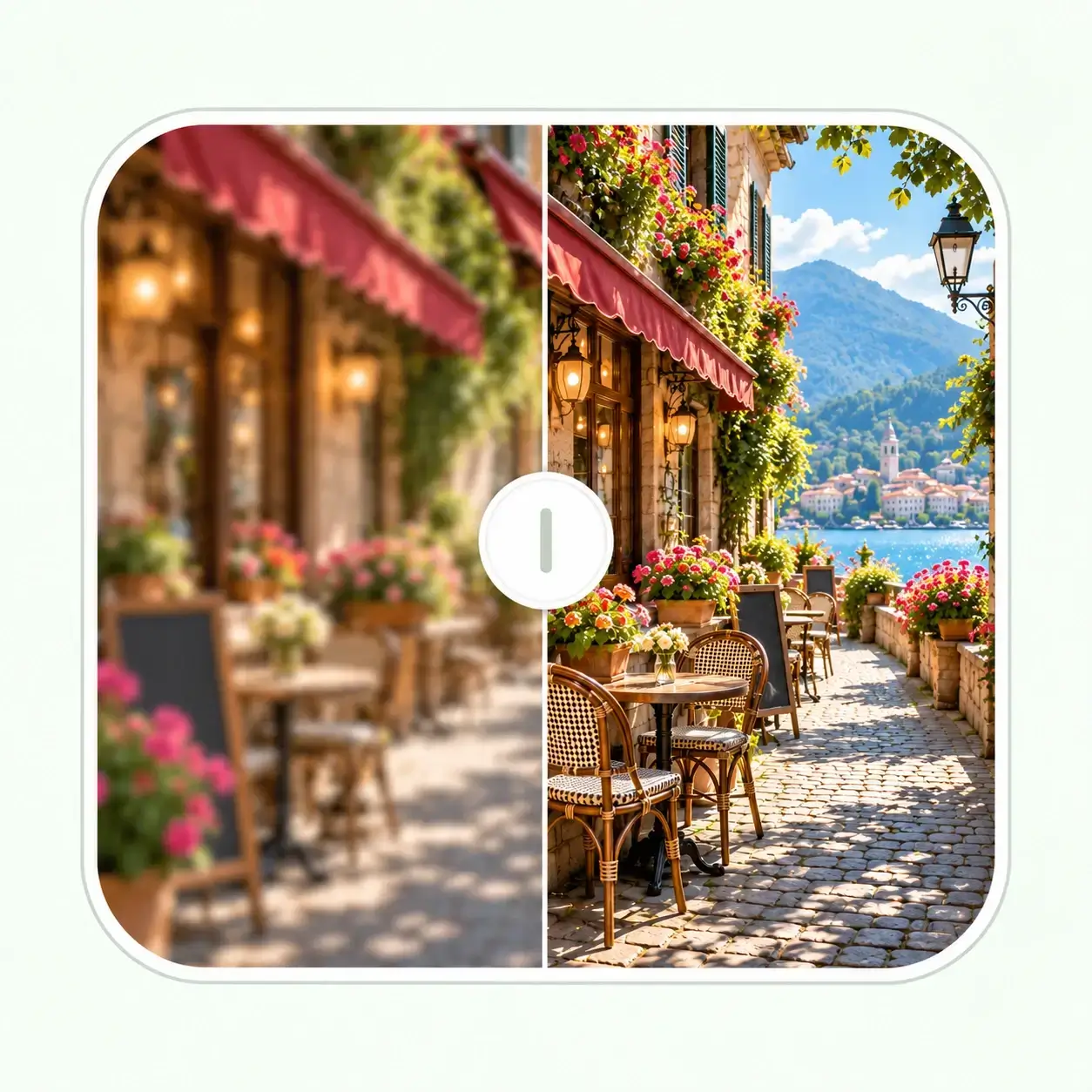
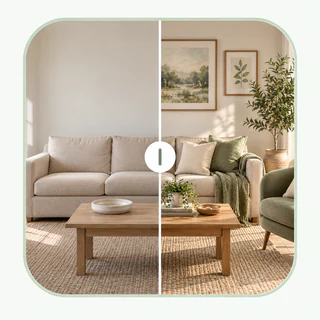
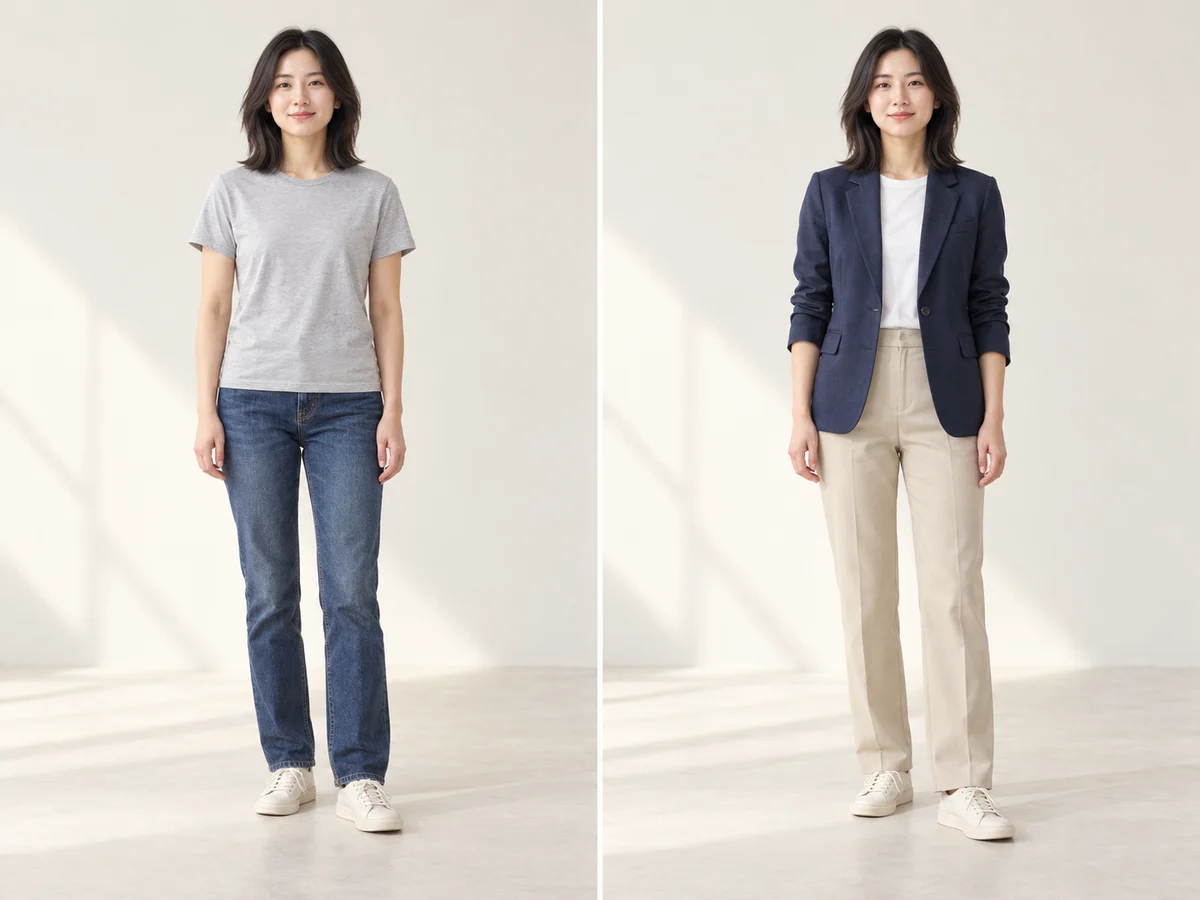
Adobe's assisted mode makes more sense when the requested change alters the content or structure of the image. Examples include replacing an object, extending a canvas, changing the visual style, or combining a prompt with a marked region.
Online editors can perform many of the same high-level tasks, but the workflow is usually narrower. A browser editor may let you replace the background or remove an object without requiring the user to understand selections, layers, or masks. That simplicity is valuable when the output is a single image rather than an editable production document.
The practical question is: Will this edit need a second round of detailed manual control? If yes, Adobe's connection to Pro Editor becomes more useful. If no, a browser workflow may finish the job faster.
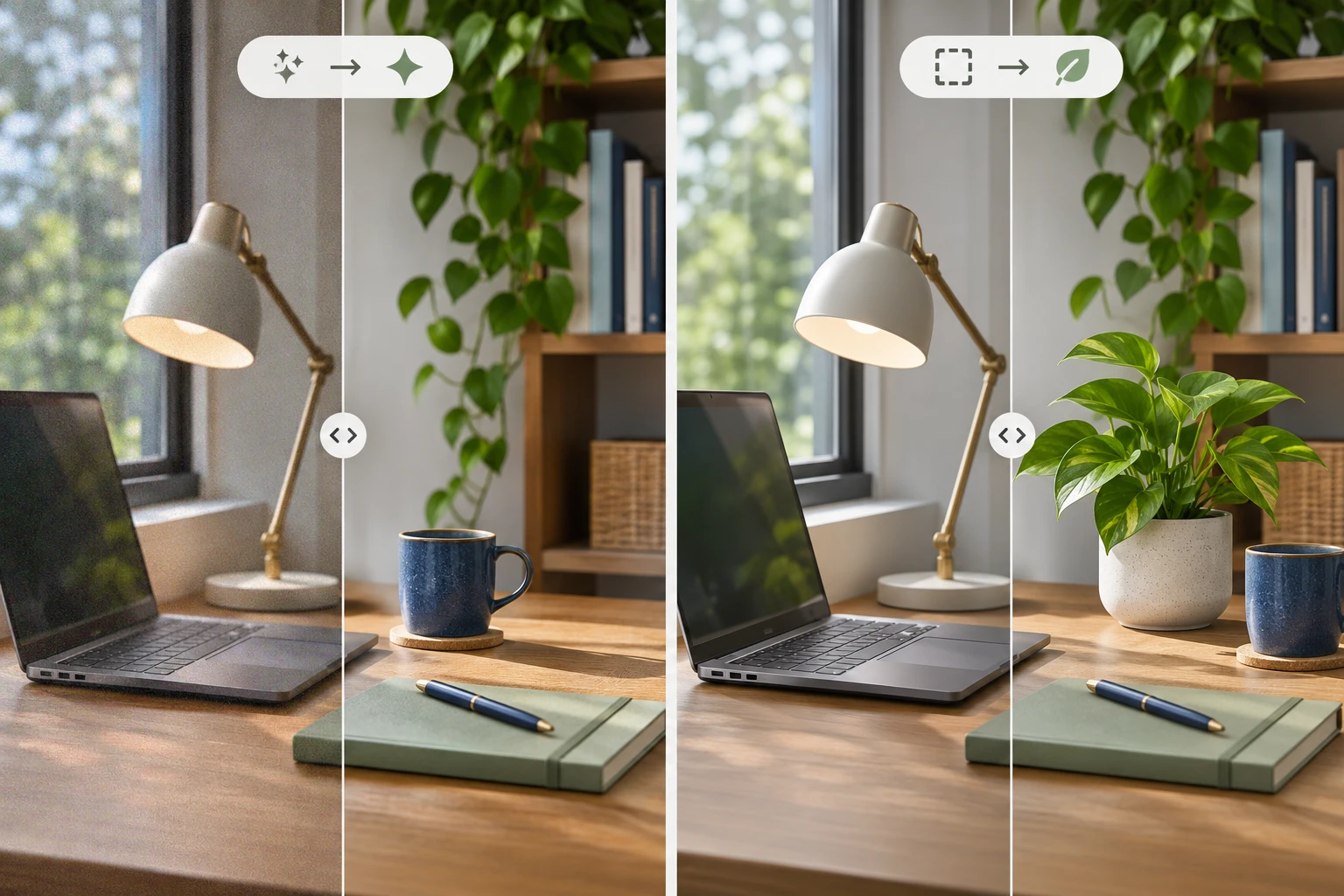
3. Object Removal and Cleanup
Simple object removal is a strong use case for both categories. The difference appears when the unwanted object interacts with shadows, reflections, textures, or nearby elements.
Adobe's November 2026 updates emphasize removing related visual elements along with the selected object. That can be useful in complex scenes where deleting the main object alone leaves evidence behind.
For everyday cleanup, a focused online object remover can be enough for photobombers, street clutter, small product-photo distractions, or background objects. Review the result at full size, especially around hair, repeating patterns, glass, text, hands, and hard edges. Those areas can expose reconstruction errors in any generative editor.

4. Layers, Masks, and Continued Design Work
This is the clearest advantage of Adobe's workflow. A Photoshop user can start with an assisted edit and continue into a deeper environment for compositing, typography, masking, and color work.
Online AI photo editors generally prioritize a finished visual over a reusable layered document. That is an advantage when speed matters, but a limitation when a creative team needs to revise individual elements later.
Choose Adobe when the edited photo will become part of an advertisement, campaign layout, packaging file, or multi-layer composition. Choose an online editor when the photo itself is the deliverable.
5. Access, Cost, and Editing Frequency
The Adobe Beta requires access to the relevant Photoshop experience and an eligible subscription. Some operations use generative credits, and Adobe documents different credit costs for different features or partner models.
Browser editors typically reduce the initial commitment. EnhancePhoto.ai says it offers daily free credits without requiring account creation, making it suitable for testing a workflow or completing an occasional edit. Frequent users should still compare current credit limits, export requirements, commercial-use terms, and privacy policies before committing to any service.
Avoid comparing tools only by the word "free." A workflow that requires repeated retries, manual cleanup, or migration into another editor may cost more time than a paid tool that fits the project from the start.
Which Editor Should You Choose?
Choose Adobe's assisted editor if:
- You already subscribe to Photoshop.
- The edit may continue into a layered professional document.
- You need prompts and markup alongside masks, typography, or compositing.
- You regularly move between quick AI actions and detailed manual control.
- You are comfortable reviewing generative-credit usage and Beta changes.
Choose an online AI photo editor if:
- You want to edit from a browser without installing Photoshop.
- You need one result rather than an editable layered document.
- Your main tasks are enhancement, upscaling, background changes, restoration, or object removal.
- You edit photos occasionally or want to test a workflow before subscribing.
- A short upload, prompt, review, and download process matters more than maximum control.
Use both if:
- You want to prepare source images quickly before a larger Photoshop project.
- You use a browser enhancer for clarity or resolution, then use Photoshop for layout and compositing.
- Different team members need different levels of control.
- You want a fast first pass followed by manual quality assurance.
A Practical Hybrid Workflow
You do not have to commit every task to one platform. A sensible workflow separates image-quality problems from creative changes.
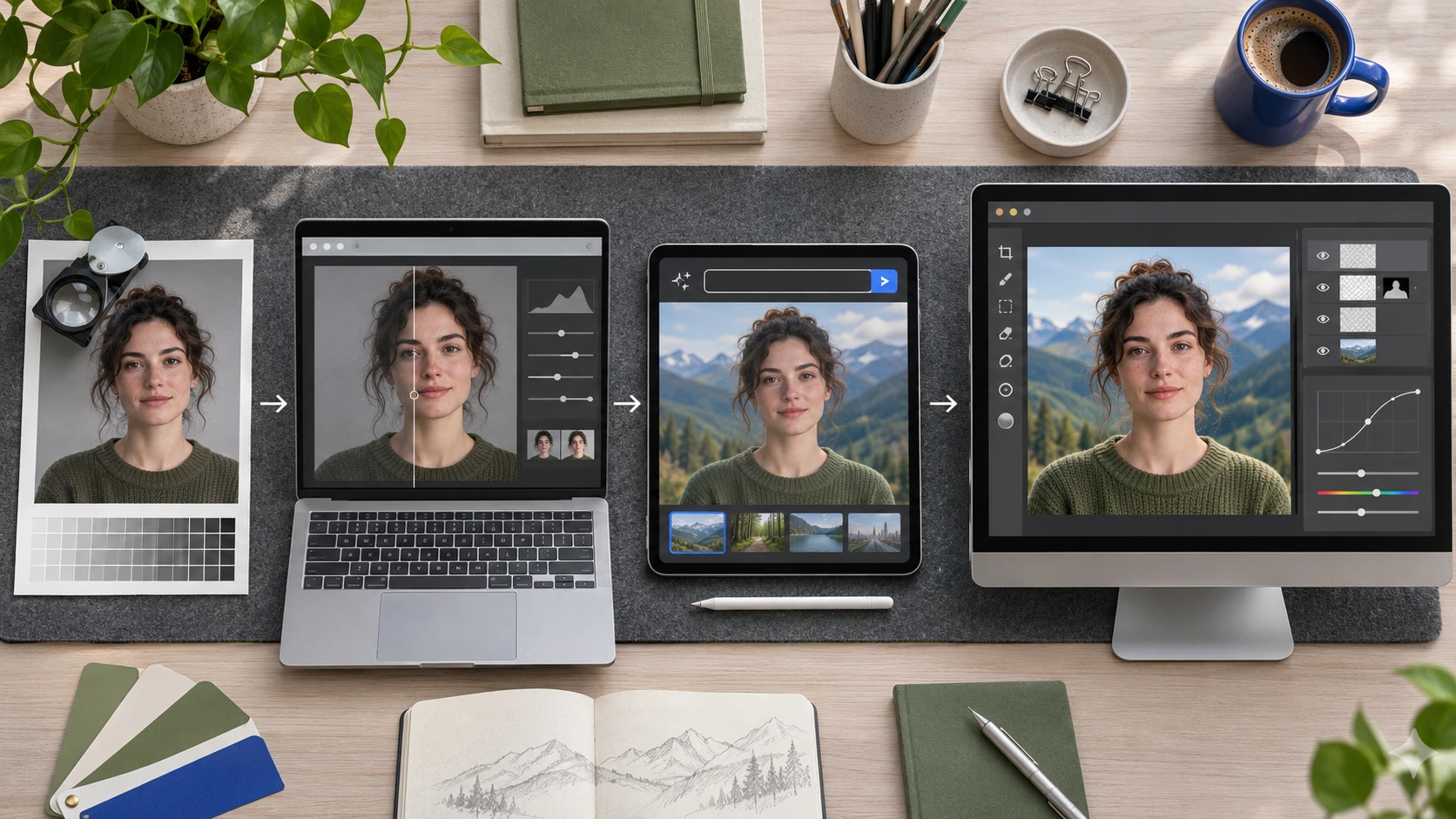
- Inspect the source. Check resolution, blur, noise, exposure, compression, and damaged areas.
- Improve the base image. Use EnhancePhoto.ai to enhance, upscale, or restore the source when the content is already correct.
- Make the creative edit. Use a prompt editor for background replacement, object changes, canvas expansion, or restyling.
- Move into professional controls when needed. Use Photoshop Pro Editor for masks, layers, typography, and detailed compositing.
- Review at final size. Inspect faces, hands, product labels, text, shadows, reflections, and repeated textures.
- Keep the original. Save a clean source and a version history so an AI change can be reversed.
This process avoids asking a generative editor to solve a quality problem that an enhancer could address more predictably. It also avoids forcing a lightweight browser editor to act like a complete production environment.
Common Comparison Mistakes

- Treating every AI edit as the same task. Enhancement, restoration, object removal, and scene generation solve different problems.
- Assuming a longer feature list means a faster workflow. The best editor is the one that exposes the controls required for the current job.
- Ignoring the next step. A finished social image and a layered campaign file have different production requirements.
- Comparing headline prices without credit rules. Check which actions consume credits and how frequently you edit.
- Skipping full-size review. Small previews can hide halos, texture repetition, malformed text, and inconsistent shadows.
- Calling documentation a performance test. Published feature lists show what a tool is designed to do, not which service will win on every source image.
Final Verdict
Adobe AI Assisted Editor is the better fit when prompt-based editing needs to remain connected to Photoshop's professional workflow. It reduces the effort required to begin an edit but still offers a route into deeper controls.
Online AI photo editors are better suited to fast, focused work: improving a photo, removing a distraction, changing a background, restoring an old image, or preparing a visual for social media without opening a full desktop production environment.
For many users, the most efficient answer is not Adobe or browser editing exclusively. Use focused tools to improve the source, prompt-based tools to change the content, and professional tools only when the project genuinely needs their depth.
Frequently Asked Questions
Is Adobe AI Assisted Editor the same as Photoshop AI Assistant?
No. AI Assisted Editor is a simplified editing mode built around prompts, markup, and guided tools. Adobe also uses the name AI Assistant for conversational agents in its creative applications. The names are related, but they describe different interfaces and workflows.
Is Adobe AI Assisted Editor free?
Adobe currently describes it as a Beta for eligible Creative Cloud subscribers. Features may consume different amounts of generative credits. Check Adobe's current plan, regional availability, and credit documentation before use.
Can an online AI photo editor replace Photoshop?
It can replace Photoshop for many quick, single-image tasks, including enhancement, background changes, object removal, and upscaling. It is less likely to replace Photoshop when a project requires reusable layers, precise masks, advanced compositing, typography, or production color control.
Should I enhance a photo before using a prompt editor?
Enhance first when the source is blurry, noisy, poorly exposed, damaged, or too small. A cleaner source can make later editing easier to judge. Keep the original file and avoid aggressive enhancement that removes natural texture.
Which option is better for beginners?
An online AI photo editor usually has the lowest setup burden. Adobe's assisted mode is also designed to simplify Photoshop, but it still sits inside a subscription desktop application and is most valuable when the user may need Photoshop's deeper controls later.